1. Introduction
Welcome to the Smart Tech 43FW01V Full HD Smart TV user manual. This guide will help you set up, operate, and maintain your new television. The Smart Tech 43FW01V offers a 43-inch Full HD (1920 x 1080) display, powered by WebOS for a fluid and intuitive smart TV experience. Enjoy pre-installed applications like Netflix, YouTube, and Prime Video, along with immersive Dolby Audio sound.

Figure 1: Smart Tech 43FW01V Full HD Smart TV
This television is designed to integrate seamlessly into your living space, providing high-quality entertainment with advanced connectivity options.
2. What's in the Box
Before you begin, please check the contents of your package. The following items should be included:
- Smart Tech 43FW01V Full HD Smart TV
- Power cable
- Remote Control
- TV Stand (2 pieces) and Screws
- User Manual (this document)
3. Setup
3.1. Attaching the TV Stand
- Carefully place the TV screen-down on a soft, clean surface to prevent scratches.
- Align the stand pieces with the corresponding slots on the bottom of the TV.
- Secure the stand using the provided screws. Ensure they are tightened firmly.
3.2. Connecting Power
Plug the power cable into the TV's power input, then plug the other end into a wall outlet. Ensure the power outlet is easily accessible.
3.3. Connecting External Devices
Your Smart Tech TV offers comprehensive connectivity. Refer to the image below for port locations.

Figure 2: Rear Panel Connectors
- HDMI Ports (x3): Connect Blu-ray players, game consoles, or set-top boxes.
- USB Ports (x2): Connect USB drives for media playback or software updates.
- Ethernet (RJ45): For a wired internet connection.
- Optical Audio Output: Connect to a soundbar or home theater system for digital audio.
- AV Input: For older devices using composite video and stereo audio.
- Antenna/Cable Input (DVB-T2/DVB-S2): Connect your antenna or satellite dish.
- CI Slot: For Conditional Access Modules (CAMs) to decrypt pay-TV channels.
- Earphone Jack: For connecting headphones.
3.4. Initial Power On and Network Setup
After connecting power, press the power button on the remote control or the TV. The TV will guide you through the initial setup process, including language selection, channel scanning, and network configuration (Wi-Fi or Ethernet). Follow the on-screen prompts to complete the setup.
4. Operating the TV
4.1. Remote Control Functions
The remote control provides full control over your Smart Tech TV. Familiarize yourself with its buttons for easy navigation.
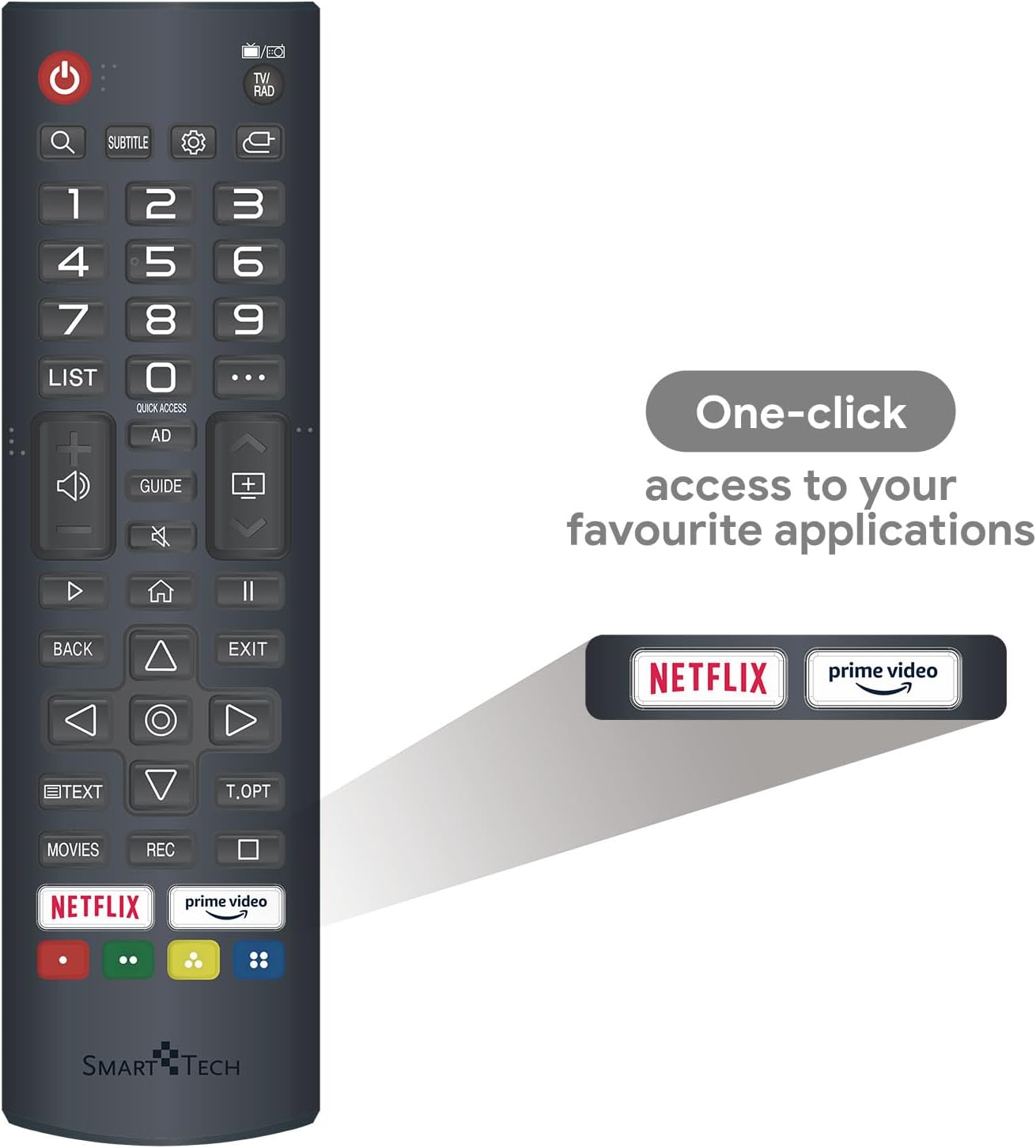
Figure 3: Remote Control Layout
- Power Button: Turns the TV on or off.
- Number Buttons (0-9): Directly select channels.
- Volume Up/Down: Adjusts the volume level.
- Channel Up/Down: Changes TV channels.
- Navigation Pad (Up/Down/Left/Right/OK): Navigates menus and selects options.
- Back/Exit: Returns to the previous screen or exits the current menu.
- Home Button: Accesses the WebOS Smart TV home screen.
- Quick Access Buttons: Dedicated buttons for Netflix and Prime Video for instant access.
4.2. Smart TV Features (WebOS)
Your Smart Tech TV runs on WebOS, providing a user-friendly interface for accessing various smart features and applications.
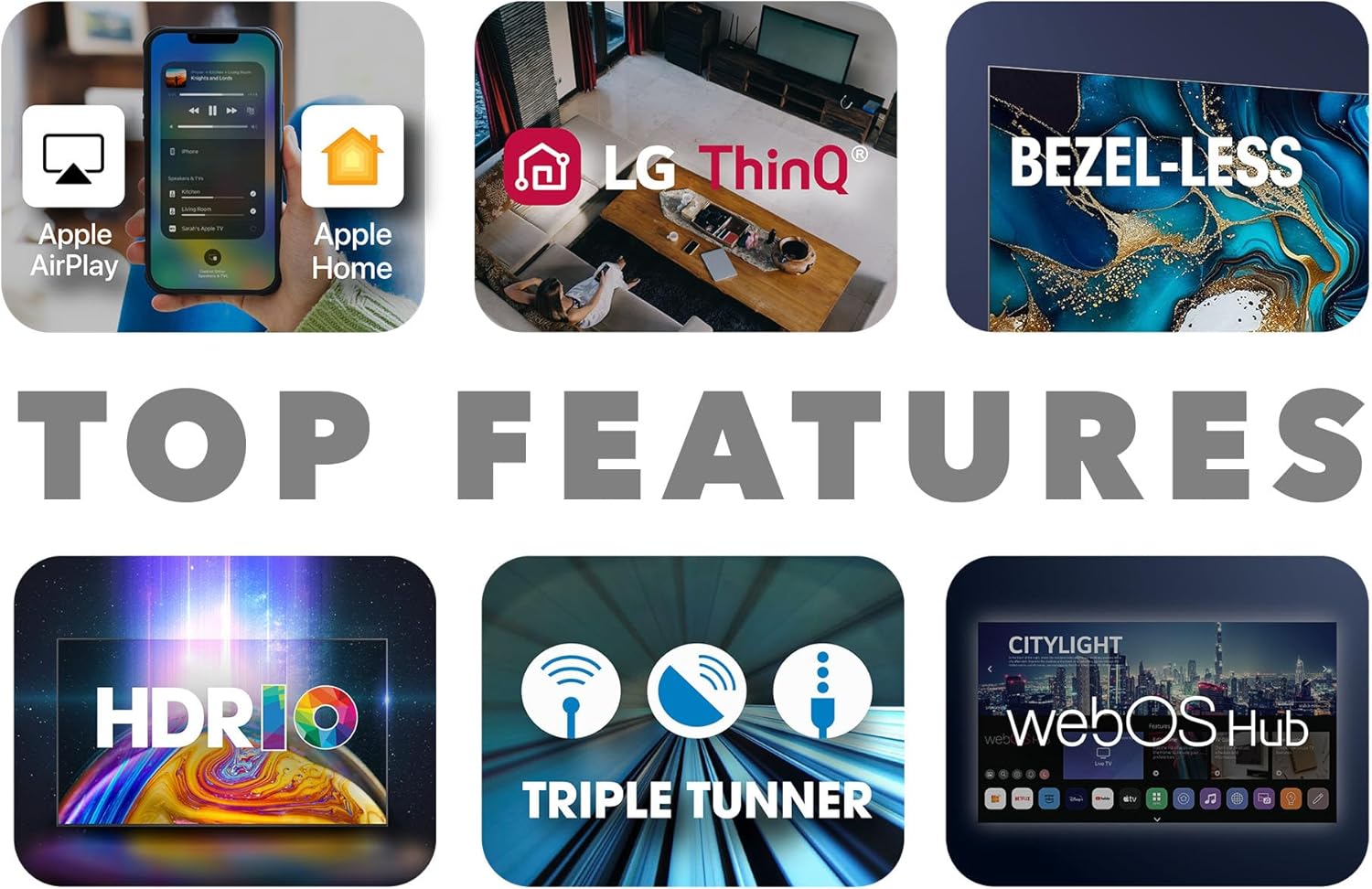
Figure 4: Key Smart TV Features
- Home Dashboard: Press the Home button on your remote to access the launcher bar, which displays your favorite apps, inputs, and settings.
- Pre-installed Apps: Directly access Netflix, YouTube, and Prime Video.
- App Store: Download additional applications from the WebOS Content Store.
- Chromecast Built-in: Wirelessly cast content from your compatible smartphone, tablet, or computer to the TV.
- LG ThinQ / Apple AirPlay / Apple Home: Integrate your TV into your smart home ecosystem for enhanced control and content sharing.
4.3. Input Selection
To switch between connected devices (e.g., HDMI 1, USB, TV tuner), press the 'Input' or 'Source' button on your remote control. A menu will appear, allowing you to select the desired input.
5. Maintenance
Proper maintenance ensures the longevity and optimal performance of your Smart Tech TV.
- Cleaning the Screen: Use a soft, lint-free cloth specifically designed for electronics. Do not use abrasive cleaners or sprays directly on the screen. Lightly dampen the cloth with water if necessary.
- Cleaning the Cabinet: Wipe the TV cabinet with a soft, dry cloth.
- Ventilation: Ensure the ventilation openings on the back of the TV are not blocked to prevent overheating.
- Software Updates: Periodically check for software updates via the TV's settings menu to ensure you have the latest features and bug fixes.
- Power Off When Not in Use: For extended periods of inactivity, it is recommended to unplug the TV from the power outlet.
6. Troubleshooting
If you encounter any issues with your TV, refer to the following common problems and solutions:
| Problem | Possible Cause | Solution |
|---|---|---|
| No Power | Power cable disconnected; Power outlet issue. | Check if the power cable is securely connected to the TV and the wall outlet. Try a different outlet. |
| No Picture, but Sound is Present | Incorrect input source; Loose HDMI cable. | Press the 'Input' button on the remote to select the correct source. Check HDMI cable connections. |
| No Sound, but Picture is Present | Volume muted or too low; External audio system issue. | Unmute the TV or increase volume. Check audio settings and external audio connections. |
| Remote Control Not Working | Dead batteries; Obstruction between remote and TV. | Replace batteries. Ensure no objects are blocking the remote's signal to the TV's IR receiver. |
| Cannot Connect to Wi-Fi | Incorrect password; Router issue; Signal interference. | Double-check Wi-Fi password. Restart your router. Move TV closer to router or reduce interference. |
If the problem persists after trying these solutions, please contact customer support.
7. Specifications
Detailed technical specifications for the Smart Tech 43FW01V TV:
| Feature | Specification |
|---|---|
| Brand | Smart Tech |
| Model Number | 43FW01V |
| Screen Size | 43 Inches (108 cm) |
| Display Technology | LED |
| Resolution | Full HD (1920 x 1080p) |
| Refresh Rate | 60 Hz |
| Operating System | WebOS |
| Audio | Dolby Audio, 2 x 8W Speakers |
| Connectivity | 3 x HDMI, 2 x USB, Ethernet, Bluetooth, Optical Audio Out |
| Special Features | Chromecast Built-in, Pre-installed Apps (Netflix, YouTube, Prime Video) |
| Color | Black |
| Product Dimensions (W x H x D) | 95 cm x 58 cm x 23 cm (with stand) |
| Energy Efficiency Class | E |


Figure 6: TV Dimensions
8. Warranty and Support
Your Smart Tech 43FW01V TV comes with a manufacturer's warranty to ensure your peace of mind.
- Manufacturer's Warranty: 2 years for parts and labor.
- Spare Parts Availability: Spare parts are available for up to 11 years from the date of purchase.
For technical support, warranty claims, or any other inquiries, please contact Smart Tech customer service. Refer to the contact information provided on the product packaging or the official Smart Tech website.


