1. Introduction
This manual provides instructions for the installation, operation, and maintenance of your DigitPro PCIE Video Capture Card. This device is designed to capture video and audio signals from various sources, including gaming consoles and legacy devices, for streaming, recording, or archiving on your computer.
2. Product Overview
The DigitPro PCIE Video Capture Card is an internal component that installs into a PCI Express slot on your computer's motherboard. It features multiple input ports for connecting external video and audio sources.

Figure 2.1: DigitPro PCIE Video Capture Card, showing the overall design and connectors.
2.1 Component Identification
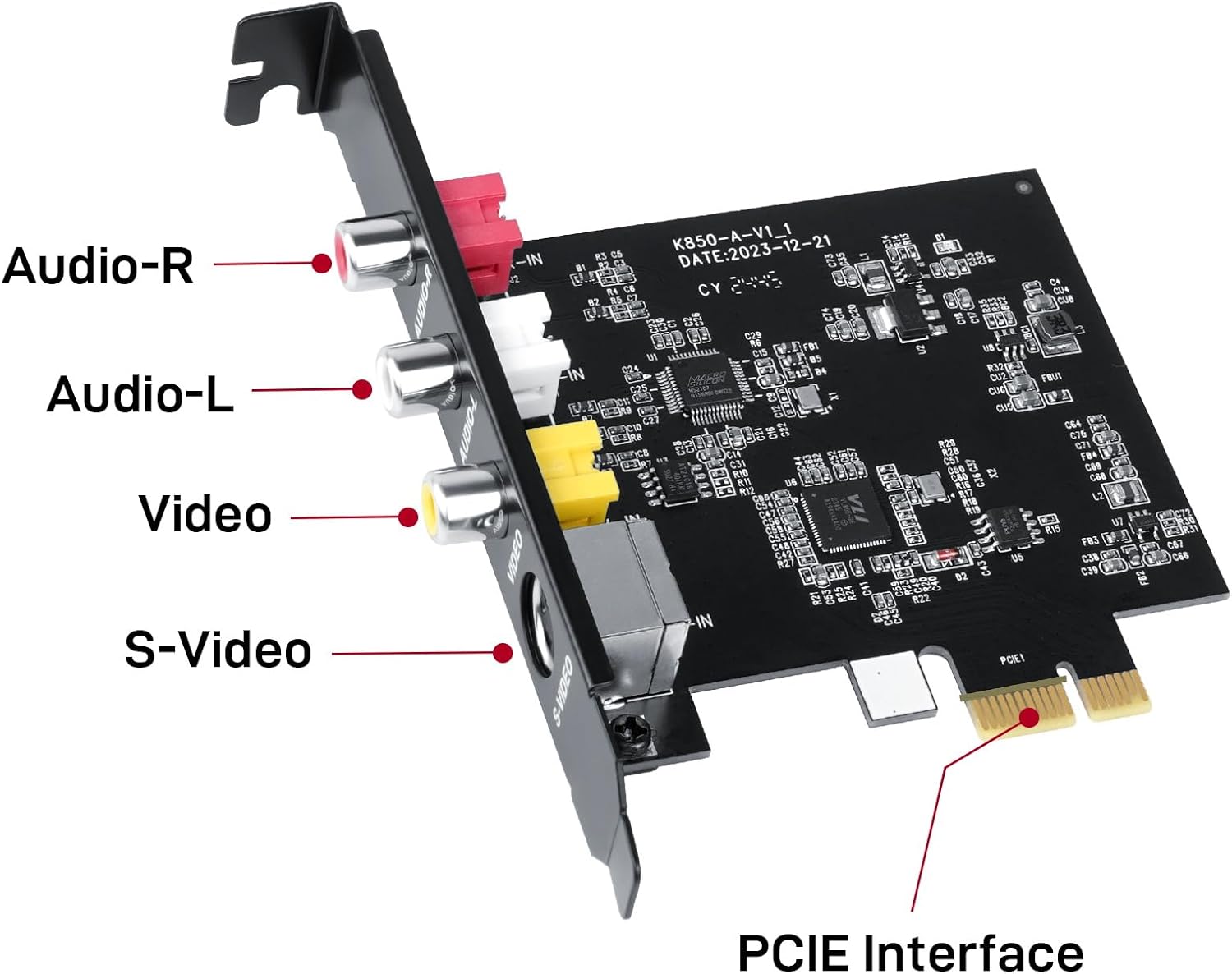
Figure 2.2: Detailed view of the capture card with labeled input ports and the PCIe interface.
- Audio-R (Red RCA): Right channel audio input.
- Audio-L (White RCA): Left channel audio input.
- Video (Yellow RCA): Composite video input (CVBS).
- S-Video: S-Video input for higher quality analog video.
- PCIE Interface: Connects the card to a PCI Express slot on the motherboard.
3. Key Features
- Video Capture & Passthrough: Supports 1080P@30Hz (MJPEG) and 720×576@25Hz (YUV422) for capturing and passthrough.
- Plug & Play: No additional drivers or external power supply required for operation.
- Ultra-Low Latency: Designed for minimal delay during passthrough, suitable for live streaming and interactive applications.
- Wide Software Compatibility: Works with popular streaming and recording software such as OBS, VLC, and Amcap.
- Operating System Support: Compatible with Windows 8, 10, 11, and Linux systems.
- Legacy Device Support: Ideal for capturing content from classic gaming consoles (e.g., PlayStation, N64, Sega Genesis), VCRs, camcorders, and other analog video sources supporting NTSC/PAL signals.
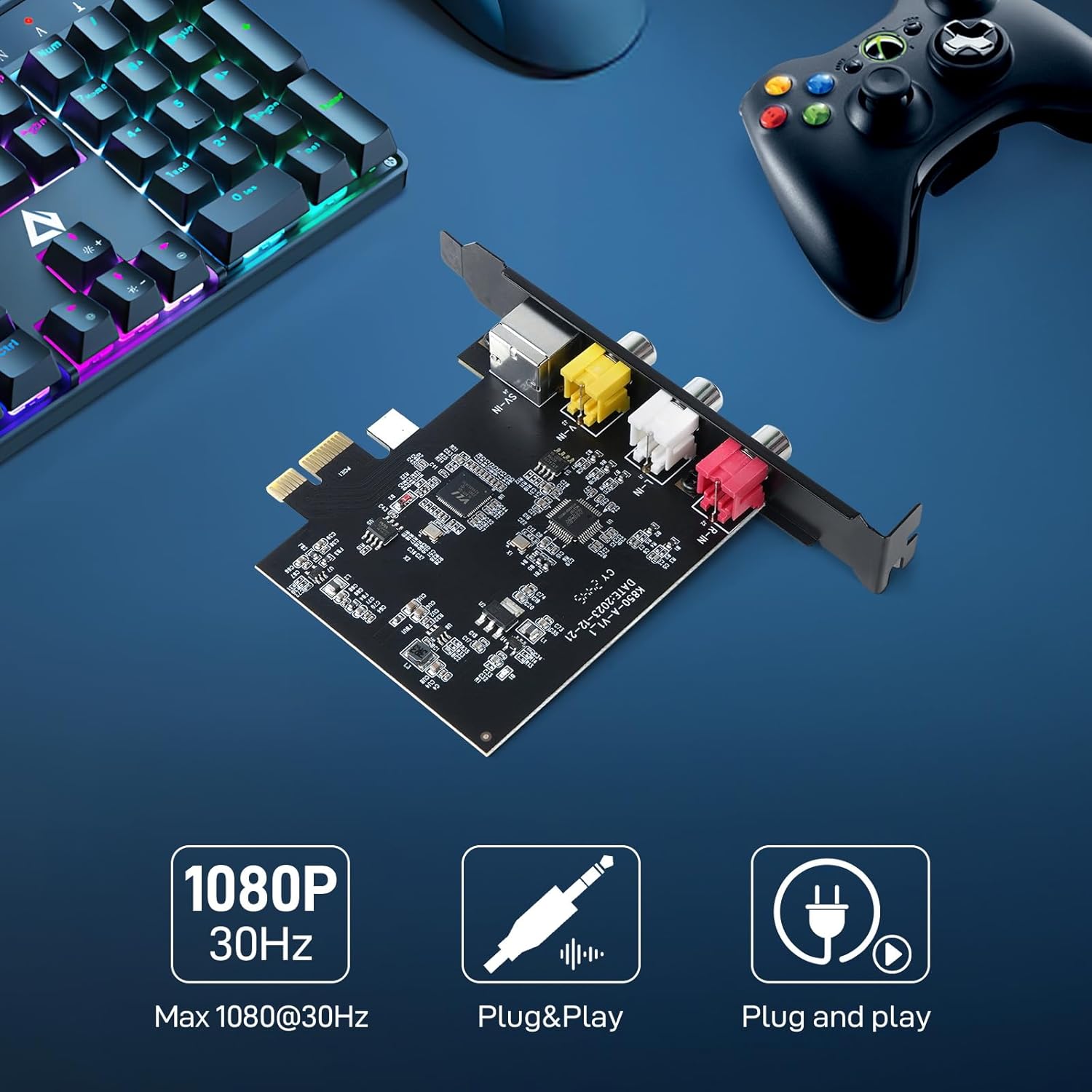
Figure 3.1: Visual representation of key features: 1080P@30Hz capture and Plug & Play functionality.
4. Setup Instructions
Follow these steps to install the DigitPro PCIE Video Capture Card into your computer:
- Power Off Computer: Ensure your computer is completely shut down and disconnected from the power source.
- Open Computer Case: Remove the side panel of your computer case to access the motherboard.
- Locate PCIe Slot: Identify an available PCI Express slot on your motherboard. The card requires a standard PCIe x1 slot or larger.
- Insert Capture Card: Carefully align the capture card with the chosen PCIe slot and press down firmly until it is securely seated. Ensure the metal bracket is aligned with the case opening.
- Secure Card: Fasten the card's metal bracket to the computer case with a screw, if applicable, to prevent movement.
- Close Computer Case: Reattach the side panel of your computer case.
- Power On Computer: Reconnect the power cable and turn on your computer. The operating system (Windows 8/10/11 or Linux) should automatically detect and install the necessary drivers.
4.1 Connecting Devices
Once the card is installed, connect your video and audio sources to the appropriate input ports on the capture card.

Figure 4.1: Connection diagram illustrating how to connect various source devices (e.g., PlayStation, Nintendo64, Sega Genesis, DVR/VHS/VCR, Old/HD DVD Player) to the capture card, which then connects to your PC.
- For composite video, connect the yellow RCA cable to the "Video" input, and the red/white RCA cables to "Audio-R" and "Audio-L" respectively.
- For S-Video, connect the S-Video cable to the "S-Video" input, and the red/white RCA cables to "Audio-R" and "Audio-L" for audio.
5. Operating Instructions
After physical installation and device connection, you can begin using the capture card with compatible software.
5.1 Software Compatibility
The DigitPro PCIE Video Capture Card is compatible with various streaming and recording applications.

Figure 5.1: The capture card supports popular software like OBS, VLC, Amcap, and Prism for streaming and recording.
5.2 Basic Usage with OBS Studio (Example)
- Launch OBS Studio: Open the OBS Studio application on your computer.
- Add Video Capture Device: In the "Sources" panel, click the "+" icon and select "Video Capture Device".
- Create New Source: Choose to create a new source and give it a descriptive name (e.g., "Game Console Capture").
- Select Device: In the properties window, select your DigitPro capture card from the "Device" dropdown list. It may appear as "USB2.0 Capture" or similar.
- Configure Video Settings:
- Set "Resolution/FPS Type" to "Custom".
- Set "Resolution" to 1920x1080 or 720x576, depending on your source and desired output.
- Set "FPS" to 30 or 25, matching your source.
- Set "Video Format" to MJPEG or YUV422 as appropriate.
- Configure Audio Settings:
- Under "Audio Output Mode", select "Output desktop audio (WaveOut)".
- Select the audio device associated with your capture card.
- Preview and Adjust: You should now see the video feed from your connected device in OBS. Adjust the scene layout and audio levels as needed.
- Start Streaming/Recording: Use the "Start Streaming" or "Start Recording" buttons in OBS Studio to begin your broadcast or capture session.
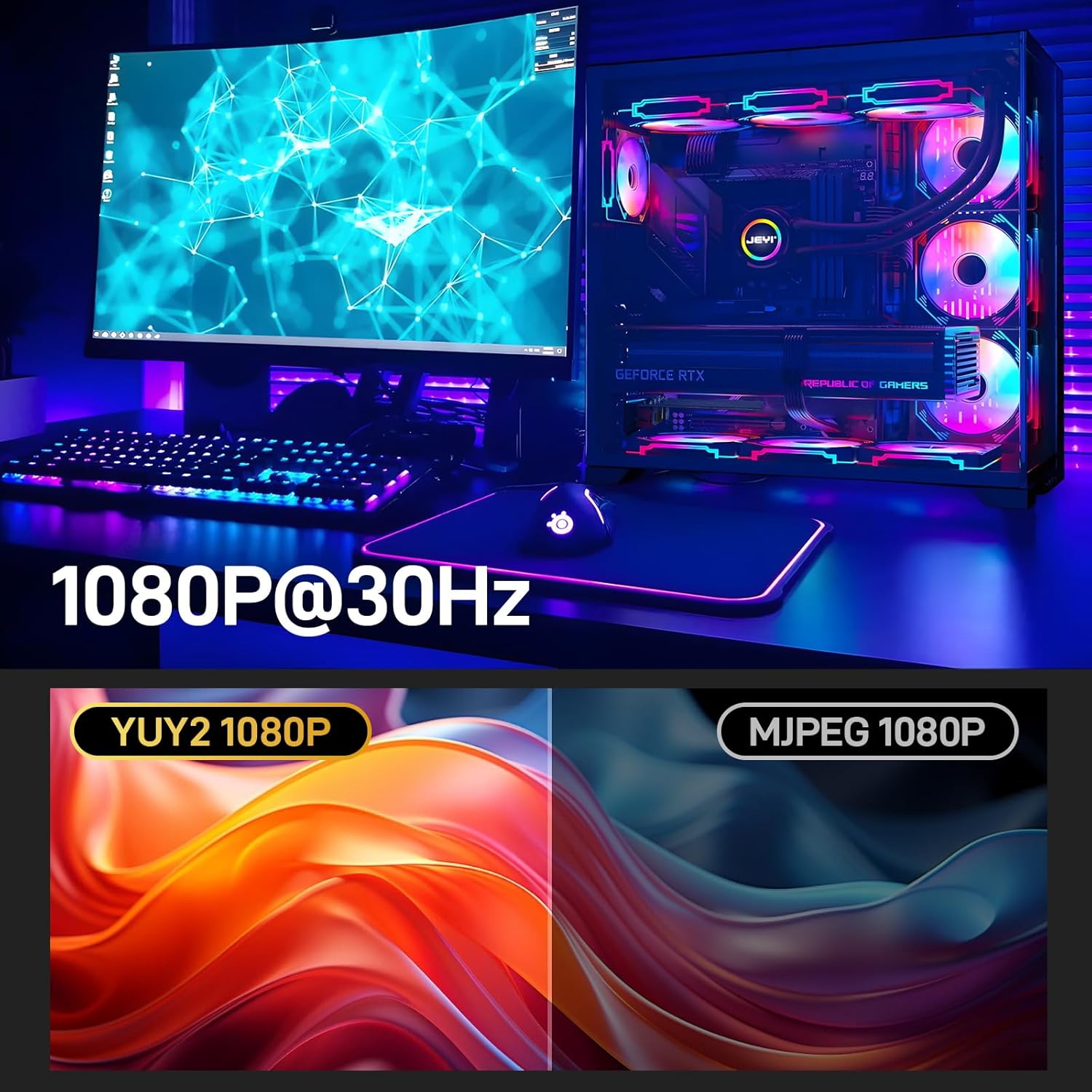
Figure 5.2: The capture card supports 1080P@30Hz resolution, with options for different video formats like MJPEG for efficient capture.
5.3 CVBS & S-Video Input
The card supports both Composite Video (CVBS) and S-Video input formats, offering flexibility for connecting a wide range of video devices.
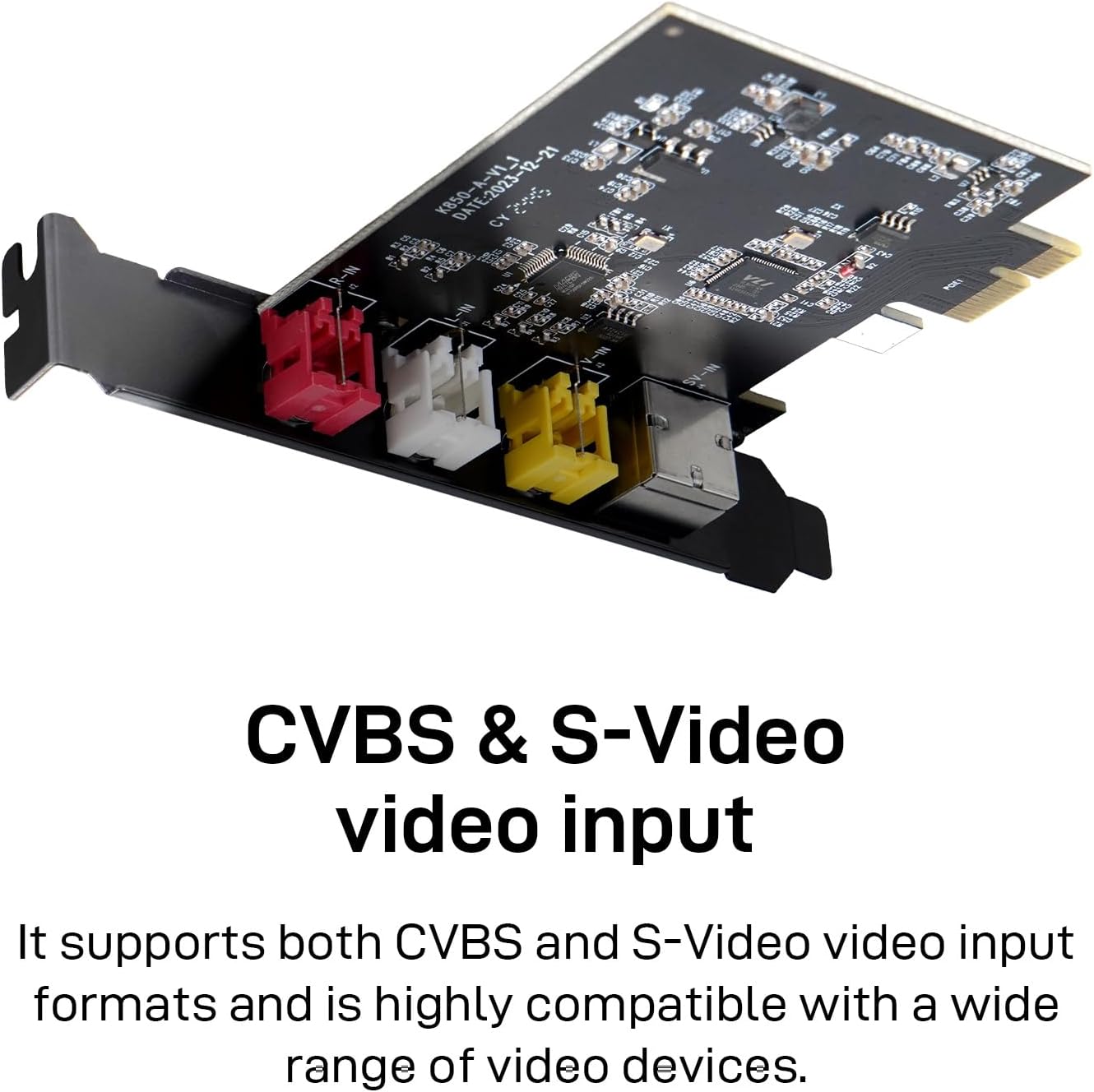
Figure 5.3: The capture card provides both CVBS (Composite Video) and S-Video inputs for broad compatibility with analog video sources.
6. Maintenance
To ensure the longevity and optimal performance of your DigitPro PCIE Video Capture Card, consider the following maintenance guidelines:
- Keep Clean: Periodically clean the exterior of your computer case and ensure good airflow to prevent dust buildup on internal components, including the capture card. Use compressed air to gently remove dust from the card's surface.
- Avoid Physical Damage: Handle the card carefully during installation and avoid bending or stressing the PCB or connectors.
- Environmental Conditions: Operate the computer in a well-ventilated area with stable temperature and humidity to prevent overheating or moisture damage.
- Software Updates: Keep your operating system and capture software (e.g., OBS Studio) updated to the latest versions to ensure compatibility and access to performance improvements.
7. Troubleshooting
If you encounter issues with your DigitPro PCIE Video Capture Card, refer to the following common troubleshooting steps:
- No Video Signal:
- Ensure all cables (video and audio) are securely connected to both the source device and the capture card.
- Verify that the source device is powered on and outputting a signal.
- Check the input selection in your capture software (e.g., OBS Studio) to ensure the correct device and input type (Composite or S-Video) are selected.
- Test with a different video source or cable if possible.
- No Audio Signal:
- Confirm audio cables are correctly connected to the "Audio-R" and "Audio-L" inputs.
- Check audio settings in your capture software. Ensure the correct audio input device is selected and its volume is not muted or too low.
- Verify the audio output from your source device.
- Computer Does Not Shut Down Properly (Reboots):
- Some motherboards may supply residual power to PCIe slots even when the system is off, causing the computer to reboot instead of shutting down.
- Solution: Access your computer's BIOS/UEFI settings. Look for a "Power Management" or "ACPI Settings" section. Enable the "ErP" setting, specifically "ErP (S4+S5)" or similar. This setting instructs the motherboard to cut power to components when the system is in a low-power state (S4/S5), resolving the reboot issue.
- Software Does Not Detect Card:
- Ensure the card is properly seated in the PCIe slot.
- Restart your computer.
- Verify your operating system is up to date. While the card is plug-and-play, OS updates can sometimes resolve compatibility issues.
- Try a different PCIe slot if available.
8. Specifications
| Feature | Detail |
|---|---|
| Model | 34e82fab-311b-4441-a1c9-244389ce02eb |
| Hardware Interface | PCIe (PCI Express) |
| Video Input | Composite (RCA), S-Video |
| Audio Input | Stereo RCA (L/R) |
| Video Capture Resolution | 1080p@30Hz (MJPEG), 720x576@25Hz (YUV422) |
| Tuner Technology | NTSC, PAL |
| Operating System Support | Windows 8, Windows 10, Windows 11, Linux |
| Compatible Devices | Gaming Consoles, VCRs, Camcorders, DVD Players |
| Item Weight | 0.09 Kilograms (91 g) |
| Dimensions | 20.07 x 14.22 x 3.81 cm (Parcel Dimensions) |
9. Warranty and Support
For warranty information and technical support, please refer to the documentation provided with your purchase or contact DigitPro customer service through their official channels. Keep your proof of purchase for warranty claims.


