
ORICO M4Ultra
ORICO MiniMate M4Ultra 4TB External SSD Instruction Manual
Model: M4Ultra
1. Introduction
The ORICO MiniMate M4Ultra is an external SSD and port replicator designed to expand storage and connectivity for Mac mini M4 and other compatible devices. This device integrates dual SSDs for high-speed data processing and backup, along with multiple USB ports and a card reader. This manual provides detailed instructions for setup, operation, maintenance, and troubleshooting.
2. Safety Information
- Do not expose the device to water or excessive moisture.
- Avoid extreme temperatures. Operate within recommended environmental conditions.
- Do not attempt to disassemble or modify the device. This may void the warranty and cause damage.
- Use only the provided power adapter to prevent electrical damage.
- Keep out of reach of children.
3. Package Contents
Verify that all items are present in the package:
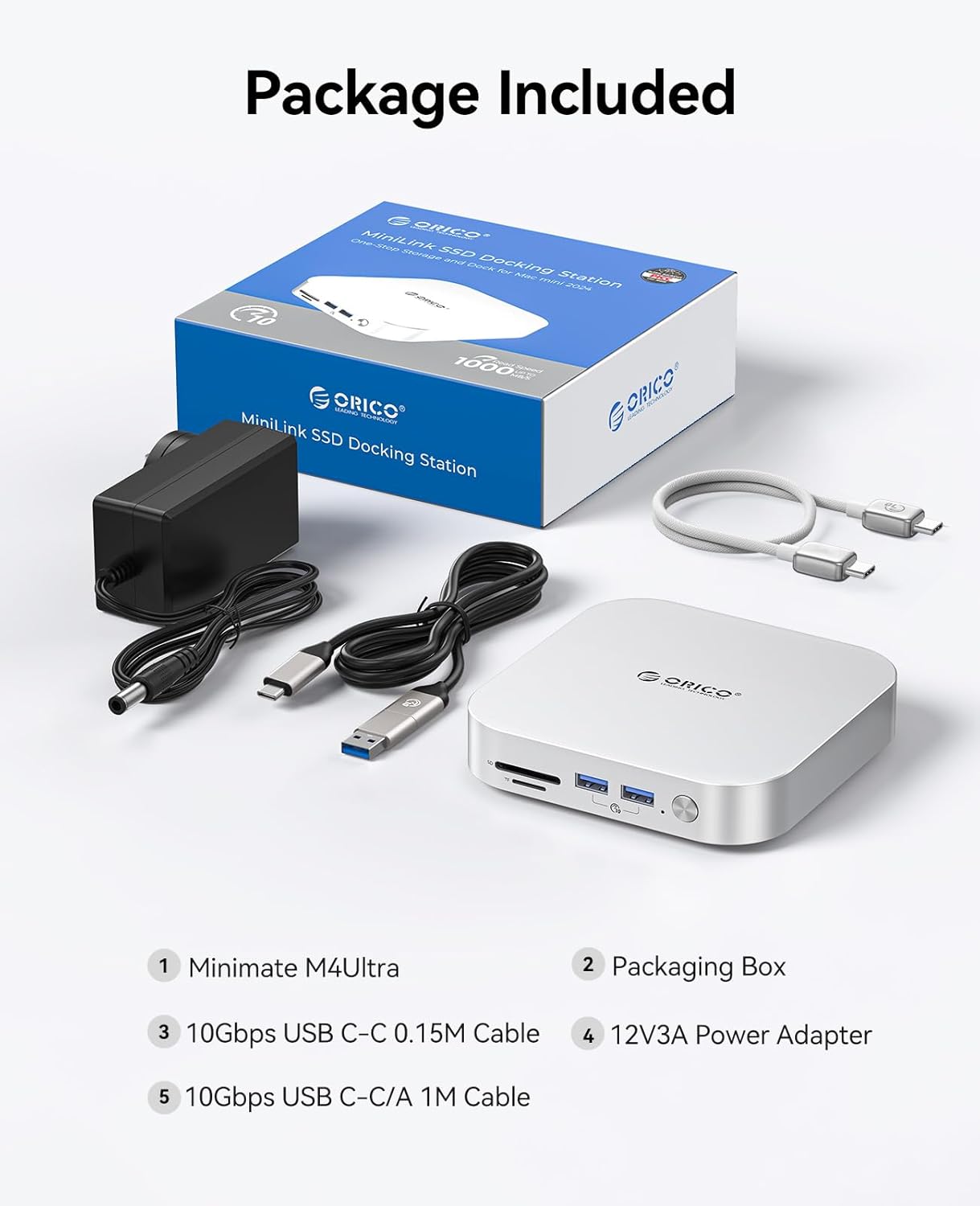
Image: Contents of the ORICO MiniMate M4Ultra package, including the device, cables, and power adapter.
- 1x ORICO MiniMate M4Ultra Device
- 1x 10Gbps USB-C to USB-C 0.15M Cable
- 1x 10Gbps USB-C to USB-A 1M Cable
- 1x 12V3A Power Adapter
- 1x Anti-slip Base
- Instruction Manual (this document)
4. Product Overview
The ORICO MiniMate M4Ultra is designed to complement the Mac mini's form factor, providing expanded storage and connectivity options.

Image: Front view of the ORICO MiniMate M4Ultra, showing its compact design and integration with a Mac mini.
4.1. Ports and Indicators
The device features various ports for data transfer, peripheral connection, and power input.

Image: Detailed diagram showing the front and back ports of the ORICO MiniMate M4Ultra.
- Front Ports:
- SD Card Slot (SD 4.0)
- TF Card Slot (TF 4.0)
- 2x USB 3.2 (10Gbps) Ports
- Power Button
- Back Ports:
- DC 12V Power Input
- 1x USB 3.2 (10Gbps) Port
- USB4 40Gbps PC IN (Connect to Mac mini)
5. Setup
5.1. Connecting to Mac mini
- Place the ORICO MiniMate M4Ultra directly beneath your Mac mini, ensuring proper alignment.
- Connect the provided USB4 40Gbps cable from the "PC IN" port on the back of the MiniMate to a Thunderbolt/USB4 port on your Mac mini.
5.2. Power Connection
Connect the 12V3A power adapter to the "DC 12V" input port on the back of the MiniMate, then plug the adapter into a power outlet.

Image: Diagram illustrating the power and data cable connections for the ORICO MiniMate M4Ultra.
5.3. Initial Setup
Once connected, the MiniMate will be recognized by your Mac mini. The integrated SSDs may require initial formatting through Disk Utility in macOS before use. Refer to Apple's documentation for instructions on using Disk Utility.
6. Operating Instructions
6.1. Storage Expansion
The MiniMate M4Ultra includes dual SSDs for expanded storage:

Image: Diagram showing the internal dual SSD configuration of the MiniMate M4Ultra, with 2TB for data processing and 2TB for backup storage.
- 2TB NVMe SSD (3200MB/s): Optimized for high-performance tasks such as 4K/8K video editing and large file processing.
- 2TB Backup SSD (1000MB/s): Suitable for general storage, backups, and less demanding applications.
6.2. Data Transfer and Hub Usage
Utilize the integrated ports for various connectivity needs:
- USB 3.2 (10Gbps) Ports: Connect external hard drives, USB flash drives, keyboards, mice, and other USB peripherals.
- SD/TF 4.0 Card Reader: Insert SD or TF (MicroSD) cards for fast data transfer from cameras or other devices.

Image: Graph illustrating data transfer speeds of various USB and Thunderbolt interfaces, highlighting the 40Gbps capability of the MiniMate M4Ultra.
6.3. System Compatibility
The ORICO MiniMate M4Ultra is certified for macOS Sonoma and compatible with Apple M-series chips (M1/M2/M3/M4). It supports plug-and-play functionality and is compatible with Apple Time Machine for system backups.

Image: Visual examples of the MiniMate M4Ultra being used in creative, coding, and gaming environments with a Mac mini.
7. Maintenance
- Cleaning: Use a soft, dry cloth to clean the exterior of the device. Do not use liquid cleaners or solvents.
- Cooling: The aerospace-grade aluminum body and thermal channels are designed for efficient heat dissipation. Ensure adequate airflow around the device and avoid blocking ventilation openings.
- Power Management: The device features a smart sleep mode that reduces power consumption by 70% when idle, contributing to energy efficiency and longevity.
- Firmware Updates: Periodically check the ORICO official website for any available firmware updates for your device. Follow the provided instructions carefully for any update procedures.
8. Troubleshooting
If you encounter issues with your ORICO MiniMate M4Ultra, refer to the following common solutions:
- Device Not Recognized:
- Ensure all cables (power and data) are securely connected.
- Try connecting the USB4 cable to a different Thunderbolt/USB4 port on your Mac mini.
- Restart your Mac mini.
- Check Disk Utility in macOS to see if the drives are detected but unformatted.
- Slow Data Transfer Speeds:
- Ensure you are using the provided 40Gbps USB4 cable for the main connection to your Mac mini.
- Verify that the connected peripherals (e.g., external drives) support the expected speeds.
- Avoid transferring many small files simultaneously, as this can impact overall speed.
- Peripherals Not Working:
- Ensure the MiniMate is powered on and properly connected to your Mac mini.
- Test the peripheral directly with your Mac mini to rule out a peripheral issue.
- Try connecting the peripheral to a different USB port on the MiniMate.
- Overheating:
- Ensure the device has adequate ventilation and is not covered.
- Avoid operating in direct sunlight or enclosed spaces.
9. Specifications
| Feature | Specification |
|---|---|
| Model Name | M4Ultra |
| Total Storage Capacity | 4 TB SSD (2TB NVMe 3200MB/s + 2TB SSD 1000MB/s) |
| Connectivity Interface | USB4 (40Gbps) |
| USB Ports | 3x USB 3.2 (10Gbps) |
| Card Reader | SD 4.0, TF 4.0 |
| Operating System Compatibility | Mac OS (Certified for macOS Sonoma, M1/M2/M3/M4 chips) |
| Power Input | DC 12V |
| Material | Aerospace-grade Aluminum |
| Item Weight | 1.5 pounds |
| Package Dimensions | 7.01 x 6.65 x 3.43 inches |
10. Warranty and Support
The ORICO MiniMate M4Ultra comes with a 3-year limited warranty from the date of purchase. This warranty covers manufacturing defects and ensures the product meets its specified performance standards under normal use.
For technical support, warranty claims, or further assistance, please contact ORICO customer service through their official website or the retailer where the product was purchased. Please have your product model and purchase information ready when contacting support.
Related documentsM4Ultra


Ask a question about this manual
Ask about setup, troubleshooting, compatibility, parts, safety, or missing instructions. Manuals+ will review the question and use this page’s manual context to help answer it.