
1. Introduction
This manual provides detailed instructions for the installation, operation, and maintenance of your WONNIE 13.3" 4K Android Headrest Monitor. Please read this manual thoroughly before using the device to ensure proper function and longevity. This portable rear entertainment system features a 13.3-inch 4K Android tablet with wireless mirror link, touch screen, WiFi, HDMI, USB, and video player capabilities.
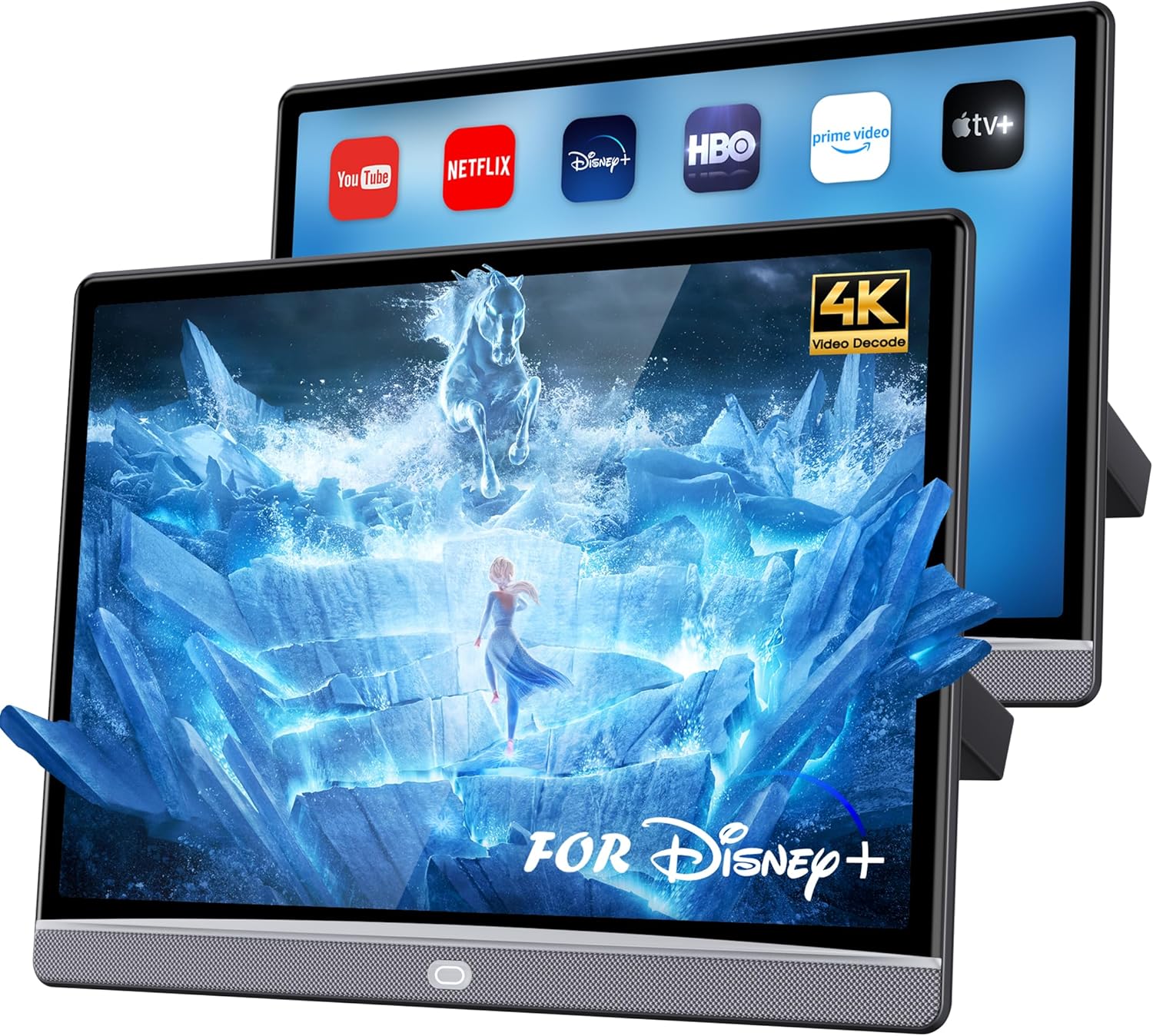
Figure 1: WONNIE 13.3" 4K Android Headrest Monitor in use.
2. Setup
2.1. What's in the Box
- Headrest monitor
- Big Mounting Bracket x 1
- Small Mounting Bracket x 1
- Plastic Buckle x 1
- Car Charger Power Cable x 1
- HDMI Cable x 1
- DC Adapter x 1
- User Manual x 1

Figure 2: Package contents of the headrest monitor.
2.2. Mounting the Monitor
- Select the appropriate mounting bracket (Big or Small) and plastic buckles that best fit the headrest poles in your vehicle. The universal metal bracket is designed to fit approximately 98% of car models.
- Attach the chosen bracket to the headrest poles. Ensure it is securely fastened.
- Slide the monitor onto the installed bracket until it clicks into place. Verify that the monitor is stable and locked to prevent movement during travel.

Figure 3: Universal headrest mount installation.
2.3. Power Connection
The monitor can be powered using either the provided car charger power cable for in-vehicle use or the DC adapter for home use.
- Car Use: Connect the car charger power cable to the DC 12V port on the monitor and plug the other end into your vehicle's cigarette lighter socket.
- Home Use: Connect the DC adapter to the DC 12V port on the monitor and plug it into a standard wall outlet.
2.4. Initial Power On & Network Configuration
Once powered, the monitor will boot up. Follow the on-screen prompts for initial setup, including connecting to a Wi-Fi network (5G/2.4GHz) or mobile hotspot for internet access.
Video 1: Installation and feature overview of the WONNIE Car TV Headrest Monitor.
3. Operating Instructions
3.1. User Interface and Navigation
The monitor runs on Android 13 and features a 1920x1200 HD IPS capacitive touchscreen for intuitive navigation. Swipe and tap to access applications and settings.
3.2. App Usage and Media Playback
- Pre-installed Apps: Access popular streaming services like YouTube, Netflix, and Disney+ directly from the home screen.
- Google Play Store: Download additional applications from the Google Play Store or APKPure to expand your entertainment options.
- 4K Video Playback: The monitor supports 4K video decoding for high-definition content viewing.

Figure 4: Key features and specifications overview.
3.3. Wireless Phone Mirroring (Miracast/AirPlay)
Connect your Android or iOS device wirelessly to mirror content onto the headrest screen. This allows you to display photos, videos, and apps from your phone. The 'MyCar Link' app can be used as a remote control.

Figure 5: Wireless phone mirroring and MyCar Link app functionality.
3.4. External Device Connectivity
The monitor offers multiple ports for connecting various external devices:
- HDMI In: Connect gaming consoles, streaming sticks, or other HDMI-enabled devices.
- HDMI Out: Sync content to a second monitor, allowing both screens to display the same content simultaneously.
- USB 2.0: Play media files from USB drives.
- TF Card Slot: Insert a TF card to access stored media.

Figure 6: Multi-device HDMI connection and port layout.
3.5. Audio Options
Experience immersive audio through various methods:
- Dual Stereo Surround Speakers: Built-in speakers provide clear audio.
- 3.5mm Audio Jack: Connect wired headphones for private listening.
- Bluetooth: Pair with Bluetooth headphones or other audio devices.
- FM Transmitter: Transmit audio wirelessly to your car's FM radio, allowing sound to play through the vehicle's speakers.
3.6. LED Lighting Customization
The monitor features customizable LED lights located below the device. Access the settings menu to adjust colors and brightness to your preference.
Video 2: Demonstration of the monitor's features, including app usage, 4K playback, screen mirroring, and LED light customization.
4. Maintenance
4.1. Cleaning
To clean the screen, use a soft, lint-free cloth. For stubborn smudges, lightly dampen the cloth with water or a screen-safe cleaning solution. Avoid harsh chemicals or abrasive materials. For the exterior, wipe with a dry or slightly damp cloth.
4.2. Software Updates
The device supports Over-The-Air (OTA) updates. Ensure your monitor is connected to Wi-Fi to receive automatic updates, which help maintain optimal performance and introduce new features.
5. Troubleshooting
If you encounter issues with your WONNIE Headrest Monitor, please refer to the following common troubleshooting steps:
- No Power: Ensure all power cables are securely connected and the power source (car outlet or wall adapter) is functioning correctly. Check if the vehicle's ignition is on if using the car charger.
- No Video/Blank Screen: Verify that the monitor is powered on. If using an external HDMI source, ensure the HDMI cable is properly connected to both the monitor's HDMI In port and the external device, and that the external device is powered on and outputting video.
- No Sound: Check the volume settings on the monitor and any connected external devices. If using headphones, ensure they are properly plugged into the 3.5mm jack or correctly paired via Bluetooth. If using the FM transmitter, ensure your car radio is tuned to the correct frequency.
- Cannot Connect to Wi-Fi: Confirm that your Wi-Fi network is active and within range. Re-enter the Wi-Fi password carefully. Try restarting the monitor and your Wi-Fi router/hotspot.
- Screen Mirroring Issues: Ensure both the monitor and your mobile device are connected to the same Wi-Fi network. Check that Miracast (for Android) or AirPlay (for iOS) is enabled on both devices.
- Unresponsive Touchscreen: Restart the device. If the issue persists, perform a factory reset (note: this will erase all user data).
For further assistance, please contact WONNIE customer support.
6. Specifications
| Brand | WONNIE |
| Model Number | 4G+64G |
| Screen Size | 13.3 Inches |
| Display Type | IPS |
| Resolution | 1920x1200 (Supports 4K Playback) |
| Operating System | Android 13 |
| RAM | 4GB |
| ROM | 64GB |
| Connectivity Technology | Bluetooth, HDMI, USB, Wi-Fi (5G/2.4GHz) |
| Audio Output | Dual Stereo Speakers, 3.5mm Headphone Jack, Bluetooth, FM Transmitter |
| Item Weight | 8.4 pounds |
| Package Dimensions | 14.41 x 10.79 x 6.97 inches |
7. Warranty and Support
For warranty information or technical support, please refer to the official WONNIE website or contact their customer service directly. Keep your purchase receipt as proof of purchase for any warranty claims.