
1. Introduction
This manual provides detailed instructions for the installation, operation, and maintenance of your Leadfan Car Stereo for Toyota Corolla (2009-2013). Please read this manual thoroughly before installation and use to ensure proper functionality and safety.
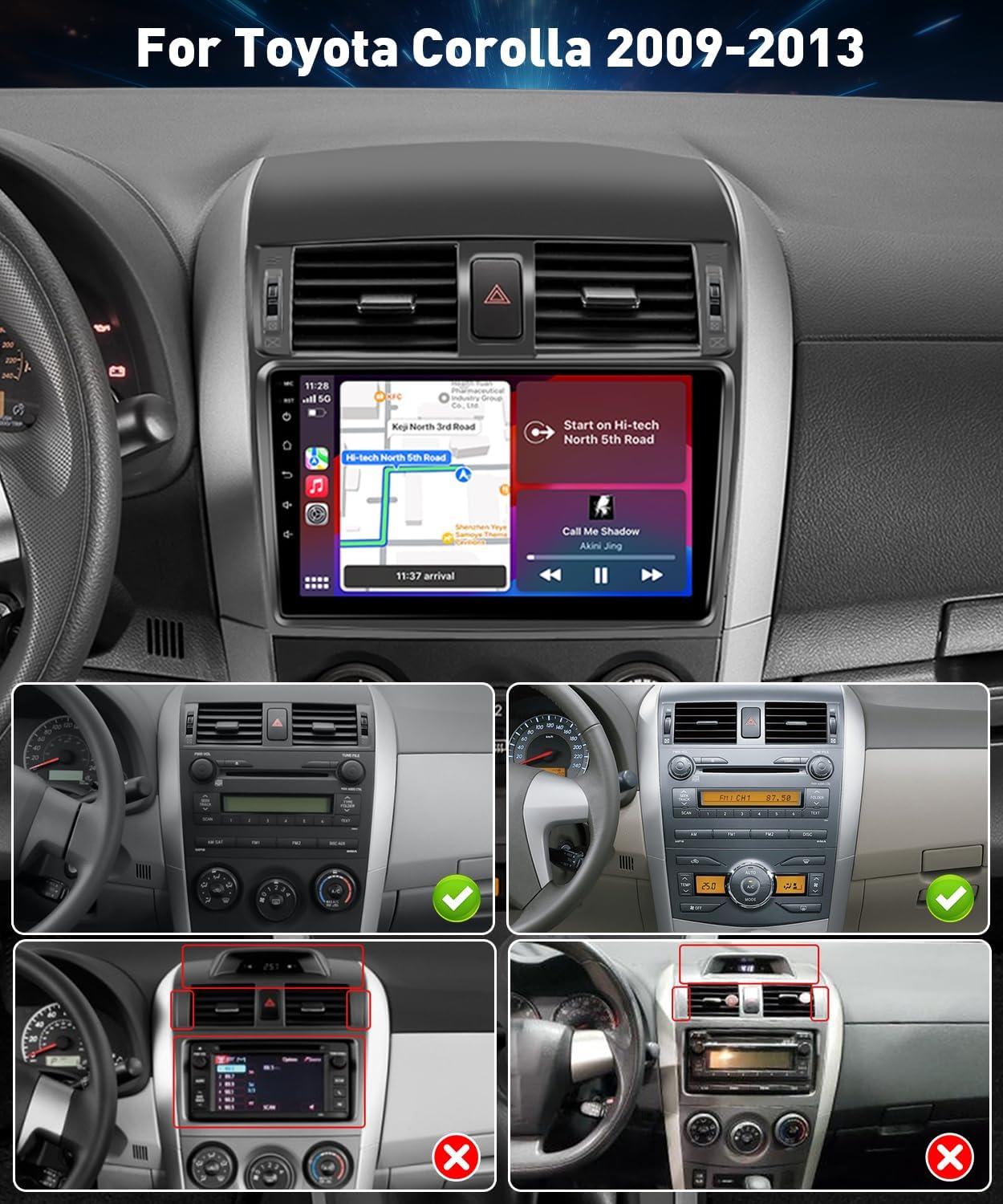
Important Note: This unit is not compatible with car models equipped with a factory touch screen, a clock above the vents, or a JBL sound system. Please verify your vehicle's specifications before proceeding.
2. Safety Information
- Ensure the vehicle's engine is off and the parking brake is engaged before installation.
- Disconnect the negative terminal of the car battery before beginning any electrical work.
- Consult a professional installer if you are unsure about any part of the installation process.
- Do not operate the device in a way that distracts you from driving.
- Avoid exposing the unit to extreme temperatures or direct sunlight for prolonged periods.
3. Package Contents
Verify that all components are present in the package:
- Leadfan Car Stereo Unit
- Power Cable
- RCA Cable
- USB Cable
- Reverse Input Cable
- GPS Antenna
- Radio Antenna
- Backup Camera
- Microphone (MIC)
- Accessories (mounting brackets, screws)
- User Manual

4. Setup and Installation
This section outlines the general installation process. Specific vehicle disassembly steps may vary. Refer to your vehicle's service manual for detailed instructions on removing the factory radio.
4.1 Compatibility Check
Ensure your Toyota Corolla (2009-2013) does not have a factory touch screen, a clock above the vents, or a JBL sound system. The image below illustrates compatible and incompatible dashboard configurations.
4.2 Wiring Diagram
Connect the provided wiring harness to the car stereo and the vehicle's factory wiring. Ensure all connections are secure.
| Cable | Function |
|---|---|
| Power Cable | Connects to vehicle's power supply. |
| RCA Cable | Audio/Video input/output. |
| USB Cable | Connects USB devices for media or data transfer. |
| Reverse Input Cable | Connects to backup camera for automatic display. |
| GPS Antenna | Receives GPS signals for navigation. |
| Radio Antenna | Receives FM/AM radio signals. |

4.3 Backup Camera Installation
Install the backup camera at the rear of the vehicle, ensuring a clear view. Connect the camera's video output to the "Reverse Input" on the car stereo and its power to the vehicle's reverse light circuit.

5. Operating Instructions
5.1 Basic Functions
The unit features a 9-inch IPS touch screen. Navigate through menus by tapping icons. Common functions include Music, Video, Radio, Bluetooth, Navigation, and Settings.
5.2 Wireless CarPlay & Android Auto
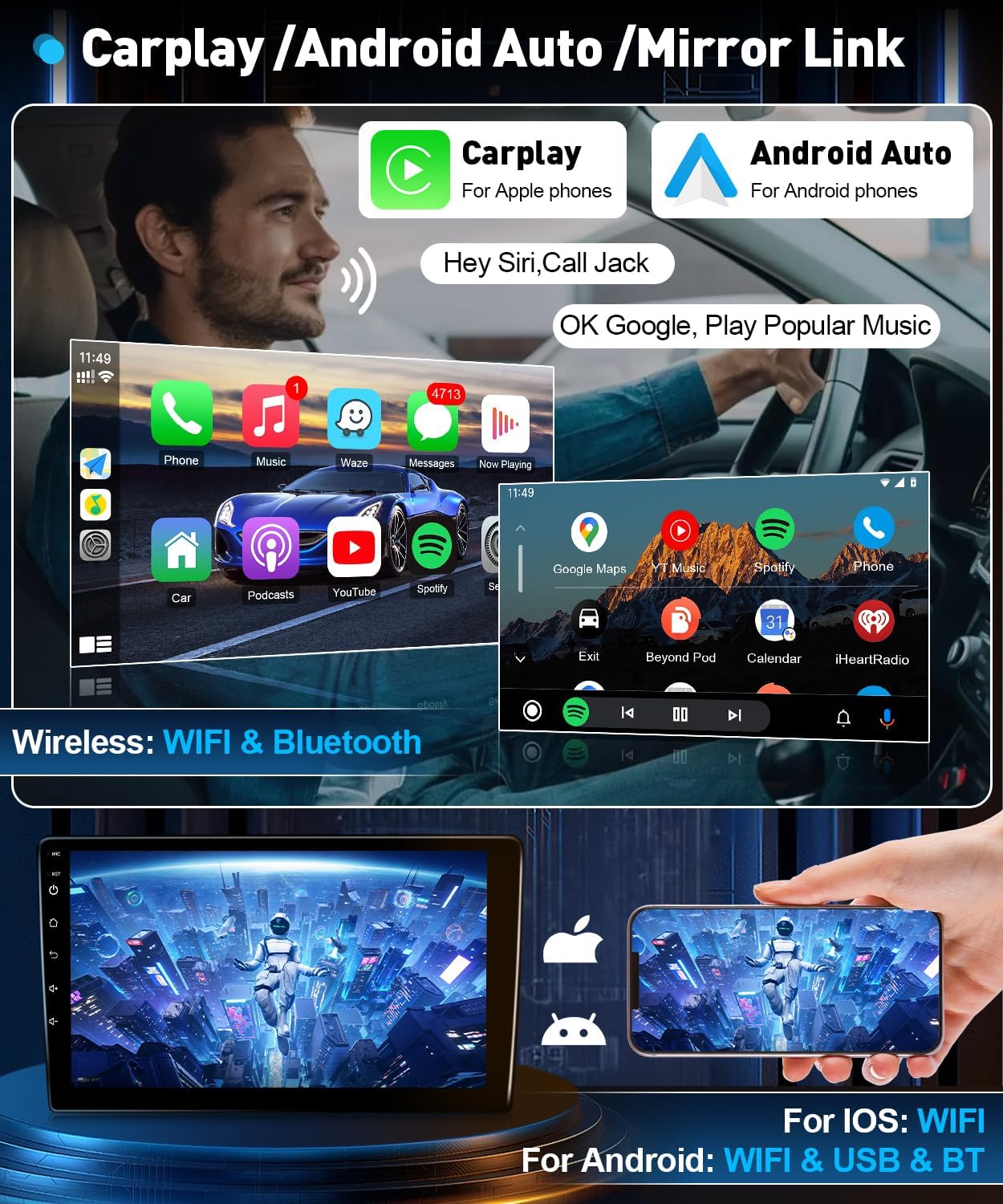
Connect your smartphone wirelessly for Apple CarPlay or Android Auto functionality. This allows access to phone calls, GPS navigation, music, and voice control via Siri or Google Assistant.
- For iPhone (CarPlay): Enable Personal Hotspot on your iPhone. On the car stereo, go to Android Settings > Network & Internet > Wi-Fi and connect to your iPhone's hotspot. Then, open the CarPlay app on the stereo.
- For Android (Android Auto): Enable Bluetooth tethering on your Android phone. Pair your phone with the car stereo via Bluetooth. Open the Android Auto app on the stereo.
5.3 Mirror Link
Mirror Link allows you to display your smartphone screen directly on the car stereo. This feature supports both iOS and Android devices.
- For iPhone: Connect your iPhone to the car stereo's Wi-Fi hotspot. Enable Screen Mirroring on your iPhone and select the car stereo.
- For Android: Connect your Android phone to the car stereo via Bluetooth and Wi-Fi. Use the "Link Innovation" app on your phone to initiate screen mirroring.
5.4 GPS Navigation & Wi-Fi
The unit includes a GPS navigation system. Connect to Wi-Fi or your phone's hotspot to download offline maps or use online navigation applications like Google Maps.

5.5 Bluetooth Hands-free
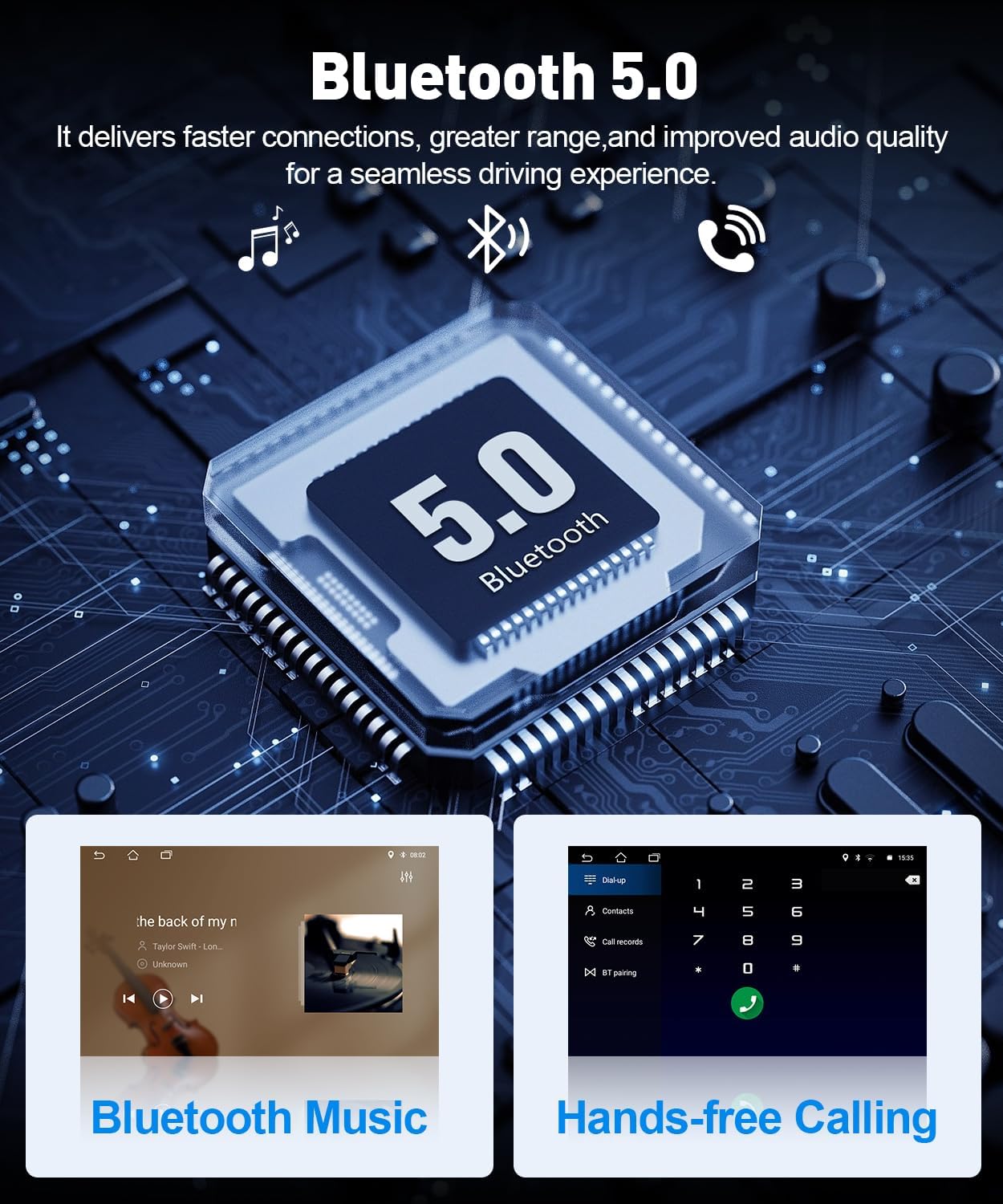
Pair your smartphone via Bluetooth 5.0 for hands-free calling, phonebook access, and audio streaming. This enhances driving safety by allowing you to manage calls and music without handling your phone.
5.6 Steering Wheel Control (SWC)
Connect the vehicle's SWC cable to enable control of the car stereo functions (e.g., volume, track change, calls) directly from your steering wheel buttons. This feature requires configuration in the unit's settings.

5.7 Split Screen Function
The split screen feature allows two applications to run simultaneously on the 9-inch IPS touch screen. Both left and right screens can be operated independently.

6. Maintenance
- Screen Cleaning: Use a soft, lint-free cloth to clean the screen. Do not use abrasive cleaners or solvents.
- Software Updates: Periodically check for software updates from the manufacturer to ensure optimal performance and access to new features.
- General Care: Avoid spilling liquids on the unit. Protect it from excessive dust and direct heat.
7. Troubleshooting
| Problem | Possible Cause | Solution |
|---|---|---|
| Unit does not power on. | Incorrect wiring, blown fuse, power supply issue. | Check power cable connections. Inspect vehicle fuses. Ensure battery is charged. |
| No sound. | Speaker wiring issue, volume too low, incorrect audio source. | Verify speaker connections. Adjust volume. Select correct audio source. |
| CarPlay/Android Auto not connecting. | Incorrect Wi-Fi/Bluetooth settings, app not open, phone compatibility. | Ensure Wi-Fi/Bluetooth is enabled and paired. Check app permissions. Refer to section 5.2. |
| GPS signal lost or inaccurate. | GPS antenna obstruction, poor signal area. | Ensure GPS antenna has a clear view of the sky. Move to an open area. |
| Steering Wheel Controls not working. | Incorrect wiring, not configured. | Check SWC cable connection. Configure controls in the unit's settings (Section 5.6). |
If you are unable to resolve an issue, please contact Leadfan customer support for assistance.
8. Specifications
| Feature | Detail |
|---|---|
| Brand | Leadfan |
| Model Number | for Toyota Corolla 2009-2013 (2+32G) |
| Operating System | Android 12 |
| RAM + ROM | 2GB RAM + 32GB ROM (4-core) |
| Screen Size | 9 Inches |
| Display Type | 2.5D IPS Touch Screen |
| Connectivity | Bluetooth 5.0, Wi-Fi, USB |
| Special Features | Wireless CarPlay, Android Auto, Mirror Link, GPS Navigation, FM Radio, Steering Wheel Control, Backup Camera Support, Split Screen |
| Audio Output Mode | Stereo |
| Included Components | Backup Camera |
| Item Weight | 1.64 Kilograms |
9. Warranty and Support
9.1 Warranty Information
This product comes with a 1-year warranty from the date of purchase. The warranty covers manufacturing defects and malfunctions under normal use. It does not cover damage caused by improper installation, misuse, accidents, or unauthorized modifications.
9.2 Customer Support
For technical assistance, troubleshooting, or warranty claims, please contact Leadfan customer support. Online help, user manuals, and installation videos are also available.
You can visit the official Leadfan store on Amazon for more information: Leadfan Store


