
1. Introduction
Thank you for purchasing the RCA 32-inch Full HD Google TV. This manual provides essential information for setting up, operating, and maintaining your new television. Please read it thoroughly before use to ensure optimal performance and safety.
This television combines a vibrant Full HD display with the power of Google TV, offering seamless access to your favorite streaming services, voice control, and smart home integration. Enjoy a truly immersive viewing experience with advanced features like Direct Full Array backlighting, Dolby Audio, and HDR support.
2. Safety Information
Always follow basic safety precautions when using this product to reduce the risk of fire, electric shock, and injury.
- Do not expose the TV to rain or moisture.
- Do not block ventilation openings.
- Use only attachments/accessories specified by the manufacturer.
- Unplug the TV during lightning storms or when unused for long periods.
- Refer all servicing to qualified service personnel.
3. Package Contents
Verify that all items are included in the package:
- RCA 32-inch Full HD Google TV
- Remote Control
- User Manual (this document)
- Warranty Card
- TV Stand (2 pieces)
- Screws for TV Stand
- AAA Batteries for Remote Control (2 pieces)
- B-CAS Card (if applicable for your region)

4. Setup
4.1 Attaching the TV Stand
- Carefully place the TV screen-down on a soft, flat surface to prevent scratches.
- Align each stand piece with the corresponding slots on the bottom of the TV.
- Secure the stands using the provided screws. Ensure they are tightened firmly.
Alternatively, the TV supports VESA 100x100mm wall mounting. Wall mount bracket is sold separately.

4.2 Connecting Peripherals
The TV offers various ports for connecting external devices. Refer to the diagram below for port locations.
- HDMI Ports (x3): Connect Blu-ray players, game consoles, cable boxes, etc. HDMI3 supports ARC (Audio Return Channel).
- USB Ports (x2): Connect USB storage devices for media playback or external HDD for recording.
- LAN Port: For wired internet connection.
- Antenna Input (ISDB-T/S): Connect your terrestrial or satellite antenna.
- AV Input: For older devices using composite video and stereo audio.
- Optical Digital Audio Out: For connecting to soundbars or home theater systems.
- Earphone Output: For connecting headphones.
4.3 Initial Power On and Google TV Setup
- Insert the provided AAA batteries into the remote control.
- Connect the power cord to the TV and then to a power outlet.
- Press the Power button on the remote control.
- Follow the on-screen instructions to complete the initial setup, including:
- Language selection
- Network connection (Wi-Fi or wired LAN)
- Google account sign-in (recommended for full Google TV features)
- Channel scanning
5. Operating Your RCA Google TV
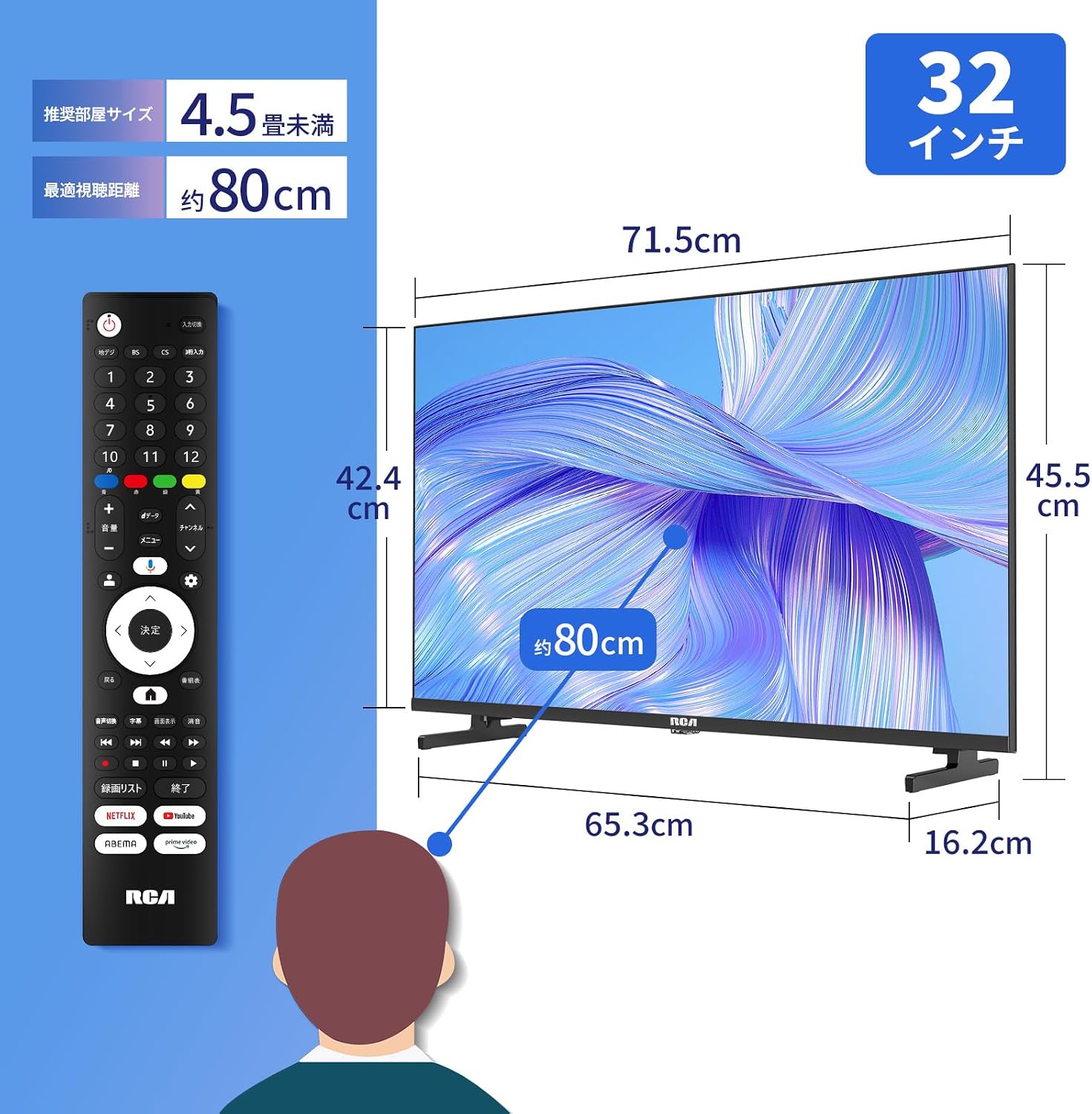
5.1 Remote Control Functions
The remote control provides easy access to all TV functions and Google TV features.

- Power Button: Turns the TV on/off or to standby.
- Number Buttons: Select TV channels directly.
- Volume +/-: Adjusts the volume level.
- Channel +/-: Changes TV channels.
- Navigation Pad (Up/Down/Left/Right/OK): Navigates menus and selects options.
- Back Button: Returns to the previous screen.
- Home Button: Accesses the Google TV home screen.
- Google Assistant Button: Activates voice search and commands.
- Streaming Service Buttons: Direct access to Netflix, YouTube, Prime Video, Hulu, etc.
5.2 Google TV Features
Your RCA TV comes with Google TV built-in, providing a personalized entertainment experience.

- Personalized Recommendations: Google TV organizes movies and TV shows from all your services into one place, tailored to your interests.
- Google Assistant: Press the Google Assistant button on your remote and speak to find movies, stream apps, play music, and control the TV with your voice.
- Chromecast Built-in: Easily cast movies, shows, photos, and more from your phone, tablet, or laptop directly to your TV.

5.3 External HDD Recording (Double Tuner)
This TV features a double tuner, allowing you to record one program while watching another. Connect an external USB HDD (sold separately) to enable recording functionality.

- Connect a USB HDD (up to 6TB) to one of the USB ports.
- Follow the on-screen prompts to format the HDD for recording.
- Use the TV's EPG (Electronic Program Guide) to schedule recordings.
- Maximum 128 reservation entries and 3000 recorded programs supported.
5.4 Picture and Sound Enhancements
- Direct Full Array Backlight: Enhances contrast and color reproduction for vivid images, even in dark scenes.
- Full HD Resolution: Provides clear details and vibrant colors for an immersive viewing experience.
- HDR (High Dynamic Range): Supports HDR content for a wider range of colors and contrast, bringing scenes to life.
- Dolby Audio: Delivers rich, clear, and powerful sound for an immersive audio experience, bringing cinematic sound to your home.
- Frameless Design: Maximizes screen space for a more immersive visual experience, blending seamlessly with your interior.
- Game Mode: Optimizes display settings for gaming, reducing input lag.


6. Maintenance
6.1 Cleaning the TV
- Always unplug the TV before cleaning.
- Use a soft, dry cloth to wipe the screen and cabinet.
- For stubborn marks, lightly dampen the cloth with water or a mild, non-abrasive cleaner specifically designed for electronics.
- Never spray cleaner directly onto the screen.
6.2 General Care
- Avoid placing the TV in direct sunlight or near heat sources.
- Ensure adequate ventilation around the TV. Do not cover ventilation openings.
- Protect the power cord from being walked on or pinched.
7. Troubleshooting
Before contacting customer support, try the following solutions for common issues.
| Problem | Possible Cause / Solution |
|---|---|
| No power | Check if the power cord is securely plugged into the TV and the outlet. Try a different outlet. |
| No picture, but sound is present | Check the input source. Ensure external devices are powered on and connected correctly. |
| No sound, but picture is present | Check volume level. Ensure Mute is not activated. Check audio cable connections. |
| Remote control not working | Replace batteries. Ensure no obstructions between remote and TV. |
| Cannot connect to Wi-Fi | Check Wi-Fi password. Restart your router. Ensure TV is within range of the router. |
| Picture quality is poor (blurry/noisy) | Check antenna connection. Adjust picture settings in the TV menu. Ensure source content is high quality. |
8. Specifications
| Feature | Specification |
|---|---|
| Screen Size | 32 inches |
| Display Type | VA LED Module |
| Resolution | Full HD (1920 x 1080) |
| Refresh Rate | 60 Hz |
| Aspect Ratio | 16:9 |
| Contrast Ratio | 1000:1 |
| Viewing Angle | 178 degrees |
| Operating System | Google TV |
| Connectivity | Wi-Fi, Bluetooth, HDMI (x3), USB (x2), LAN |
| HDMI Ports | 3 (HDMI3 with ARC) |
| USB Ports | 2 |
| Power Consumption | 60 W |
| Dimensions (W x H x D) | 71.5 x 42.4 x 6.4 cm (without stand) |
| Weight | 5.12 kg |
| VESA Compatibility | 100 x 100 mm |
| Included Accessories | TV, User Manual, Warranty Card, Remote Control, Stand |
9. Warranty and Support
Your RCA TV comes with a 1-year warranty from the date of purchase. Please retain your proof of purchase for warranty claims.
For technical support or warranty inquiries, please contact RCA customer service:
- Email: tutu@hkcelec.com (Response within 24 hours)
- LINE Support: Scan the QR code below to add our after-sales service account.

RCA has over 25 years of technical innovation and a global presence with factories and offices in 20+ countries. We are committed to providing 7x24 customer service.


