
SEMIER SM-136
SEMIER SM-136 Cassette Player & Digital Converter User Manual
Model: SM-136
Introduction
Thank you for purchasing the SEMIER SM-136 Cassette Player & Digital Converter. This versatile device allows you to play and record audio cassettes, play music from an SD card, and convert your cherished cassette tapes into digital MP3 files, either directly to an SD card or to your computer using the included software. Please read this manual carefully to ensure proper operation and to maximize your enjoyment of this product.
What's in the Box
- Cassette Recorder Converter x 1
- 16GB SD Card x 1
- USB Reader x 1
- Software CD-ROM x 1
- User Manual x 1
- Type-C Charging and Data Cable x 1

Image: All items included in the product package.
Setup
Powering the Device
The SEMIER SM-136 can be powered by two methods:
- USB-C Cable: Connect the included USB-C cable to the device's USB-C port and the other end to a USB power adapter (not included) or a computer's USB port.
- AA Batteries: Open the battery compartment on the back of the device and insert four (4) AA batteries (not included), ensuring correct polarity.
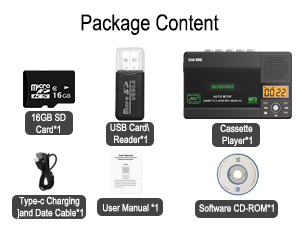
Image: Illustration of inserting AA batteries into the device.
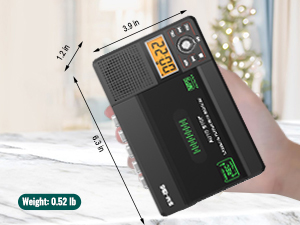
Image: Connecting the USB-C power cable to the device.
Inserting a Cassette Tape
Gently open the cassette compartment door. Insert your cassette tape with the open edge facing upwards and the tape side facing the device. Close the door firmly until it clicks.

Image: Proper insertion of a cassette tape into the player.
Inserting an SD Card
Locate the SD card slot on the side of the device. Insert the included 16GB SD card (or another compatible SD card, up to 32GB) into the slot until it clicks into place. Ensure the card is inserted in the correct orientation.

Image: Proper insertion of an SD card into the device's dedicated slot.
Operating Instructions
Playing Cassette Tapes
- Ensure a cassette tape is inserted.
- Slide the "TAPE/OFF/Micro SD" switch to the "TAPE" position.
- Press the PLAY button (►) to begin playback.
- Adjust the volume using the VOL knob.
- To stop playback, press the STOP button (■).
- Use the FWD (►►) and REW (◄◄) buttons for fast-forward and rewind.
Playing Music from SD Card
- Ensure an SD card with MP3 files is inserted.
- Slide the "TAPE/OFF/Micro SD" switch to the "Micro SD" position. The LCD display will show "SD" and the current track time.
- Press the PLAY/PAUSE button (►⏺) to start or pause playback.
- Use the PREV (◄◄) and NEXT (►►) buttons to navigate between tracks.
- Press the REP button to repeat the current track or all tracks.
- Press the DEL button to delete the current track.
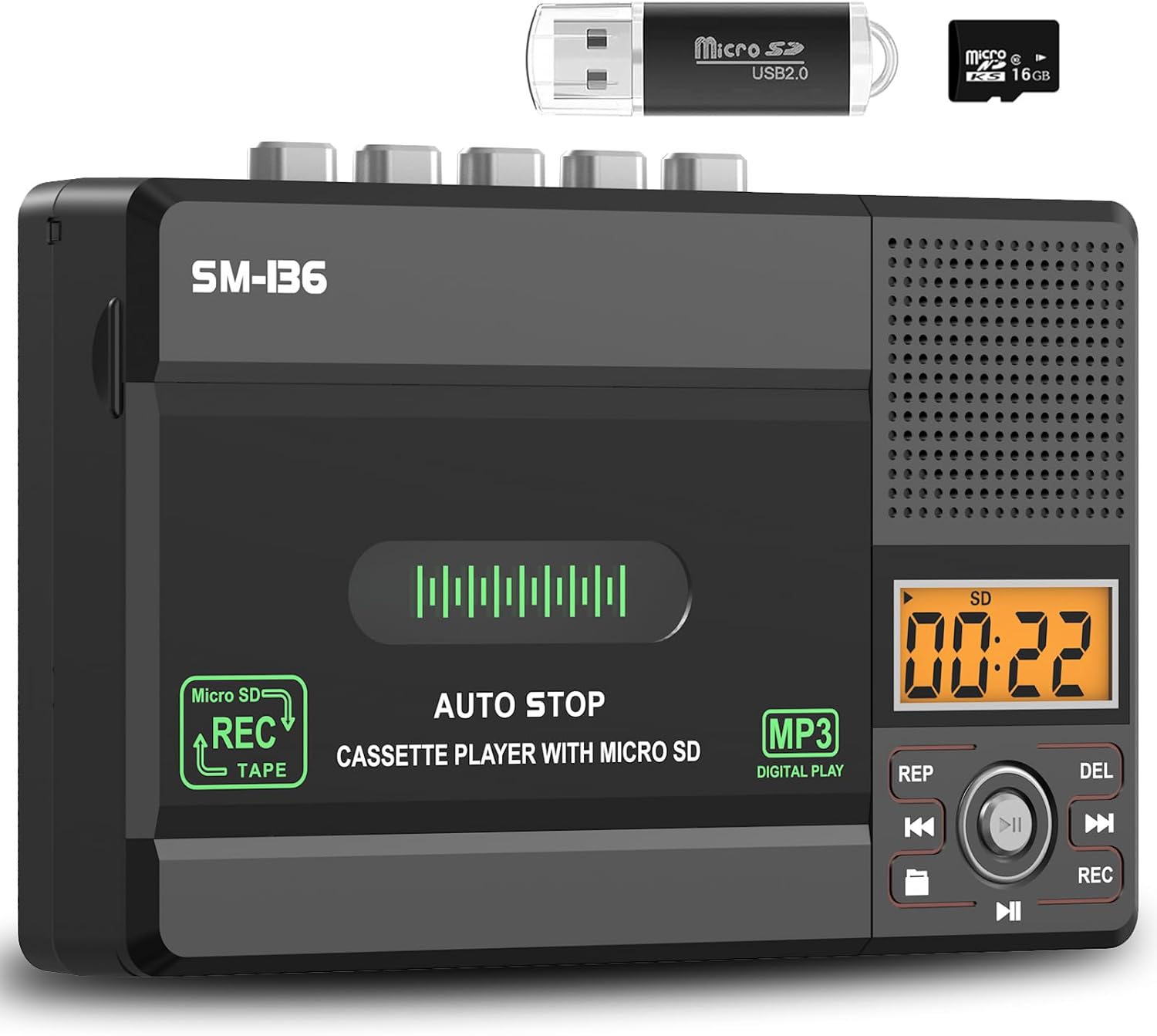
Image: Overview of the device's control panel and LCD screen.
Recording to Cassette Tape (from built-in microphone)
- Insert a blank or recordable cassette tape.
- Slide the "TAPE/OFF/Micro SD" switch to the "TAPE" position.
- Press the REC button (red button) to begin recording from the built-in microphone.
- To stop recording, press the STOP button (■).

Image: Demonstrates recording audio to a cassette tape using the built-in microphone.
Converting Cassette to MP3 (to SD Card)
This method allows direct conversion without a computer.
- Insert the cassette tape you wish to convert.
- Insert the 16GB SD card (or another compatible SD card) into the SD card slot.
- Slide the "TAPE/OFF/Micro SD" switch to the "TAPE" position.
- Press the PLAY button (►) on the cassette player.
- While the tape is playing, press and hold the REC button (red button) on the digital control panel until the LCD display shows "REC". This will start recording the cassette audio directly to the SD card as an MP3 file.
- To stop recording, press the REC button again, or press the STOP button (■) on the cassette player.
- The converted MP3 files will be saved on the SD card. You can then play them back on the device by switching to "Micro SD" mode or transfer them to a computer using the included USB reader.

Image: Visual steps for direct cassette to SD card MP3 conversion.
Converting Cassette to MP3 (to Computer via Audacity)
This method requires a computer and the included Audacity software.
- Install Audacity: Insert the included Software CD-ROM into your computer's CD drive and follow the installation instructions for Audacity. Alternatively, you can download the latest version of Audacity from its official website.
- Connect Device: Connect the SEMIER SM-136 to your computer using the included USB-C data cable.
- Prepare Audacity: Open Audacity. Ensure the correct input device (usually "USB Audio CODEC" or similar) is selected in Audacity's audio settings.
- Start Recording: Insert the cassette tape you wish to convert into the player. Press the PLAY button (►) on the cassette player. Then, click the Record button in Audacity to begin capturing the audio.
- Monitor and Stop: Monitor the audio levels in Audacity. Once the tape has finished playing, click the Stop button in Audacity and the STOP button (■) on the cassette player.
- Export MP3: In Audacity, you can edit the recorded audio (e.g., trim silence, remove noise). Once satisfied, go to File > Export > Export as MP3 to save your digital audio file.

Image: Illustrates connecting the device to a computer and using Audacity for digital conversion.
Maintenance
- Cleaning: Use a soft, dry cloth to clean the exterior of the device. Do not use liquid cleaners or abrasive materials.
- Tape Head Cleaning: Periodically clean the tape heads and pinch rollers with a cotton swab lightly dampened with isopropyl alcohol to ensure optimal sound quality and prevent tape damage.
- Storage: Store the device in a cool, dry place away from direct sunlight and extreme temperatures.
- Battery Removal: If the device will not be used for an extended period, remove the AA batteries to prevent leakage.
Troubleshooting
| Problem | Possible Cause | Solution |
|---|---|---|
| Device does not power on. | No power source; batteries dead or incorrectly inserted; USB-C cable not connected properly. | Check battery polarity and charge; ensure USB-C cable is securely connected to a working power source. |
| No sound during cassette playback. | Volume too low; "TAPE/OFF/Micro SD" switch in wrong position; tape head dirty. | Increase volume; ensure switch is on "TAPE"; clean tape head. |
| Poor sound quality during playback/recording. | Dirty tape heads; worn-out tape; low battery power. | Clean tape heads; try a different tape; replace batteries or use USB-C power. |
| SD card not recognized or "No SD" message. | SD card incorrectly inserted; unsupported SD card format/size; faulty SD card. | Reinsert SD card; ensure it's formatted to FAT32 and is 32GB or less; try a different SD card. |
| Cannot record to SD card. | SD card full; SD card write-protected; incorrect recording procedure. | Delete files from SD card; check SD card's physical write-protect switch; follow "Converting Cassette to MP3 (to SD Card)" steps carefully. |
| Audacity not detecting device for conversion. | USB-C cable issue; incorrect audio input selected in Audacity; driver issue. | Try a different USB port/cable; ensure "USB Audio CODEC" is selected in Audacity; restart computer and device. |
Specifications
- Model: SM-136
- Functions: Cassette Player, Cassette Recorder (via Mic), SD Card MP3 Player, Cassette to MP3 Converter (to SD Card / PC)
- Power Source: DC 5V (USB-C) or 4 x AA Batteries
- Speaker Output: 2W
- Headphone Jack: 3.5mm Stereo
- SD Card Support: Up to 32GB, FAT32 format
- Dimensions: 6.3 x 3.9 x 1.2 inches (16 x 9.9 x 3 cm)
- Weight: 0.52 lbs (0.24 kg)

Image: Detailed dimensions and weight of the product.
Warranty and Support
SEMIER products are designed for reliability and performance. This product comes with a standard manufacturer's warranty. For detailed warranty information, technical support, or customer service inquiries, please refer to the contact information provided on the product packaging or visit the official SEMIER website. Our dedicated customer support team is available to assist you with any questions or concerns.
You can also visit the SEMIER Store on Amazon for more information and support resources.
Ask a question about this manual
Ask about setup, troubleshooting, compatibility, parts, safety, or missing instructions. Manuals+ will review the question and use this page’s manual context to help answer it.