
1. Product Overview
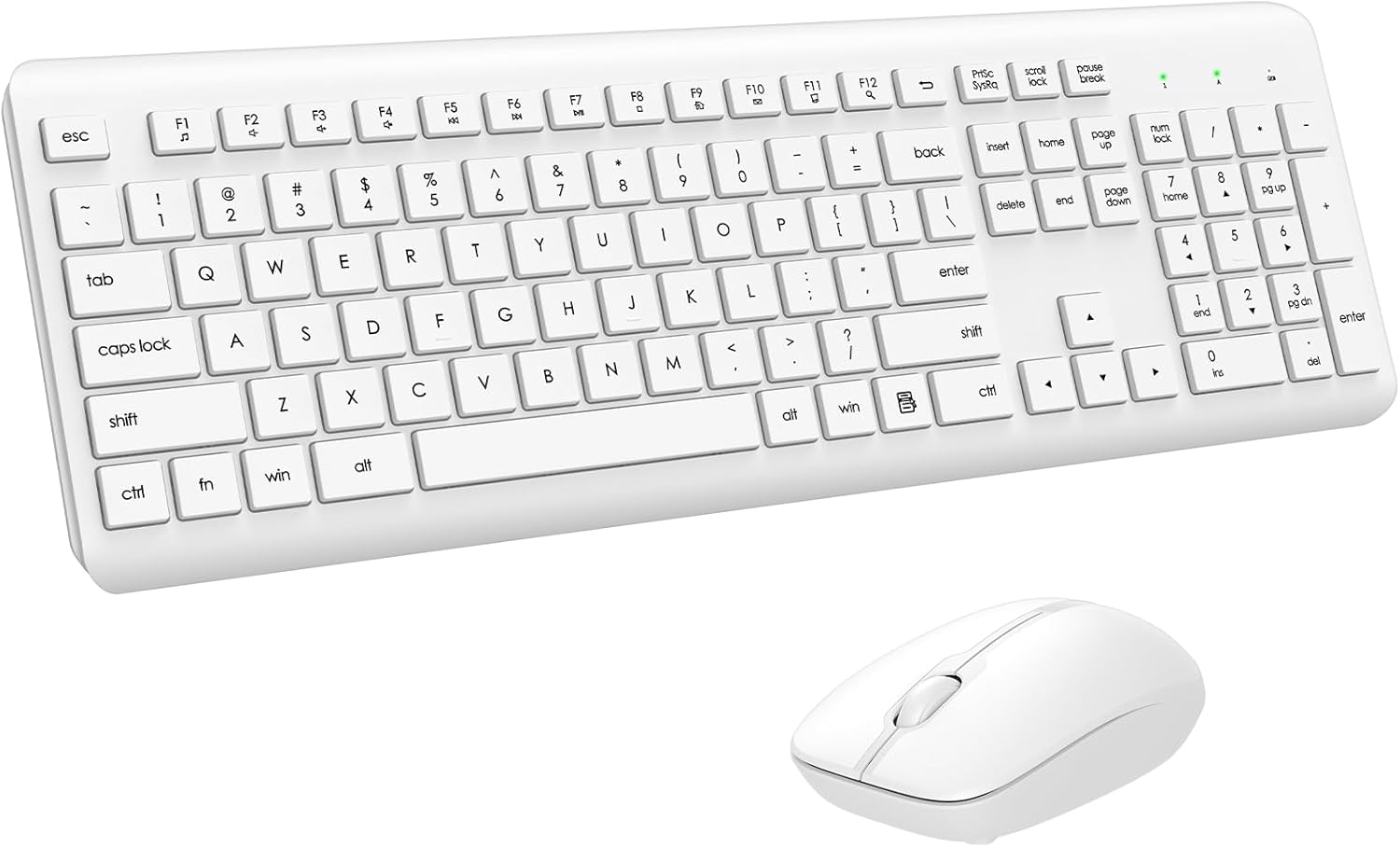
The EDJO Wireless Keyboard and Mouse Combo provides a full-size, silent, and ergonomic input solution for various computing environments. This combo utilizes a single 2.4G USB receiver for a stable and lag-free wireless connection.
2. Package Contents
Verify that all items are present in the package:
- 1 x Wireless Keyboard
- 1 x Wireless Mouse
- 1 x USB Receiver (typically stored in the mouse battery compartment)
- 1 x User Manual (this document)

3. Setup Instructions
3.1. Battery Installation
The keyboard and mouse require batteries for operation. Ensure correct polarity when inserting batteries.
- Keyboard: Requires one AAA battery. Locate the battery compartment on the underside of the keyboard, open it, insert the battery, and close the compartment.
- Mouse: Requires one AA battery. Locate the battery compartment on the underside of the mouse, open it, insert the battery, and close the compartment. The USB receiver is typically stored within this compartment.

3.2. Connecting the USB Receiver
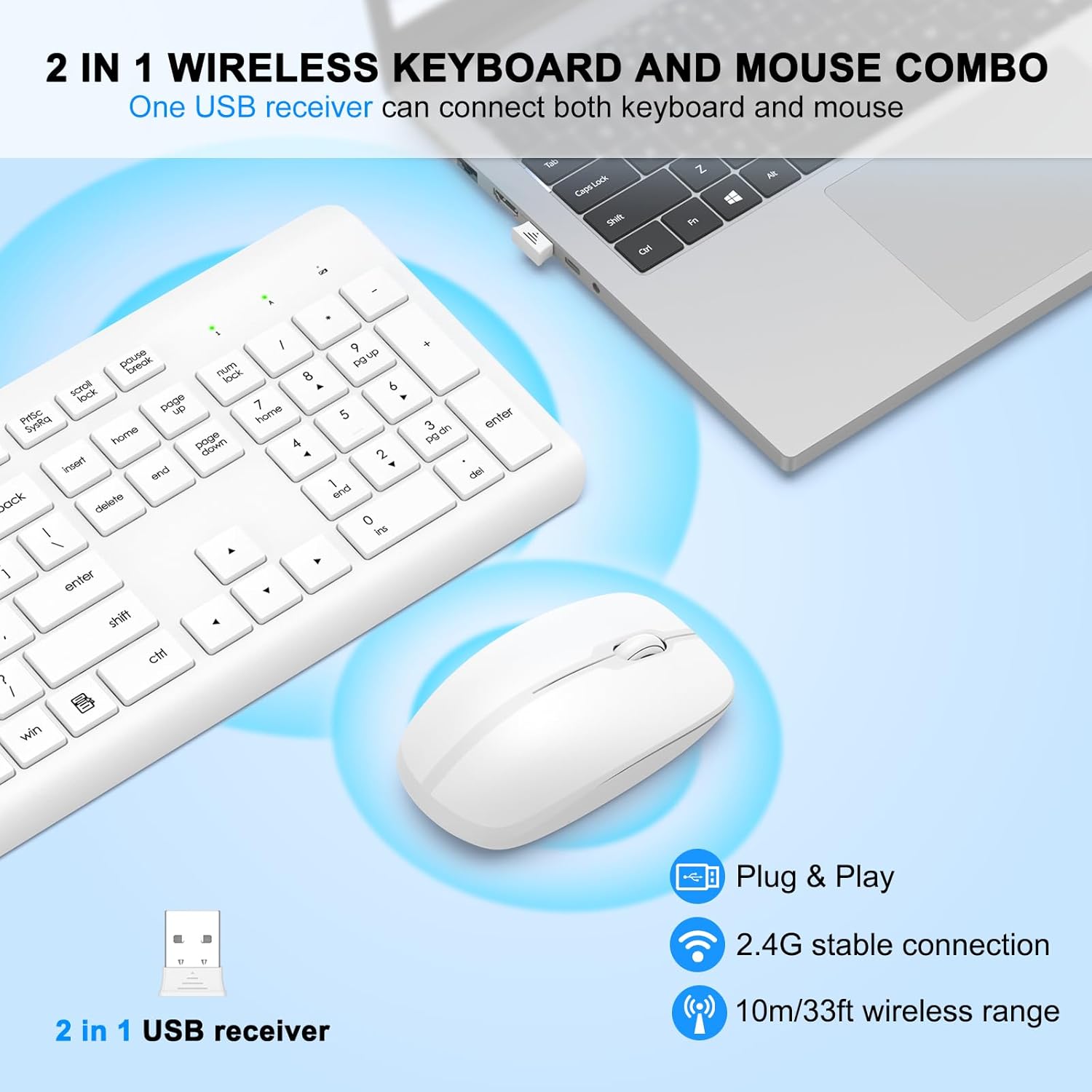
The keyboard and mouse share a single USB receiver for wireless connectivity.
- Remove the USB receiver from the mouse's battery compartment.
- Plug the USB receiver into an available USB port on your computer (desktop, laptop, Mac, etc.).
- Ensure the keyboard and mouse are powered on (check the ON/OFF switch on the mouse's underside).
- The devices are plug-and-play and should connect automatically within a few seconds. No additional drivers are typically required.

4. Operating Instructions
4.1. Keyboard Features
The keyboard is a full-size layout with a numeric keypad and multimedia shortcut keys.
- Multimedia Hotkeys: The F1-F12 keys have secondary multimedia functions. To activate these, press the 'Fn' key simultaneously with the desired F-key. Functions include media player control, volume adjustment, email, homepage, and more.
- Adjustable Stand: The keyboard features adjustable tilt legs on the underside. Flip these out to achieve an 8-degree typing angle, which can enhance comfort and reduce wrist strain during extended use.
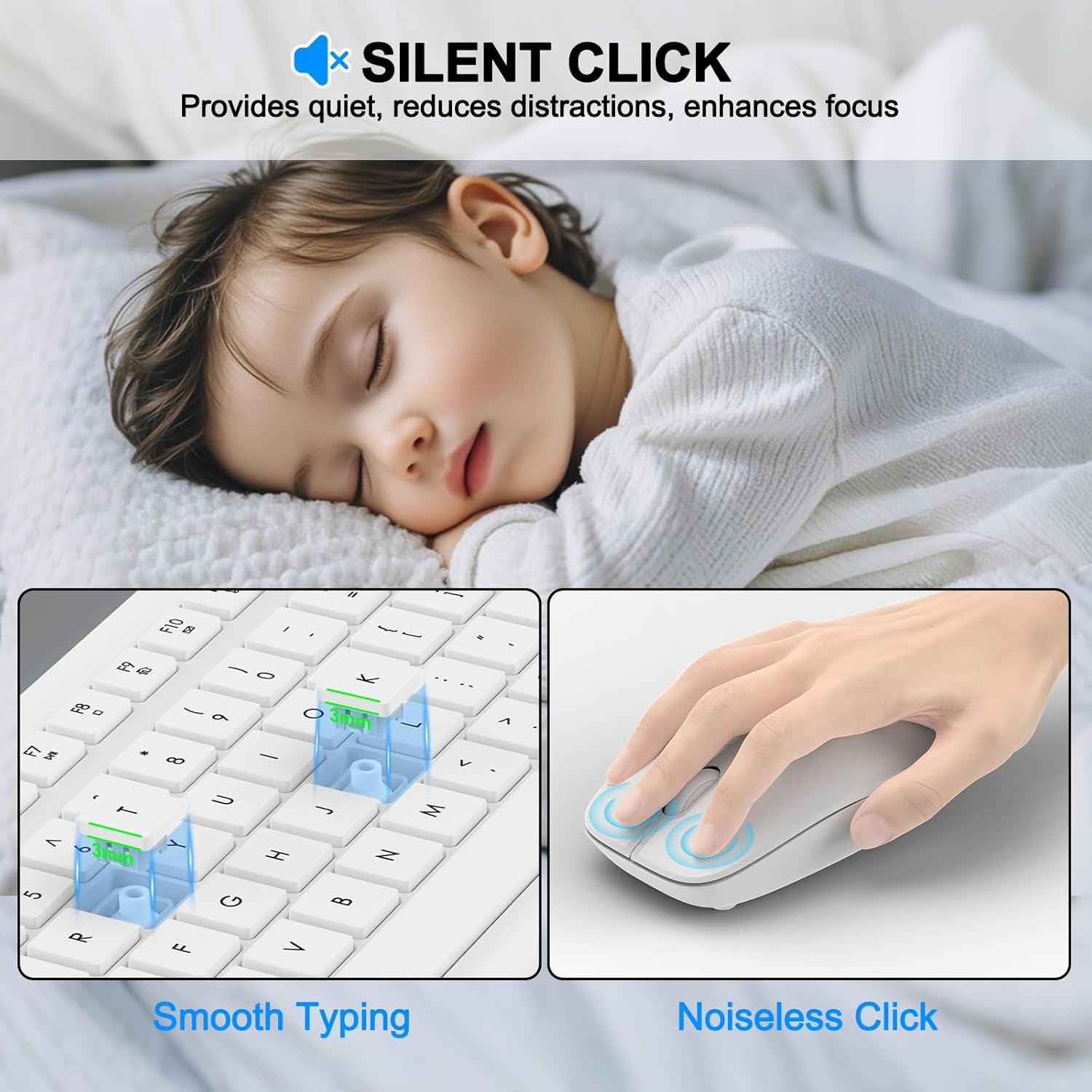
- Silent Typing: The soft membrane keys are designed to provide a quiet typing experience, minimizing noise.
- LED Indicators: Three indicator lights are located above the numeric keypad for Power, Caps Lock, and Number Lock status.


4.2. Mouse Features
The optical mouse is designed for comfort and precise tracking.
- DPI: The mouse operates at 1600 DPI, suitable for general use.
- Silent Click: The mouse utilizes silent micro-motion technology, resulting in minimal click noise.
- Ergonomic Design: The contoured shape is designed to fit comfortably in hand for extended use.
4.3. Power Saving Function
Both the keyboard and mouse are equipped with an automatic power-saving mode to conserve battery life.
- Keyboard: Automatically enters sleep mode after 10 minutes of inactivity.
- Mouse: Automatically enters sleep mode after 25 seconds of inactivity.
- Waking Up: To reactivate either device, press any key on the keyboard or move/click the mouse.

4.4. Compatibility
The wireless keyboard and mouse set supports a wide range of operating systems:
- Windows 11, 10, 8, 7
- Mac OS
- Chrome OS
- Linux
Compatible with devices such as laptops, desktop PCs, MacBooks, iMacs, Chromebooks, and more.

5. Maintenance
5.1. Cleaning
The keyboard features a splash-proof design, making it resistant to minor spills. To clean the devices:
- Ensure both the keyboard and mouse are turned off.
- Use a soft, damp cloth to wipe down the surfaces.
- For stubborn dirt, a small amount of mild soap solution can be used, followed by wiping with a clean, damp cloth.
- Avoid using harsh chemicals, abrasive cleaners, or submerging the devices in water.

5.2. Battery Replacement
Replace batteries when performance degrades or devices stop responding. Refer to Section 3.1 for battery type and installation.
5.3. Storage
When storing the devices for an extended period, turn them off and remove the batteries to prevent leakage.
6. Troubleshooting
If you encounter issues with your EDJO Wireless Keyboard and Mouse Combo, please refer to the following common solutions:
- No Response from Keyboard/Mouse:
- Ensure batteries are correctly installed and not depleted. Replace if necessary.
- Check if the mouse's ON/OFF switch is in the 'ON' position.
- Verify the USB receiver is securely plugged into a working USB port on your computer. Try a different USB port.
- Move the keyboard and mouse closer to the USB receiver to rule out range issues (maximum 33 feet/10 meters).
- Restart your computer.
- Lag or Intermittent Connection:
- Ensure there are no large metal objects or other wireless devices (e.g., Wi-Fi routers, cordless phones) operating too close to the receiver, which could cause interference.
- Move the USB receiver to a different USB port, preferably one on the front of your computer or via a USB extension cable to improve line of sight.
- Check battery levels. Low batteries can affect signal strength.
- Mouse Cursor Jumps or is Inaccurate:
- Clean the optical sensor on the underside of the mouse.
- Use the mouse on a clean, non-reflective, and uniform surface. A mouse pad is recommended.
- Specific Keys Not Working:
- Check for any debris under the keycap.
- Ensure the keyboard is not in a special mode (e.g., gaming mode if applicable, though this model does not specify one).
- If multiple keys are affected, try replacing the keyboard batteries.
7. Specifications
| Feature | Specification |
|---|---|
| Model | B0F32PBV68 |
| Connectivity | 2.4 GHz Wireless (USB Receiver) |
| Wireless Range | Up to 33 feet (10 meters) |
| Keyboard Battery | 1 x AAA Battery (not included) |
| Mouse Battery | 1 x AA Battery (not included) |
| Mouse DPI | 1600 DPI |
| Keyboard Dimensions | 42.8 cm x 14.5 cm x 3 cm (16.85 in x 5.71 in x 1.18 in) |
| Mouse Dimensions | 10.6 cm x 6.2 cm x 3.7 cm (4.17 in x 2.44 in x 1.46 in) |
| Item Weight | 1.57 pounds (approx. 0.71 kg) |
| Special Features | Ergonomic design, Silent keys/clicks, Multimedia hotkeys, Auto-sleep function, Splash-proof |
| Compatible Devices | Laptop, Personal Computer, Windows, MacBook Pro, MacBook Air, iMac, Tablet, Television, Smartphone, Chromebook, Notebook |

8. Warranty and Support
EDJO provides a 12-month after-sales service for this product. If you encounter any issues or require support, please contact our customer service team. Refer to the product packaging or purchase platform for specific contact details.
For the most up-to-date support information, please visit the official EDJO store or contact the seller directly through your purchase platform.
