
1. Introduction
This manual provides detailed instructions for the installation, operation, and maintenance of your KiriNavi 15.6 Inch Car Radio. This advanced head unit is designed to enhance your driving experience with its 2K IPS touch screen, Android 13 operating system, and integrated features like Apple CarPlay, Android Auto, and GPS navigation. Please read this manual thoroughly before installation and use to ensure proper function and safety.
2. Compatibility
This car radio is specifically designed for:
- Chevrolet Silverado (2014-2019)
- GMC Sierra (2014-2019)
Important Note:
- Only compatible with vehicles equipped with the OEM 8-inch screen version.
- Not compatible with OEM 4.2-inch or 7-inch screen versions.
- Supports original car BOSE and B&O sound systems.
- Retains original car system functions and original car camera usage.
3. Included Components
Verify that all the following components are present in the package:
- 1x KiriNavi Android Head Unit (15.6 Inch)
- 1x GPS Antenna
- 1x Power Cable
- 1x External Microphone
- 1x Backup Camera
- 1x Car Dash Cam
- Installation Instructions
4. Setup and Installation
Installation of this head unit requires technical knowledge and experience with car electronics. Professional installation is highly recommended to ensure correct wiring and functionality, and to prevent damage to your vehicle or the unit.
4.1 Pre-Installation Check
- Ensure your vehicle's original AUX channel is functioning correctly. If it is not, the head unit will not produce sound. Repair the original AUX channel if necessary.
- Confirm your vehicle's central control matches the compatible OEM 8-inch screen version.
4.2 Installation Overview
The KiriNavi head unit is designed for a standard size fit, eliminating the need for additional accessories. Follow the provided installation instructions carefully. The process generally involves:
- Disconnecting the vehicle's battery.
- Removing the original head unit and trim.
- Connecting the new head unit's wiring harness to the vehicle's existing connectors.
- Installing the GPS antenna, external microphone, backup camera, and dash cam.
- Mounting the new 15.6-inch head unit into the dashboard.
- Reconnecting the battery and testing all functions.

Image 4.1: Visual comparison of the vehicle's dashboard before and after the KiriNavi 15.6 inch car radio installation. The top image shows the new unit installed, while the bottom images show the original 8-inch screen setup.
5. Operating Instructions
5.1 Basic Operation
The KiriNavi head unit features a 15.6-inch 2K IPS touchscreen. Navigate the Android 13 operating system by tapping, swiping, and pinching gestures similar to a tablet or smartphone. The interface provides access to various applications and settings.
5.2 Audio Features
The unit supports FM/AM radio with RDS (Radio Data System). You can save your favorite stations for quick access. The integrated 16-band Equalizer (EQ) and Digital Sound Processor (DSP) allow for precise audio customization, including subwoofer control, to optimize sound quality within your vehicle.

Image 5.1: Display of the audio settings interface, highlighting FM/AM/RDS radio functions, 16-band equalizer, subwoofer controls, and DSP for enhanced sound customization.
5.3 Connectivity (Bluetooth, Wi-Fi, 4G)
- Bluetooth 5.0: Connect your smartphone for hands-free calling and audio streaming.
- Wi-Fi: Connect to a Wi-Fi hotspot to access online services, download apps, and stream content.
- 4G Network: Insert a 4G SIM card (not included) to enable direct internet access for online navigation, video streaming, and app downloads without relying on a Wi-Fi hotspot.

Image 5.2: Illustration of 4G and Wi-Fi connectivity features, alongside various GPS navigation application icons.
5.4 Navigation
The unit features a built-in GPS + GLONASS module for high-precision navigation. It supports both online and offline maps, including popular applications like Apple Maps, Google Maps, and Waze. Download offline maps for navigation without an internet connection.
5.5 Smartphone Integration (Apple CarPlay & Android Auto)
Connect your smartphone to access Apple CarPlay or Android Auto. This allows you to use your phone's navigation, music, messages, and other compatible apps directly on the car radio's screen. Voice control (Siri/Google Assistant) is supported for hands-free operation.

Image 5.3: Screenshots demonstrating the Wireless & Wired Apple CarPlay and Android Auto interfaces, showing integration with smartphone applications.
5.6 Steering Wheel Control
The unit supports learning and utilizing your vehicle's original steering wheel buttons. This allows you to control various functions of the head unit, such as volume, track changes, and call management, without taking your hands off the steering wheel.
5.7 Camera Support
The system supports your original car camera, providing clear night vision and wide-angle views for safer reversing. An AHD backup camera and a car dash cam are included for enhanced safety and recording capabilities.

Image 5.4: Display illustrating the integration of the original car camera with features like AHD and night vision, alongside the interface for programming steering wheel controls.
5.8 Dual System Switch
The KiriNavi car radio is designed to retain your original car system. This means all original car functions remain accessible and operational, allowing you to switch between the Android system and your vehicle's native system as needed.
6. Specifications
Detailed technical specifications of the KiriNavi 15.6 Inch Car Radio:
| Brand | KiriNavi |
| Model Name | KiriNavi 15.6 Touch GPS |
| Vehicle Service Type | Truck (Chevrolet Silverado, GMC Sierra) |
| Operating System | Android 13 |
| CPU | 8 Core Qualcomm Processor |
| RAM | 8GB |
| ROM | 128GB |
| Screen Size | 15.6 inches |
| Screen Resolution | 1920x1440P IPS Touchscreen |
| Special Features | Bluetooth 5.0, Touchscreen, GPS Navigation, Apple CarPlay, Android Auto, Steering Wheel Control, Dual System Switch |
| Connectivity Technology | Bluetooth, Ethernet, USB, Wi-Fi, 4G |
| Map Type | Worldwide (Online & Offline) |
| Audio Output Mode | Stereo with 16-band EQ and DSP |
| Mounting Type | Dashboard Mount |

Image 6.1: Diagram illustrating the internal hardware, including the Qualcomm 8-core processor, 8GB RAM, and 128GB ROM, highlighting performance capabilities.
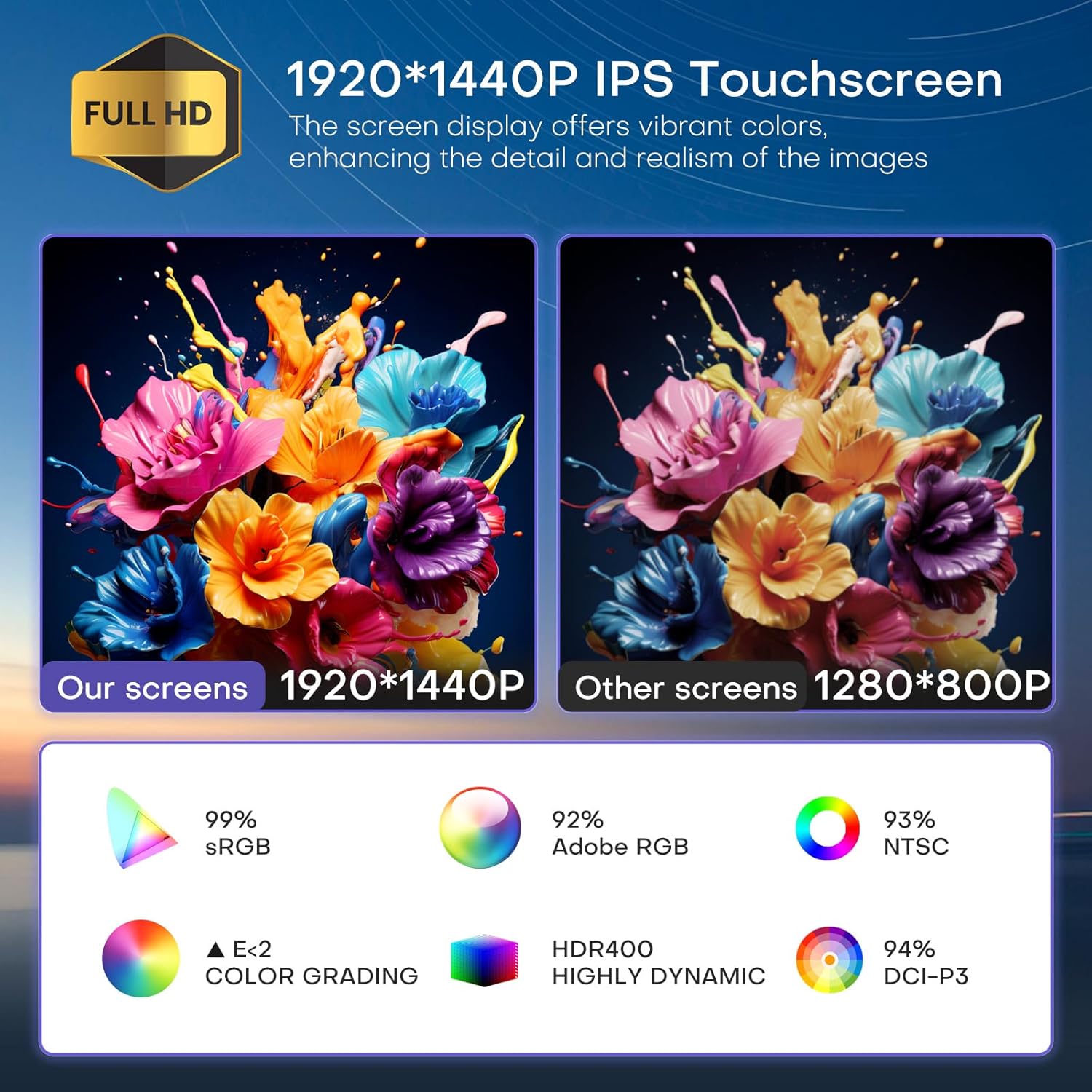
Image 6.2: Visual comparison demonstrating the superior 1920x1440P IPS touchscreen resolution and color accuracy of the KiriNavi unit compared to standard displays.

Image 6.3: Overview of key features including the Qualcomm 8-core processor, Bluetooth 5.0, Android 13 system, large HD screen, 170-degree viewing angle, and integrated CarPlay/Android Auto.
7. Troubleshooting
7.1 No Sound Output
- Check AUX Channel: Ensure your vehicle's original AUX channel is working correctly. If it is not, the head unit will not produce sound. Repair the original AUX channel if necessary.
- Volume Settings: Verify that the volume on both the head unit and your vehicle's amplifier (if applicable) is not muted or set too low.
- Wiring Connections: Confirm all audio wiring connections are secure and correctly installed.
7.2 Unit Not Powering On
- Power Cable: Check if the power cable is securely connected to both the head unit and the vehicle's power source.
- Fuses: Inspect the vehicle's fuse box and the head unit's inline fuse for any blown fuses. Replace if necessary.
- Battery Connection: Ensure the vehicle's battery is properly connected and charged.
7.3 GPS Signal Issues
- Antenna Placement: Ensure the GPS antenna is installed in a location with a clear view of the sky, free from obstructions.
- Antenna Connection: Verify the GPS antenna is securely connected to the head unit.
- Map Data: Ensure your navigation app's maps are up-to-date, especially for offline use.
8. Maintenance
- Screen Cleaning: Use a soft, lint-free cloth specifically designed for electronics screens to clean the touchscreen. Do not use abrasive cleaners or solvents.
- Software Updates: Periodically check for and install software updates to ensure optimal performance and access to new features.
- Environmental Conditions: Avoid exposing the unit to extreme temperatures, direct sunlight for prolonged periods, or excessive moisture.
9. Support
For technical assistance, installation inquiries, or any other questions regarding your KiriNavi car radio, please contact KiriNavi customer support. Before contacting support, it is helpful to have your product model name and purchase details ready.
If you are unsure about vehicle compatibility before purchasing, you can send a picture of your car's central control to KiriNavi customer service for confirmation.
Contact Information: Refer to the contact details provided with your purchase or visit the official KiriNavi website for support options.