
1. Introduction
Thank you for choosing the FPD AT43-P1 43-inch 1080p FHD Smart TV. This television is powered by Tizen OS, offering a seamless and intuitive user experience. Enjoy a wide range of entertainment options with features like Samsung TV Plus, Dolby Audio, HDR 10, SmartThings, Miracast, Gaming Hub, and voice control. This manual provides essential information for setting up, operating, and maintaining your new smart TV.
2. Safety Information
Please read all safety instructions carefully before using your TV. Keep this manual for future reference. Always ensure the TV is placed on a stable surface to prevent falling. Do not expose the TV to rain or moisture. Avoid blocking ventilation openings. Refer to the manufacturer for any service or repair needs.
3. What's in the Box
Verify that all components are present in the packaging:
- FPD Tizen TV (43-inch 1080p FHD Smart TV)
- Remote Control
- 2 AAA Batteries (included for remote control)
- Stand (2 pieces)
- Power Cable
- User Manual (this document)
- Base Mounting Accessories (screws for stand)

Image: The FPD Smart TV box contents, showing the television, remote control, stand components, power cable, and user manual.
4. Setup
4.1 Attaching the Stand
To place the TV on a flat surface, attach the two stand feet to the bottom of the television using the provided screws. Ensure they are securely fastened.
4.2 Connecting Power
Plug the power cable into the TV's power input and then into a standard 110V wall outlet.
4.3 Connecting External Devices
The FPD AT43-P1 TV offers various ports for connecting external devices:
- HDMI: Two HDMI inputs are available for devices like gaming consoles, Blu-ray players, or cable boxes.
- USB: Two USB-A ports are provided for connecting USB storage devices.
- Optical In: For digital audio connections.
- Coax Input: For antenna or cable connections.
- Ethernet: For a wired network connection.
- Audio Inputs: Additional audio inputs are available.
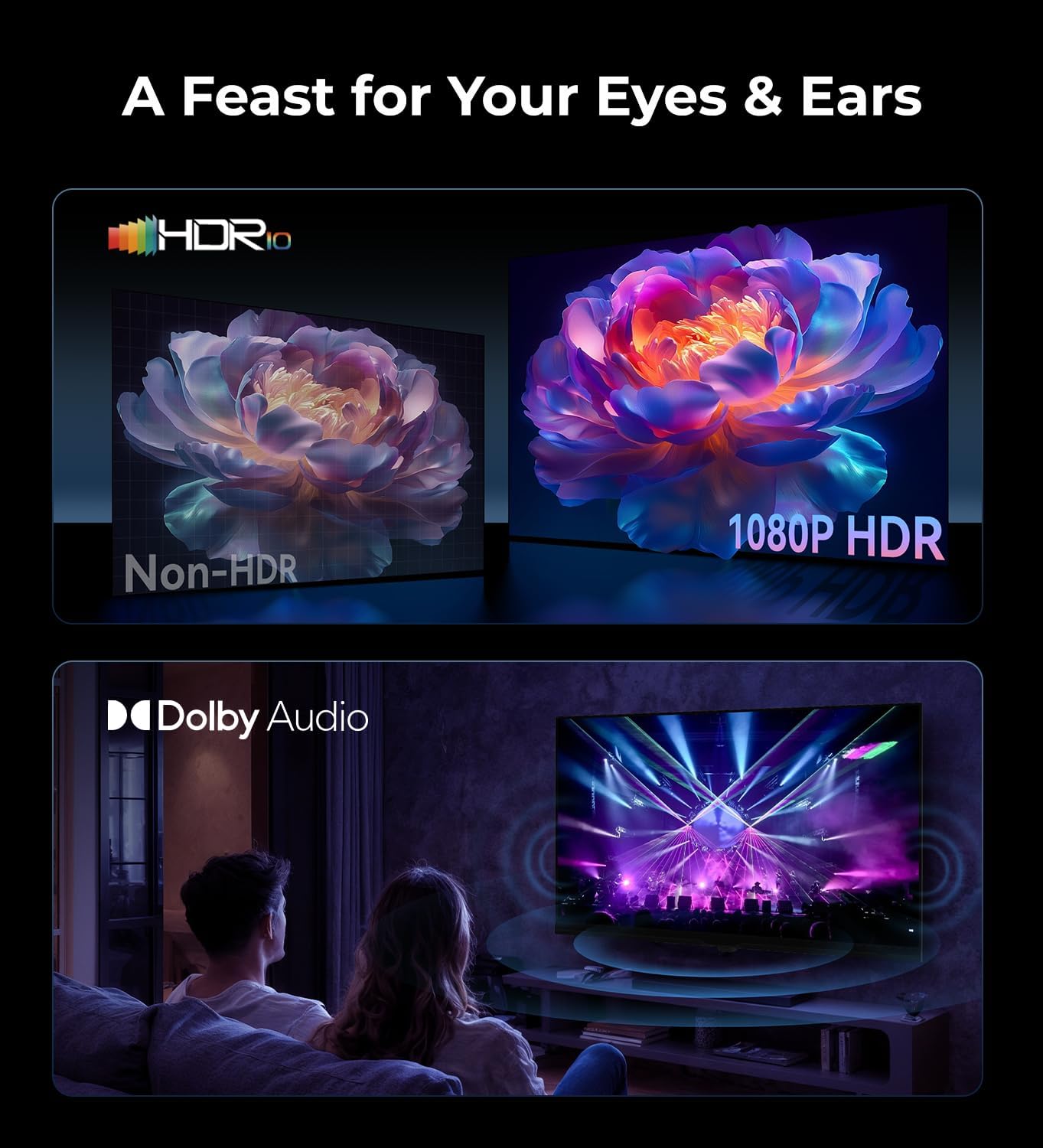
Image: A close-up view of the side-mounted input ports on the FPD Smart TV, highlighting USB, HDMI, optical, and coaxial connections for external devices.
4.4 Initial Setup
Upon first power-on, the TV will guide you through the initial setup process. This includes selecting your language, connecting to your Wi-Fi network, and pairing the remote control. Follow the on-screen prompts.
5. Operating the TV
5.1 Remote Control Functions
The included remote control is battery-operated and features voice activation. It has quick access buttons for popular streaming services like Netflix and YouTube, along with standard navigation, volume, and channel controls.
5.2 Navigating Tizen OS
The TV runs on Samsung's Tizen OS, known for its fast and responsive interface. Use the remote's navigation buttons to browse menus, select apps, and adjust settings.
5.3 Accessing Apps
The TV comes with pre-installed apps and allows you to download more. Easily switch between applications like Netflix, YouTube, and Prime Video using the dedicated buttons on the remote or through the Tizen OS home screen.
5.4 Voice Control (Bixby)
Utilize the built-in voice control feature (Bixby) by pressing the microphone button on your remote. You can search for content, open apps, and control TV settings hands-free.
5.5 Smart Home Control (SmartThings)
Manage compatible smart home devices directly from your TV using SmartThings. Control lights, cameras, and sensors for a connected home experience.
5.6 Screen Mirroring (Miracast)
Wirelessly mirror videos, photos, and files from your phone or laptop to the TV using Miracast for seamless content sharing.
5.7 Gaming Hub
Transform your TV into a gaming center with access to over 1,000 titles via Samsung Gaming Hub. Stream games from services like Xbox Cloud Gaming and NVIDIA GeForce NOW by connecting a compatible controller.
Video: A user demonstrates the FPD Smart TV's Gaming Hub feature, highlighting its responsiveness and suitability for gaming.
5.8 Picture Settings
Adjust picture modes (Standard, Movie, Dynamic, Natural, Game, PC, Custom, Filmmaker Mode), brightness, contrast, color, sharpness, HDR settings, and more through the TV's settings menu for an optimized viewing experience.
5.9 Sound Settings
Customize sound modes (Standard, Movie, Dynamic, Natural, Game, PC, Custom, Filmmaker Mode), adjust bass and treble, and explore advanced audio settings to enhance your listening experience.
6. Troubleshooting
- No Power: Ensure the power cable is securely connected to both the TV and the wall outlet. Check if the outlet is functioning.
- No Picture/Sound: Verify that the correct input source is selected. Check all cable connections (HDMI, coaxial, etc.).
- Remote Not Working: Replace the AAA batteries in the remote. Ensure there are no obstructions between the remote and the TV. Re-pair the remote if necessary during initial setup.
- No Internet Connection: Check your Wi-Fi router and internet service. Reconnect the TV to the Wi-Fi network through the settings menu. For wired connections, ensure the Ethernet cable is properly connected.
- Poor Picture Quality: Adjust picture settings such as brightness, contrast, and sharpness. Ensure the content source is of high quality (e.g., 1080p for FHD).
- Slow Performance: If the Tizen OS feels slow, try restarting the TV. Ensure the TV's software is up to date.
7. Specifications
| Feature | Detail |
|---|---|
| Brand | FPD |
| Model Number | AT43-P1 |
| Screen Size | 43 Inches |
| Display Technology | LCD |
| Resolution | 1080p (Full HD) |
| Refresh Rate | 60 Hz |
| Operating System | Tizen OS |
| Special Features | Dolby Audio, HDR10, Tizen TV, Samsung TV Plus, SmartThings, Miracast, Gaming Hub, Voice Control |
| Connectivity Technology | Bluetooth, HDMI (x2), RF, USB (x2), Wi-Fi, Ethernet |
| Product Dimensions | 6.77 x 37.64 x 22.83 inches |
| Item Weight | 13.64 pounds (6.2 Kilograms) |
| Wattage | 75 watts |
8. Maintenance
To ensure the longevity and optimal performance of your FPD Smart TV, follow these maintenance guidelines:
- Cleaning: Gently wipe the screen with a soft, dry, lint-free cloth. For stubborn marks, lightly dampen the cloth with water or a screen cleaner specifically designed for TVs. Avoid harsh chemicals.
- Ventilation: Ensure adequate airflow around the TV. Do not block the ventilation slots on the back or sides of the TV.
- Power: Unplug the TV from the power outlet during lightning storms or when it will be left unattended for long periods.
- Placement: Avoid placing the TV in direct sunlight or near heat sources. Keep it away from areas with high humidity or dust.
9. Warranty & Support
For warranty information, technical support, or service inquiries, please refer to the warranty card included with your product or visit the official FPD website. Keep your purchase receipt as proof of purchase.


