
AXIAOLIFH ZL02D
AXIAOLIFH ZL02D Smart Watch User Manual
Model: ZL02D
Introduction
Thank you for choosing the AXIAOLIFH ZL02D Smart Watch. This device is designed to be a versatile companion for your daily life, offering features such as heart rate monitoring, blood pressure measurement, sleep tracking, and various sports modes. Its ultra-thin and lightweight design, coupled with a comfortable silicone strap, ensures a pleasant wearing experience. This manual provides detailed instructions on how to set up, operate, and maintain your smart watch to ensure optimal performance.

Image: The ZL02D Smart Watch in pink, showcasing its round display and silicone strap.
Setup Guide
1. Package Contents
Before you begin, please ensure all items are present in your package:
- ZL02D Smart Watch
- Charging Cable
- User Manual (this document)
- Bracelet Strap (pre-attached or separate)
2. Charging the Device
Upon first use, fully charge your smart watch.
- Connect the magnetic charging cable to the charging contacts on the back of the watch.
- Plug the USB end of the cable into a standard USB power adapter (5V/1A recommended) or a computer's USB port.
- The watch screen will display a charging indicator.
- A full charge typically takes about 2-3 hours.
3. App Installation (DaFit)
To unlock the full functionality of your ZL02D Smart Watch, you need to install the companion application, DaFit, on your smartphone.
- For Android users: Search for "DaFit" in the Google Play Store and download the app.
- For iOS users: Search for "DaFit" in the Apple App Store and download the app.
- Alternatively, scan the QR code provided in the watch's quick start guide (if available) to directly download the app.
4. Pairing with Your Smartphone
Ensure your phone's Bluetooth is enabled before pairing.
- Open the DaFit app on your smartphone.
- Follow the on-screen instructions to create an account or log in.
- Navigate to the "Device" or "Add Device" section within the app.
- The app will search for nearby Bluetooth devices. Select "ZL02D" or a similar device name from the list.
- Confirm the pairing request on both your phone and the watch if prompted.
- Once successfully paired, the watch's time and date will synchronize with your phone, and you can begin using its features.
Operating Instructions
1. Basic Navigation
The ZL02D Smart Watch features a full touch screen and a side button for navigation.
- Touch Screen: Swipe left/right, up/down to navigate through menus and screens. Tap to select an option.
- Side Button: Press to wake the screen, return to the home screen, or go back to the previous menu. A long press may power on/off the device.
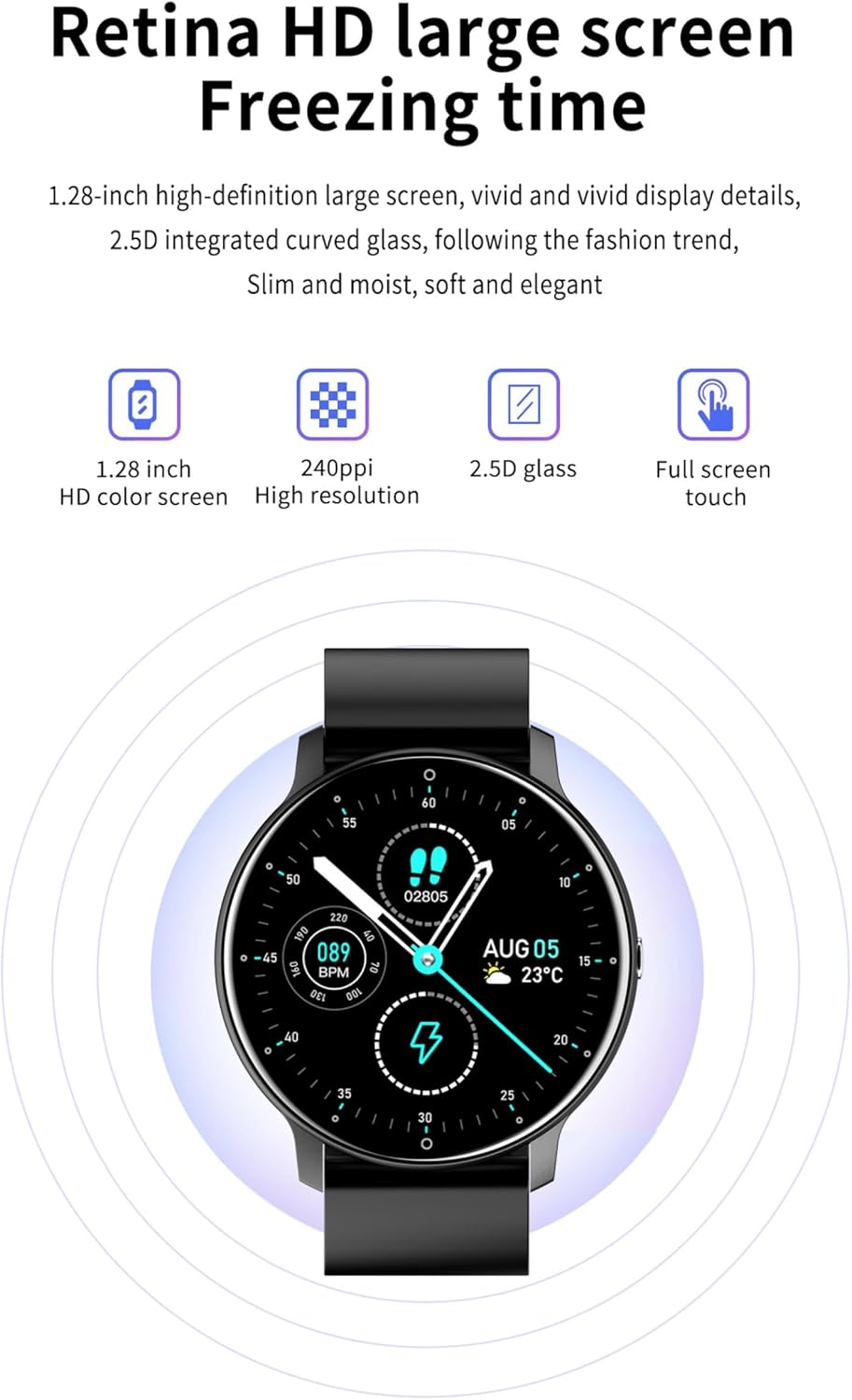
Image: The watch display showcasing its 1.28-inch HD screen with time, date, and various health indicators.
2. Health Monitoring
The watch can monitor several health indicators. Note: Measurement data is for reference only and cannot be used as medical data.
- Heart Rate: Swipe to the heart rate interface on the watch. The watch will automatically start measuring your heart rate. For accurate readings, ensure the watch is snug on your wrist.
- Blood Pressure: Similar to heart rate, navigate to the blood pressure interface. Remain still during measurement.
- Sleep Tracking: Wear the watch to bed. It will automatically track your sleep patterns, including deep sleep, light sleep, and awake time. View detailed sleep data in the DaFit app.
3. Sports Modes
The watch supports various sports modes to track your activity.
- Navigate to the "Sports" menu on the watch.
- Select your desired activity (e.g., walking, running, cycling).
- The watch will begin tracking duration, steps, distance, and calories burned.
- End the activity by swiping or pressing the side button and confirming.
4. Smart Reminders and Notifications
Once paired with your phone, the watch can receive notifications and manage calls.
- Call Notifications: The watch will vibrate and display incoming call alerts. You can reject calls directly from the watch.
- Message Notifications: Receive alerts for SMS, social media apps, and other notifications configured in the DaFit app.
- Sedentary Reminder: Set reminders in the app to prompt you to move after periods of inactivity.

Image: The watch screen showing an incoming call notification with options to accept or reject.
5. Weather Forecast
The watch can display real-time weather conditions once synchronized with the DaFit app and your phone's location services.
- Ensure the DaFit app has location permissions enabled on your phone.
- Swipe to the weather interface on your watch to view current temperature and forecast.

Image: A user wearing the watch, which displays the current weather forecast.
Maintenance
1. Water Resistance (IP67)
The ZL02D Smart Watch features an IP67 professional waterproof design.
- It is resistant to splashing water and can withstand hand washing.
- Do not wear the watch while swimming, bathing in hot water, or diving.
- Avoid contact with hot water, steam, or corrosive liquids, as this may compromise the waterproof seal.
- If the watch gets wet, wipe it dry with a soft cloth before charging or operating.

Image: Two ZL02D Smart Watches, one black and one blue, partially submerged in water, illustrating their IP67 water resistance.
2. Cleaning
Regular cleaning helps maintain the watch's appearance and functionality.
- Wipe the watch screen and body with a soft, lint-free cloth.
- For stubborn smudges, slightly dampen the cloth with water.
- Clean the charging contacts periodically to ensure good connection.
- The silicone strap can be cleaned with mild soap and water. Ensure it is completely dry before reattaching to the watch.
3. Battery Care
Proper battery care extends the lifespan of your device.
- Avoid extreme temperatures (hot or cold) as they can degrade battery performance.
- Do not leave the watch fully discharged for extended periods.
- Charge the watch regularly, even if not in daily use, to maintain battery health.
Troubleshooting
If you encounter issues with your ZL02D Smart Watch, try the following solutions:
- Watch not turning on: Ensure the watch is fully charged. Connect it to the charger for at least 30 minutes.
- Unable to pair with phone:
- Ensure Bluetooth is enabled on your phone.
- Make sure the watch is within Bluetooth range (typically 10 meters).
- Restart both your phone and the watch.
- Clear the Bluetooth cache on your phone (Android) or forget the device and try pairing again.
- Ensure the DaFit app is updated to the latest version.
- Inaccurate health data:
- Ensure the watch is worn snugly on your wrist, not too loose or too tight.
- Keep your arm still during measurements.
- Clean the sensor on the back of the watch.
- Notifications not received:
- Ensure the watch is successfully paired and connected to the DaFit app.
- Check notification permissions for the DaFit app in your phone's settings.
- Verify that notification alerts are enabled within the DaFit app for specific applications.
- Ensure your phone's "Do Not Disturb" mode is off.
- Screen unresponsive: Try restarting the watch by long-pressing the side button (if applicable) or connecting it to the charger to force a restart.
If the problem persists, please contact customer support.
Specifications

Image: Detailed diagram illustrating the watch's dimensions and a table of its technical specifications.
| Feature | Specification |
|---|---|
| Model | ZL02D |
| Display | 1.28 inch full touch screen, 240*240px |
| Operation Mode | Full touch and side buttons |
| CPU | GR5515 |
| Memory Storage Capacity | 128 MB |
| Bluetooth | Bluetooth 4.0 (Support Bluetooth 5.0) |
| Waterproof Rating | IP67 waterproof |
| Heart Rate Sensor | HRS3300 |
| Acceleration Sensor | SC7A20 |
| Battery Capacity | 220 mAh |
| Wrist Strap Material | Silicone Strap |
| Product Size | 45.5mm x 10mm (Dial Diameter x Thickness) |
| Product Weight | 35g |
| Compatible Platform | iOS 9.0+ and Android 5.0+ |
| Manufacturer | AXIAOLIFH |
| Country of Origin | China |
Warranty and Support
Your AXIAOLIFH ZL02D Smart Watch comes with a standard manufacturer's warranty. Please refer to the purchase platform or contact the seller for specific warranty terms and conditions.
For technical support, troubleshooting assistance, or any inquiries regarding your product, please contact AXIAOLIFH customer service through the contact information provided on your purchase receipt or the official brand website.
Related documentsZL02D

Ask a question about this manual
Ask about setup, troubleshooting, compatibility, parts, safety, or missing instructions. Manuals+ will review the question and use this page’s manual context to help answer it.