1. Introduction
This manual provides detailed instructions for the Redragon H540 Wireless Gaming Headset. The H540 offers versatile connectivity options and high-quality audio for an enhanced gaming and communication experience across multiple platforms.
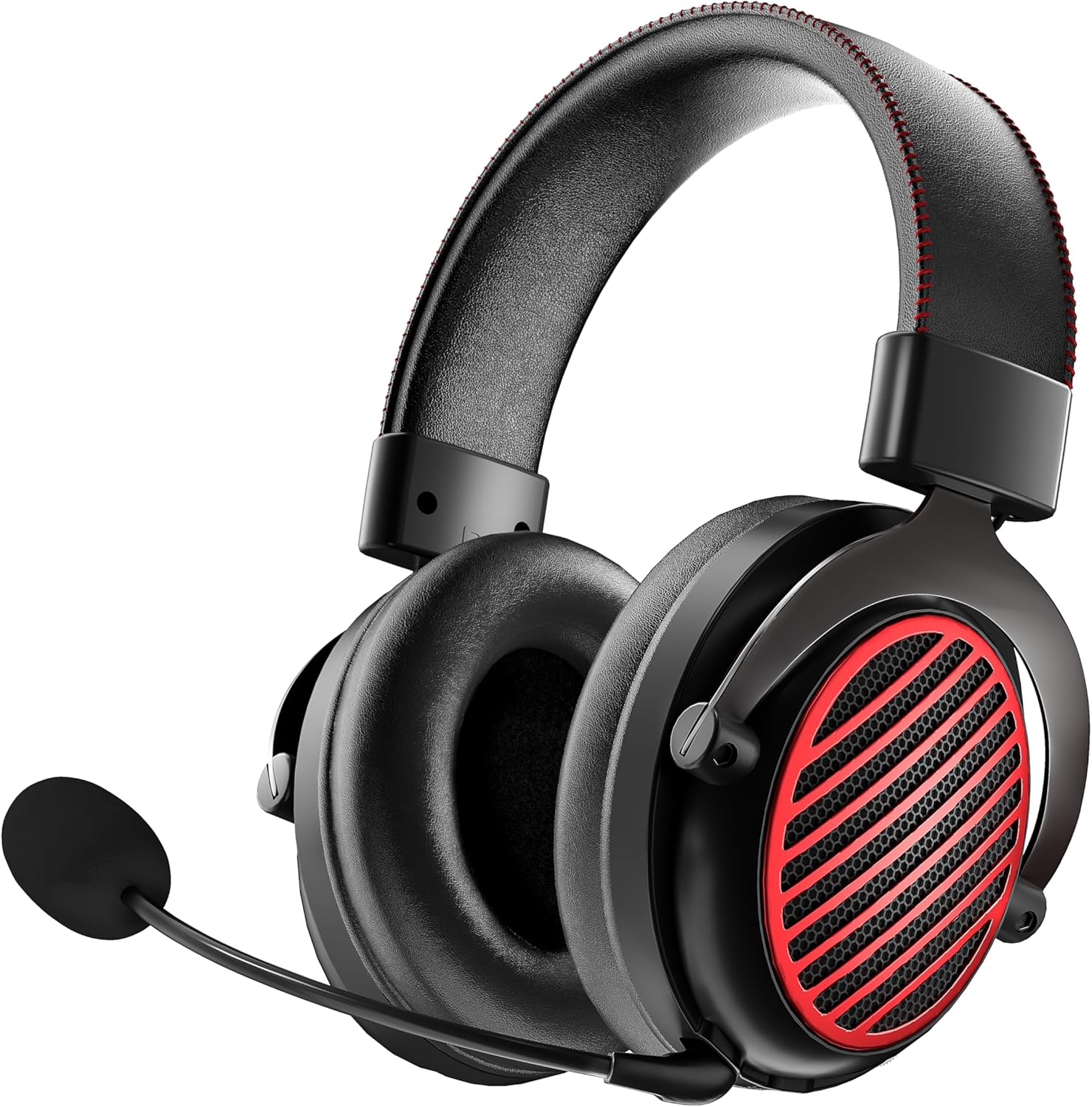
Image 1.1: The Redragon H540 Wireless Gaming Headset, shown in black with red accents on the earcups and a detachable microphone.
2. Package Contents
Please verify that all items are present in your package:
- Redragon H540 Wireless Gaming Headset
- Detachable Omni-Directional Microphone
- 2.4G Wireless USB Dongle (2-in-1 USB-A and USB-C compatible)
- USB Charging Cable
- 3.5mm Audio Cable
- User Manual
3. Product Features
- 4-in-1 Connectivity: Supports wireless Bluetooth, wireless 2.4G, 3.5mm wired, and USB wired connections for universal compatibility.
- 7.1 Surround Sound: Provides immersive audio for precise directional cues and an enhanced gaming experience.
- 53mm Drivers: Equipped with large 53mm audio drivers for a wide frequency range, rich soundstage, and clear audio fidelity.
- Omni-Directional Noise-Canceling Microphone: Detachable and flexible microphone with noise-canceling technology for clear voice communication.
- Comfort Design: Cloud-soft memory foam ear cushions and a durable aluminum alloy stand provide comfort during extended use.
- Multi-Platform Compatibility: Compatible with PC, Mac, PS4/5, Xbox, Switch, and mobile phones.

Image 3.1: Diagram illustrating the four connectivity modes: 3.5mm Wired, Bluetooth, 2.4G Wireless, and USB Wired.

Image 3.2: A user wearing the Redragon H540 headset, highlighting the 7.1 surround sound feature for an immersive experience.

Image 3.3: An exploded view showcasing the internal components of the 53mm audio drivers, emphasizing clarity and precision.

Image 3.4: The Redragon H540 headset featuring its 360-degree detachable omni-directional microphone, which can be adjusted to any position.

Image 3.5: Close-up of the Redragon H540 headset, emphasizing the soft memory foam earpads and the robust aluminum alloy bracket for comfort.

Image 3.6: The Redragon H540 headset displayed alongside a laptop, smartphone, and game controller, illustrating its multi-platform compatibility.
4. Setup Instructions
4.1. Charging the Headset
Before first use, fully charge the headset using the provided USB charging cable. Connect the USB-C end to the headset and the USB-A end to a powered USB port (e.g., computer, wall adapter).
4.2. Connecting via 2.4G Wireless
- Insert the 2.4G wireless USB dongle into an available USB-A or USB-C port on your PC, PS4/5, or Switch dock.
- Power on the headset. The headset should automatically connect to the dongle.
- On your device, ensure the Redragon H540 is selected as the audio output and input device.
4.3. Connecting via Bluetooth
- Power on the headset and switch it to Bluetooth mode (refer to the headset controls for mode selection).
- On your mobile device or Bluetooth-enabled PC, search for Bluetooth devices.
- Select "Redragon H540" from the list of available devices to pair.
4.4. Connecting via 3.5mm Wired
- Connect one end of the 3.5mm audio cable to the headset's 3.5mm port.
- Connect the other end to the 3.5mm audio jack on your PC, console controller, or mobile device.
- The headset will operate in passive mode, drawing no power from its internal battery.
4.5. Connecting via USB Wired
- Connect the USB charging cable to the headset's USB-C port.
- Connect the USB-A end to an available USB port on your PC or console.
- The headset will function as a wired USB audio device and charge simultaneously.
5. Operating Instructions
5.1. Power On/Off
- Power On: Press and hold the Power button for approximately 3 seconds until the indicator light illuminates.
- Power Off: Press and hold the Power button for approximately 3 seconds until the indicator light turns off.
5.2. Volume Control
Adjust the volume using the dedicated volume roller or buttons located on the headset earcup.
5.3. Microphone Usage
- Attach Microphone: Insert the detachable microphone into the port on the left earcup.
- Positioning: Bend the flexible microphone arm to position it optimally near your mouth for clear voice pickup.
- Mute/Unmute: Use the microphone mute button on the headset to toggle the microphone on or off. An indicator light may show the microphone status.
5.4. 7.1 Surround Sound (PC Only)
For 7.1 surround sound functionality on PC, ensure the headset is connected via 2.4G wireless or USB wired mode. You may need to install specific drivers or software from the Redragon website to enable and configure 7.1 surround sound. Refer to the software's instructions for detailed setup.
6. Maintenance
6.1. Cleaning
- Wipe the headset with a soft, dry cloth.
- Do not use harsh chemicals, cleaning solvents, or strong detergents.
- Avoid getting moisture into any openings.
6.2. Storage
Store the headset in a cool, dry place away from direct sunlight and extreme temperatures. When not in use for extended periods, it is recommended to store it in its original packaging or a protective case.
6.3. Battery Care
- To prolong battery life, avoid fully discharging the headset frequently.
- Charge the headset regularly, even if not in frequent use.
- Do not expose the battery to high temperatures.
7. Troubleshooting
7.1. No Sound from Headset
- Ensure the headset is powered on and charged (if wireless).
- Check that the correct audio output device is selected in your device's sound settings.
- Verify that the volume on both the headset and your device is turned up.
- If using 2.4G wireless, ensure the USB dongle is securely connected and recognized by your device.
- If using Bluetooth, ensure the headset is paired and connected.
- If wired, ensure the 3.5mm or USB cable is fully inserted into both the headset and the device.
7.2. Microphone Not Working
- Ensure the microphone is securely attached to the headset.
- Check that the microphone mute button on the headset is not activated.
- Verify that the correct audio input device (Redragon H540) is selected in your device's sound settings.
- Adjust microphone input levels in your device's sound settings.
7.3. Connectivity Issues
- 2.4G Wireless: Try plugging the USB dongle into a different USB port. Ensure no other 2.4G devices are causing interference.
- Bluetooth: Unpair and re-pair the headset with your device. Ensure the headset is within range of the Bluetooth device.
- General: Restart both the headset and the connected device.
8. Specifications
| Feature | Detail |
|---|---|
| Model Name | H540 |
| Connectivity Technology | Wireless (2.4G, Bluetooth), Wired (USB, 3.5mm) |
| Wireless Communication | Bluetooth, 2.4 GHz |
| Headphones Jack | 3.5 mm Jack |
| Audio Driver Type | Dynamic Driver |
| Driver Size | 53 mm |
| Frequency Range | 20Hz - 20,000Hz |
| Surround Sound | 7.1 Virtual Surround Sound |
| Microphone | Omni-Directional, Noise-Canceling, Detachable |
| Ear Placement | Over Ear |
| Form Factor | Over Ear |
| Noise Control | Active Noise Cancellation (Microphone) |
| Material | Aluminum (frame) |
| Item Weight | 0.54 Kilograms (1.19 pounds) |
| Compatible Devices | PC, MAC, PS4/5, Xbox, Switch, Phone |
9. Warranty Information
Redragon products are covered by a limited warranty. Please refer to the official Redragon website or your purchase documentation for specific warranty terms and conditions, including duration and coverage details. Keep your proof of purchase for warranty claims.
10. Support
For technical assistance, troubleshooting, or further inquiries, please visit the official Redragon support website or contact their customer service. Support resources may include FAQs, driver downloads, and contact forms.
Official Redragon Website: www.redragonusa.com


