
1. Introduction
This instruction manual provides essential information for the safe and efficient use of your ApoloSign 32-inch UHD 4K Smart Portable TV Gen2. Please read this manual thoroughly before operating the device and retain it for future reference. This portable smart TV combines a high-resolution display with smart features, offering versatile entertainment and productivity options throughout your home.

Image: The ApoloSign 32-inch Portable TV Gen2 positioned in a modern living room, showcasing its sleek design and portability.
2. Safety Information
General Safety Precautions
- Do not expose the device to rain or moisture to prevent fire or electric shock.
- Ensure proper ventilation. Do not block ventilation openings.
- Use only the power adapter supplied with the device.
- Avoid placing the device on unstable surfaces.
- Do not attempt to disassemble or repair the device yourself. Refer all servicing to qualified personnel.
Battery Safety
- The device contains a built-in 15000mAh lithium-ion battery. Do not expose it to excessive heat, direct sunlight, or fire.
- Charge the battery fully before first use.
- If the battery shows signs of swelling, leakage, or damage, discontinue use immediately and contact support.
- Dispose of batteries according to local regulations.
3. Package Contents
Verify that all items are present in the package:
- ApoloSign 32-inch UHD 4K Smart Portable TV Gen2 Display
- Rolling Stand Base
- Stand Pole (multiple sections)
- Power Adapter
- Voice Remote Control
- 8MP Camera Module
- Assembly Screws and Tools
- User Manual (this document)

Image: The voice remote control, a key accessory for navigating the ApoloSign TV.

Image: The detachable 8MP camera module, designed for video calls and other interactive features.
4. Product Overview
The ApoloSign 32-inch UHD 4K Smart Portable TV Gen2 is a versatile device designed for flexible use across various environments. Its main components include:
- 32-inch UHD 4K Touchscreen: A large, high-resolution display with touch functionality for intuitive interaction.
- Rolling Stand: A sturdy base with smooth wheels for easy movement between rooms.
- Adjustable Screen Mount: Allows for height adjustment, left/right swivel, and tilt for optimal viewing angles in both portrait and landscape orientations.
- Integrated 8MP Camera: For video conferencing and other camera-enabled applications.
- Voice Remote Control: Enables hands-free operation and navigation.
- Built-in 15000mAh Battery: Provides up to 8 hours of portable use.
- Connectivity Ports: Includes HDMI, USB 2.0, USB 3.0, Bluetooth 5.3, and Wi-Fi for various connections.
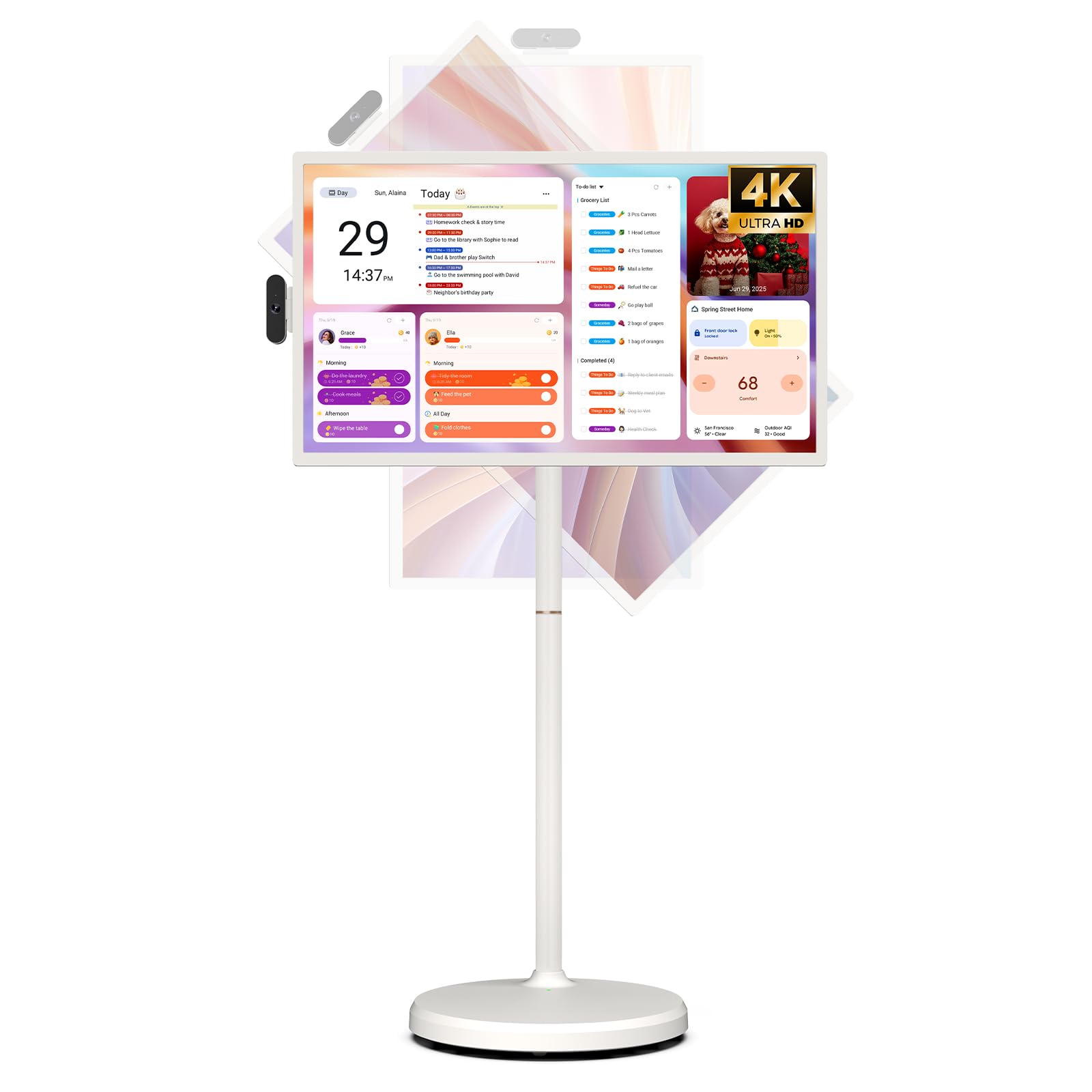
Image: The ApoloSign 32-inch UHD 4K Smart Portable TV Gen2, highlighting its large screen and mobile stand.
5. Setup
Assembly
- Unpack all components from the box.
- Attach the stand pole sections to the rolling base using the provided screws.
- Carefully mount the TV display onto the top of the assembled stand pole, ensuring it clicks securely into place.
- Connect the internal power cable from the stand to the display.
- Attach the 8MP camera module to the designated slot on top of the display.
Initial Power-On and Network Connection
- Connect the power adapter to the TV and a power outlet. The device will begin charging.
- Press the power button located on the back of the display to turn on the TV.
- Follow the on-screen prompts to select your language and region.
- Connect to your Wi-Fi network by selecting it from the list and entering the password.
- Sign in with your Google account to access the Google Play Store and other services.
Remote Control Pairing
- Insert batteries into the voice remote control.
- On the TV screen, navigate to Settings > Remotes & Accessories > Add Accessory.
- Press and hold the specified pairing buttons on the remote (refer to remote's mini-guide) until the indicator light blinks.
- Select the remote control from the list on the TV screen to complete pairing.
6. Operating Instructions
Basic Navigation
- Touchscreen: Tap, swipe, and pinch to navigate menus, open apps, and interact with content.
- Voice Remote: Use the directional pad and selection buttons for menu navigation. Press the voice button to activate voice commands for searching or launching apps.
Screen Rotation and Adjustment
The screen can be rotated 90 degrees between landscape and portrait modes. It also allows for height adjustment, left/right swivel, and tilting to achieve the desired viewing angle.

Image: Illustrations demonstrating the various ways the ApoloSign TV screen can be adjusted: height, tilt, and rotation.
Apps and Google Play Store
Running on a customized Android 15 OS and Google certified, you can download and install any app available on the Google Play Store. Access streaming services, social media, productivity tools, and games.

Image: The ApoloSign TV screen showing the Android 15 interface with icons for popular apps like Netflix, YouTube, Spotify, and TikTok.
Wireless and Wired Casting
Share content from your mobile phone, tablet, or laptop to the TV screen.
- Wireless Casting: Use the built-in MixCast feature or other compatible casting protocols. Ensure your device and the TV are on the same Wi-Fi network.
- Wired Casting: Connect external devices like gaming consoles or laptops via the HDMI port. The TV supports 4K HDMI output.
Video: A demonstration of how to screen mirror a mobile phone, tablet, or laptop to the ApoloSign Smart Portable TV.
Calendar Widget and Screensavers
The interactive desktop calendar widget syncs with Google Calendar, Outlook, and Google Tasks to help manage your schedule. Utilize dynamic screensavers to transform the TV into a digital clock, photo frame, or market billboard.

Image: The ApoloSign TV screen showcasing its digital calendar feature, displaying daily schedules and events.

Image: The ApoloSign TV screen demonstrating different digital screensaver options, including a photo display and a music player interface.
Camera Usage
The integrated 8MP camera is ideal for video calls and conferences. Ensure the camera is correctly installed and facing the desired direction.
7. Maintenance
Cleaning
- Always unplug the device before cleaning.
- Use a soft, lint-free cloth slightly dampened with water or a screen cleaner to wipe the display. Avoid harsh chemicals.
- Wipe the body of the TV and stand with a dry, soft cloth.
Battery Care
- For optimal battery life, avoid completely draining the battery frequently.
- Store the device in a cool, dry place when not in use for extended periods.
- Charge the battery periodically if stored for a long time to prevent deep discharge.
Software Updates
Regularly check for and install software updates to ensure optimal performance and access to the latest features. Updates can usually be found in the device's settings menu.
8. Troubleshooting
- Device not powering on or shutting off abruptly:
Ensure the power adapter is securely connected and the battery is charged. If the issue persists, perform a soft reset by holding the power button for 10-15 seconds. If problems continue, contact customer support. - Remote control not responding or selective functionality:
Check the remote's batteries and replace if necessary. Ensure the remote is paired correctly (refer to Section 5). If the remote is still unresponsive, try re-pairing it. - Wi-Fi connectivity issues:
Verify that your Wi-Fi router is working correctly. Restart the TV and your router. Ensure the TV is within range of your Wi-Fi signal. - Screen mirroring not working:
Confirm that both the TV and the source device (phone, tablet, laptop) are connected to the same Wi-Fi network. Ensure the casting feature is activated on both devices. - Poor picture or sound quality:
For streaming content, check your internet connection speed. For wired connections (HDMI), ensure cables are securely connected and undamaged. Adjust display settings (resolution, brightness) as needed.
9. Specifications
| Feature | Detail |
|---|---|
| Model Name | SW3299T-4K |
| Screen Size | 32 Inches |
| Resolution | 4K UHD 2160p (3840x2160 Pixels) |
| Display Technology | LCD |
| Refresh Rate | 60 Hz |
| Operating System | Android 15 |
| RAM | 16GB (8+8GB) |
| Internal Storage | 256GB |
| Battery Capacity | 15000mAh (up to 8 hours runtime) |
| Camera | 8MP |
| Connectivity | Bluetooth 5.3, Wi-Fi |
| Ports | 1x HDMI, 1x USB 2.0, 1x USB 3.0 |
| Speaker Description | 2.1 channel speakers |
| Control Method | Touch, Voice Remote |
| Product Dimensions | 16.14"D x 28.87"W x 60.26"H |
10. Warranty and Support
Manufacturer's Warranty
This ApoloSign product is covered by a 1 Year Manufacturer Warranty from the date of purchase. This warranty covers defects in materials and workmanship under normal use. Please retain your proof of purchase for warranty claims.
Customer Support
For technical assistance, troubleshooting, or warranty inquiries, please contact ApoloSign Official customer support. They offer 24/7 fast support to address any issues you may encounter.
For more information, visit the ApoloSign Store on Amazon.
