
1. Introduction
Thank you for choosing the Walfront HD WiFi Doorbell Camera. This device provides enhanced home security through high-definition video monitoring, two-way audio communication, and remote access via a mobile application. This manual provides detailed instructions for setup, operation, and maintenance to ensure optimal performance and security for your home, apartment, villa, studio, or office.
The doorbell camera is designed for ease of use and reliable performance, featuring durable ABS material construction and intelligent reminding functions.
2. Package Contents
Please verify that all items listed below are included in your package:
- 1 x Walfront HD WiFi Doorbell Camera Unit
- 1 x Wireless Chime Unit (Machine)
- 1 x USB Data Cable
- 1 x User Manual
- 1 x Mounting Sticker
- 1 x Accessory Pack (e.g., screws, anchors)
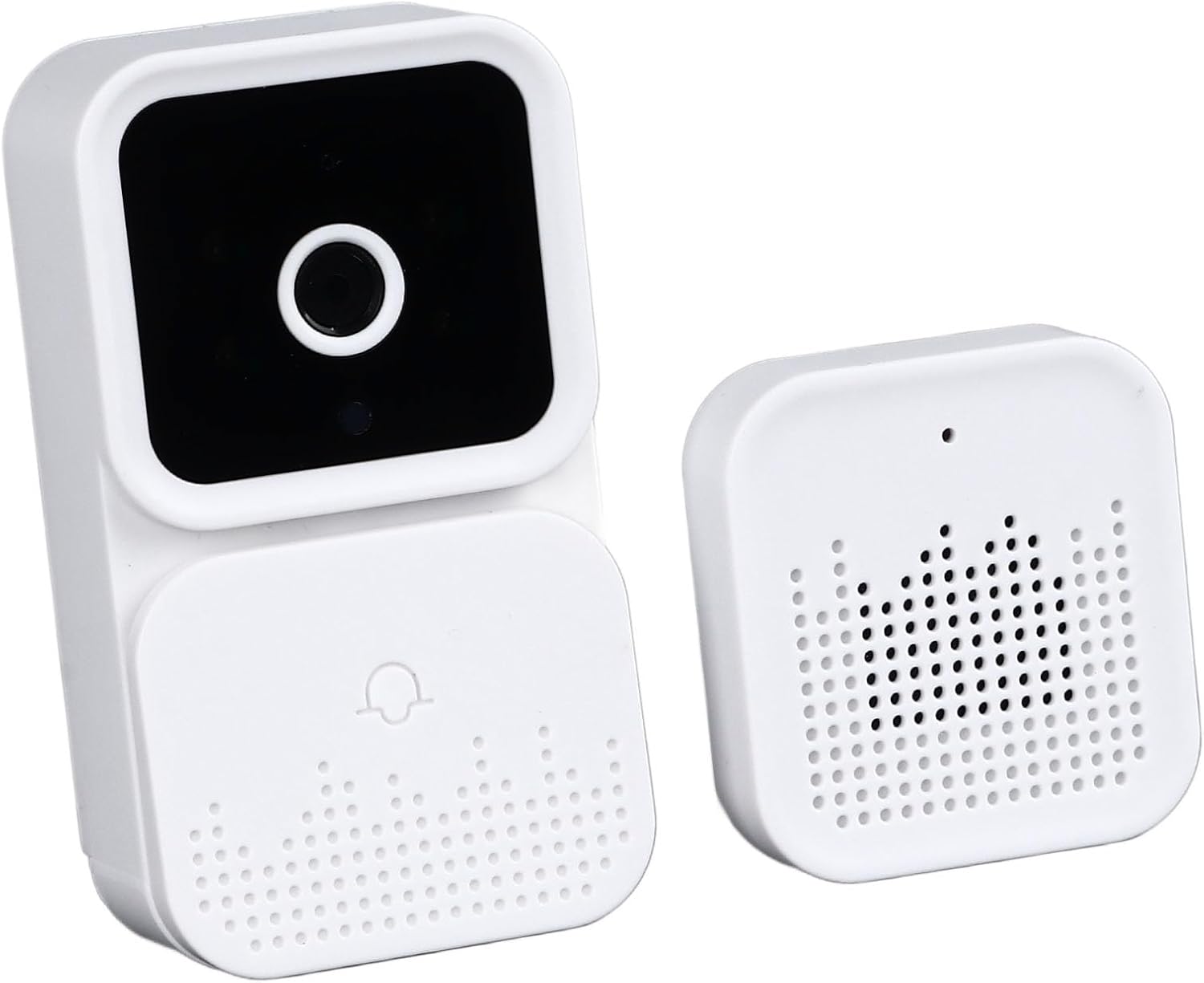
Figure 2.1: Walfront HD WiFi Doorbell Camera and Chime Unit. This image shows the main doorbell unit and its accompanying wireless chime, both in a white finish.
3. Product Overview
The Walfront HD WiFi Doorbell Camera offers several key features to enhance your home security:
- HD Visibility: Equipped with a high-definition camera for clear viewing of your doorstep.
- Remote Control & Monitoring: Access live video and communicate remotely via a mobile application.
- Intelligent Reminding: Receive real-time notifications on your smartphone through the TUYA mobile app.
- Two-Way Audio: Engage in conversations with visitors at your door from anywhere.
- IR Night Vision: Provides clear visibility even in low-light conditions for 24-hour security.
- Durable Construction: Made from excellent ABS material for long-lasting use.
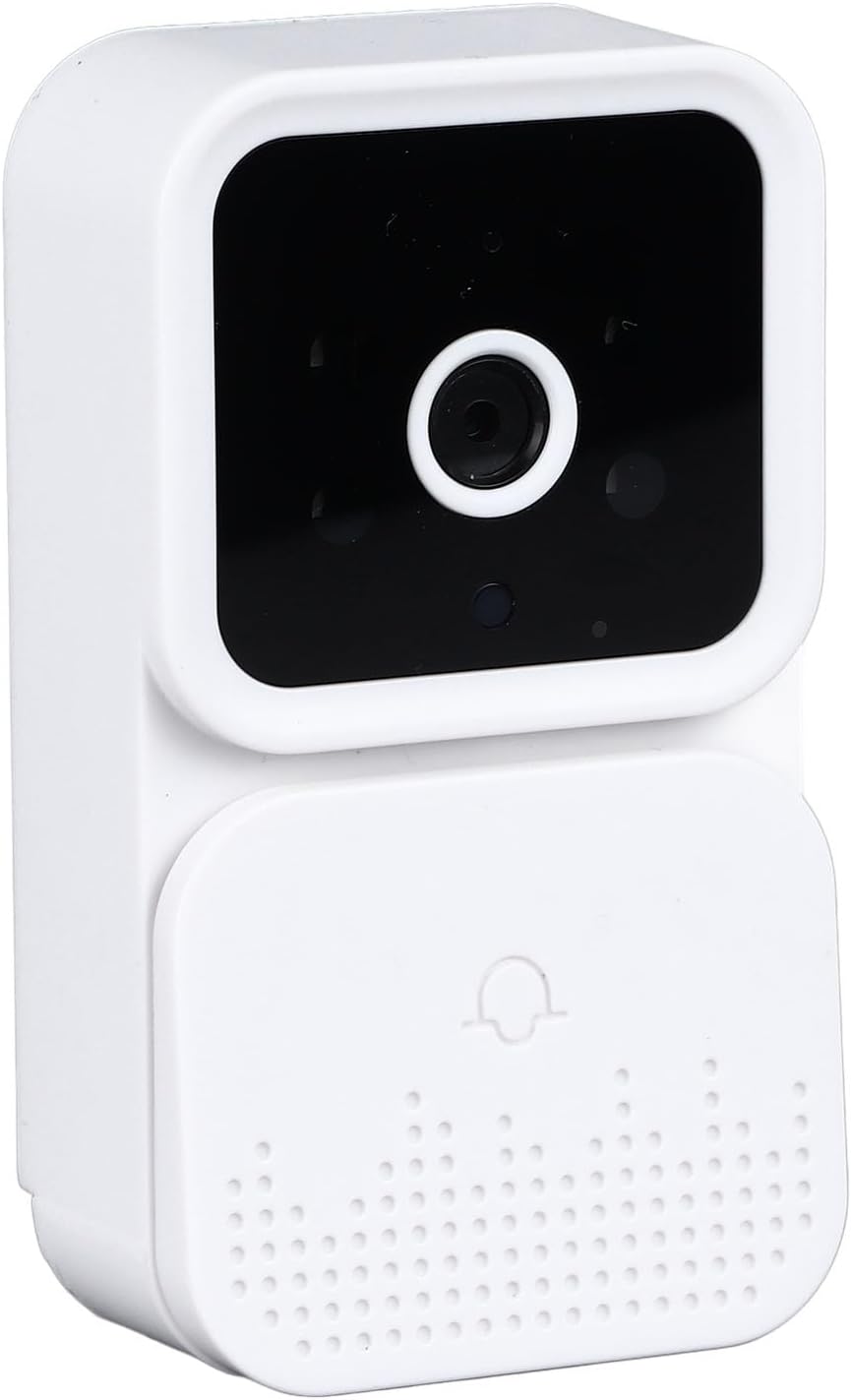
Figure 3.1: Close-up View of the Doorbell Unit. A detailed shot of the main doorbell camera unit, showcasing its lens and design.

Figure 3.2: Close-up View of the Wireless Chime Unit. A detailed shot of the indoor wireless chime unit, showing its speaker grille.

Figure 3.3: Two-Way Audio Feature Demonstration. A delivery person is shown at a door, with speech bubbles indicating a two-way conversation between the delivery person and the homeowner via the doorbell camera.

Figure 3.4: IR Night Vision Capability. This image illustrates the doorbell's night vision, showing a split view of a house in daylight and the same scene in monochrome night vision.
4. Setup
4.1 Charging the Doorbell Camera
Before initial use, fully charge the doorbell camera using the provided USB data cable. Connect the cable to the doorbell's charging port and a standard USB power adapter (not included). The battery capacity is 1000mAh.
4.2 Installing the Mobile Application
- Download the TUYA Smart app from your smartphone's app store (Google Play Store for Android or Apple App Store for iOS).
- Register for a new account or log in if you already have one.
4.3 Pairing the Doorbell Camera with the App
- Ensure your smartphone is connected to a 2.4GHz Wi-Fi network.
- Open the TUYA Smart app and tap 'Add Device' or the '+' icon.
- Select 'Security & Video Surveillance' > 'Smart Doorbell' or search for 'Doorbell Camera'.
- Follow the on-screen instructions to put the doorbell camera into pairing mode (usually involves pressing and holding a button on the doorbell until an indicator light flashes).
- Enter your Wi-Fi network password when prompted by the app.
- Scan the QR code displayed on your phone with the doorbell camera's lens, or follow alternative pairing methods if provided.
- Once connected, the app will confirm successful pairing. You can then name your doorbell camera.
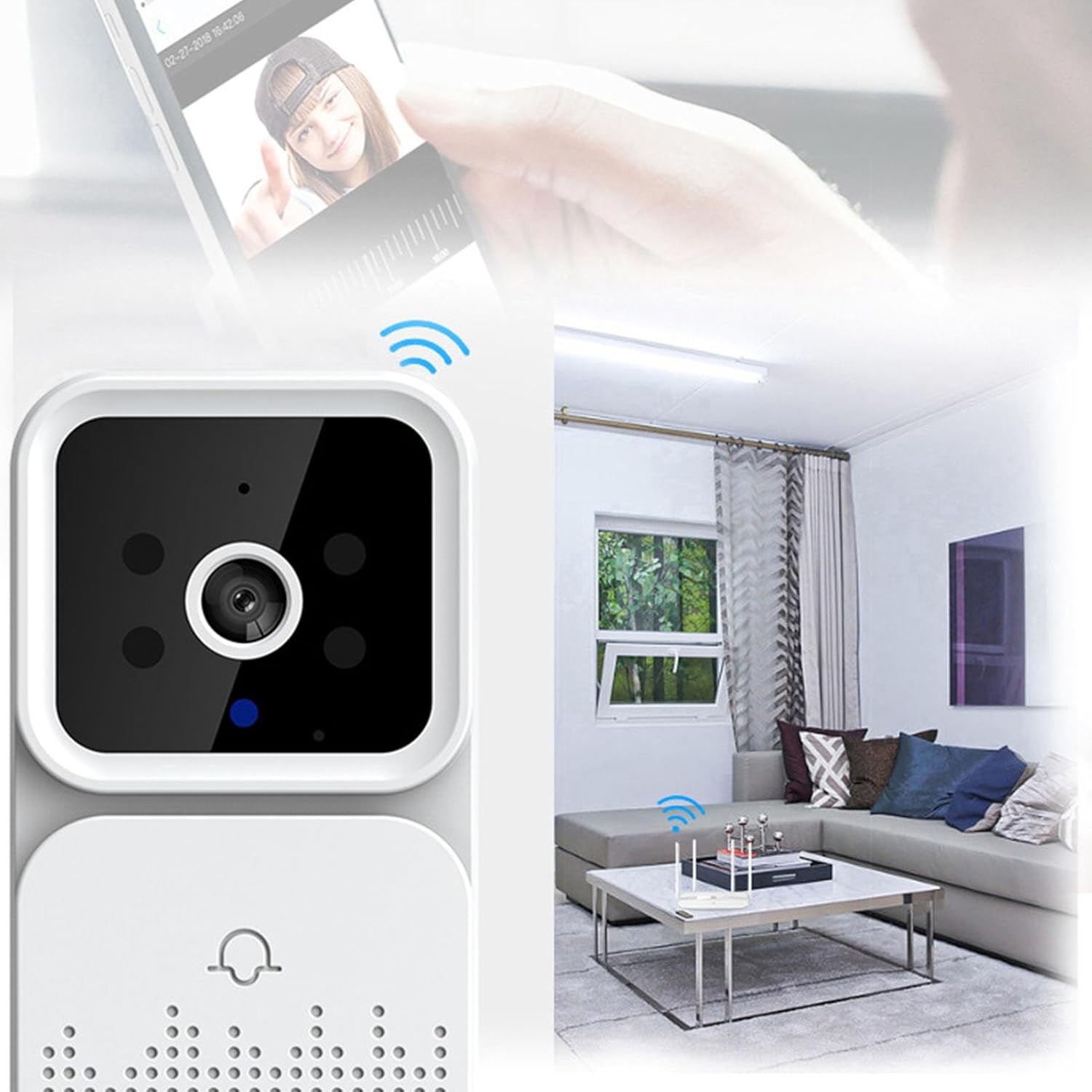
Figure 4.1: Wireless Connectivity in a Home Environment. The doorbell camera is depicted in a home interior, highlighting its wireless connection to a Wi-Fi router, indicating ease of installation.
4.4 Mounting the Doorbell Camera
- Choose a suitable location near your door, ensuring a clear view and good Wi-Fi signal strength.
- Use the provided mounting sticker or screws and anchors from the accessory pack to securely attach the doorbell unit to the wall or door frame.
- Ensure the doorbell is mounted at an appropriate height for optimal viewing of visitors.

Figure 4.2: Intelligent Reminding and Door Compatibility. This image shows the doorbell's compatibility with various door types (steel, wood, brick wall) and the Tuya app's notification feature on a smartphone.
5. Operating Instructions
5.1 Live View and Remote Monitoring
Open the TUYA Smart app and select your doorbell camera from the device list. You will see a live video feed from your doorbell. You can monitor your doorstep in real-time from anywhere with an internet connection.

Figure 5.1: Remote Monitoring and Interaction. A child is shown reaching for a door, while a smartphone displays the live feed from the doorbell camera, demonstrating remote viewing.
5.2 Two-Way Audio Communication
When a visitor presses the doorbell or motion is detected, you will receive a notification on your phone. Tap the notification to answer the call and engage in a two-way conversation with the visitor using the app's microphone and speaker functions.

Figure 5.2: Real-time Interaction with Visitors. The doorbell unit is shown alongside a smartphone displaying a live video call with a delivery person, emphasizing the remote communication feature.
5.3 Intelligent Reminders and Notifications
The doorbell camera supports push notifications via the TUYA app. You will receive alerts for doorbell presses, motion detection, and other important events directly on your smartphone, allowing you to respond promptly.
5.4 Night Vision
The integrated IR night vision automatically activates in low-light conditions, providing clear black-and-white video footage to maintain security around the clock.
6. Maintenance
- Cleaning: Gently wipe the camera lens and the doorbell's exterior with a soft, damp cloth. Avoid using harsh chemicals or abrasive cleaners.
- Battery Life: The doorbell camera is powered by a rechargeable lithium battery. Monitor the battery level via the app and recharge as needed using the provided USB cable.
- Firmware Updates: Periodically check the TUYA Smart app for available firmware updates for your doorbell camera. Keeping the firmware updated ensures optimal performance and security.
- Wi-Fi Connection: Ensure your Wi-Fi router is functioning correctly and provides a strong signal to the doorbell camera for uninterrupted operation.
7. Troubleshooting
- Doorbell not connecting to Wi-Fi: Ensure your Wi-Fi network is 2.4GHz. Verify the Wi-Fi password. Move the doorbell closer to the router or consider a Wi-Fi extender.
- No notifications on phone: Check your phone's app notification settings to ensure TUYA Smart app notifications are enabled. Verify the doorbell camera is online in the app.
- Poor video quality: Check your Wi-Fi signal strength. Ensure the camera lens is clean and free from obstructions.
- Two-way audio issues: Ensure your phone's microphone and speaker are enabled for the TUYA Smart app. Check the doorbell's microphone and speaker for obstructions.
- Doorbell not charging: Ensure the USB cable is securely connected to both the doorbell and the power source. Try a different USB power adapter.
- Chime not ringing: Ensure the wireless chime unit is powered on and paired with the doorbell camera. Refer to the chime's specific instructions for pairing if necessary.
8. Specifications
| Feature | Specification |
|---|---|
| Model Name | WALFRONTgmb9qn37i5 |
| Brand | Walfront |
| Item Weight | 5.2 ounces |
| Package Dimensions | 4.72 x 3.94 x 1.97 inches |
| Battery Type | Lithium Battery (Included) |
| Battery Capacity | 1000mAh |
| Connectivity Technology | Ethernet (Note: Product description indicates WiFi, this may refer to internal protocol or wired option not primary for this model) |
| Connectivity Protocol | Ethernet (Note: Product description indicates WiFi, this may refer to internal protocol or wired option not primary for this model) |
| Power Source | AC/DC (for charging/powering) |
| Controller Type | Android (via TUYA app, also compatible with iOS) |
| Recommended Uses | Indoor/Outdoor |
| Special Feature | Adjustable |
9. Warranty and Support
For warranty information and technical support, please refer to the documentation included with your purchase or contact Walfront customer service through their official channels. Keep your purchase receipt as proof of purchase for any warranty claims.