
CP PLUS EZ-S31
CP PLUS 3MP Smart Wi-fi CCTV Camera EZ-S31 User Manual
Model: EZ-S31
Introduction
This user manual provides comprehensive instructions for the installation, operation, and maintenance of your CP PLUS 3MP Smart Wi-fi CCTV Camera, model EZ-S31. Please read this manual thoroughly before using the product to ensure proper functionality and safety.
Product Overview
Package Contents
Verify that all items are present in the package:
- Camera
- USB Cable
- Power Adapter
- User Manual (this document)
Key Features
- 3MP Camera Quality: Provides clear and detailed video.
- 360° Full Room Coverage: Pan and tilt functionality for comprehensive monitoring.
- Advanced Motion & Human Detection: Intelligent alerts for human movement, reducing false alarms.
- Crystal-Clear Full Color Night Vision: Captures vibrant video in low-light conditions up to 25 meters.
- Built-in Microphone & Speaker: Enables two-way audio communication.
- SD Card Support: Supports up to 256GB for local storage.
- Ezyliv Mobile App Control: Compatible with iOS and Android devices for remote management.
- Wireless Connectivity: Wi-Fi enabled for flexible placement.
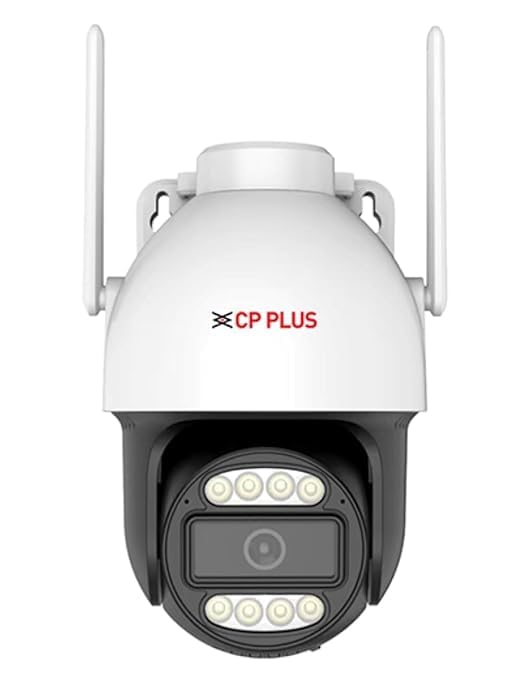
Figure 1: CP PLUS EZ-S31 Smart Wi-fi CCTV Camera with dual antennas.
Setup Guide
1. Powering On
Connect the provided USB cable to the camera and the power adapter. Plug the adapter into a standard electrical outlet. The camera will power on and initiate its startup sequence.
2. Mobile App Installation
Download the Ezyliv mobile application from your device's app store (available for iOS and Android). Search for "Ezyliv" and install the application.
3. Account Registration & Device Pairing
- Open the Ezyliv app and register a new account or log in if you already have one.
- Follow the in-app instructions to add a new device. Select your camera model (EZ-S31) from the list.
- Ensure your smartphone is connected to a 2.4GHz Wi-Fi network. The camera supports Wi-Fi connectivity.
- Scan the QR code displayed on the camera (if prompted) or follow the voice prompts from the camera to complete the Wi-Fi configuration.
4. SD Card Installation (Optional)
The camera supports local storage via an SD card up to 256GB. To install:
- Locate the SD card slot on the camera (refer to the product diagram in the app or physical camera).
- Gently insert a compatible microSD card into the slot until it clicks into place.
- Format the SD card through the Ezyliv app settings for optimal performance.

Figure 2: The camera supports up to 256GB SD card for local video storage.
Operating Instructions
Live View and Pan/Tilt Control
Once connected, open the Ezyliv app and select your camera to view the live feed. Use the on-screen controls to pan (horizontal rotation) and tilt (vertical rotation) the camera for a 360° view of your room.
Two-Way Audio
The camera features a built-in microphone and speaker. Tap the microphone icon in the app to speak through the camera, and listen to audio from the camera's surroundings.
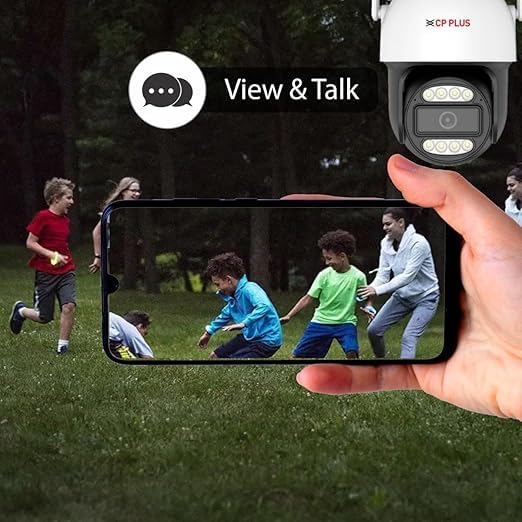
Figure 3: Utilize the two-way audio feature to communicate through the camera.
Motion and Human Detection
Enable motion detection and human detection features in the app settings. The camera will send intelligent alerts to your smartphone when human movement is detected, minimizing false alarms.
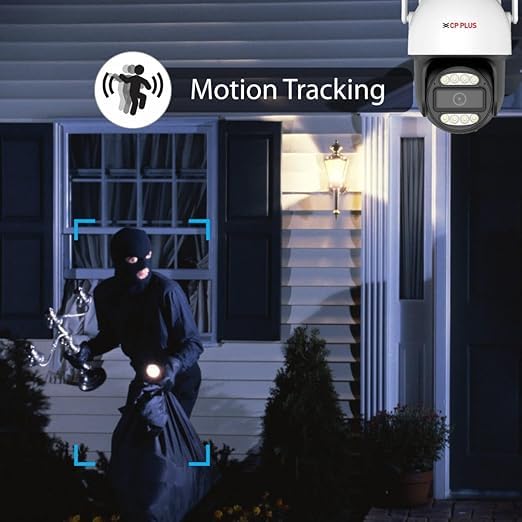
Figure 4: The camera's motion tracking feature follows detected movement.
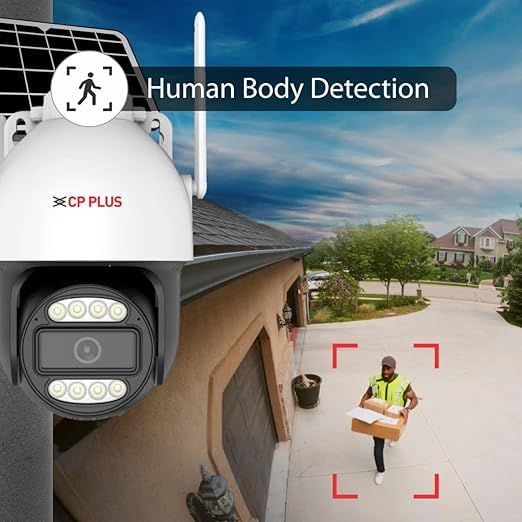
Figure 5: Advanced human detection ensures alerts are triggered by people, not pets or objects.
Night Vision
The camera automatically switches to full-color night vision in low-light conditions, providing clear and detailed video even in darkness up to 25 meters.
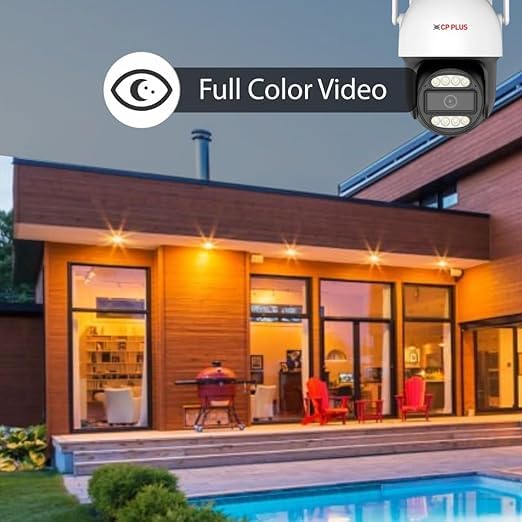
Figure 6: Experience clear, full-color video even in low-light conditions with advanced night vision.
Video Recording and Playback
Recordings are stored on the installed SD card or can be accessed via cloud storage (if subscribed). Use the Ezyliv app to review recorded footage and playback specific events.
Maintenance
Cleaning the Camera
Regularly clean the camera lens and body with a soft, dry cloth to ensure clear image quality. Do not use harsh chemicals or abrasive cleaners.
Firmware Updates
Periodically check the Ezyliv app for available firmware updates. Keeping your camera's firmware updated ensures optimal performance, security, and access to new features.
SD Card Management
If using an SD card for storage, it is recommended to format it periodically through the app to maintain performance and prevent data corruption. Back up important footage before formatting.
Troubleshooting
| Problem | Possible Cause | Solution |
|---|---|---|
| Camera offline/Cannot connect to Wi-Fi | Incorrect Wi-Fi password; Camera too far from router; Router is 5GHz only; Network congestion. | Verify Wi-Fi password. Move camera closer to router. Ensure router supports 2.4GHz Wi-Fi. Restart router and camera. |
| Poor image quality | Dirty lens; Insufficient lighting; Network bandwidth issues. | Clean the camera lens. Ensure adequate lighting or verify night vision is active. Check internet connection speed. |
| Motion detection not working | Detection sensitivity too low; Detection zone not set; Firmware outdated. | Adjust sensitivity in app. Set detection zones. Update camera firmware. |
| SD card not recording | SD card full; SD card not formatted; Incompatible SD card. | Format SD card via app. Replace with a compatible card (Class 10 or higher). Check storage settings. |
If the problem persists, please contact CP PLUS customer support.
Technical Specifications
- Model: EZ-S31
- Video Capture Resolution: 3MP (1080p)
- Connectivity: Wi-Fi (2.4GHz)
- Night Vision Range: 25 Metres (Full Color Night Vision)
- Viewing Angle: 83 Degrees
- Pan/Tilt: 360° View
- Storage: Supports up to 256GB MicroSD Card
- Audio: Two-Way Talk (Built-in Mic & Speaker)
- Detection: Advanced Motion & Human Detection
- Power Source: Corded Electric
- Material: Plastic
- Dimensions (LxWxH): 12 x 12 x 18 Centimeters
- Weight: 450 Grams
- Control Method: Ezyliv App (iOS/Android)
- Installation Type: Self Adhesive (Can be ceiling or wall mounted)
Warranty and Support
For warranty information and customer support, please refer to the warranty card included with your product or visit the official CP PLUS website. You can also contact their support team through the Ezyliv mobile application.
Manufacturer: Aditya Infotech Ltd.
Customer Support Link: Visit the CP PLUS Store on Amazon
Related documentsEZ-S31


Ask a question about this manual
Ask about setup, troubleshooting, compatibility, parts, safety, or missing instructions. Manuals+ will review the question and use this page’s manual context to help answer it.