
1. Introduction
Thank you for choosing the Tunhail 10.1 inch 2-in-1 Laptop. This versatile device combines the portability of a tablet with the functionality of a laptop, powered by an efficient M3-8100Y processor and running on Windows 11. Designed for productivity and entertainment, it features a responsive touch display, ample storage, and comprehensive connectivity options. This manual will guide you through the setup, operation, maintenance, and troubleshooting of your new device.

Figure 1.1: Tunhail 10.1 inch 2-in-1 Laptop
The Tunhail 10.1 inch 2-in-1 Laptop is a compact and powerful device, featuring a detachable keyboard and a stylus for versatile use. Its sleek design makes it ideal for both work and leisure.
2. Setup
2.1 Unboxing and Initial Power On
Carefully remove all components from the packaging. Before first use, ensure the device is fully charged using the provided AC adapter. Connect the AC adapter to the Type-C charging port on the device and plug it into a power outlet. Once charged, press and hold the power button located on the side of the tablet to turn it on.
2.2 Windows 11 Setup
Upon first power-on, you will be guided through the Windows 11 initial setup process. Follow the on-screen prompts to:
- Select your region and keyboard layout.
- Connect to a Wi-Fi network (supports Wi-Fi 5, 802.11ac, 2.4GHz and 5GHz dual-band signals).
- Accept the license agreement.
- Create or sign in with your Microsoft account.
- Set up a PIN for quick login.
The system will then prepare your desktop, which may take a few minutes.
2.3 Attaching the Keyboard and Using the Stylus
The included keyboard attaches magnetically to the tablet. Align the magnetic connectors at the bottom edge of the tablet with the corresponding pins on the keyboard until it snaps into place. The stylus can be used directly on the touch screen for navigation, drawing, or note-taking.
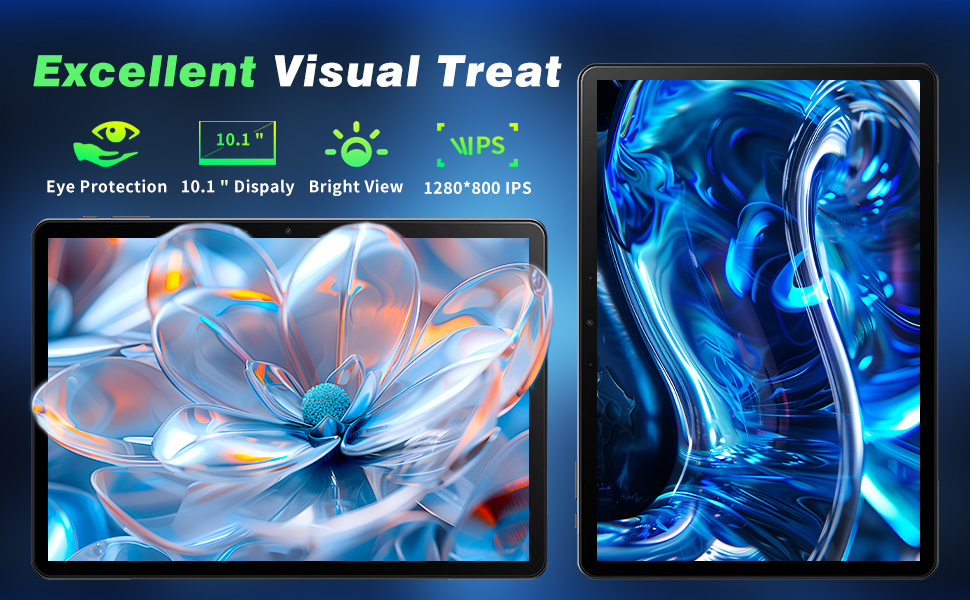
Figure 2.1: Magnetic Detachable Keyboard
The keyboard features a magnetic attachment for easy connection and includes a touchpad that supports multi-finger gestures for enhanced navigation.
3. Operating Your Device
3.1 Versatile 2-in-1 Design
Your Tunhail device offers multiple modes of use to suit your needs:
- Laptop Mode: Use with the keyboard attached for traditional typing and productivity.
- Tablet Mode: Detach the keyboard for a lightweight tablet experience, ideal for browsing, reading, or media consumption.
- Stand Modes: The integrated kickstand allows for various viewing angles, including Landscape Mode, Floating Mode, Portrait Mode, and Painting Mode, perfect for presentations, video calls, or creative work.

Figure 3.1: Four Stand Positions
Explore the flexibility of your device with Landscape, Floating, Portrait, and Painting modes, adapting to any task or entertainment need.

Figure 3.2: Floating Cantilever Stand Design
The innovative floating cantilever stand allows for a comfortable 130-degree viewing angle, while maintaining a lightweight and ultra-slim profile.
3.2 Display and Visual Experience
The 10.1-inch Full HD touch screen (800x1280 resolution) provides a comfortable viewing angle and bright colors, making it perfect for watching videos, browsing the web, and processing documents. The display also features eye protection technology for extended comfortable use.

Figure 3.3: Immersive Touch Screen Experience
Enjoy a comfortable viewing experience with the 10.1-inch Full HD touch display, featuring IPS technology and eye protection.
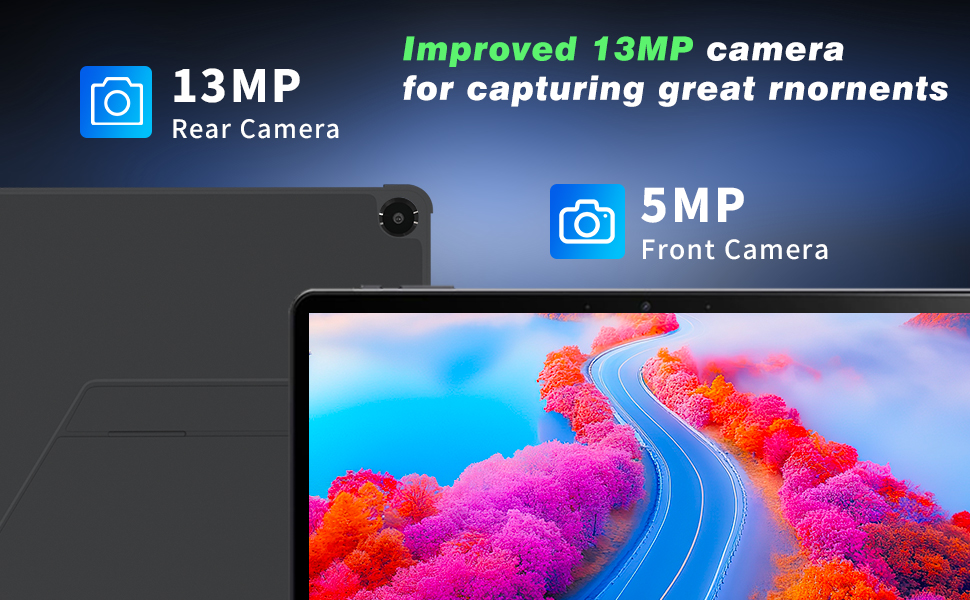
Figure 3.4: Excellent Visual Treat
The display offers an excellent visual experience with eye protection, a bright view, and 1280x800 IPS resolution.
3.3 Performance
Equipped with an M3-8100Y processor (up to 3.40GHz) and 12GB DDR3 dual-channel memory, along with a 256GB solid-state drive, this device handles multi-tab web browsing, light creative design, and multitasking with ease. It provides powerful graphics processing performance for your daily computing needs.

Figure 3.5: Powerful M3-8100Y Processor
The M3-8100Y processor ensures efficient multi-tasking and powerful performance for various applications.
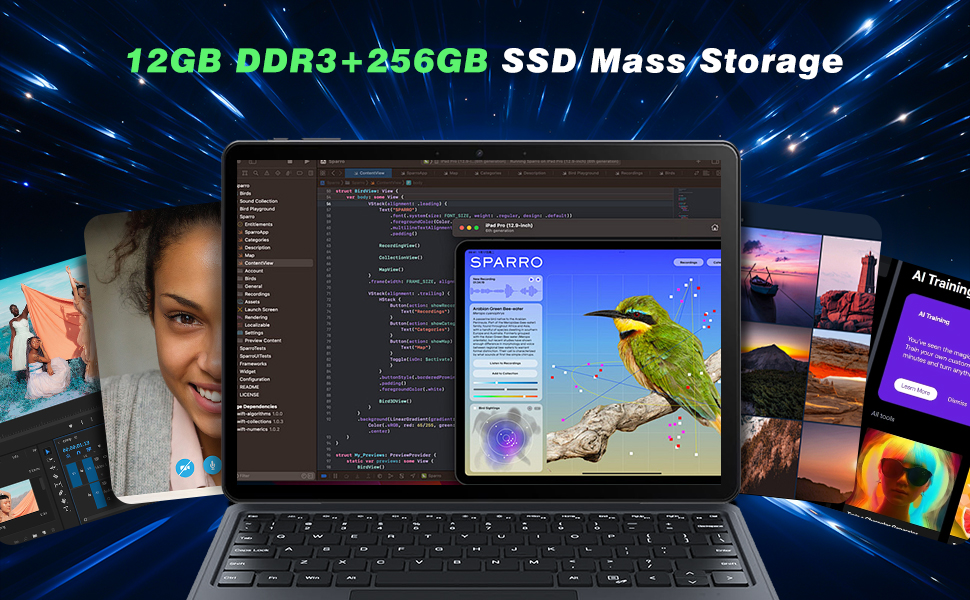
Figure 3.6: High-Performance 8100Y
Detailed performance metrics for the 8100Y processor, showcasing its capabilities in both single-core and multi-core operations.
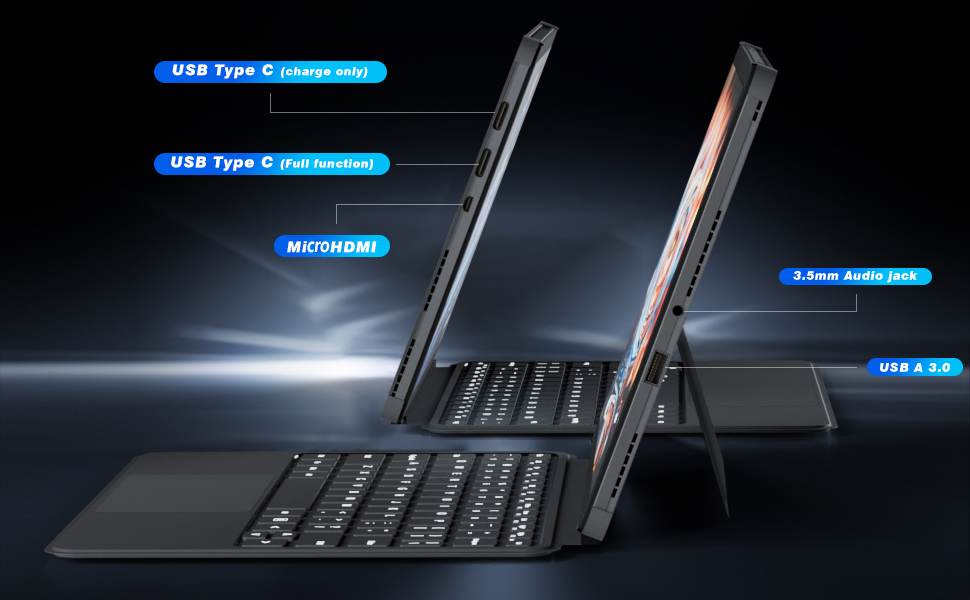
Figure 3.7: Ample Memory and Storage
With 12GB DDR3 RAM and a 256GB SSD, the device offers mass storage and smooth operation for various applications and creative tasks.
3.4 Connectivity and Ports
The laptop is equipped with a variety of interfaces for full expansion and stable connection:
- Type-C (Charging): 1 port for 12V2A charging.
- Type-C (Full Function): 1 port for data transfer, video output, and charging.
- Micro HDMI: 1 port for connecting to external displays.
- USB-A 3.0: 1 port for connecting USB devices.
- Headphone Jack: 1 x 3.5mm standard headphone jack.
- Wireless: Supports Wi-Fi 5 (802.11ac) and Bluetooth 5.0 for seamless wireless connections. Compatible with wireless keyboards, mice, headphones, and projectors.

Figure 3.8: Device Ports and Features
An overview of the device's physical features, including various ports and button locations for easy access and connectivity.
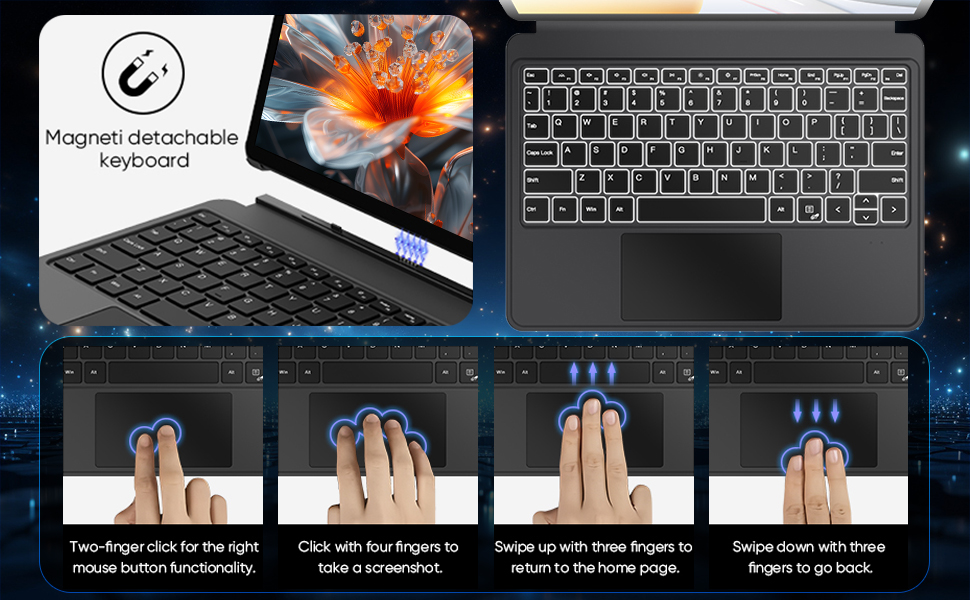
Figure 3.9: Side View of Connectivity Ports
This image highlights the various ports available on the side of the device, ensuring comprehensive connectivity for all your peripherals.
3.5 Backlit Keyboard
The included keyboard features backlighting, providing a better typing experience in low-light environments. To turn on the backlit keyboard, press the FN + F1 keys simultaneously.
3.6 Cameras
The device is equipped with a 13MP rear camera and a 5MP front camera, suitable for video calls, online meetings, and capturing moments.

Figure 3.10: Integrated Cameras
The device features an improved 13MP rear camera and a 5MP front camera for clear video calls and photography.
4. Maintenance
Proper maintenance ensures the longevity and optimal performance of your Tunhail 2-in-1 Laptop.
- Battery Care: To maximize battery life, avoid fully discharging the battery frequently. Charge the device when the battery level is low, and avoid leaving it plugged in constantly after it's fully charged for extended periods.
- Cleaning: Use a soft, lint-free cloth to clean the screen and exterior. For stubborn smudges, slightly dampen the cloth with water or a screen-safe cleaner. Avoid harsh chemicals. Use compressed air to clear dust from ports and keyboard crevices.
- Software Updates: Regularly check for and install Windows updates to ensure your system has the latest security patches and performance improvements. Go to Settings > Windows Update to check for updates.
- Storage Management: Periodically clear unnecessary files and applications to free up storage space on the 256GB SSD, which can improve system speed.
5. Troubleshooting
Here are solutions to some common issues you might encounter:
- Device not powering on: Ensure the device is fully charged. If it doesn't turn on after charging, try holding the power button for 10-15 seconds for a hard reset.
- Keyboard not responding: Ensure the keyboard is securely attached to the tablet via the magnetic connectors. If issues persist, detach and reattach the keyboard.
- Wi-Fi connectivity issues: Check if Wi-Fi is enabled in Windows settings. Restart your router and the laptop. If the problem continues, try updating your Wi-Fi drivers via Device Manager.
- Slow performance: Close unnecessary applications running in the background. Check for available Windows updates. Ensure you have sufficient free space on your SSD.
- Touch screen unresponsive: Restart the device. If the issue persists, check for display driver updates in Device Manager.
6. Specifications
| Feature | Specification |
|---|---|
| Brand | Tunhail |
| Model Name | UL101Y |
| Screen Size | 10.1 Inches |
| Screen Resolution | 800*1280 HD |
| Processor | 1.1 GHz core_m3_8100y (up to 3.40GHz) |
| RAM | 12 GB LPDDR3 |
| Hard Drive | 256 GB SSD (eSATA interface) |
| Graphics Coprocessor | UHD Graphics 615 900MHz (Integrated) |
| Operating System | Windows 11 Pro |
| Wireless Type | 802.11a/b/g/n/ac (Wi-Fi 5), Bluetooth 5.0 |
| Average Battery Life | 4 Hours |
| Item Weight | 2.2 pounds |
| Product Dimensions | 9.64 x 3.93 x 6.45 inches |
| Color | Black |
| Special Feature | 360° Versatile 2-in-1 Design, Backlit Keyboard, HD Audio, Numeric Keypad |
7. What's in the Box
Your Tunhail 10.1 inch 2-in-1 Laptop package includes:
- 10.1 Inch Laptop (Tablet unit)
- AC Adapter
- Instructions Manual (this document)
- Warranty Card
8. Warranty and Support
Your Tunhail 2-in-1 Laptop comes with a manufacturer's warranty. Please refer to the included Warranty Card for specific terms, conditions, and duration of the warranty. For technical support, product inquiries, or warranty claims, please contact Tunhail customer service through the contact information provided on the Warranty Card or the official Tunhail website. Keep your purchase receipt as proof of purchase for warranty services.