
Introduction
This manual provides detailed instructions for the Tatybo Wireless Gaming Headset (Model WT01). Designed for an immersive gaming experience, this headset features 7.1 surround sound, a 360° adjustable microphone, and versatile connectivity options including 2.4GHz USB, Type-C, Bluetooth 5.3, and a 3.5mm audio jack. It is compatible with a wide range of devices such as PS5, PS4, PC, Switch, laptops, Mac, and mobile phones.
Product Overview
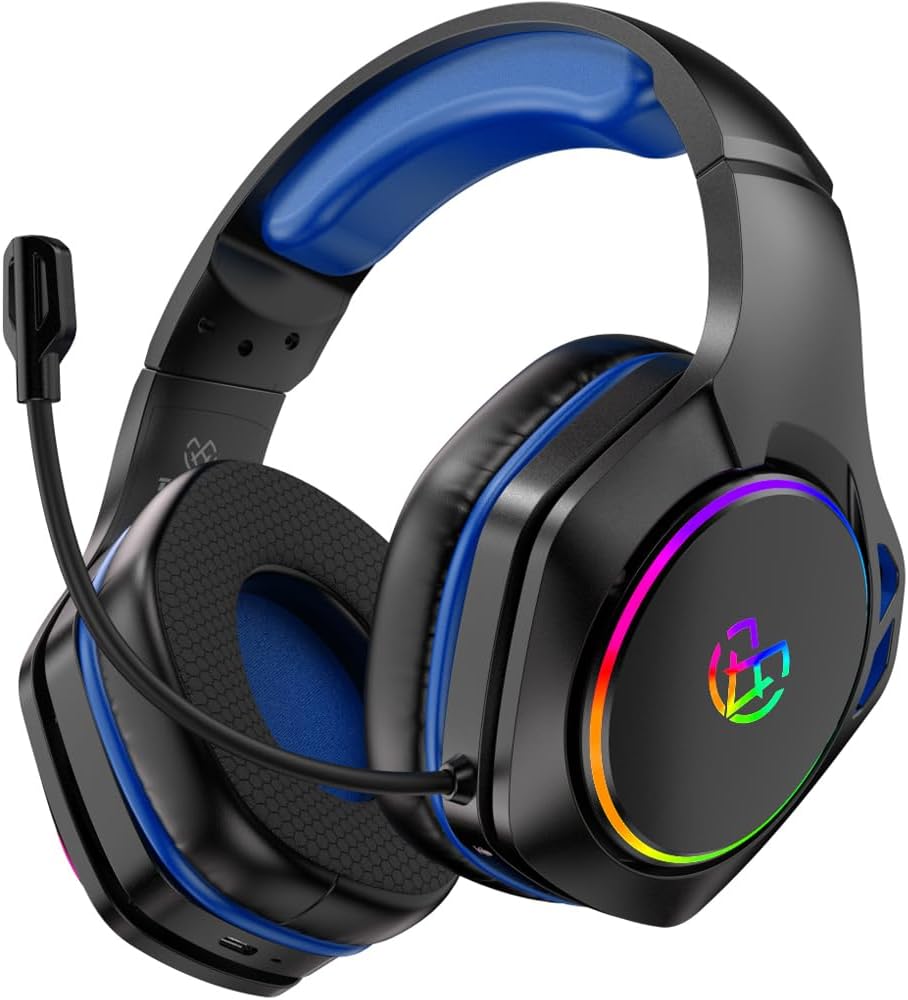
Image: The Tatybo Wireless Gaming Headset, featuring a blue headband and earcups, black exterior, an adjustable boom microphone, and colorful RGB lighting on the outer side of the earcups.
Package Contents:
- Tatybo Wireless Gaming Headset (WT01)
- 2.4GHz USB/Type-C Wireless Dongle
- USB Charging Cable
- 3.5mm Audio Cable
- User Manual (this document)
Headset Components:
- Adjustable Headband: For comfortable fit.
- Earcups: Over-ear design with breathable mesh cushions.
- Microphone: 360° adjustable, noise-canceling boom microphone.
- Power Button: Located on one earcup.
- Volume Control: Wheel or buttons for audio adjustment.
- Microphone Mute Button: For quick muting.
- Charging Port: USB-C port for charging.
- 3.5mm Audio Jack: For wired connection.
- LED Indicators: For power, charging, and connection status.
- RGB Lighting: Customizable lighting on earcups.
Setup
1. Charging the Headset
- Connect the provided USB charging cable to the headset's USB-C charging port.
- Connect the other end of the cable to a USB power source (e.g., computer USB port, wall adapter).
- The LED indicator will show charging status. A full charge typically takes approximately 3 hours, providing over 40 hours of playtime.
2. Connecting via 2.4GHz Wireless (USB/Type-C Dongle)
This mode offers ultra-low latency for optimal gaming performance on compatible devices.
- Insert the 2.4GHz USB or Type-C wireless dongle into an available port on your device (PC, PS5, PS4, Nintendo Switch in docked mode).
- Power on the headset by pressing and holding the Power button until the LED indicator lights up.
- The headset should automatically pair with the dongle. The LED indicator will show a stable light once connected.
- On your device, ensure the Tatybo headset is selected as the default audio input and output device in the sound settings.
3. Connecting via Bluetooth 5.3
Ideal for mobile devices, laptops, Mac, and Nintendo Switch in handheld mode.
- Ensure the headset is powered off. Press and hold the Power button for approximately 5-7 seconds until the LED indicator flashes rapidly, indicating pairing mode.
- On your device, enable Bluetooth and search for available devices.
- Select "Tatybo WT01" (or similar name) from the list of found devices to pair.
- Once connected, the LED indicator on the headset will show a stable light.
4. Connecting via 3.5mm Audio Jack (Wired Mode)
For universal compatibility with any device featuring a 3.5mm audio port, or when battery is depleted.
- Connect one end of the 3.5mm audio cable to the headset's 3.5mm audio jack.
- Connect the other end of the cable to the 3.5mm audio port on your device (e.g., controller, PC, mobile phone).
- The headset will function in passive wired mode. The microphone may or may not be active depending on the device's 3.5mm port configuration.
Operating Instructions
Power On/Off
- Power On: Press and hold the Power button for 2-3 seconds.
- Power Off: Press and hold the Power button for 3-5 seconds.
Volume Control
Use the volume wheel or dedicated buttons on the earcup to adjust the audio output level.
Microphone Usage
- Positioning: Adjust the flexible boom microphone to a comfortable position near your mouth for optimal voice pickup.
- Mute/Unmute: Press the dedicated microphone mute button on the earcup to toggle the microphone on or off.
7.1 Surround Sound
The headset features 7.1 surround sound for an immersive audio experience. This feature is typically active when connected via 2.4GHz wireless or USB, providing enhanced directional audio cues in compatible games.
LED Lighting Control
The headset features RGB lighting on the earcups. To conserve battery life, you can typically turn off the LED lights by double-pressing the action button (often the power button or a dedicated LED control button).
Maintenance
- Cleaning: Use a soft, dry cloth to clean the headset. Avoid using harsh chemicals or abrasive materials. For ear cushions, gently wipe with a damp cloth and allow to air dry completely.
- Storage: Store the headset in a cool, dry place away from direct sunlight and extreme temperatures.
- Battery Care: To prolong battery life, avoid fully discharging the headset frequently. Charge it regularly, even if not in use for extended periods.
Troubleshooting
- No Sound:
- Ensure the headset is powered on and charged.
- Check volume levels on both the headset and your connected device.
- Verify the correct audio output device is selected in your device's sound settings.
- If using 2.4GHz wireless, ensure the dongle is securely inserted and paired. Try re-pairing if necessary.
- If using Bluetooth, ensure the headset is paired and connected. Try unpairing and re-pairing.
- If using 3.5mm wired, ensure the cable is fully inserted into both the headset and the device.
- Microphone Not Working:
- Ensure the microphone is not muted (check the mute button on the headset).
- Verify the correct audio input device is selected in your device's sound settings.
- Check microphone privacy settings on your operating system.
- Ensure the microphone boom is properly positioned.
- Connection Issues (2.4GHz Wireless):
- Ensure the dongle is within range (typically up to 10 meters) and not obstructed by physical barriers or other wireless devices causing interference.
- Try plugging the dongle into a different USB/Type-C port.
- Reboot your device and the headset.
- Short Battery Life:
- Ensure the headset is fully charged before use.
- Turn off RGB lighting if not needed, as it consumes battery power.
- Reduce volume levels, as higher volumes can drain the battery faster.
Specifications
| Feature | Detail |
|---|---|
| Model Name | WT01 |
| Brand | Tatybo |
| Connectivity Technology | Wireless (2.4GHz USB/Type-C, Bluetooth 5.3), Wired (3.5mm Audio Jack) |
| Compatible Devices | Gaming Consoles (PS5, PS4, Switch), PCs, Laptops, Mac, Mobile Phones |
| Audio Driver Type | Dynamic Driver |
| Sound Features | 7.1 Surround Sound |
| Microphone | 360° Adjustable, Noise-Canceling |
| Battery Life | 40+ hours (after 3-hour charge) |
| Frequency Range | 20 Hz - 20,000 Hz |
| Earpiece Shape | Over-ear |
| Item Weight | 1.19 pounds |
| Color | Blue |
Warranty and Support
Tatybo products are designed for reliability and performance. For warranty information, technical support, or any inquiries regarding your WT01 Wireless Gaming Headset, please refer to the contact information provided on the product packaging or visit the official Tatybo website. Keep your proof of purchase for warranty claims.
