
AWithZ H2
AWithZ H2 Battery Spot Welder User Manual
Model: H2 | Brand: AWithZ
Introduction
The AWithZ H2 Battery Spot Welder is a compact, handheld device designed for efficient and precise spot welding of various battery types and nickel-plated sheets. Its integrated design allows for single-handed operation, making it suitable for both professional and amateur use in battery pack maintenance and production. Featuring a 1.5-inch LCD display and 99 adjustable gear settings, it offers versatile control for optimal welding results.
Package Contents
Please verify that all items listed below are included in your package:
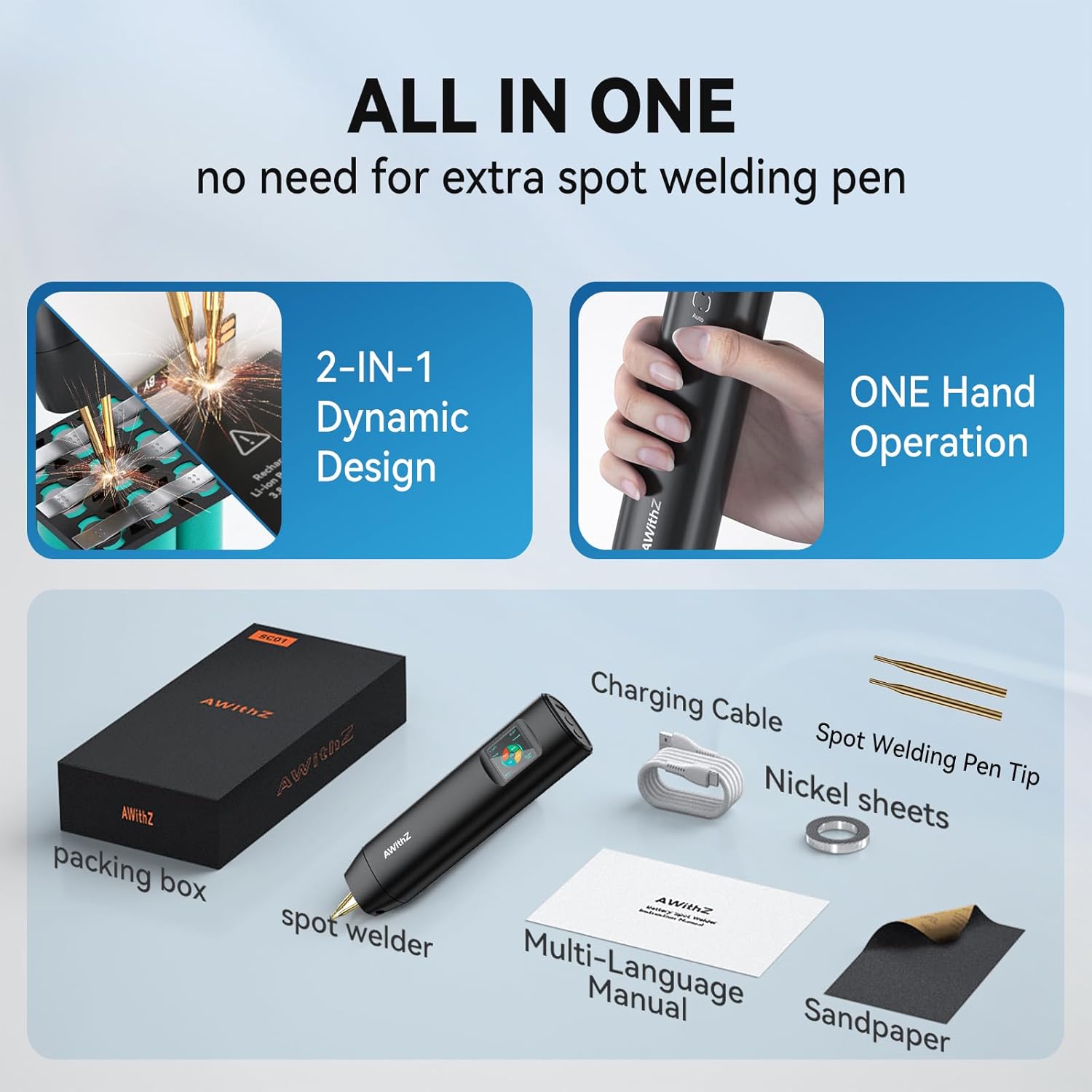
Image: Contents of the AWithZ H2 Spot Welder package, including the spot welder unit, charging cable, nickel sheets, spot welding pen tips, sandpaper, and multi-language manual.
- 1 x AWithZ H2 Handheld Spot Welder
- 1 x Type-C Charging Cable
- 1 x 2-meter Nickel Plated Sheet
- 2 x Spot Welding Pen Tips (pairs)
- 1 x Frosted Paper (Sandpaper)
- 1 x Multi-language Manual
Product Features
Integrated Design & Portability

Image: The AWithZ H2 Spot Welder being comfortably held in one hand, demonstrating its lightweight and compact design for single-handed operation.
The AWithZ H2 features an integrated design where the power supply and welding pen are combined into a single unit. This eliminates the need for external welding pens, enabling easy one-handed operation. Weighing approximately 140g and measuring 6.8 inches long, it is highly portable and suitable for both home and outdoor use.
Advanced LCD Display & Control

Image: A comparison highlighting the AWithZ H2's larger, clearer LCD display with 99 power levels and single-handed operation buttons, contrasting it with a smaller, less detailed display of another device.
Equipped with a 1.5-inch LCD display, the welder provides clear visibility of various functions including temperature, mode selection (Auto/Manual), preheat time, trigger time, and power level (99 gears). The display also allows for language selection, sound control, display brightness adjustment, and automatic power-off settings for enhanced safety and user convenience.
Versatile Application

Image: The AWithZ H2 Spot Welder demonstrating its versatility for welding cylindrical batteries (e.g., 18650, 26650, 32650) and repairing phone batteries, showcasing its broad applicability.
This spot welder is ideal for professional maintenance and production of various battery packs, including cylindrical lithium batteries (18650, 21700, 26650, 32650), cell phone batteries, button batteries, nickel-metal hydride batteries, and nickel-cadmium batteries. It supports welding of thin nickel-plated sheets and stainless steel sheets.
Safety Features
The device includes a built-in temperature detector that automatically shuts down the unit if the internal temperature reaches 60°C (140°F), preventing overheating and ensuring safe operation. The automatic power-off setting can also be configured by the user.
Safety Information
Please read and understand all safety warnings and instructions before using the AWithZ H2 Spot Welder. Failure to follow these instructions may result in electric shock, fire, or serious injury.
- Always wear appropriate personal protective equipment (PPE), including safety glasses, when operating the spot welder.
- Ensure the work area is well-ventilated and free from flammable materials.
- Do not operate the welder in wet or damp conditions.
- Keep hands and fingers away from the welding tips during operation.
- Do not attempt to weld live electrical circuits or batteries that are actively charging.
- Only use the provided charging cable and ensure the power source matches the device's requirements.
- Store the device in a dry, cool place, out of reach of children.
- If the device shows signs of damage or malfunction, discontinue use immediately and contact customer support.
- Do not disassemble or modify the spot welder.
Setup Guide
1. Initial Charging
Before first use, fully charge the spot welder. Connect the provided Type-C charging cable to the device's charging port and plug the other end into a compatible USB power adapter (not included). The LCD display will indicate charging status. A full charge typically takes approximately 2.5 hours.
2. Power On/Off
Press and hold the power button (usually located on the side or top) for a few seconds to turn the device on. The LCD screen will illuminate. To turn off, press and hold the power button again until the screen shuts down.
3. Preparing Welding Tips
Ensure the integrated welding tips are clean and free from debris. If necessary, use the provided sandpaper (frosted paper) to gently clean the tips for optimal conductivity and welding performance.
4. Material Preparation
Ensure the nickel sheet and battery terminals are clean and free of oxidation, dirt, or grease. A clean surface is crucial for strong, consistent welds.
Operating Instructions
1. Navigating the LCD Display
The 1.5-inch LCD display provides access to all settings. Use the control buttons (refer to the device's physical layout) to navigate through options such as:
- Temperature Display: Shows the internal temperature of the device.
- Mode Selection: Choose between Auto and Manual welding modes.
- Preheat Time: Adjust the preheating duration for the weld.
- Trigger Time: Set the duration of the welding pulse.
- Power Level (Gear): Select from 1 to 99 power levels. Start with lower levels and increase as needed.
- Settings: Access options for language, sound, display brightness, and auto-power off time.
2. Selecting Welding Mode
Auto Mode: The device automatically detects contact with the welding surface and initiates the weld.
Manual Mode: The weld is initiated by pressing a trigger button (if available) or by a specific action after contact. Consult the on-screen prompts for manual trigger instructions.
3. Adjusting Power Level (Gear)
The optimal power level depends on the thickness of the nickel sheet and the battery type. Start with a lower gear (e.g., 10-20) and perform test welds on scrap material. Gradually increase the gear setting until a strong, clean weld is achieved. Thicker nickel sheets (0.2mm) will require higher power levels than thinner ones (0.1mm).
4. Performing a Weld
- Place the nickel sheet firmly onto the battery terminal where the weld is desired.
- Position the two integrated welding tips onto the nickel sheet, ensuring both tips make firm contact with the sheet and are spaced appropriately (approximately 0.8mm apart for optimal results).
- In Auto mode, the weld will automatically trigger after a brief delay once good contact is detected. In Manual mode, activate the weld as per the device's specific manual trigger mechanism.
- After the weld, lift the welder straight up. Inspect the weld for strength and appearance. A good weld should be clean and securely attach the nickel sheet to the battery.

Image: A visual comparison illustrating the ease of use and precise contact of the AWithZ H2's integrated spot welding pen for one-handed operation, compared to a traditional two-handed setup.
5. Post-Weld Inspection
Always check the quality of each weld. A strong weld will not easily peel off. If the weld is weak or inconsistent, adjust the power level, clean the tips, or re-evaluate your technique.
Maintenance
- Cleaning: After each use, ensure the welding tips are clean. Use the provided sandpaper or a fine abrasive to remove any residue or oxidation from the tips. A clean tip ensures consistent welding performance. Wipe the body of the device with a soft, dry cloth. Do not use harsh chemicals or abrasive cleaners.
- Storage: Store the spot welder in a cool, dry place, away from direct sunlight, moisture, and extreme temperatures. Keep it in its original packaging or a protective case to prevent damage.
- Battery Care: For long-term storage, it is recommended to charge the battery to approximately 50-70% capacity. Avoid fully discharging the battery for extended periods, as this can reduce its lifespan. Recharge the device periodically if not used for several months.
- Tip Replacement: If the welding tips become excessively worn or damaged, they can be replaced. Refer to the package contents for spare tips or contact customer support for replacements.
Troubleshooting
| Problem | Possible Cause | Solution |
|---|---|---|
| No Power / Device Won't Turn On | Battery is discharged. | Charge the device fully using the provided Type-C cable. |
| Weak or Inconsistent Welds |
|
|
| Device Overheats / Shuts Down | Continuous high-power use; internal temperature limit reached. | Allow the device to cool down. The built-in temperature sensor will automatically shut it off at 60°C. Resume use after it cools. Avoid rapid, continuous welding. |
| LCD Display Not Working Correctly | Software glitch or minor error. | Try turning the device off and on again. If the problem persists, contact customer support. |
Specifications
| Feature | Detail |
|---|---|
| Model | H2 |
| Display | 1.5-inch LCD |
| Power Levels | 99 Gears Adjustable |
| Welding Thickness | 0.1mm - 0.2mm Nickel Plated Sheets |
| Battery Type | Lithium Polymer (included) |
| Charging Port | Type-C |
| Weight | Approximately 272 g (Parcel Weight) |
| Dimensions | Approximately 6.8 inches long, 1.7 inches wide (device); 22 x 8 x 3 cm (Parcel) |
| Safety Features | Built-in Temperature Detector (auto-shutdown at 60°C) |
Warranty and Support
AWithZ is committed to providing high-quality products and customer satisfaction. For information regarding warranty coverage, technical support, or replacement parts, please refer to the contact information provided on the product packaging or visit the official AWithZ website. Please retain your proof of purchase for warranty claims.
For further assistance, please contact AWithZ customer service.
Related documentsH2


Ask a question about this manual
Ask about setup, troubleshooting, compatibility, parts, safety, or missing instructions. Manuals+ will review the question and use this page’s manual context to help answer it.