
1. Introduction
Thank you for choosing the AINAVI 6.36-Inch Single Din Touchscreen Car Stereo. This manual provides detailed instructions for installation, operation, and troubleshooting to ensure you get the most out of your new car stereo system. This unit features a Linux operating system, wired/wireless CarPlay and Android Auto compatibility, 1080P HD display, GPS navigation, hands-free calling, steering wheel control (SWC), FM/AM radio, and Bluetooth connectivity.
What's Included in the Box:
- 6.36-Inch Single Din Touchscreen Car Stereo (960*360 Resolution) x 1
- External Microphone x 1
- Radio Antenna x 1
- Snap Bracket x 4
- User Manual x 1
- Power Cable x 1
- 24 Hours Engineer Pre-sale and After-sale Services

2. Setup and Installation
Proper installation is crucial for optimal performance. If you require assistance, our professional technical support team is available to help. Please refer to the wiring diagrams and physical dimensions before beginning installation.
2.1 Product Dimensions
The unit is a standard single DIN size, compatible with most vehicle models. Ensure your vehicle's dash opening can accommodate the dimensions.

2.2 Rear Interface Description and Wiring
Familiarize yourself with the rear connections of the car stereo. The power cable uses standard color coding for easy identification. Connect speakers, power, and accessories according to the diagram below.

2.3 Backup Camera Installation (Optional)
The unit supports a backup camera input (CVBS format). Connect the camera's video output to the designated input on the stereo and the power to your vehicle's reverse light circuit for automatic activation.

2.4 Installation Effect
Observe the transformation of your vehicle's interior with the new stereo installed. The sleek design integrates seamlessly into most dashboards.

3. Operating Instructions
This section details the various functions and features of your AINAVI car stereo.
3.1 Wired/Wireless CarPlay and Android Auto
Connect your smartphone via wired USB or wirelessly to access CarPlay or Android Auto. This allows for seamless integration of navigation, music, calls, and other apps directly on the stereo's display.


3.2 HD Touch Screen and Video Playback
The 6.36-inch HD capacitive touch screen provides a responsive and clear viewing experience with 960*360 resolution and supports 1080P video playback.


3.3 Bluetooth and Smart Voice Control
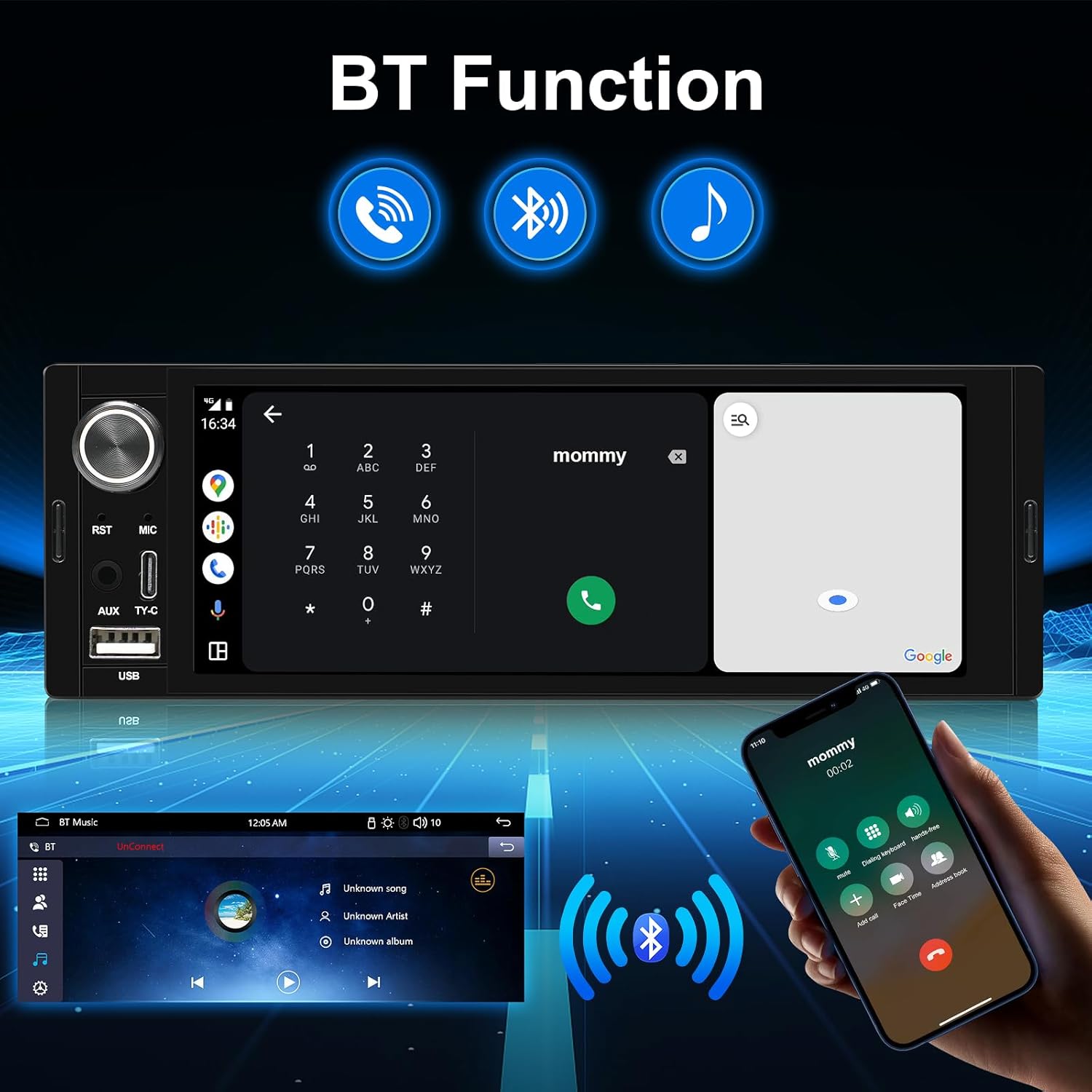
The upgraded Bluetooth allows for enhanced listening and hands-free calling. Utilize voice control features like Siri or Google Assistant for navigation, contacts, and music playback.

3.4 Steering Wheel Control (SWC)
Easily change music, adjust volume, and manage calls using your existing steering wheel controls. The stereo supports learning functions for various SWC configurations.

3.5 USB and Type-C Connectivity
The unit is equipped with both Type-C and USB ports for data transfer, charging, and wired CarPlay/Android Auto connections.

3.6 Sound Balance Control and Equalizer
Adjust the sound balance according to your seating position for optimal audio. Choose from six preset sound modes: User, Jazz, Classic, Rock, Pop, and Soft, to customize your listening experience.
3.7 USB to RCA Output Function
Enjoy independent video playback on multiple screens by connecting external headrest monitors via the RCA output. This feature provides entertainment for backseat passengers.
4. Maintenance
To ensure the longevity and optimal performance of your AINAVI car stereo, follow these maintenance guidelines:
- Cleaning the Screen: Use a soft, lint-free cloth to gently wipe the touchscreen. For stubborn smudges, slightly dampen the cloth with water or a screen-safe cleaner. Avoid abrasive materials or harsh chemicals.
- Software Updates: Periodically check the manufacturer's website or contact support for any available firmware updates. Keeping your software updated can improve performance, add new features, and resolve bugs.
- Environmental Conditions: Avoid exposing the unit to extreme temperatures, direct sunlight for prolonged periods, or excessive moisture.
- Cable Connections: Ensure all cables are securely connected. Loose connections can lead to intermittent issues or poor performance.
5. Troubleshooting
This section addresses common issues you might encounter. If the problem persists, please contact customer support.
| Problem | Possible Cause | Solution |
|---|---|---|
| No Power / Unit Does Not Turn On | Incorrect wiring; Blown fuse; Vehicle battery issue. | Check power cable connections (ACC, B+); Inspect vehicle's fuse box and stereo's fuse; Verify vehicle battery voltage. |
| No Sound | Speaker wires disconnected; Volume too low; Mute function active; Incorrect audio source. | Ensure speaker wires are correctly connected; Increase volume; Disable mute; Select correct audio input. |
| Touchscreen Unresponsive or Glitchy | Software glitch; Screen calibration needed; Hardware issue. | Perform a soft reset (refer to manual for reset button location, often a small pinhole); If available, recalibrate the touchscreen in settings; Contact support if issue persists. |
| Wireless CarPlay/Android Auto Disconnects Frequently | Weak Wi-Fi/Bluetooth signal; Interference; Software issue. | Ensure phone is close to the unit; Check for other devices causing interference; Try wired connection; Update stereo firmware; Re-pair the device. |
| Poor Radio Reception | Antenna not connected; Damaged antenna; Weak signal area. | Ensure radio antenna is securely connected; Check antenna for damage; Try in a different location. |
6. Specifications
Detailed technical specifications for the AINAVI 6.36-Inch Single Din Touchscreen Car Stereo.
| Feature | Specification |
|---|---|
| Model | 6.36-Inch Single Din Touchscreen Car Stereo |
| Display Size | 6.36 inches (Visible screen diagonal: 7" / 17 cm) |
| Resolution | 960*360 |
| Operating System | Linux System |
| Connectivity | Bluetooth, USB, Wired, Wireless |
| Special Features | Android Auto, Apple CarPlay, Bluetooth Music/Phone, FM/AM, Video Playback, Touchscreen, SWC, AV-IN |
| Compatible Devices | Microphone, Smartphone |
| Audio Output Mode | Surround |
| Video Encoding | MP4 |
| Control Method | Touch |
| Item Weight | 1.67 pounds |
| Package Dimensions | 13.79 x 7.95 x 5.04 inches |
| Manufacturer | AINAVI |
7. Warranty and Support
AINAVI is committed to providing high-quality products and excellent customer service.
7.1 Service Guarantees
We are dedicated to offering products with excellent value. If you encounter any issues after receiving your package, such as missing accessories, inability to play music, improper functioning, or any other dissatisfaction, please contact us immediately. We will work to resolve the issue quickly and amicably until you are satisfied.
7.2 Customer Installation Support
Our professional technical support team is available to assist with your installation. Please contact us freely, and we will reply as soon as possible.

7.3 Superior Customer Care
For any inquiries or support needs, you can reach us through your order center or directly via our hotline.

Contact Information:
- Hotline: +1 (833) 858-5016
- Working Hours: 3:00 PM to 12:00 PM PST
- Email: info@ainavi.com