
Introduction
Thank you for choosing the JOYACCESS Wireless Ergonomic Keyboard and Mouse Combo. This manual provides essential information for setting up, operating, maintaining, and troubleshooting your new device. Please read it carefully to ensure optimal performance and longevity of your product.
Setup
1. Unboxing and Components
Carefully remove all components from the packaging. Ensure you have the following items:
- Wireless Ergonomic Keyboard
- Wireless Mouse
- USB Nano Receiver (often stored inside the mouse battery compartment)
- User Manual (this document)

Image: JOYACCESS Wireless Keyboard and Mouse Combo in its packaging, showing the keyboard, mouse, and a small USB receiver.
2. Battery Installation
The keyboard requires 2 AAA batteries, and the mouse requires 1 AA battery (batteries are not included). Ensure correct polarity when inserting batteries.
- Locate the battery compartment on the underside of the keyboard and mouse.
- Open the compartment cover.
- Insert the required batteries, matching the +/- indicators.
- Close the compartment cover securely.
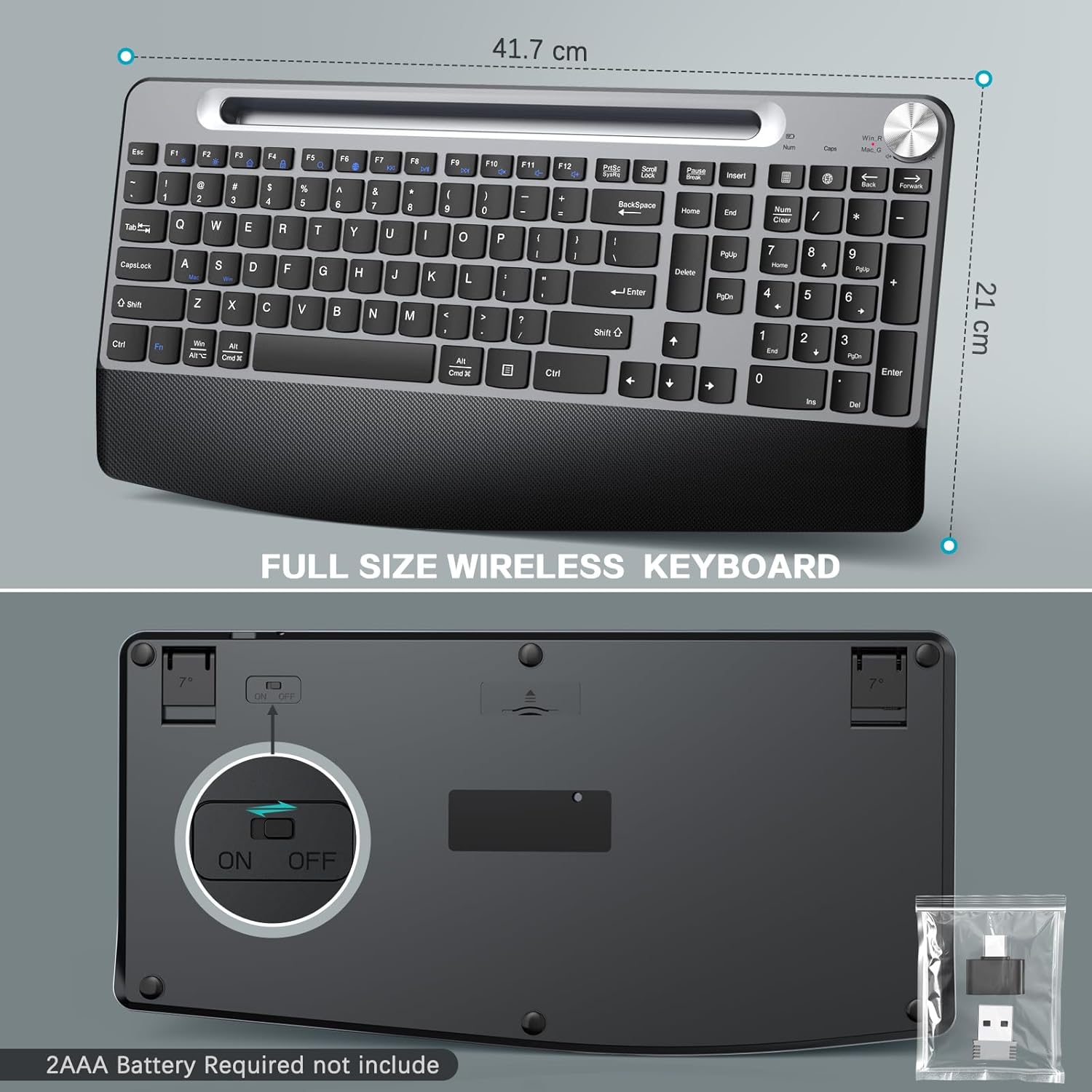
Image: Underside of the JOYACCESS Wireless Keyboard, highlighting the battery compartment and the ON/OFF switch. A small bag containing the USB receiver is also visible.
3. Connecting the Devices
The keyboard and mouse share a single USB nano receiver for a stable 2.4GHz wireless connection.
- Remove the USB nano receiver from its storage slot, typically found in the mouse battery compartment.
- Plug the USB nano receiver into an available USB port on your computer (PC or Mac).
- Turn on the keyboard and mouse using their respective ON/OFF switches.
- The devices should automatically connect to your computer. No additional software or drivers are usually required.

Image: Close-up of the USB nano receiver, illustrating its compact size and how it connects to a USB port.
Operating Instructions
1. Ergonomic Design and Wrist Rest
The keyboard features an ergonomic design with a built-in wrist rest and adjustable tilt legs to promote a natural and comfortable typing posture, reducing strain during extended use.

Image: Illustration of the ergonomic wrist rest design of the JOYACCESS keyboard, showing proper hand and wrist positioning for comfort.
2. Integrated Phone/Tablet Holder
A convenient slot is integrated into the keyboard for holding your smartphone or tablet, allowing for easy viewing and multitasking.

Image: The JOYACCESS Wireless Keyboard with a smartphone placed in its integrated holder, demonstrating its utility.
3. Quiet Typing and Mouse Clicks
The keyboard features low-profile keys with a scissor mechanism for quiet and smooth typing. The mouse also provides whisper-quiet clicking, minimizing disturbance in shared environments.

Image: Close-up of the keyboard keys, illustrating the soft-touch and quiet typing experience.
4. Windows and Mac Layout Switching
Easily switch between Windows and Mac keyboard layouts to match your operating system.
- To activate Mac Layout: Press Fn + S key.
- To activate Windows Layout: Press Fn + A key.
5. Volume Control Knob
The keyboard includes a dedicated volume knob for quick and easy adjustment of audio levels on your connected device.
Maintenance
1. Cleaning
To clean your keyboard and mouse, use a soft, damp cloth. Avoid using harsh chemicals or abrasive materials that could damage the surfaces.
2. Battery Life and Power Saving
Both the keyboard and mouse feature an ON/OFF switch. Turn them off when not in use to conserve battery life. They also have a smart auto-sleep mode to save power, activating after a period of inactivity. Tap any key or click the mouse to wake them up.

Image: Diagram illustrating the auto-sleep feature for both the keyboard (8 mins auto-sleep, 2 AAA batteries) and mouse (8 mins auto-sleep, 1 AA battery).
Troubleshooting
- Device not responding:
- Ensure batteries are correctly installed and not depleted.
- Check that the ON/OFF switches on both devices are in the 'ON' position.
- Verify the USB nano receiver is securely plugged into a working USB port on your computer.
- Try plugging the receiver into a different USB port.
- Restart your computer.
- Intermittent connection:
- Ensure the devices are within the 10m (33ft) wireless range of the receiver.
- Avoid placing the receiver near large metal objects or other devices that may cause interference (e.g., Wi-Fi routers, cordless phones).
- Keyboard backlight not working:
- Check battery levels. Low batteries may disable the backlight.
- Ensure the backlight function is enabled (refer to keyboard specific function keys if available).
Specifications
| Brand | JOYACCESS |
| Model | Wireless Ergonomic Keyboard and Mouse Combo (ASIN: B0F2S9YZKW) |
| Connectivity Technology | 2.4GHz Radio Frequency, USB Receiver |
| Wireless Range | Up to 10m (33ft) |
| Special Features | Ergonomic Design, Wrist Rest, Integrated Phone Holder, Quiet Keys, Backlit Keyboard, Volume Knob |
| Compatible Devices | Laptop, Personal Computer, Tablet |
| Compatible Operating Systems | Windows, macOS |
| Keyboard Layout | QWERTY (Switchable between Windows/Mac layouts) |
| Power Source | Battery Powered (Keyboard: 2 AAA, Mouse: 1 AA - not included) |
| Manufacturer | JOYACCESS |
Warranty and Support
Warranty Information
This product comes with a 1-year warranty from the manufacturer, JOYACCESS. For warranty claims or support, please refer to the contact information below or the warranty card included in your product packaging.
Customer Support
For further assistance, technical support, or to provide feedback, please visit the official JOYACCESS website or contact their customer service team. Details can typically be found on the product packaging or the warranty card.
