
1. Introduction
Thank you for choosing the HUNTVISION 5MP Smart Light Bulb Camera. This device integrates a high-definition security camera into a standard light bulb socket, offering convenient installation and comprehensive surveillance capabilities. It features 5MP HD clarity, smart night vision, two-way audio, and advanced AI algorithms for enhanced security monitoring.
This manual provides detailed instructions for setting up, operating, and maintaining your camera to ensure optimal performance and security for your home or office.

Image: The HUNTVISION Smart Light Bulb Camera, designed for versatile use in various environments including residential and commercial settings.
2. Safety Information
- Ensure the power is off before installing or removing the camera from the light bulb socket.
- This device is designed for indoor and outdoor use. Ensure proper weather protection if used outdoors.
- Do not expose the camera to extreme temperatures, humidity, or direct water immersion.
- Use only standard E27/E26 light bulb sockets for installation.
- Keep the camera out of reach of children and pets.
- Do not attempt to disassemble or repair the camera yourself. Contact customer support for assistance.
3. Package Contents
Verify that all items are present in the package:
- HUNTVISION 5MP Smart Light Bulb Camera (Model: A5M10)
- Mounting Stand (if applicable)
- Mounting Screws (if applicable)
- Instruction Manual (this document)
4. Setup Guide
4.1. Physical Installation
- Locate a standard E27/E26 light bulb socket where you wish to install the camera.
- Ensure the power to the socket is turned off at the circuit breaker before proceeding.
- Carefully screw the HUNTVISION Smart Light Bulb Camera into the socket until it is securely fastened. Do not overtighten.
- Turn on the power to the socket. The camera will power on and initiate its startup sequence.
4.2. App Download and Account Creation
- Download the "IVY IoT" application from your smartphone's app store (App Store for iOS or Google Play Store for Android).
- Open the IVY IoT app and follow the on-screen instructions to create a new account or log in if you already have one.
4.3. Connecting the Camera to Wi-Fi
The camera supports various network connection methods:
- QR Code Scanning: In the IVY IoT app, select "Add Device" and choose the QR code scanning option. Position your phone's screen with the generated QR code in front of the camera lens until you hear a confirmation sound.
- Bluetooth Pairing: Some models support Bluetooth for initial setup. Follow the app's prompts to pair via Bluetooth.
- Sound Wave Pairing: The app can generate a sound wave to transmit Wi-Fi credentials. Ensure your phone's volume is up and place it near the camera.
- LAN Connection: For wired setup, connect an Ethernet cable to the camera's LAN port (if available) and your router.
Follow the specific instructions within the IVY IoT app for your chosen connection method. Ensure your Wi-Fi network is 2.4GHz, as 5GHz networks may not be supported by the camera for initial setup.

Image: The camera and its accompanying mobile application, illustrating the Wi-Fi connection process.
5. Operating Instructions
5.1. Live Streaming and Recording
Once connected, open the IVY IoT app and select your camera from the device list to view the live feed. You can:
- View Live Feed: Access real-time video from your camera.
- Record Video: Manually start and stop video recording.
- Take Snapshots: Capture still images from the live feed.
- Playback: Access recorded footage from cloud storage or a local TF card.
5.2. Remote Control (Pan/Tilt & Digital Zoom)
The camera features a 355° horizontal pan and 85° vertical tilt, allowing you to adjust the viewing angle remotely through the app. It also supports 6X digital zoom for closer inspection of details.

Image: Demonstrating the camera's remote pan, tilt, and digital zoom capabilities for comprehensive area coverage.
5.3. Smart Night Vision Modes
The camera offers multiple night vision options for clear monitoring in low-light conditions:
- Full-Color Night Vision: Utilizes ambient light or the camera's built-in light to provide color images at night.
- Infrared Night Vision: Uses infrared LEDs for clear black-and-white images in complete darkness.
- Custom Night Vision: Allows you to configure specific settings based on your preferences.
The camera can automatically switch between modes based on lighting conditions.
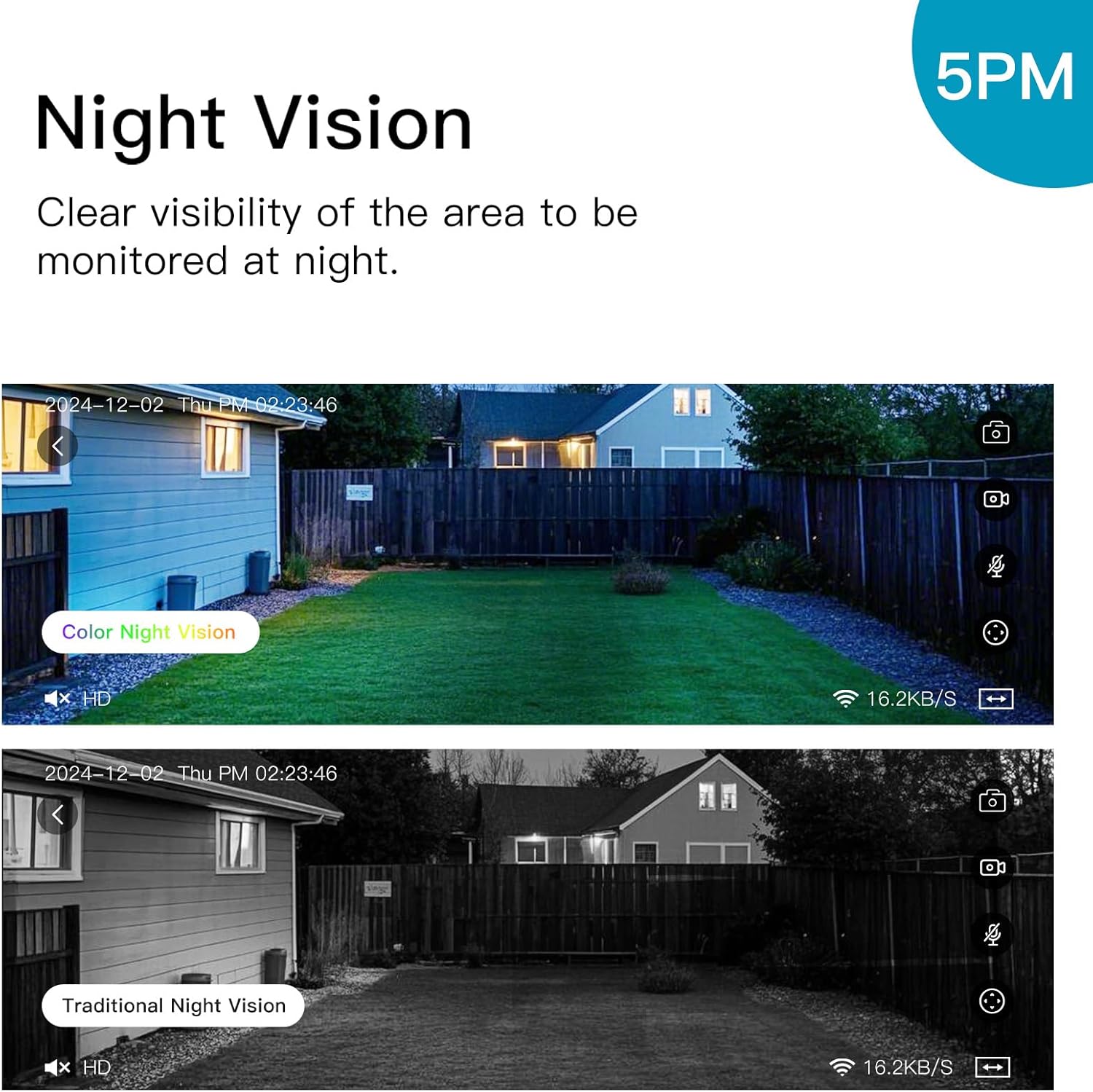
Image: Illustrating the difference between color and traditional infrared night vision capabilities.
5.4. Two-Way Audio
The built-in microphone and speaker enable two-way communication. You can listen to the environment around the camera and speak through the camera using the IVY IoT app. This feature is useful for communicating with visitors or deterring intruders.
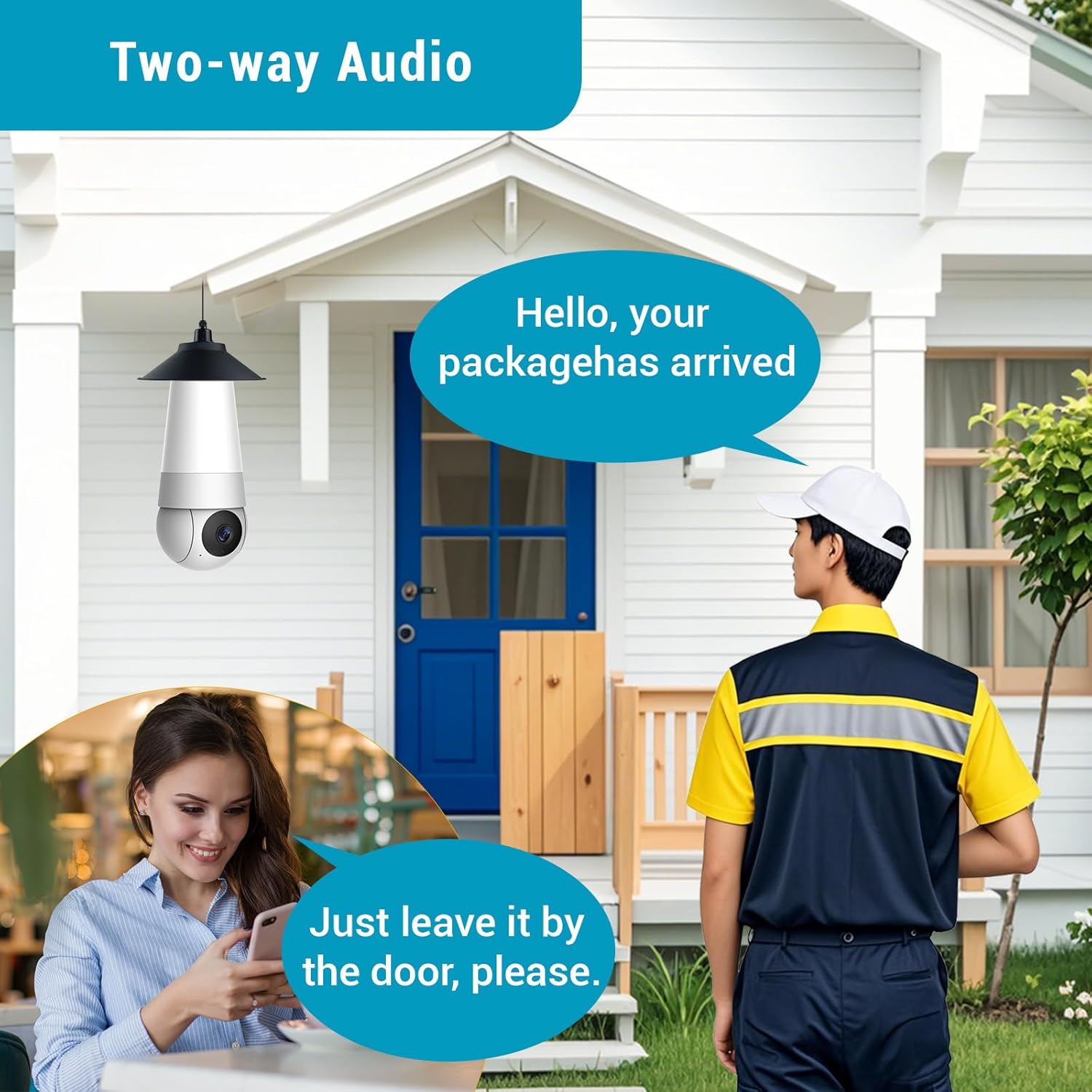
Image: Demonstrating the two-way audio feature for communication.
5.5. AI Smart Algorithms
The camera is equipped with advanced AI algorithms to provide intelligent alerts and monitoring:
- Human Detection: Identifies human shapes, reducing false alarms from pets or inanimate objects.
- Motion Detection: Triggers recording and alerts upon detecting any movement.
- Flame Recognition: Detects the presence of flames and sends immediate alerts.
- Personality Tracking: Follows detected human movement within the camera's field of view.
- Cry Detection: Alerts you to the sound of crying, useful for baby monitoring.
Configure these settings within the IVY IoT app to receive real-time push notifications and alert messages.

Image: Overview of the camera's multiple device-side AI algorithms for intelligent monitoring.
5.6. Cloud Storage & Multi-User Sharing
- Storage Options: Supports both local TF (microSD) card storage (card not included) and cloud storage subscriptions for recorded footage.
- Playback: Easily review recorded events from either storage option through the app.
- Multi-User Sharing: Share access to your camera with up to 10 authorized users, allowing family members or colleagues to view the live feed and receive alerts.
6. Maintenance
- Cleaning: Gently wipe the camera lens and body with a soft, dry cloth. Do not use liquid cleaners or abrasive materials.
- Firmware Updates: Regularly check the IVY IoT app for available firmware updates. Keeping your camera's firmware updated ensures optimal performance, new features, and security enhancements.
- Storage Management: If using a TF card, periodically check its status and consider formatting it through the app to maintain performance. Manage cloud storage settings as needed.
7. Troubleshooting
| Problem | Possible Cause / Solution |
|---|---|
| Camera not powering on. |
|
| Unable to connect to Wi-Fi. |
|
| Poor video quality or lag. |
|
| Motion detection alerts are too frequent/infrequent. |
|
8. Specifications
| Feature | Detail |
|---|---|
| Brand | HUNTVISION |
| Model Name | A5M10 |
| Video Capture Resolution | 1920p (5MP HD) |
| Connectivity Technology | Wireless (Wi-Fi) |
| Connectivity Protocol | Wi-Fi |
| Power Source | Corded Electric (Light Bulb Socket) |
| Controller Type | IVY IoT App |
| Mounting Type | Ceiling Mount (via light socket) |
| Item Dimensions (L x W x H) | 7.87 x 2.83 x 2.95 inches |
| Item Weight | 10.4 ounces |
| Indoor/Outdoor Usage | Outdoor, Indoor |
| Recommended Uses | Baby Monitoring, Pet Monitoring, Indoor Security, Outdoor Security |
| Included Components | Stand, Mounting Screw, Instruction Manual |
9. Customer Support
For technical support, warranty information, or any inquiries regarding your HUNTVISION Smart Light Bulb Camera, please contact our customer service team. Refer to the product packaging or the official HUNTVISION website for the most up-to-date contact information.
We are committed to providing you with the best possible experience.


