
1. Introduction
Welcome to the user manual for your Astarama HY300 Pro+ Mini Projector. This guide provides essential information for setting up, operating, and maintaining your device. The HY300 Pro+ is a versatile and portable smart projector designed for various entertainment and presentation needs, featuring 4K support, WiFi 6, Bluetooth 5.4, Android 11, automatic keystone correction, and a 180-degree rotatable display.
2. What's in the Box
Upon unboxing your Astarama HY300 Pro+ Mini Projector, you should find the following items:
- 1x Projector
- Remote Control
- Power Cord
- User Manual
3. Product Overview
3.1. Physical Description
The Astarama HY300 Pro+ Mini Projector features a compact and lightweight design, measuring approximately 3.97 x 7.48 x 3.97 inches and weighing 1.34 pounds. Its unique exterior includes a 180-degree rotatable stand, allowing for flexible projection angles onto walls, ceilings, or floors.
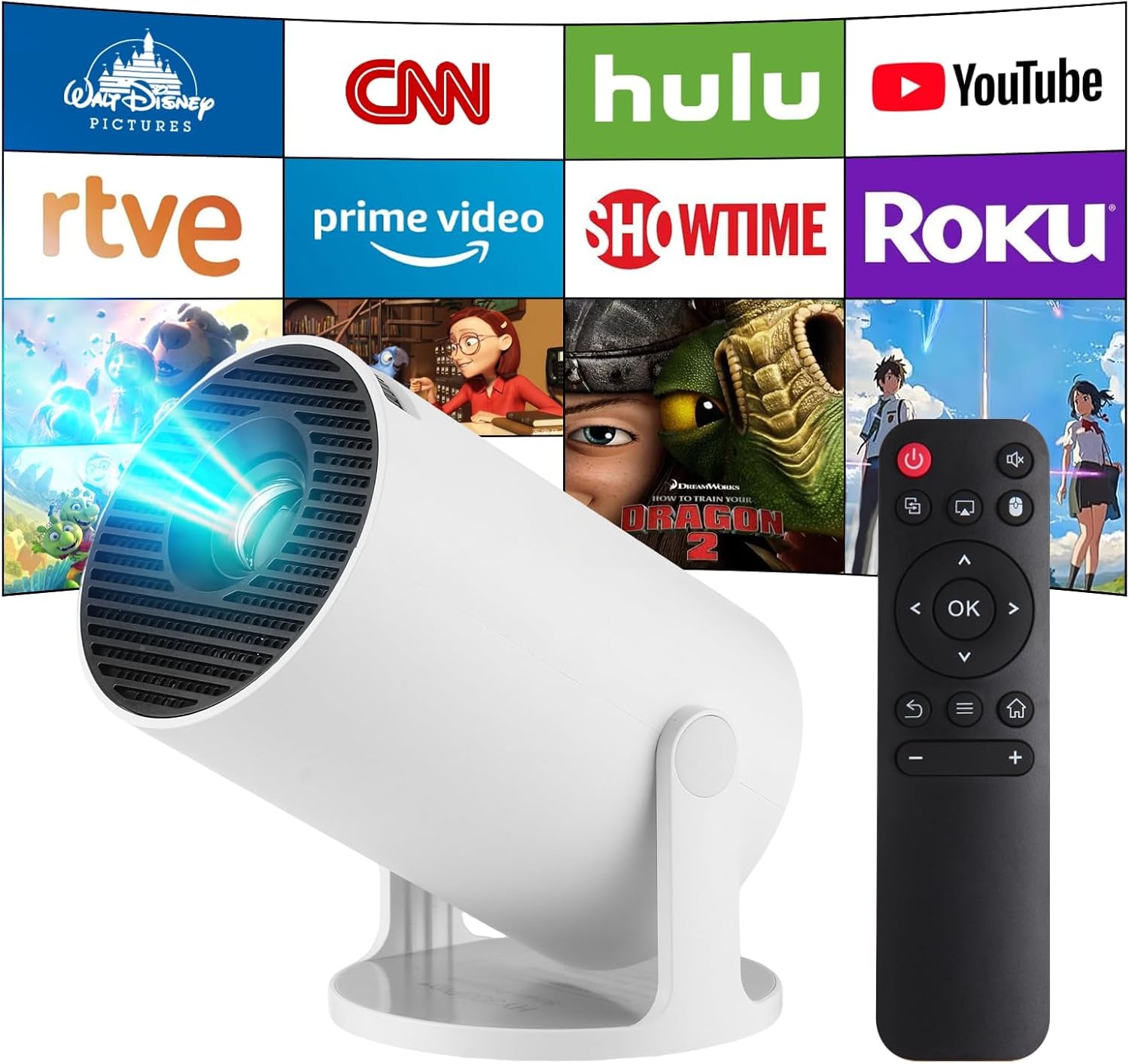
Figure 1: Astarama HY300 Pro+ Mini Projector with remote control and projected interface.
3.2. Ports and Controls
The projector is equipped with various ports for connectivity and a focus dial for image clarity:
- Power Button: Located on the device for turning it on/off.
- USB-C Port: For power input.
- HDMI Port: For connecting external devices like laptops, gaming consoles, or TV sticks.
- USB Port: For connecting USB drives to play media files.
- Headphone Jack: For connecting external audio devices or headphones.
- Focus Dial: A manual dial near the lens to adjust image sharpness.

Figure 2: Rear view of the projector highlighting the various input/output ports.
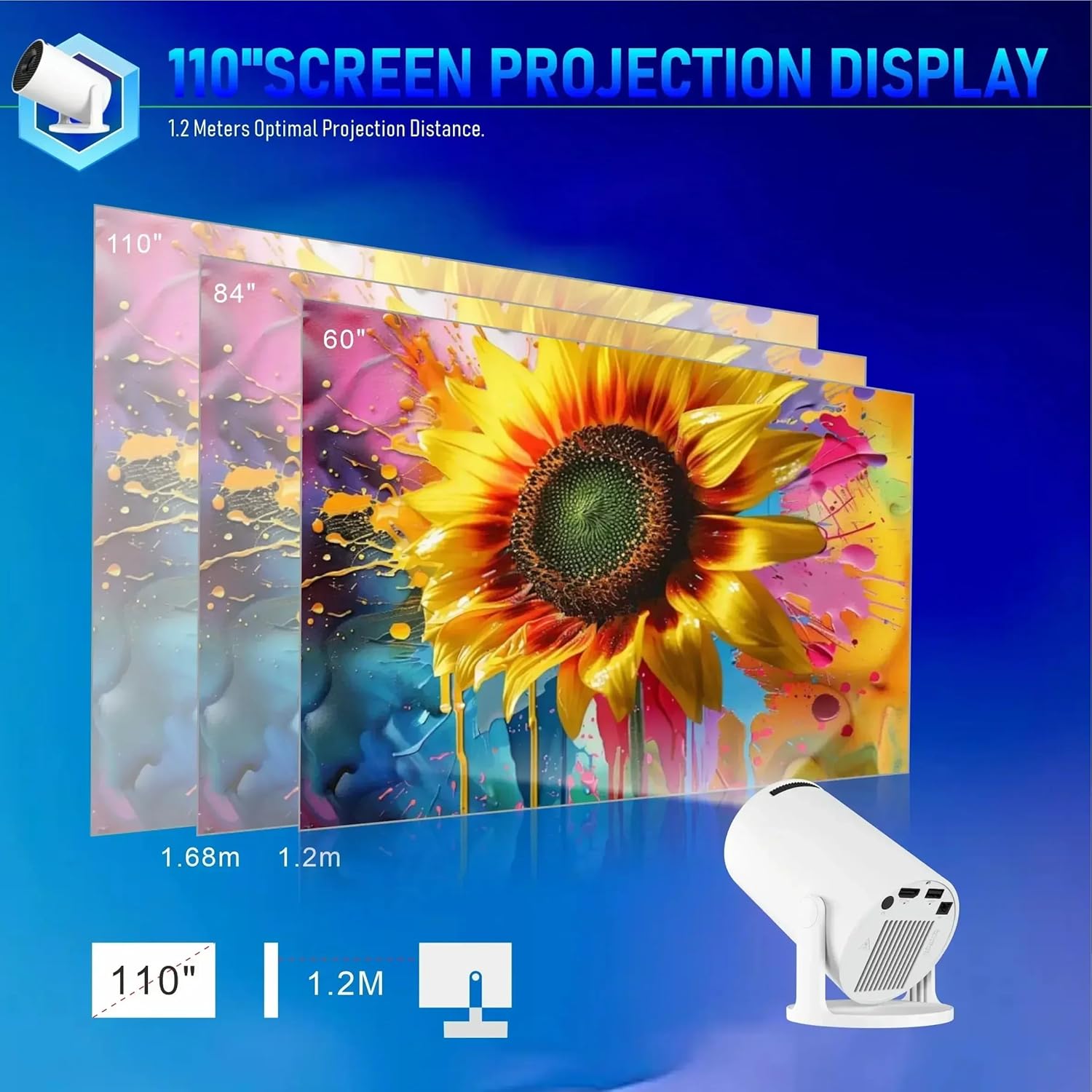
Figure 3: Side view of the projector with the focus adjustment dial.
4. Setup
4.1. Powering On
- Connect the power cord to the USB-C port on the projector and plug it into a power outlet.
- Press the power button on the projector or the remote control to turn on the device. The indicator light will turn green.
4.2. Focus Adjustment
Once powered on, adjust the focus dial near the lens until the projected image appears clear and sharp on your desired surface.
4.3. Network Connection
The projector runs on Android 11 and supports dual-band WiFi 6 for seamless streaming:
- Navigate to the 'Settings' menu using the remote control.
- Select 'Network & Internet' and choose your desired Wi-Fi network.
- Enter your Wi-Fi password to connect.
4.4. Automatic Keystone Correction
The HY300 Pro+ features automatic keystone correction. The built-in high-precision sensor detects real-time movement and focuses faster and more accurately, ensuring a square picture regardless of the projection angle. Manual adjustments can also be made in the 'Projection Settings' menu.
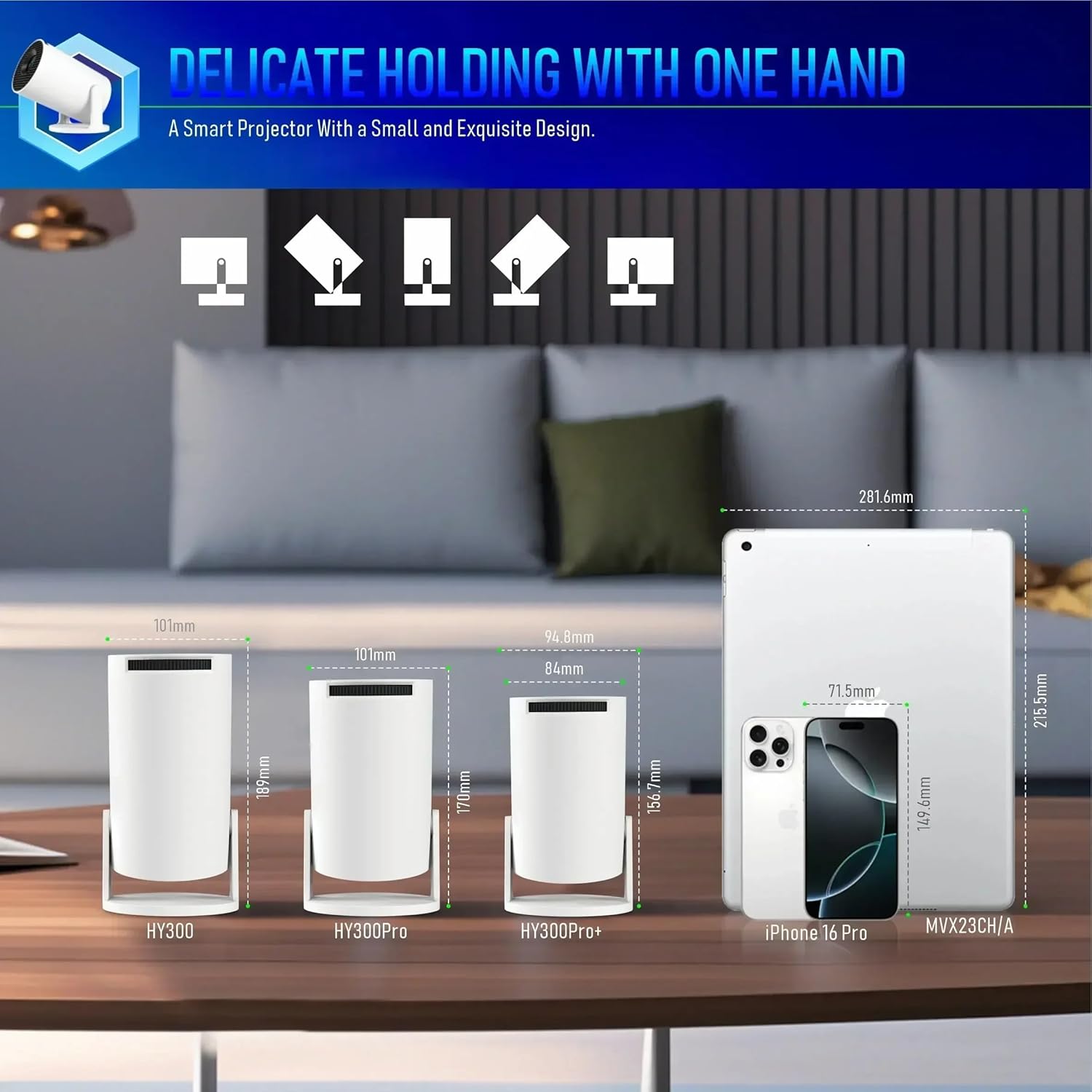
Figure 4: Automatic keystone correction in action, squaring the projected image.
5. Operating Instructions
5.1. Navigating the Interface
Use the included remote control to navigate the Android 11 interface. The remote allows you to select apps, adjust volume, and control playback.
Video 1: Demonstrating the projector's interface and remote control functionality.
5.2. Streaming Content
With Android 11, you can directly access popular streaming services:
- From the home screen, select apps like Netflix, YouTube, or access the App Store to download more.
- Log in to your accounts and start streaming movies or shows.
5.3. Screen Mirroring/Casting
The projector supports screen mirroring from compatible devices. Refer to the 'ScreenCast' or 'Miracast' options in the interface for instructions specific to your device.
5.4. Connecting External Devices
- HDMI: Connect your laptop, gaming console, or other HDMI-enabled device using an HDMI cable. Select the HDMI input from the projector's source menu.
- USB: Insert a USB drive into the USB port. Navigate to 'Files' or 'File Manager' to browse and play media.
- Bluetooth: Connect wireless audio devices like speakers or headphones via Bluetooth 5.4 for enhanced sound. The projector can also function as a Bluetooth speaker.
5.5. Adjusting Projection Size and Angle
The projector offers a projection size of 40-130 inches with a distance range of 3-13 feet. The 180-degree rotatable design allows you to project onto various surfaces. Adjust the projector's physical angle and use the focus dial for optimal clarity.

Figure 5: The 180-degree rotatable design allows for flexible projection angles.
6. Maintenance
To ensure the longevity and optimal performance of your projector:
- Keep the lens clean using a soft, lint-free cloth. Avoid abrasive materials.
- Ensure proper ventilation around the projector to prevent overheating. Do not block the air inlets/outlets.
- Store the projector in a cool, dry place when not in use.
7. Troubleshooting
If you encounter any issues, refer to the following common solutions:
- Blurry Image: Adjust the focus dial until the image is clear. Ensure the projection surface is flat.
- No Sound: Check the volume settings on the projector and any connected external audio devices. Ensure Bluetooth speakers are properly paired.
- Connectivity Issues: Verify your Wi-Fi connection. Ensure HDMI cables are securely connected and the correct input source is selected.
- Overheating: Ensure the projector's ventilation is not blocked. Allow the device to cool down if it feels excessively hot.
8. Specifications
| Feature | Specification |
|---|---|
| Brand | Astarama |
| Model Number | HY300 Pro+ |
| Item Weight | 1.34 pounds |
| Product Dimensions | 3.97 x 7.48 x 3.97 inches |
| Display Resolution | 1280 x 720 (Supports 4K input) |
| Connectivity Technology | Wi-Fi 6, Bluetooth 5.4 |
| Operating System | Android 11 |
| Special Features | Auto Focus, Built-In Media Player, Built-In Speaker, Ultra Short Throw, 180° Rotatable Design |
| Brightness | 280 ANSI lumens |
| Noise Level | Lower than 25 dB |
9. Warranty and Support
Warranty and detailed support information are not provided in the current product data. Please refer to the manufacturer's official website or contact their customer service for specific warranty terms and support options.