
1. Introduction
Thank you for purchasing the JOWLURK K8 Projector. This manual provides essential information for the safe and efficient use of your new projector. Please read it thoroughly before operation and keep it for future reference.
2. Safety Information
- Do not expose the projector to rain or moisture to prevent fire or electric shock.
- Do not open the projector casing. Refer all servicing to qualified personnel.
- Avoid direct eye exposure to the projector lens when the lamp is on.
- Ensure proper ventilation around the projector to prevent overheating.
- Use only the power adapter supplied with the projector.
3. Package Contents
Please check that all items are present:
- JOWLURK K8 Projector
- Remote Control
- Power Adapter
- AV Cable
- User Manual
4. Product Overview
The JOWLURK K8 Projector is a versatile home entertainment device featuring:
- Android TV System: Access popular streaming apps like Netflix, YouTube, Prime Video, and Disney+ directly.
- 360° Rotatable Stand: Integrated stand allows flexible projection angles, including ceiling and wall projection, without a separate tripod.
- Native 1080P Full HD Resolution: Delivers crisp and clear images with a native resolution of 1920x1080.
- 30000 Lumens Brightness: Provides a bright and vibrant display for an immersive viewing experience.
- Built-in HiFi Speaker: Offers powerful and clear audio output.
- Wi-Fi 6 Connectivity: Ensures faster and more stable wireless communication for smooth streaming and online gaming.
- Bluetooth 5.4: Connect wirelessly to external speakers or headphones.
- Electric Focus & Automatic Keystone Correction: Easily adjust image sharpness with the remote and automatically correct image distortion up to ±45°.
- Zoom Function: Adjust screen size from 100% down to 50% without moving the projector.
- Wide Compatibility: Connects to smartphones, PCs, TV sticks, and game consoles (Switch/PS5/Xbox) via HDMI, USB, or AV ports.

Figure 4.1: Front view of the JOWLURK K8 Projector.

Figure 4.2: Overview of the JOWLURK K8 Projector's main features including Android TV, 360° rotation, Wi-Fi 6, Bluetooth 5.4, electric focus, auto keystone, 30000LM, HiFi speaker, and 200-inch display capability.
5. Setup
5.1 Placement
Place the projector on a stable, flat surface. The integrated 360° rotatable stand allows for flexible positioning. You can project onto a wall or ceiling. For optimal viewing, ensure the projection surface is smooth and light-colored.

Figure 5.1: The projector's 360° rotation allows for versatile placement, including ceiling projection, ideal for comfortable viewing in a bedroom.

Figure 5.2: Example of ceiling projection setup in a living room, demonstrating the flexibility of the 360° stand.
5.2 Power Connection
- Connect the power adapter to the projector's power input port.
- Plug the power adapter into a wall outlet.
5.3 Initial Power-On
Press the power button on the projector or the remote control to turn on the device. The projector will boot into the Android TV interface.
5.4 Focus and Keystone Adjustment
The projector features automatic keystone correction and electric focus. Use the remote control to fine-tune the focus for a sharp image. The automatic keystone correction will adjust the image to be rectangular even if the projector is placed at an angle (up to ±45°).

Figure 5.3: The projector automatically corrects image distortion (keystone) and offers a zoom function for screen size adjustment.

Figure 5.4: Visual representation of automatic keystone correction, ensuring a perfectly rectangular image from various angles.
6. Operating Instructions
6.1 Android TV Interface
Upon startup, you will see the Android TV home screen. Use the remote control to navigate through apps and settings. Connect to Wi-Fi to access online content.
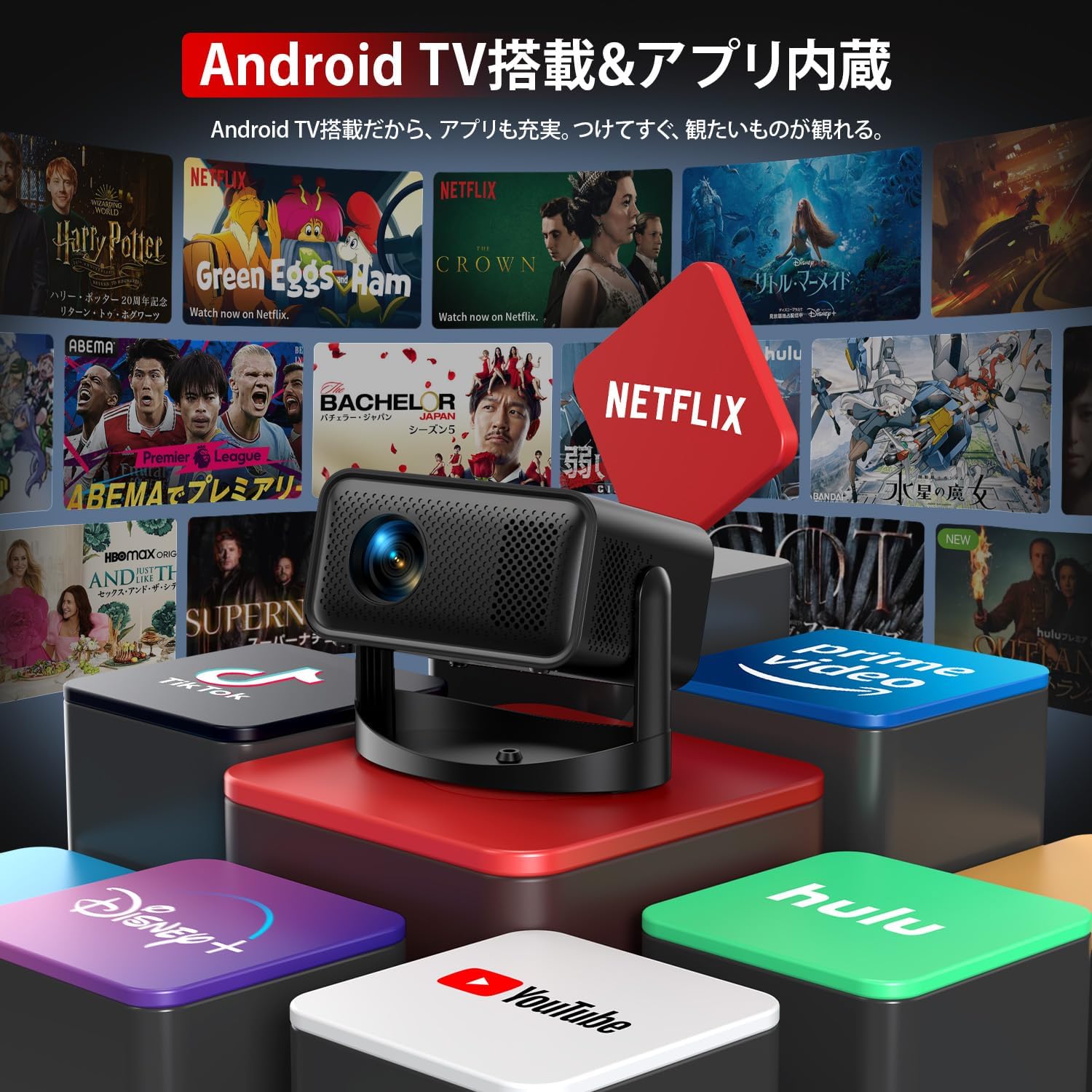
Figure 6.1: The Android TV interface provides direct access to popular streaming services like Netflix, YouTube, Prime Video, and Disney+.

Figure 6.2: The projector comes equipped with Android TV, allowing for a wide range of entertainment options without external devices.
6.2 App Usage
Select an app from the home screen to launch it. Follow on-screen prompts for login or content selection. Ensure a stable internet connection for smooth streaming.
6.3 Remote Control Functions
The remote control allows you to:
- Power On/Off
- Navigate menus
- Adjust volume
- Select input sources
- Adjust electric focus
- Access settings
7. Connectivity
7.1 Wi-Fi 6 Connection
To connect to Wi-Fi:
- Go to Settings on the Android TV home screen.
- Select Network & Internet.
- Choose your Wi-Fi network and enter the password.

Figure 7.1: Wi-Fi 6 ensures a fast and stable connection for streaming and screen mirroring from devices like smartphones and tablets.

Figure 7.2: The projector supports Wi-Fi 6 for high-speed data transfer and Bluetooth for wireless audio connections.
7.2 Bluetooth 5.4 Pairing
To pair Bluetooth devices:
- Go to Settings on the Android TV home screen.
- Select Remote & Accessories.
- Put your Bluetooth speaker or headphones into pairing mode.
- Select your device from the list to pair.

Figure 7.3: Connect Bluetooth headphones or external speakers for an enhanced audio experience.

Figure 7.4: The projector includes a built-in HiFi speaker for direct audio output.
7.3 Wired Connections (HDMI, USB, AV)
The projector supports various wired connections:
- HDMI: Connect to laptops, game consoles (Switch, PS5, Xbox), or TV sticks for high-definition video and audio.
- USB: Play media files directly from a USB drive.
- AV: Connect to older devices using the included AV cable.
7.4 Screen Mirroring
Mirror your iOS, Android, or Windows device screen to the projector wirelessly. Refer to the Android TV settings for specific screen mirroring instructions for your device type.
8. Maintenance
8.1 Cleaning the Lens
Use a soft, lint-free cloth specifically designed for optical lenses to gently clean the projector lens. Do not use abrasive cleaners or solvents.
8.2 Cleaning the Casing
Wipe the projector casing with a soft, dry cloth. For stubborn dirt, slightly dampen the cloth with water and then wipe dry.
8.3 Storage
When not in use, store the projector in a cool, dry place, away from direct sunlight and excessive dust. Use the original packaging or a protective cover.
9. Troubleshooting
| Problem | Possible Cause | Solution |
|---|---|---|
| No image projected | Power cable loose; incorrect input source; lens cap on. | Check power connection; select correct input source; remove lens cap. |
| Image is blurry | Focus not adjusted; projector too close/far. | Use remote control for electric focus adjustment. Adjust projection distance (0.5-3m). |
| Image is distorted (trapezoid shape) | Projector not perpendicular to screen. | Automatic keystone correction should adjust. If not, slightly reposition the projector. |
| No sound | Volume too low; external audio device not connected/paired; incorrect audio output selected. | Increase volume; ensure Bluetooth device is paired or HDMI/AV cable is secure; check audio output settings in Android TV. |
| Wi-Fi connection unstable | Weak signal; incorrect password. | Move projector closer to router; re-enter Wi-Fi password; restart router. |
| Flickering image or failure to load | Power issue; software glitch. | Unplug and replug the power cable. Restart the projector. If persistent, contact support. |
10. Specifications
| Feature | Specification |
|---|---|
| Brand | JOWLURK |
| Model | K8 |
| Native Resolution | 1920 x 1080 (Full HD) |
| Brightness | 30000 Lumens |
| Display Type | LED |
| Light Source Life | 80000 hours |
| Max Image Size | 200 inches |
| Min Projection Distance | 0.5 meters |
| Max Projection Distance | 5 meters |
| Keystone Correction | Automatic, ±45° Vertical |
| Focus Adjustment | Electric Focus (via remote) |
| Zoom Function | 100% - 50% |
| Operating System | Android TV |
| Wireless Connectivity | Wi-Fi 6, Bluetooth 5.4 |
| Wired Connectivity | HDMI, USB, AV |
| Compatible Devices | Android, PC, TV Stick, iOS, Game Consoles |
| Audio | Built-in HiFi Speaker |
| Power Consumption | 30 W |
| Voltage | 5 Volts |
| Dimensions (L x W x H) | 20 x 20 x 15 cm |
| Weight | 750 grams |
| Color | Black |
11. Warranty and Support
The JOWLURK K8 Projector comes with a 2-year manufacturer warranty from the date of purchase. This warranty covers initial defects and malfunctions under normal use.
For technical support, warranty claims, or any questions regarding your projector, please contact JOWLURK customer service. Refer to the contact information provided on the product packaging or the official JOWLURK website.

Figure 11.1: JOWLURK K8 Projector.