
Introduction
This user manual provides comprehensive instructions for the setup, operation, maintenance, and troubleshooting of your MSI MAG 276CF E20 Gaming Monitor. Please read this manual thoroughly before using the product to ensure proper functionality and to maximize your gaming experience. Keep this manual for future reference.

Figure 1: Front view of the MSI MAG 276CF E20 Gaming Monitor.
Key Features
The MSI MAG 276CF E20 Gaming Monitor is engineered to deliver an exceptional gaming experience with its advanced features:
- Rapid VA Panel: Provides an ultra-fast 0.5ms (GtG, Min.) response time, optimizing screen colors and brightness for vivid visuals.
- 200Hz Refresh Rate: Ensures smoother frames and faster response times, crucial for competitive gaming.
- 0.5ms (GtG, Min.) Response Time: Effectively eliminates screen tearing and choppy frame rates, providing a fluid visual experience.
- AI Vision: This innovative technology enhances details in dark areas, boosts overall brightness, and saturates colors for a more immersive display.
- Less Blue Light: Utilizes a software solution to reduce the emission of blue-violet light, promoting eye comfort during extended use.
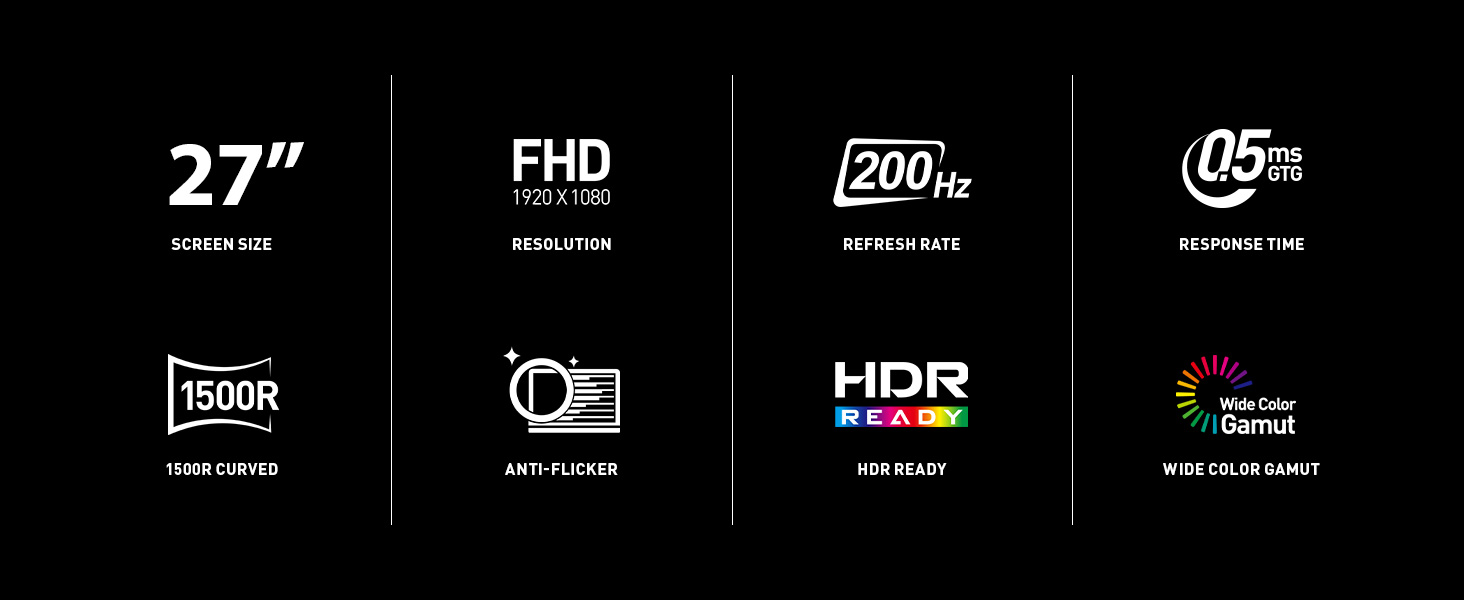
Figure 2: Overview of the monitor's key features including screen size, resolution, refresh rate, and response time.
Setup Guide
1. Unboxing
Carefully remove the monitor and all accessories from the packaging. Ensure all components listed in the packing list are present and undamaged. Retain the packaging for future transport or service needs.
2. Assembly
Attach the monitor stand to the display panel. Follow the instructions provided in the quick start guide for secure assembly. Alternatively, the monitor supports VESA mounting for wall or arm installation (VESA mount sold separately).
3. Connections
Connect your devices to the monitor using the appropriate ports. The MSI MAG 276CF E20 features a variety of input/output ports:
- DisplayPort 1.2a: For high-resolution and high-refresh-rate video input.
- HDMI™ 2.0b (FHD@200Hz): Two ports available for connecting multiple HDMI-enabled devices.
- Headphone-out: For connecting external audio devices like headphones or speakers.

Figure 3: Rear view showing the input/output ports of the monitor.
Ensure all cables are securely connected before powering on the monitor.
Operating Instructions
1. Power On/Off
Press the power button located on the monitor to turn it on or off. The power indicator light will illuminate when the monitor is active.
2. On-Screen Display (OSD) Menu Navigation
The OSD menu allows you to adjust various monitor settings. Use the joystick or buttons (refer to your quick start guide for exact location) to navigate the menu. Common OSD options include Picture, Color, Input Source, and System settings.
3. Picture Settings
Adjust brightness, contrast, sharpness, and color temperature to optimize your viewing experience. For gaming, consider enabling specific game modes if available in the OSD.
4. Gaming Features
The MSI MAG 276CF E20 is equipped with features designed to enhance your gaming performance:
- Elite Gaming Experience: With a 200Hz refresh rate and 0.5ms response time, this monitor provides a smooth and responsive gaming experience, crucial for fast-paced titles.

Figure 4: Visual representation of the monitor's high refresh rate and low response time for an elite gaming experience.
- Adaptive Sync: This technology synchronizes the monitor's refresh rate with your GPU's frame rate, effectively eliminating screen tearing and stuttering for fluid gameplay.

Figure 5: Comparison showing the effect of Adaptive Sync on screen tearing.
- Anti-Flicker: MSI's Anti-Flicker technology reduces the amount of screen flickering, providing a more comfortable viewing experience and reducing eye strain during long gaming sessions.

Figure 6: Illustration of how Anti-Flicker technology reduces screen flicker.
- HDR Ready (Most Vivid Display): The monitor is capable of displaying High Dynamic Range content, enhancing contrast and color accuracy for more realistic and immersive visuals.

Figure 7: Example of enhanced visuals with HDR Ready display.
- AI Vision: This feature intelligently analyzes the image to reveal details in dark areas, enhance overall brightness, and saturate colors beautifully, giving you a clearer view in challenging scenes.

Figure 8: Comparison showing the visual improvement with AI Vision enabled.
Maintenance
1. Cleaning the Monitor
Always power off and unplug the monitor before cleaning. Use a soft, lint-free cloth lightly dampened with water or a non-abrasive screen cleaner. Do not spray cleaner directly onto the screen. Avoid using alcohol, benzene, thinners, or other harsh chemicals.
2. Storage
If storing the monitor for an extended period, place it in its original packaging in a cool, dry place away from direct sunlight and extreme temperatures.
Troubleshooting
If you encounter issues with your monitor, refer to the following common problems and solutions:
- No Display / Power LED Off:
- Ensure the power cable is securely connected to the monitor and a power outlet.
- Check if the power outlet is functional.
- Press the monitor's power button.
- No Image / Image Distorted:
- Verify that the video cable (HDMI/DisplayPort) is securely connected to both the monitor and your computer/device.
- Ensure the correct input source is selected in the monitor's OSD menu.
- Check your computer's display settings (resolution, refresh rate).
- Try connecting the monitor to another device to rule out a source issue.
- Flickering Screen:
- Ensure the video cable is properly connected.
- Check the refresh rate setting on your computer; it should match the monitor's supported refresh rate (200Hz).
- Enable the Anti-Flicker feature in the OSD if it's not already active.
- No Sound from Headphone-out:
- Ensure your headphones/speakers are properly connected to the headphone-out port.
- Check the volume settings on your computer and within the monitor's OSD.
- Verify that the audio output on your computer is set to the monitor or the correct audio device.
For more complex issues, please refer to the MSI support website or contact customer service.
Specifications
Detailed technical specifications for the MSI MAG 276CF E20 Gaming Monitor:
| Feature | Specification |
|---|---|
| Brand | MSI |
| Model Number | MAG 276CF E20 |
| Screen Size | 27 inches |
| Screen Resolution | 1920 x 1080 (FHD) |
| Max Screen Resolution | 1920 x 1080 |
| Refresh Rate | 200Hz |
| Response Time | 0.5ms (GtG, Min.) |
| Panel Type | Rapid VA |
| Aspect Ratio | 16:9 |
| Screen Surface Description | Matte |
| Color | Black |
| Item Weight | 13 pounds |
| Product Dimensions (LxWxH) | 9.83 x 24 x 17.78 inches |
| Connectivity | DisplayPort 1.2a, HDMI 2.0b (x2), Headphone-out |
| VESA Mountable | Yes |
| Tilt Adjustable | Yes |
| Height Adjustable | Yes |
Warranty Information
MSI products are covered by a limited warranty. For specific warranty terms, conditions, and registration details, please refer to the warranty card included with your product or visit the official MSI website. Keep your proof of purchase for warranty claims.
Support
For further assistance, technical support, driver downloads, or frequently asked questions, please visit the official MSI support page or their brand store:
You can also find contact information for MSI customer service on their official website.


