
Introduction
This manual provides comprehensive instructions for the setup, operation, maintenance, and troubleshooting of your MASTER & DYNAMIC MH40 Wireless Over-Ear Headphones Gen II. Please read this manual carefully to ensure proper use and to maximize your listening experience.
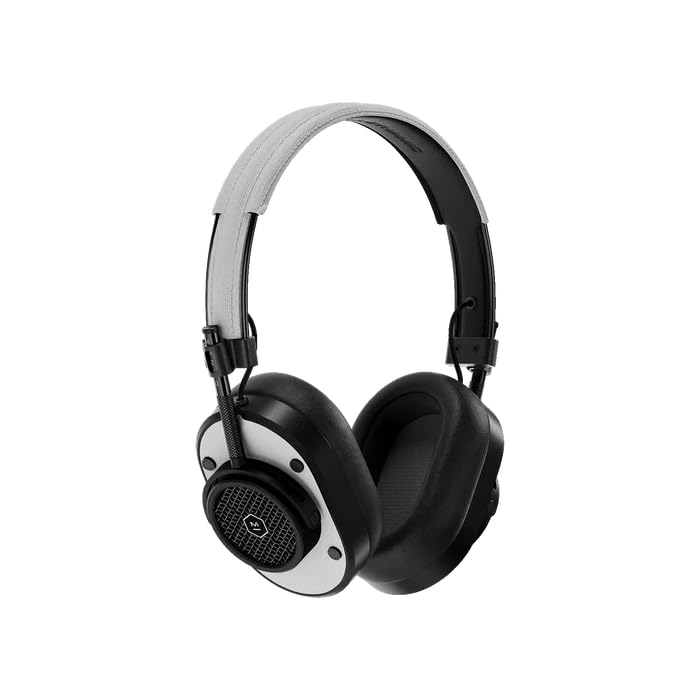
Front view of the MH40 Wireless Over-Ear Headphones, showcasing the black metal frame and white leather earcups and headband.
What's in the Box
- MASTER & DYNAMIC MH40 Wireless Over-Ear Headphones Gen II
- USB-C Charging Cable
- USB-C to 3.5mm Audio Cable
- Carrying Pouch
- User Guide (this document)
Product Overview
The MH40 Gen II headphones feature a timeless design with premium materials for durability and comfort. Key components include custom titanium drivers for enhanced sound, removable magnetic ear pads for superior noise isolation, and a lightweight anodized aluminum frame.
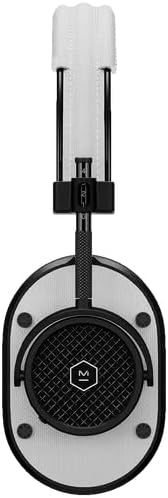
A close-up side view of the MH40 headphones, highlighting the detailed earcup design and the adjustable headband.

A detailed view of the MH40's removable magnetic ear pads, showing the internal speaker grille and the 'Designed & Developed' inscription.

A close-up shot of the earcup, highlighting the control buttons and the metal mesh design.
Setup
1. Charging the Headphones
Before first use, fully charge your MH40 Gen II headphones. Connect the USB-C charging cable to the headphone's charging port and to a USB power source. The LED indicator will show charging status. A full charge provides up to 30 hours of listening time. A quick 15-minute charge provides approximately 6 hours of listening.
2. Bluetooth Pairing
- Ensure the headphones are powered off.
- Press and hold the power button until the LED indicator flashes blue, indicating pairing mode.
- On your device (smartphone, tablet, computer), enable Bluetooth and search for available devices.
- Select "MH40 Gen II" from the list of devices.
- Once connected, the LED indicator will turn solid white.
The MH40 Gen II uses Bluetooth 5.2 for a stable connection up to 30 meters (100 feet).
3. Wired Connection (Optional)
For a wired audio experience, connect the provided USB-C to 3.5mm audio cable to the headphone's USB-C port and to your audio source's 3.5mm jack. Digital audio up to 24-bit/96kHz is supported via USB-C to USB-C connection (cable sold separately).
Operating
Power On/Off
- Power On: Press and hold the power button until the LED indicator lights up.
- Power Off: Press and hold the power button until the LED indicator turns off.
Music Playback
- Play/Pause: Press the multi-function button once.
- Next Track: Press the multi-function button twice.
- Previous Track: Press the multi-function button three times.
- Volume Up: Press the '+' button.
- Volume Down: Press the '-' button.
Phone Calls
The MH40 Gen II features a dual microphone array with wind noise reduction technology for clear calls.
- Answer/End Call: Press the multi-function button once.
- Reject Call: Press and hold the multi-function button.
Maintenance
Cleaning
- Wipe the headphones with a soft, dry cloth.
- Do not use harsh chemicals or abrasive materials.
- The magnetic ear pads can be removed for separate cleaning if necessary.
Storage
- Store the headphones in the provided carrying pouch when not in use to protect them from dust and scratches.
- Avoid exposing the headphones to extreme temperatures or humidity.
Troubleshooting
| Problem | Solution |
|---|---|
| Headphones do not power on | Ensure the headphones are charged. Connect to a power source using the USB-C cable. |
| No sound | Check if the headphones are paired correctly. Increase volume on both the headphones and the connected device. Ensure the audio source is playing. |
| Cannot pair via Bluetooth | Ensure headphones are in pairing mode (flashing blue LED). Turn off and on Bluetooth on your device. Move closer to the device. Forget the device in your Bluetooth settings and try pairing again. |
| Poor sound quality | Ensure the headphones are within Bluetooth range. Check for interference from other wireless devices. For wired connection, ensure the cable is fully inserted. |
Specifications
| Feature | Detail |
|---|---|
| Brand | MASTER & DYNAMIC |
| Model Name | MH40 |
| Ear Placement | Over Ear |
| Noise Control | Sound Isolation |
| Connectivity Technology | Wireless (Bluetooth) |
| Wireless Technology | Bluetooth |
| Bluetooth Version | 5.2 |
| Bluetooth Range | 30 Meters (100 ft) |
| Audio Driver Type | Custom Titanium Drivers |
| Battery Average Life | 30 Hours |
| Battery Charge Time | 15 minutes for 6 hours playback |
| Control Method | App, On-device buttons |
| Enclosure Material | Aluminum, Leather, Canvas |
| Frequency Range | 20Hz - 20,000Hz |
| Additional Features | Wind Noise Reduction Microphones |
| Compatible Devices | Laptops, Desktops, Tablets, Telephones, Smart Speaker, Television, Gaming Consoles |
Warranty Information
MASTER & DYNAMIC products are designed and built to last. Your MH40 Wireless Over-Ear Headphones Gen II are covered by a manufacturer's limited warranty against defects in materials and workmanship. For specific warranty terms, conditions, and registration, please refer to the warranty card included with your product or visit the official MASTER & DYNAMIC website.
Support
If you encounter any issues not covered in this manual or require further assistance, please visit the official MASTER & DYNAMIC support website for FAQs, additional resources, and contact information for customer service. You can typically find support details at www.masterdynamic.com/support.


