
1. Product Overview
The TROND TD-PS-US10 is a versatile power strip designed to provide expanded power access and surge protection for your electronic devices. It features a compact design with multiple AC outlets and USB charging ports, including USB-C, making it suitable for various environments such as homes, offices, and travel. The unique 360° rotating flat plug and wall-mountable design offer flexibility and space-saving solutions.

Image: The TROND power strip with its 10-foot cord and rotating flat plug, shown in a home office setting.
2. Key Features
- 12-in-1 Power Solution: This power strip includes 8 AC outlets (4 two-prong, 4 three-prong) and 4 USB ports (2 USB-A, 2 USB-C), allowing simultaneous charging of up to 12 devices.
- 360° Rotating Flat Plug: The ultra-thin (0.73 inch) flat plug can rotate 360 degrees, enabling flexible positioning to fit snugly against walls or in tight spaces without obstructing other outlets or furniture. This feature is protected by US Patent No. 11901685.
- Integrated Surge Protection: With 1440 Joules of surge protection, the power strip safeguards connected devices from voltage spikes and power fluctuations.
- USB Charging Ports: Features 4 USB ports with a total output of 17W (5V/3.4A). Each USB-A port delivers up to 12W (5V/2.4A), and each USB-C port provides up to 15W (5V/3A). Note: QC fast charging is not supported.
- Wall-Mountable Design: Equipped with 2 mounting holes and 4 rubber feet for secure installation on walls, desks, cabinets, or under counters, helping to keep your workspace organized. Mounting accessories (5 screws and 1 template) are included.
- Multi-Safety Protection: Incorporates overload, short-circuit, overcurrent, over-voltage, and overheating protection. A reliable switch automatically trips if overloaded to protect devices. Includes two LED indicators: white for power on, green for protected status.

Image: A top-down view of the TROND power strip showcasing its 8 AC outlets, 2 USB-A, and 2 USB-C ports, with various devices connected.

Image: Close-up of the USB charging ports on the TROND power strip, illustrating charging capabilities for various devices like phones and tablets.
Video: This video demonstrates the TROND Surge Protector Power Strip, highlighting its 360° rotating flat plug, multiple outlets, wall-mount capability, surge protection, and compact design.
3. Setup Instructions
3.1 Connecting to a Wall Outlet
- Ensure the power strip's main switch is in the "Off" position.
- Plug the power strip's 360° rotating flat plug into a standard 125V AC wall outlet.
- Adjust the plug's rotation to achieve the desired cable routing and ensure it sits flush against the wall, if space is limited.
- Once plugged in, turn the main switch to the "On" position. The white LED indicator will illuminate, indicating power is supplied. The green LED indicator will illuminate if surge protection is active.

Image: The 360° rotating flat plug connected to a wall outlet, demonstrating its ability to fit in tight spaces and behind furniture.
3.2 Wall Mounting (Optional)
The power strip can be securely mounted to a wall or other surfaces using the integrated mounting holes.
- Identify a suitable mounting location.
- Use the provided mounting template to mark the positions for the two screws.
- Drill pilot holes if necessary and insert the provided screws, leaving a small gap between the screw head and the surface.
- Align the power strip's mounting holes with the screws and slide the power strip downwards to secure it.
- Ensure the power strip is firmly attached before connecting any devices.
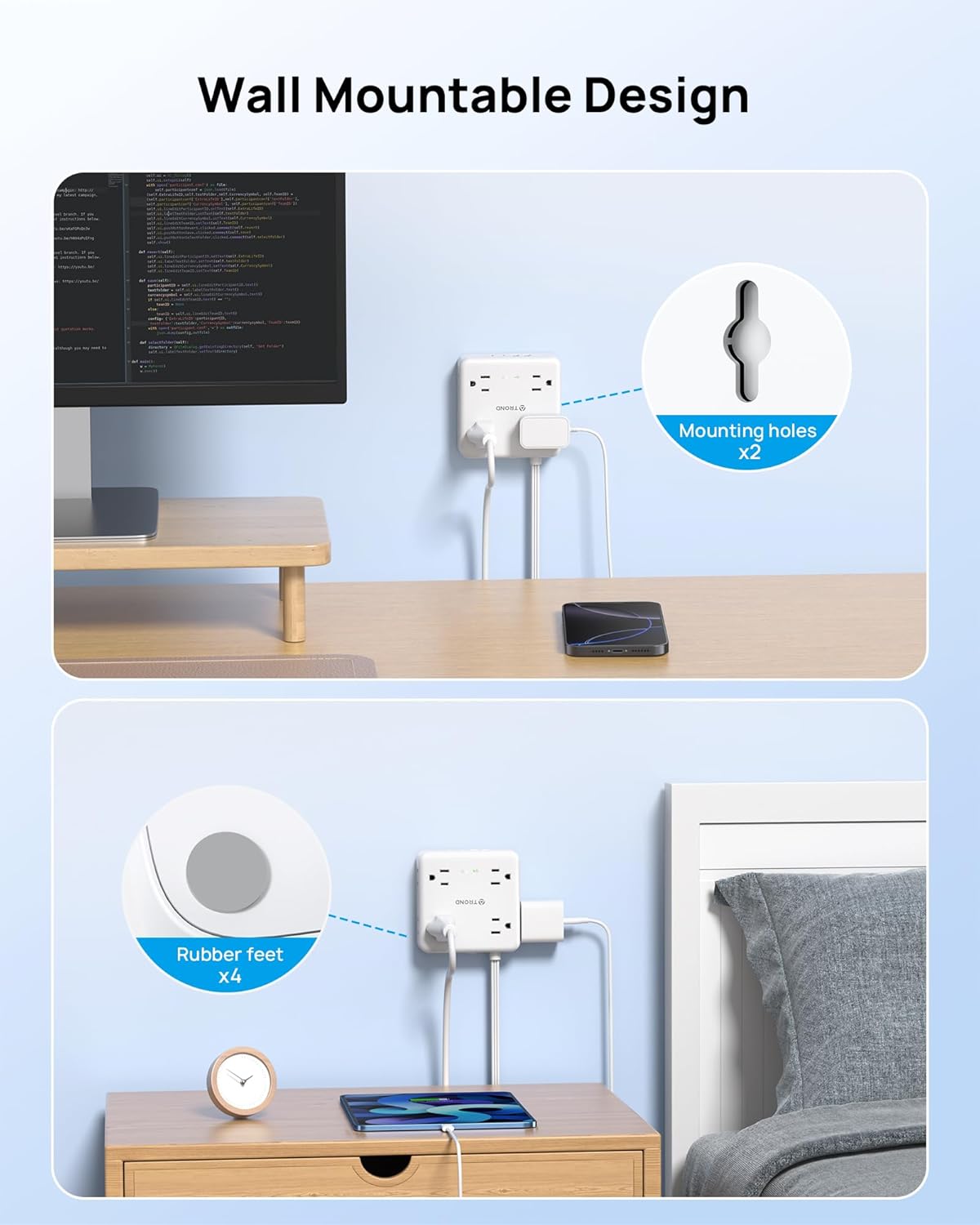
Image: The TROND power strip demonstrating its wall-mountable design with visible mounting holes and rubber feet for stability.
4. Operating Instructions
4.1 Using AC Outlets
Plug your electronic devices directly into any of the 8 available AC outlets. The wide spacing of the outlets accommodates larger power adapters without blocking adjacent ports.
4.2 Using USB Charging Ports
Connect your USB-powered devices (smartphones, tablets, smartwatches, etc.) to the 2 USB-A or 2 USB-C ports using appropriate charging cables. The power strip will automatically detect and deliver the optimal charging current up to the specified maximums.
4.3 Power Switch and Indicators
- On/Off Switch: Use the main power switch to turn the entire power strip on or off. This controls power to all AC outlets and USB ports.
- White LED Indicator: Illuminates when the power strip is receiving power and the main switch is on.
- Green LED Indicator: Illuminates when the surge protection feature is active and functioning correctly. If this light is off, the surge protection may have been compromised, and the unit should be replaced.

Image: The TROND power strip showing the on/off switch and the power and protected LED indicators, with a visual representation of surge protection in action.
5. Product Specifications
| Feature | Detail |
|---|---|
| Model Number | TD-PS-US10 |
| AC Outlets | 8 (4 x 2-prong, 4 x 3-prong) |
| USB Ports | 4 (2 x USB-A, 2 x USB-C) |
| USB-A Output | Up to 12W (5V/2.4A) per port |
| USB-C Output | Up to 15W (5V/3A) per port |
| Total USB Output | 17W (5V/3.4A) |
| Surge Protection | 1440 Joules |
| Rated Power | 1625W |
| Voltage | 125V |
| Cord Length | 10 feet |
| Plug Type | 360° Rotating Flat Plug (0.73" thickness) |
| Product Dimensions | 3.94 x 3.94 x 1.1 inches |
| Item Weight | 15.1 ounces |
| Color | White |

Image: The TROND power strip shown next to a smartphone, illustrating its compact and space-saving dimensions.
6. Maintenance
- Keep the power strip away from water and high humidity environments.
- Do not disassemble or attempt to repair the unit. Refer to qualified service personnel.
- Clean the exterior with a dry, soft cloth. Avoid using harsh chemicals or abrasive cleaners.
- Ensure proper ventilation around the power strip; do not cover it with cloths or other materials.
7. Troubleshooting
7.1 No Power to Devices
- Check Power Switch: Ensure the main on/off switch on the power strip is in the "On" position.
- Verify Wall Outlet: Confirm the wall outlet is functioning by plugging in another device.
- Overload Protection: If the power strip is overloaded, the internal circuit breaker may trip. Unplug some devices, then reset the power strip by turning the main switch off and on again.
- Cable Connection: Ensure all device cables are securely plugged into the power strip.
7.2 Green "Protected" LED is Off
- If the green "Protected" LED is off, it indicates that the surge protection components may have absorbed a significant power surge and are no longer providing protection. While the power strip may still function as an extension cord, it is recommended to replace the unit to ensure continued surge protection for your devices.
7.3 USB Devices Not Charging
- Check Cable: Ensure the USB cable is not damaged and is properly connected to both the power strip and the device.
- Device Compatibility: Confirm your device is compatible with standard USB charging (QC fast charging is not supported by this unit).
- Total USB Output: If multiple high-power USB devices are connected, the total output of 17W (5V/3.4A) may be exceeded, leading to slower charging or no charging for some devices. Try charging fewer devices simultaneously.
8. Warranty and Support
TROND products are designed for reliability and performance. For specific warranty details and customer support, please refer to the product packaging or contact TROND customer service directly. Keep your purchase receipt for warranty claims.
For assistance, please visit the official TROND website or contact their customer support team.


