
1. Introduction
This manual provides detailed instructions for the installation, operation, and maintenance of your WENMENGDE 9.7-inch IPS Vertical Screen Android Car Stereo. Please read this manual thoroughly before using the product to ensure proper function and to prevent damage. Keep this manual for future reference.
2. Safety Information
- Do not attempt to disassemble or modify the unit. This may cause damage, electric shock, or fire.
- Ensure all wiring connections are secure and properly insulated to prevent short circuits.
- Installation should be performed by a qualified professional if you are unsure about the process. Incorrect installation can lead to vehicle damage or malfunction.
- Do not operate the device in a way that distracts you from driving. Always prioritize road safety.
- Keep the unit away from water, moisture, and extreme temperatures.
3. Package Contents
Please verify that all items listed below are included in your package:
- 1x Head Unit
- 1x Power Adapter
- 1x RCA Cables
- 1x GPS Antenna
- 1x Reverse Cable
- 2x USB Cables
- 2x Metal Brackets
- 1x Backup Camera
- 1x Microphone
- 1x User Manual
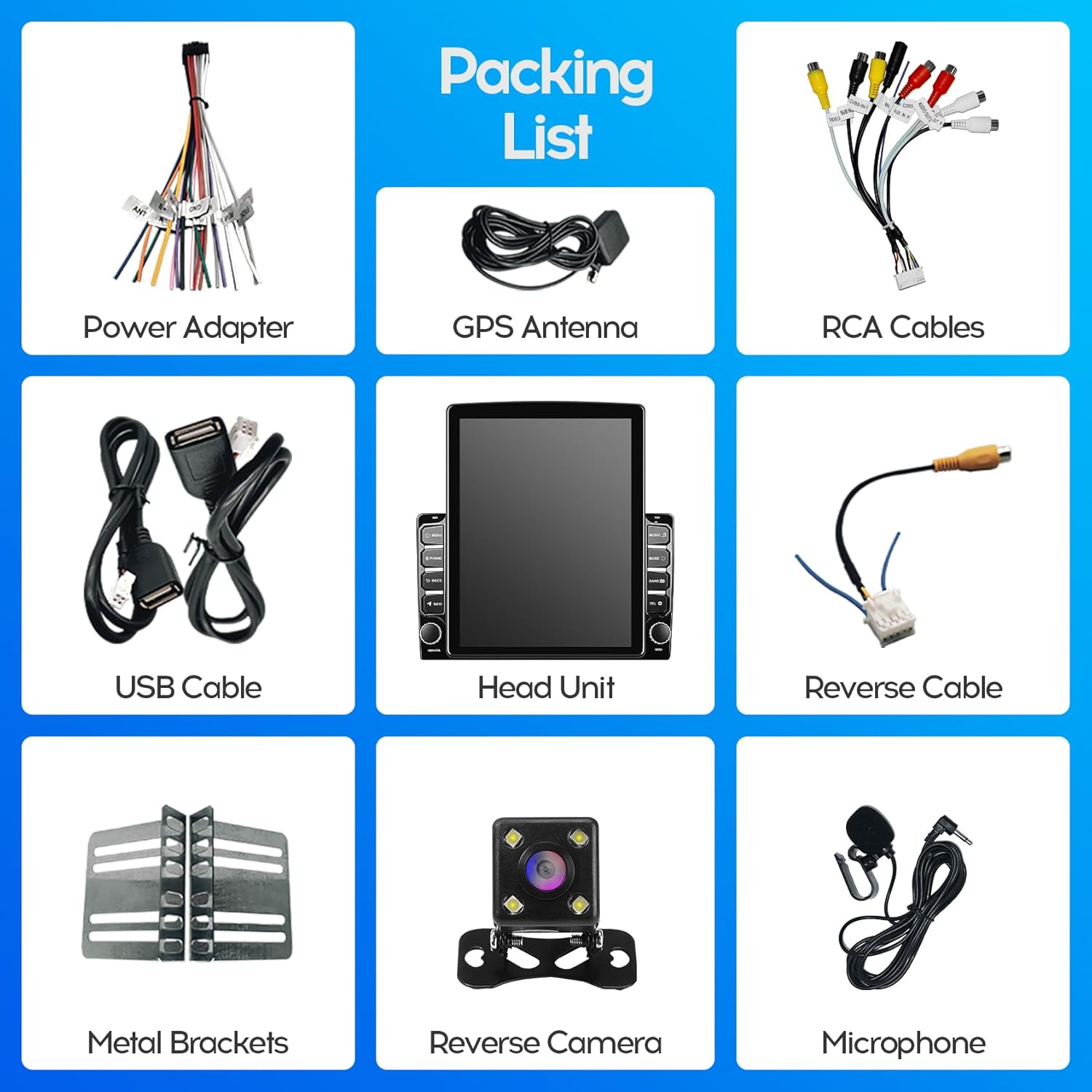
Figure 3.1: Included Components
4. Product Overview
The WENMENGDE Android Car Stereo features a 9.7-inch IPS vertical display, offering a clear and responsive touch interface for various functions including navigation, media playback, and smartphone integration.

Figure 4.1: WENMENGDE 9.7-inch Android Car Stereo
4.1 Key Features
- 9.7-inch IPS Vertical Display: High-resolution 768*1024 capacitive 2.5D tempered glass touch screen.
- Android System: Quad-core processor for smooth operation and fast response.
- Wireless & Wired CarPlay/Android Auto: Seamless smartphone integration.
- GPS Navigation & WiFi: Built-in GPS module with offline maps and online map support via WiFi.
- Bluetooth 4.1: A2DP support for hands-free calls, phone book synchronization, and music streaming.
- Rear View Camera & DVR Function: Supports automatic display of rear view image and USB dash cam input.
- Split Screen Mode: Allows simultaneous use of two applications.
- Steering Wheel Control: Compatible with analog steering wheel controls for easy access to functions.

Figure 4.2: Key Features Overview
4.2 Dimensions
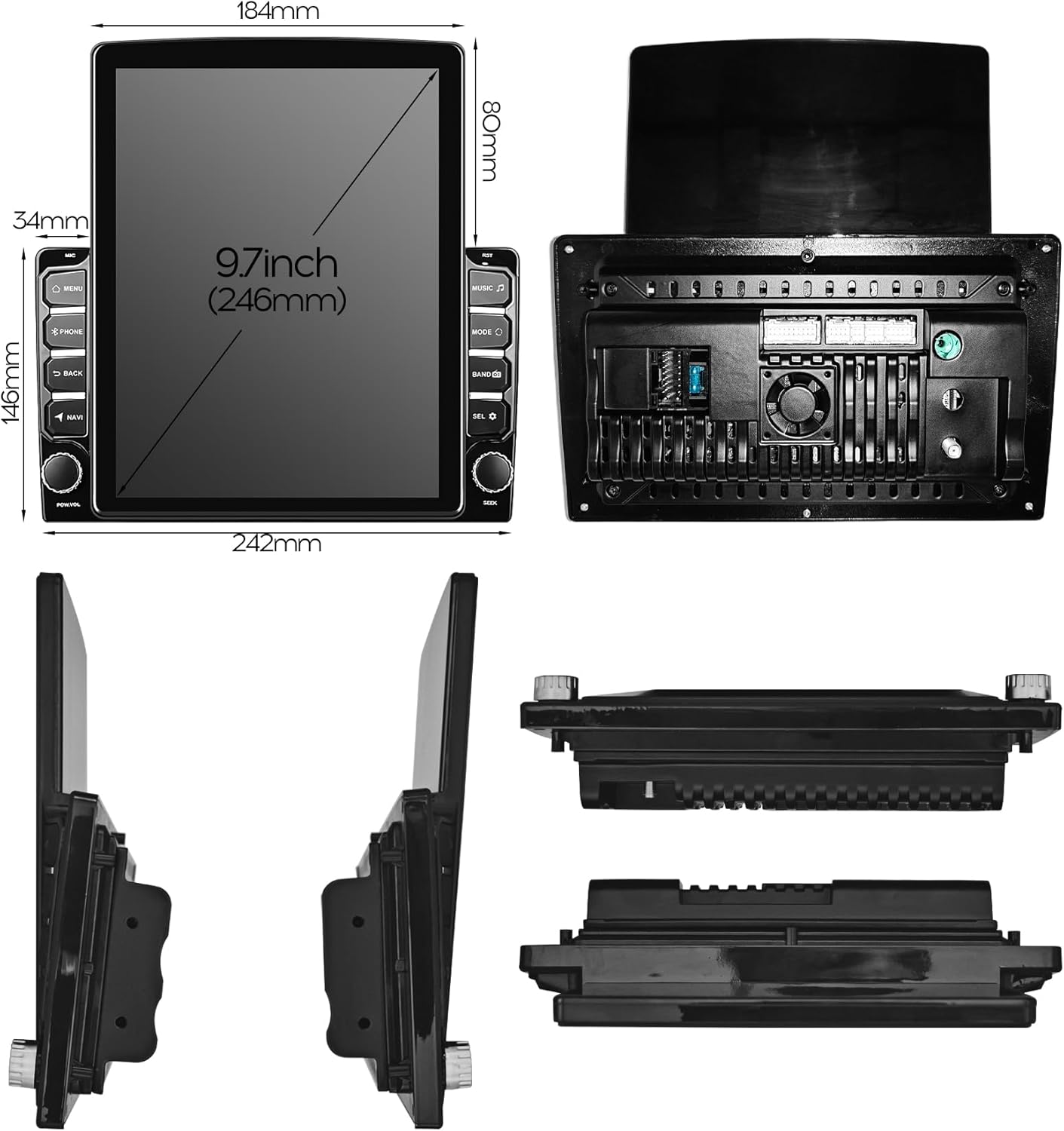
Figure 4.3: Product Dimensions and Rear View
5. Setup & Installation
This unit is designed for most general purpose 2-DIN car center consoles. It can be installed as a universal head unit or paired with a specialized panel.
5.1 Installation Options
The unit supports two main installation methods:
- Universal 2-DIN Installation: The head unit can be installed into any car model with a standard 2-DIN size radio panel (178*100MM) using the provided metal brackets.
- Specialized Panel Installation: For a more integrated look, the unit can be paired with a dedicated 9-inch or 10-inch plastic frame (panel) designed for specific vehicle types. The vertical display style is compatible with 10-inch horizontal display style frames.

Figure 5.1: Universal 2-DIN Installation

Figure 5.2: Installation with 9-inch Special Panel

Figure 5.3: Installation with 10-inch Special Panel
5.2 Wiring Connections
Refer to the included wiring diagram (not shown here, but typically provided with the power adapter) for specific connections. Key connections include:
- Power Adapter: Connect to your vehicle's power supply (ACC, B+, Ground).
- RCA Cables: For audio output to external amplifiers or video input/output.
- GPS Antenna: Connect for navigation functionality. Position in a location with clear sky view.
- Reverse Cable: Connect to your vehicle's reverse light signal for automatic rear camera display.
- USB Cables: For wired CarPlay/Android Auto, USB media, or dash cam connection.
- Microphone: Connect for hands-free calling and voice commands.
- Steering Wheel Control Wires: Connect the two Key/SW wires for analog steering wheel control.

Figure 5.4: Before and After Installation Example
6. Operating Instructions
6.1 Power On/Off
- Power On: The unit will power on automatically when the vehicle's ignition is turned on.
- Power Off: The unit will power off automatically when the vehicle's ignition is turned off. A short press on the power button typically puts the unit into standby mode, while a long press may initiate a full shutdown.
6.2 CarPlay & Android Auto
The device supports both wireless and wired connections for Apple CarPlay and Android Auto.
- Wireless Connection:
- Enable Bluetooth on your mobile phone.
- Connect your phone to the car stereo via Bluetooth.
- Open the pre-installed application named "Zlink" on the car stereo.
- Wait for the automatic connection to establish CarPlay or Android Auto.
- Wired Connection: Connect your mobile phone to the car stereo using a USB cable. The system should automatically detect and launch CarPlay or Android Auto.
6.3 GPS Navigation & WiFi
- Offline Maps: The unit comes with pre-installed offline maps via the "Maps" application.
- Online Maps: Connect the unit to a WiFi network (e.g., your phone's hotspot) to use online navigation services and download additional applications from the Play Store (e.g., YouTube, TikTok, Spotify).
6.4 Bluetooth Functions
The built-in Bluetooth 4.1 module supports A2DP for various functions:
- Hands-free Calling: Make and receive calls directly from the stereo.
- Phone Book Synchronization: Access your phone's contacts on the stereo display.
- Stream Music Play: Play audio from your phone wirelessly.

Figure 6.1: Bluetooth Call Interface
6.5 Split Screen Mode
Utilize the split screen feature to run two applications simultaneously, such as navigation and music playback, enhancing your driving experience.

Figure 6.2: Split Screen Mode in Operation
6.6 Steering Wheel Control (SWC)
To use your vehicle's steering wheel controls, manual learning is required. Access the SWC settings in the unit's menu. The system supports two Key/SW wires for analog control. Follow the on-screen instructions to map your steering wheel buttons to the desired functions (e.g., volume, track skip, call answer).
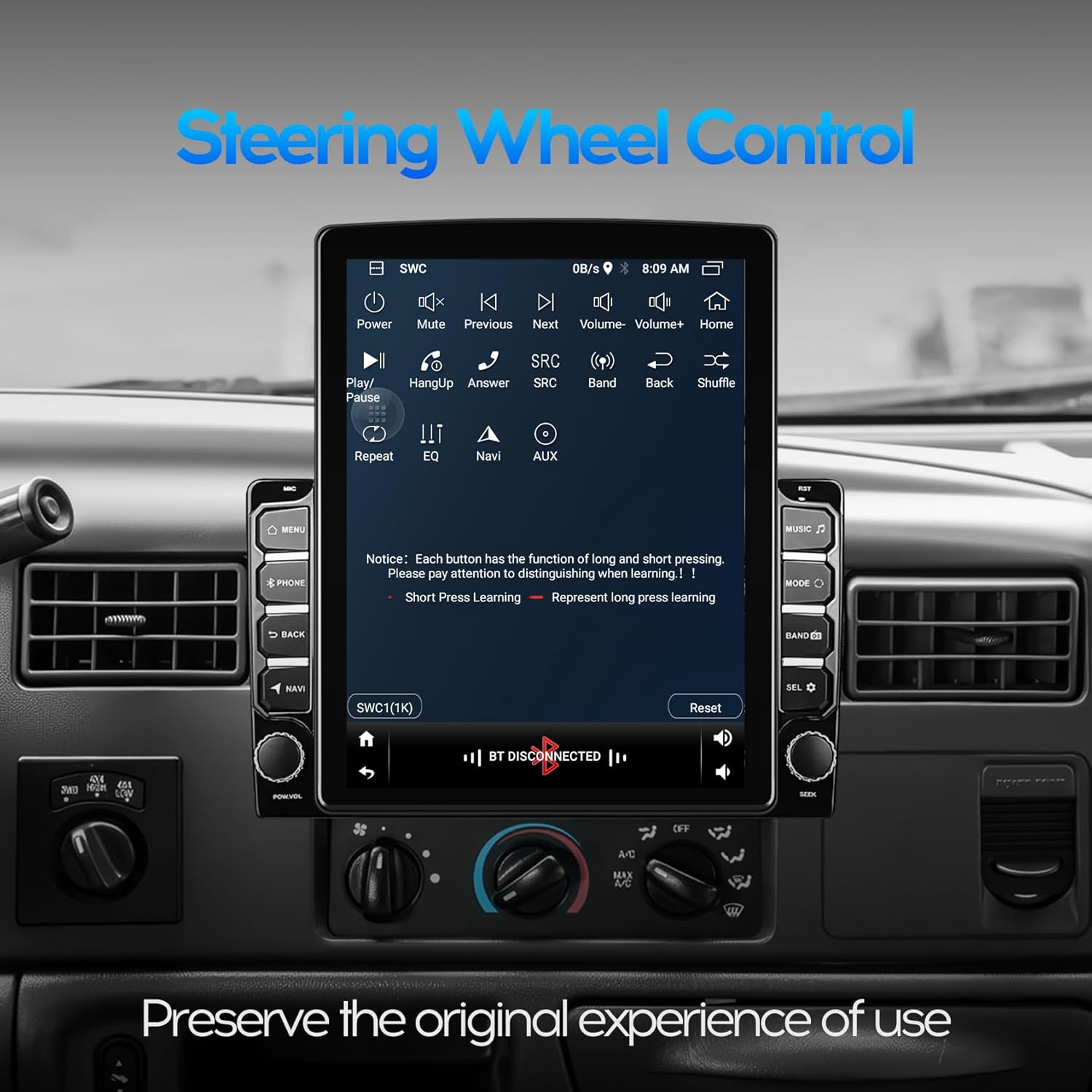
Figure 6.3: Steering Wheel Control Learning Interface
6.7 Rear View Camera & DVR Function
- Rear View Camera: When the vehicle is shifted into reverse gear, the car stereo will automatically display the image from the connected waterproof night vision reversing camera.
- DVR Function: The unit supports video input, allowing you to connect a USB dash cam for recording.

Figure 6.4: Reverse Rear View Display
6.8 Radio Operation
The unit features an MT6625LN Radio Module for stable signal reception and clear sound. Access the radio application to tune into FM/AM stations. The interface allows for easy station selection and saving presets.

Figure 6.5: Radio Interface
7. Maintenance
- Cleaning the Screen: Use a soft, lint-free cloth to gently wipe the screen. For stubborn smudges, slightly dampen the cloth with water or a screen cleaner designed for electronics. Avoid harsh chemicals.
- General Cleaning: Keep the unit free from dust and debris. Use a soft brush or compressed air to clean vents and button areas.
- Software Updates: Periodically check for software updates from the manufacturer to ensure optimal performance and access to new features.
8. Troubleshooting
| Problem | Possible Cause | Solution |
|---|---|---|
| Unit does not power on | Incorrect wiring; Blown fuse; Vehicle ignition off | Check power connections; Inspect vehicle fuses; Turn on vehicle ignition. |
| No sound | Volume too low; Mute activated; Speaker wiring issue | Increase volume; Check mute status; Verify speaker connections. |
| CarPlay/Android Auto connection is spotty or disconnects | Weak Bluetooth/WiFi signal; USB cable issue; Software glitch | Ensure strong signal; Try a different USB cable; Restart phone and stereo; Update Zlink app. |
| GPS signal lost or inaccurate | GPS antenna obstructed or disconnected | Ensure GPS antenna has a clear view of the sky; Check antenna connection. |
| Steering Wheel Controls not working | SWC not configured; Incorrect wiring | Perform manual learning in SWC settings; Verify SWC wire connections. |
| Rear camera not displaying | Camera not connected; Reverse trigger wire not connected | Check camera and reverse cable connections. |
9. Specifications
| Feature | Detail |
|---|---|
| Model Name | RM |
| Brand | WENMENGDE |
| Screen Size | 9.7 Inches (246mm diagonal) |
| Display Type | IPS Vertical Screen, 2.5D Tempered Glass |
| Resolution | 768*1024 |
| Operating System | Android (Version not specified, typically Android 14 as per A+ content) |
| Processor | Quad Core 1.1GHz CPU (4Core ARM Mali 450 GPU) |
| Memory/Storage | 2GB RAM + 32GB Internal Storage |
| Connectivity | Bluetooth 4.1, WiFi |
| Special Features | CarPlay, Android Auto, GPS Navigation, Split Screen, PIP, Touchscreen |
| Radio Module | MT6625LN |
| Audio Output Mode | Stereo |
| Mounting Type | Panel Mount (Double Din compatible) |
| Item Weight | 3.3 pounds |
| Package Dimensions | 11.81 x 10.35 x 3.5 inches |
10. Warranty & Support
WENMENGDE products are designed for reliability and performance. For any questions or technical assistance, please contact our professional technical support team. We aim to reply within 24 hours.
Please refer to your purchase documentation for specific warranty terms and conditions.