
1. Introduction
Thank you for choosing the DS i20 Ultra 2 Max Suit Smartwatch and Wireless Earphones 10-in-1 Set. This comprehensive package combines a feature-rich smartwatch with a large 2.3-inch infinite display and a pair of wireless earphones, designed to enhance your daily activities, communication, and entertainment. This manual provides essential information for proper setup, operation, and maintenance of your new devices.
2. What's in the Box
Your DS i20 Ultra 2 Max Suit 10-in-1 Set includes the following components:
- DS i20 Ultra 2 Max Suit Smartwatch
- Wireless Earphones with Charging Case
- Multiple Interchangeable Watch Straps (various designs and materials)
- Smartwatch Charging Cable
- Earphones Charging Cable
- Protective Case for Smartwatch
- User Manual (this document)
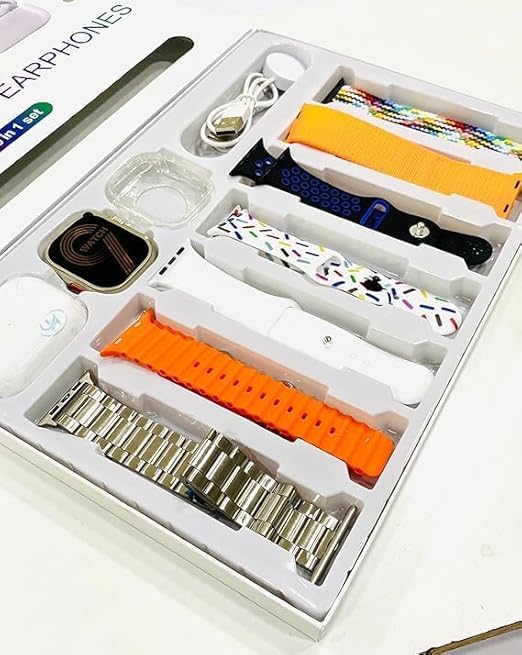
Image: All components included in the DS i20 Ultra 2 Max Suit 10-in-1 Set, neatly arranged in the product box. This includes the smartwatch, wireless earphones, various watch straps, and charging accessories.
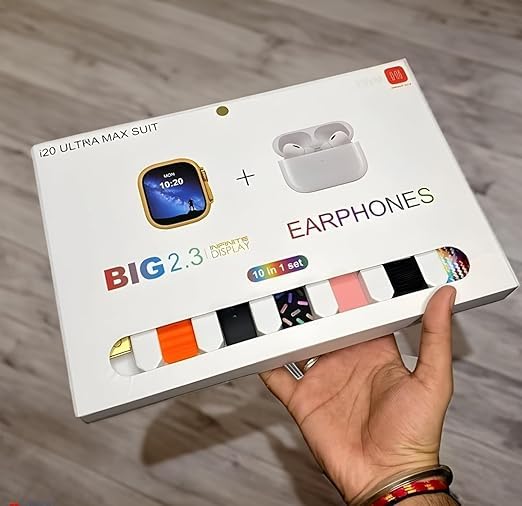
Image: The exterior packaging of the DS i20 Ultra 2 Max Suit, highlighting the smartwatch and earphones, and indicating the '10-in-1 set' contents.
3. Setup
3.1. Smartwatch Initial Setup
- Charge the Smartwatch: Connect the smartwatch to its dedicated charging cable and plug it into a USB power source. Ensure the charging pins align correctly. A full charge typically takes approximately 2 hours.
- Power On: Press and hold the power button on the side of the smartwatch until the display illuminates.
- Download the Companion App: Scan the QR code provided in the manual or on the watch display (if available) to download the official companion application on your smartphone. Alternatively, search for the app name (usually indicated in the watch's initial setup screen) in your phone's app store (Android or iOS).
- Pair with Smartphone:
- Enable Bluetooth on your smartphone.
- Open the companion app and follow the on-screen instructions to add a new device.
- Select 'DS i20 Ultra 2 Max Suit' from the list of available devices.
- Confirm the pairing request on both your smartphone and the smartwatch.
- Personalize Settings: Once paired, use the app to set your preferences, such as watch faces, notification settings, health tracking goals, and personal information.
3.2. Wireless Earphones Initial Setup
- Charge the Earphones: Place the earphones into their charging case. Connect the charging case to a USB power source using the provided cable. The indicator lights on the case will show charging status.
- Power On and Pair:
- Open the charging case. The earphones will automatically enter pairing mode (indicated by flashing lights).
- On your smartphone or smartwatch, go to Bluetooth settings and search for new devices.
- Select the earphones (e.g., 'DS Earphones' or similar) from the list to connect.
- Once connected, a confirmation sound or message will be heard.
4. Operation
4.1. Smartwatch Operation
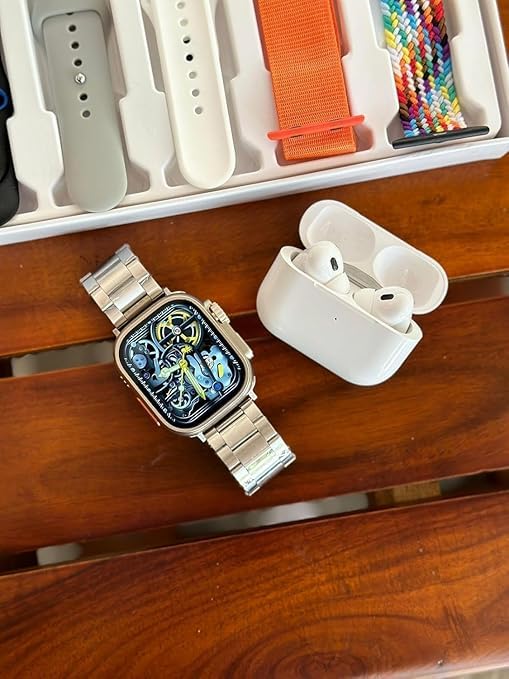
Image: The DS i20 Ultra 2 Max Suit Smartwatch, shown with a metal strap, alongside the wireless earphones. This illustrates the primary devices in the set.
Display and Navigation
- 2.3-inch Infinite Display: The large touchscreen allows for clear viewing and intuitive interaction.
- Touch Gestures:
- Swipe Up/Down: Navigate through menus or notifications.
- Swipe Left/Right: Access quick widgets or different screens.
- Tap: Select an item or open an application.
- Press and Hold: Customize watch faces (on the home screen).
- Side Button(s): Typically used for power on/off, returning to the home screen, or accessing the app menu. Refer to the on-screen prompts for specific functions.
Key Features
- Bluetooth Calling: Once paired with your smartphone, you can make and receive calls directly from your smartwatch. Ensure your phone is within Bluetooth range.
- Notifications: Receive alerts for calls, messages, and app notifications from your paired smartphone. Manage these settings via the companion app.
- Fitness Tracking: Monitor steps, distance, calories burned, heart rate, and other health metrics. Data is synced to the companion app for detailed analysis.
- Music Control: Control music playback on your smartphone directly from the smartwatch.
- Other Functions: May include alarm, stopwatch, timer, weather, and remote camera control. Explore the watch's app menu for all available features.
4.2. Wireless Earphones Operation
Basic Controls
- Play/Pause: Single tap on either earphone.
- Next Track: Double tap on the right earphone.
- Previous Track: Double tap on the left earphone.
- Answer/End Call: Single tap on either earphone during an incoming call.
- Reject Call: Press and hold on either earphone during an incoming call.
- Voice Assistant: Triple tap on either earphone (if supported by your connected device).
Charging
- Place earphones back into the charging case to recharge them.
- Charge the case itself using the provided USB cable when its battery is low.
5. Maintenance
5.1. Cleaning
- Smartwatch: Wipe the screen and body with a soft, lint-free cloth. For stubborn smudges, slightly dampen the cloth with water. Avoid harsh chemicals or abrasive materials.
- Straps: Clean silicone or fabric straps with mild soap and water, then rinse and dry thoroughly. Metal straps can be wiped with a dry cloth.
- Earphones: Gently wipe the earphones and charging case with a dry, soft cloth. Use a cotton swab to carefully clean ear tips and charging contacts.
5.2. Battery Care
- Avoid fully discharging the battery frequently.
- Do not expose the devices to extreme temperatures (hot or cold), as this can degrade battery life.
- If storing the devices for an extended period, charge them to about 50% before storage.
6. Troubleshooting
| Problem | Possible Cause | Solution |
|---|---|---|
| Smartwatch not turning on | Low battery; device malfunction | Charge the smartwatch for at least 30 minutes. If it still doesn't turn on, contact support. |
| Cannot pair smartwatch/earphones with phone | Bluetooth off; device out of range; pairing mode not active; interference | Ensure Bluetooth is on. Bring devices closer. Restart both devices. Ensure smartwatch/earphones are in pairing mode. Clear previous Bluetooth connections on your phone. |
| Notifications not appearing on smartwatch | App permissions; notification settings; Bluetooth disconnected | Check app permissions on your phone. Verify notification settings in the companion app. Ensure smartwatch is connected via Bluetooth. |
| Earphones no sound/low volume | Low battery; not connected; volume too low on source device | Charge earphones. Re-pair earphones. Adjust volume on your phone/smartwatch. |
| Inaccurate fitness data | Improper wear; incorrect personal settings | Ensure the smartwatch is worn snugly on your wrist. Update personal information (height, weight) in the companion app. |
7. Specifications
Below are the key technical specifications for the DS i20 Ultra 2 Max Suit Smartwatch and Wireless Earphones:
| Feature | Detail |
|---|---|
| Model Name | Ultra 2 Max Suit |
| Display Size | 2.3-inch (Infinite Display) |
| Display Type | HD Display |
| Connectivity | Bluetooth |
| Operating System | Proprietary |
| Memory Storage Capacity | 32 MB |
| RAM Memory Installed Size | 1 GB |
| Special Features | Bluetooth Calling |
| Compatible Devices | Smartphone |
| Battery Capacity | 12 Amp Hours |
| Charging Time | 2 Hours |
| Item Weight | 75 g (Smartwatch) |
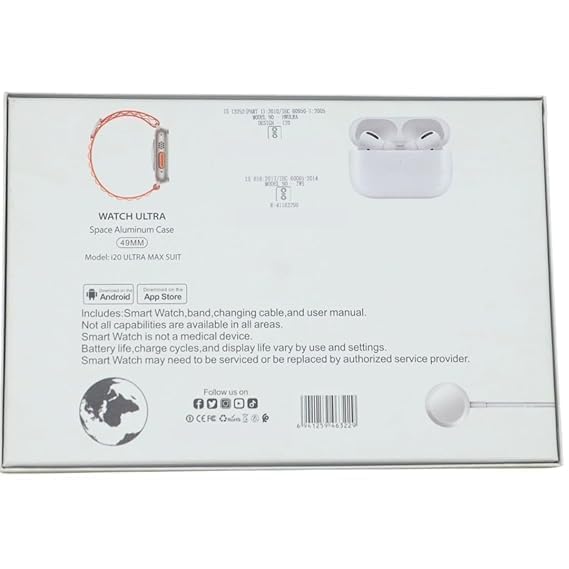
Image: The rear of the product packaging, displaying key product information, model number, and compliance marks.
8. Warranty and Support
For warranty information, please refer to the documentation included in your product packaging or contact the retailer where the product was purchased. Smartwatch functionality and battery life may vary based on usage and settings. If you encounter issues that cannot be resolved using the troubleshooting guide, please contact customer support for assistance.
Note: The Smartwatch is not a medical device. All capabilities may not be available in all regions or with all smartphone models.
