
1. Introduction
This manual provides detailed instructions for the installation, operation, and maintenance of your Coibeu Smart Digital Lock, model WKZW-N08. This advanced digital lock offers multiple secure access methods, including fingerprint, numeric password, proximity card, NFC, mechanical key, and remote control via the Tuya Smart App. Designed for convenience and robust security, it is suitable for various door types in homes, apartments, and offices.
2. Safety Information
- Read all instructions carefully before installation and use.
- Do not attempt to disassemble or modify the lock. This may void the warranty and compromise security.
- Keep mechanical keys in a secure location away from the lock and accessible only to authorized individuals.
- Ensure batteries are inserted correctly according to polarity markings. Replace all batteries simultaneously when the low battery alert is issued.
- Avoid exposing the lock to extreme temperatures, direct sunlight for prolonged periods, or corrosive substances.
- Regularly check the lock for any signs of damage or malfunction. Contact support if issues arise.
3. Package Contents
Verify that all components are present in your package:
- Smart Digital Lock Unit (Internal and External Handles)
- 2 x Proximity Cards
- 2 x Mechanical Keys
- Installation Kit (Screws and mounting hardware)
- Instruction Manual
- Warranty Certificate

Figure 3.1: Overview of included components: internal and external lock units, proximity cards, mechanical keys, and packaging.
4. Setup and Installation
4.1 Door Compatibility
The Coibeu Smart Digital Lock is compatible with wooden or security doors with a thickness ranging from 4 cm to 6.4 cm (approximately 1.6 inches to 2.5 inches). Ensure your door meets these specifications before proceeding with installation.

Figure 4.1: Lock cylinder dimensions and measurements for door preparation.
4.2 Battery Installation
The lock requires 2 AA alkaline batteries (not included). Locate the battery compartment on the interior lock unit. Open the cover, insert the batteries according to the polarity markings (+/-), and close the cover securely. The lock will emit a sound indicating successful power-up.
4.3 Physical Installation
Refer to the separate detailed installation guide included in your package for step-by-step instructions on mounting the lock. This process typically involves preparing the door, installing the mortise, and securing the internal and external lock units. Professional installation is recommended if you are unfamiliar with door hardware installation.

Figure 4.2: High-quality lock body components and internal mechanism.
4.4 Initial Programming
Upon first power-up, it is essential to set a Master Administrator Password. This password will be used to manage all other user access methods (fingerprints, user passwords, cards). Follow the instructions in the detailed manual for initial setup and programming of your Master Administrator Password.
5. Operating Instructions
The Coibeu Smart Digital Lock offers multiple convenient and secure ways to unlock your door.

Figure 5.1: Overview of intelligent unlocking methods.
5.1 Fingerprint Unlock
To unlock using a registered fingerprint, place your finger firmly on the fingerprint sensor. The lock will verify your fingerprint and unlock within approximately 1 second. The lock supports up to 100 fingerprint records.

Figure 5.2: Large fingerprint sensor for efficient and rapid identification.
5.2 Numeric Password Unlock
Enter your 6-8 digit numeric password on the touch-sensitive keypad, followed by the '#' key. The lock will verify the password and unlock. The illuminated keyboard assists with night viewing. You can set permanent or temporary passwords.
5.3 Proximity Card / NFC Unlock
Hold a registered proximity card or an NFC-enabled device near the card reader area on the external lock unit. The lock will recognize the card/device and unlock quickly.
5.4 Mechanical Key Unlock
In case of battery depletion or electronic malfunction, insert the mechanical key into the keyhole located on the external unit and turn to unlock the door manually.
5.5 Remote Control via Tuya Smart App
For remote access and management, download and configure the Tuya Smart App on your smartphone. Once connected, you can remotely lock/unlock the door, manage user access, and view activity logs from anywhere.

Figure 5.3: Remote unlocking using the Tuya Smart App.
5.6 Automatic Locking
The lock features an automatic locking system, ensuring your door is secured shortly after closing. This feature can typically be configured or disabled via the lock's settings or the Tuya Smart App.
6. Maintenance
6.1 Battery Replacement
The lock will provide alerts when the battery level is low. Replace all 2 AA batteries promptly to ensure continuous operation and prevent unexpected lockouts. Refer to section 4.2 for battery installation instructions.
6.2 Cleaning
Clean the lock's exterior surfaces with a soft, dry cloth. Avoid using abrasive cleaners, solvents, or harsh chemicals, as these can damage the finish and electronic components. Keep the fingerprint sensor and keypad clean for optimal performance.
7. Troubleshooting
| Problem | Possible Cause | Solution |
|---|---|---|
| Lock does not respond / No power | Dead or incorrectly installed batteries. | Replace batteries with new AA alkaline batteries, ensuring correct polarity. |
| Fingerprint not recognized | Finger is dirty, wet, or not placed correctly; unregistered fingerprint. | Ensure finger is clean and dry. Place entire pad of registered finger firmly on sensor. Register fingerprint if not already done. |
| Numeric password not working | Incorrect password entered; keypad malfunction. | Verify the password and re-enter carefully. Ensure the keypad is clean. If issue persists, use mechanical key and contact support. |
| Proximity card not unlocking | Card is not registered or damaged; card not placed correctly. | Ensure the card is registered. Hold the card flat against the reader. Try another registered card if available. |
| Low battery alert | Batteries are running low. | Replace all 2 AA batteries immediately. |
| Anti-intrusion alarm sounds | Multiple incorrect entry attempts; forced entry detected. | Verify security of the premises. Disarm the alarm using a valid access method. Review activity logs via the Tuya Smart App. |
8. Specifications
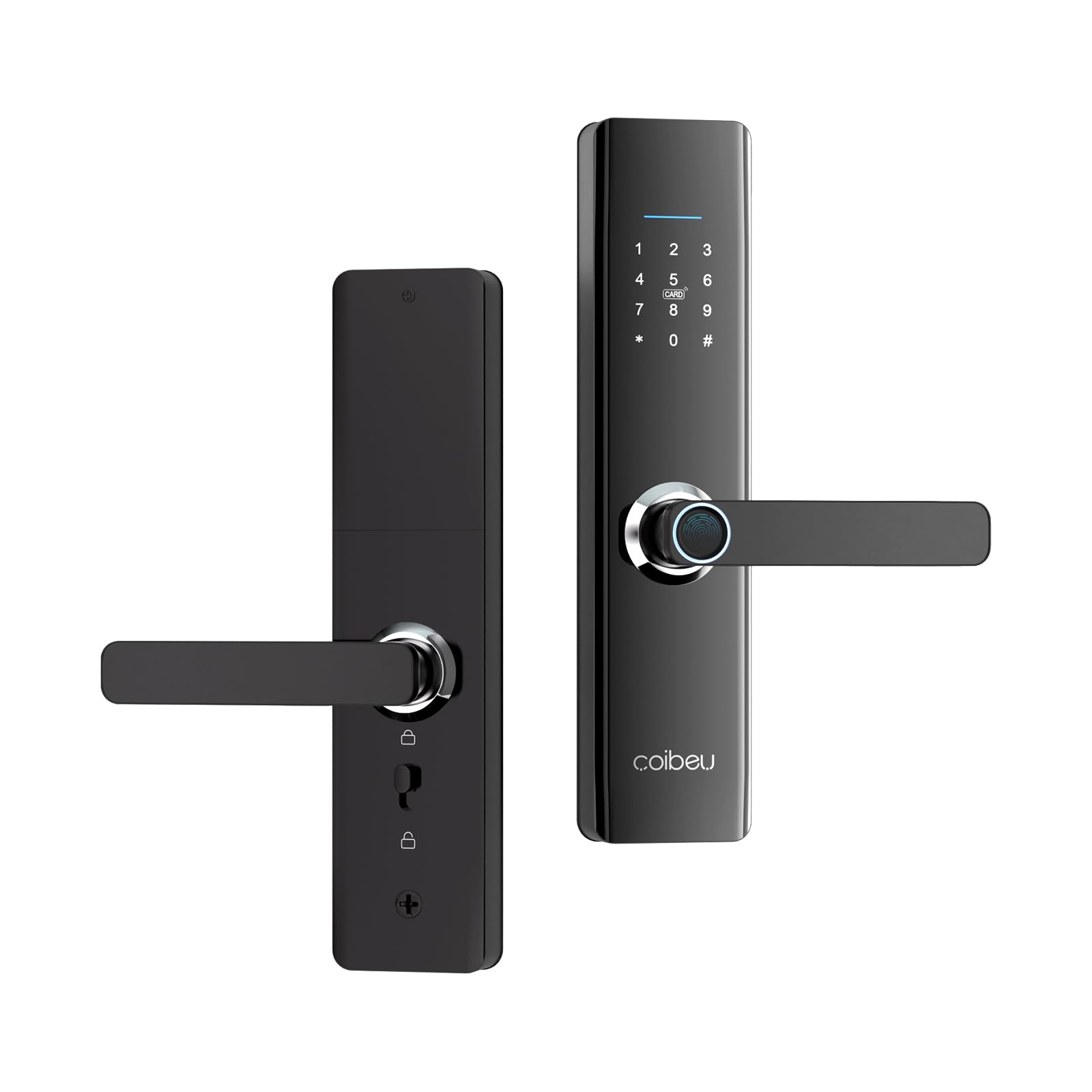
Figure 8.1: Product dimensions and key specifications.
| Feature | Detail |
|---|---|
| Model Number | WKZW-N08-PRE-WD |
| Brand | Coibeu |
| Material | Aluminum, ABS Plastic |
| Product Dimensions | 31.5 x 18.5 x 8.5 cm |
| Item Weight | 1.92 Kilograms |
| Compatible Door Thickness | 4 cm - 6.4 cm (1.6" - 2.5") |
| Unlock Speed | <1 second |
| Fingerprint Capacity | Up to 100 records |
| Battery Type | 2 x AA Alkaline Batteries (not included) |
| Cylinder Type | Class C |
| Compatible Door Types | Wooden doors, Security doors |
| Unlocking Methods | Fingerprint, Numeric Password, Magnetic Card, NFC, Mechanical Key, Tuya Smart App Remote Control |
| Special Features | Mechanical Backup Wrench, Modern Design, Numeric Keypad, Proximity Cards, Quick Unlock, Anti-intrusion Alarm, Low Battery Alerts |
9. Warranty and Support
9.1 Warranty Information
A warranty certificate is included with your Coibeu Smart Digital Lock. Please refer to this document for detailed information regarding warranty coverage, terms, and conditions. Keep your proof of purchase for warranty claims.
9.2 Technical Support
For any technical assistance, installation queries, or troubleshooting not covered in this manual, please contact Coibeu customer support. Contact details can typically be found on the warranty certificate or the official Coibeu website.