
1. Introduction
The AULA F108 PRO is a full-size wireless mechanical keyboard designed for gaming and productivity. It features a smart TFT color display screen, a multi-function knob, tri-mode connectivity (BT5.0, 2.4GHz wireless, and USB-C wired), hot-swappable switches, and vibrant RGB backlighting. This manual provides detailed instructions for setting up, operating, and maintaining your AULA F108 PRO keyboard.

Figure 1: AULA F108 PRO Wireless Mechanical Keyboard (Gradient Blue)
2. Package Contents
Verify that all items are present in the package:
- Mechanical Keyboard x1
- Keycap/Switches Puller x1
- Extra Switches x2
- USB Cable x1

Figure 2: Included accessories and keyboard dimensions.
3. Product Features
3.1 Smart Display Screen & Multi-function Knob
The keyboard features an intelligent TFT color display screen for real-time updates and customization. The multi-function knob allows easy switching and updating of custom GIF images, volume, date and time, battery status, backlight, and connection modes.
Note: Screen image/GIF customization and date/time calibration require software download under Windows system and wired mode connection. The screen comes with a peelable protective film.
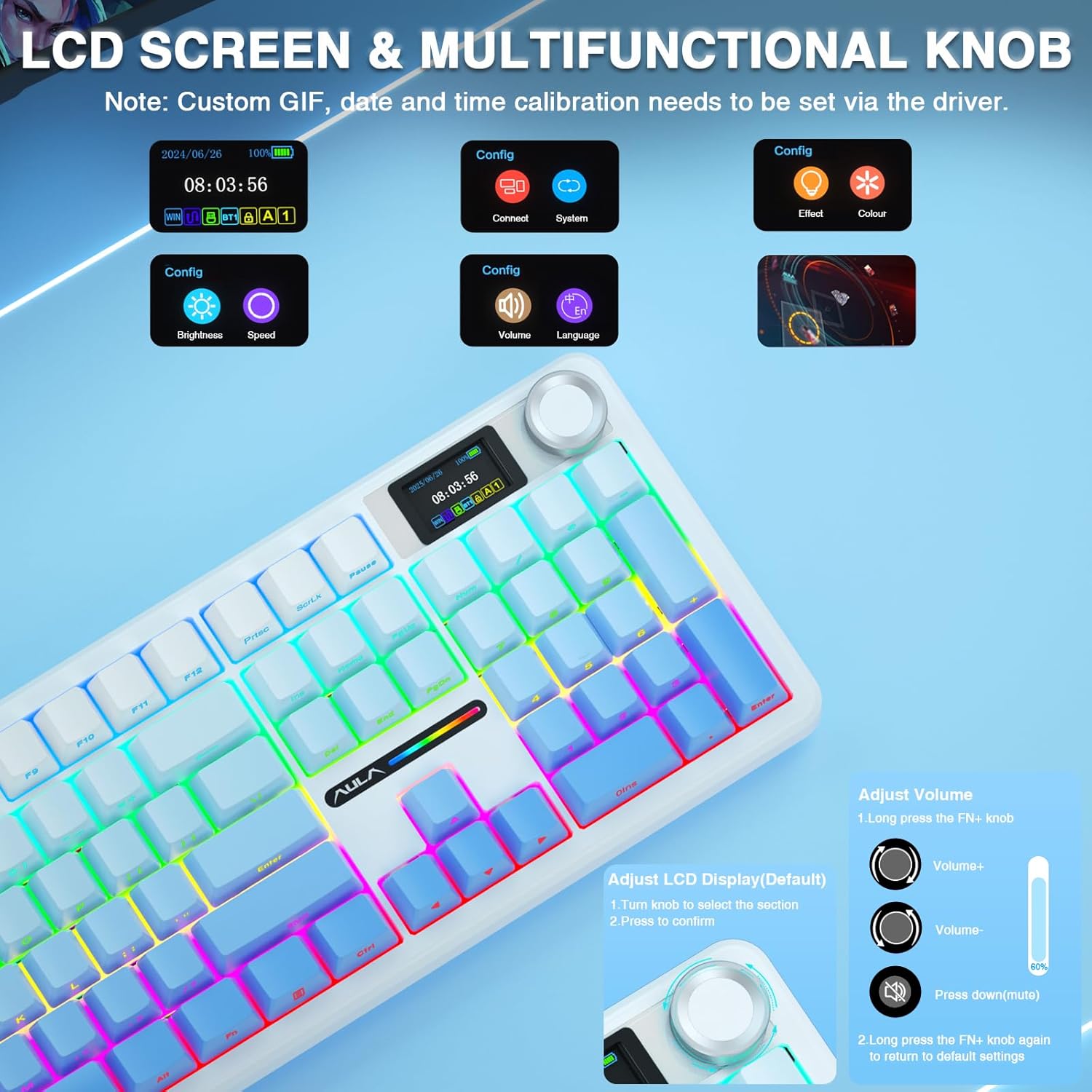
Figure 3: Smart Display Screen and Multi-function Knob Interface.
3.2 Tri-mode Connection
Supports BT5.0, 2.4GHz wireless, and USB-C wired connectivity. BT5.0 allows quick switching between up to five devices (PC, Mac, laptop, tablets). 2.4GHz wireless and USB-C wired modes offer a 1000Hz polling rate for stability and responsiveness. Compatible with Windows, Mac, iOS, and Android operating systems.

Figure 4: Tri-mode Connectivity Overview.
3.3 Hot-swappable Custom Keyboard
The F108 Pro features a hot-swappable base compatible with 3-pin or 5-pin switches, allowing easy replacement of switches and keycaps without soldering. It comes with pre-lubricated switches and stabilizers for a smooth typing feel and creamy mechanical sound.

Figure 5: Hot-swappable features and switch specifications.
3.4 Advanced Five Layers Filling Structure
Equipped with an advanced structure including an integrated silicone pad and PCB single key slotting, optimizing resilience and stability. Five layers of filling silencer effectively counteract cavity noise, ensuring pure sound and a smooth typing experience.

Figure 6: Internal Structure with Sound-Dampening Layers.
3.5 104 Keys Full Size Keyboard
Features a 100% full-size layout with arrow keys, function keys, and numeric zones for enhanced productivity. Two-color injection-moulded PBT keycaps are durable, sweat-proof, and soft to the touch. Built-in 8000mAh high-capacity battery supports long work or gaming sessions.

Figure 7: Battery Capacity and Keyboard Profile.
3.6 RGB Backlight & Programmable Software
Supports multiple dynamic RGB effects, monochrome, and multi-color modes with over 16.8 million colors. Decorative light bars on both sides enhance the gaming atmosphere. RGB effects and colors can be switched via the knob, software, or shortcut keys. The F108 Pro driver allows macro customization for all keys (Windows system, wired mode only).

Figure 8: RGB Backlight Customization.
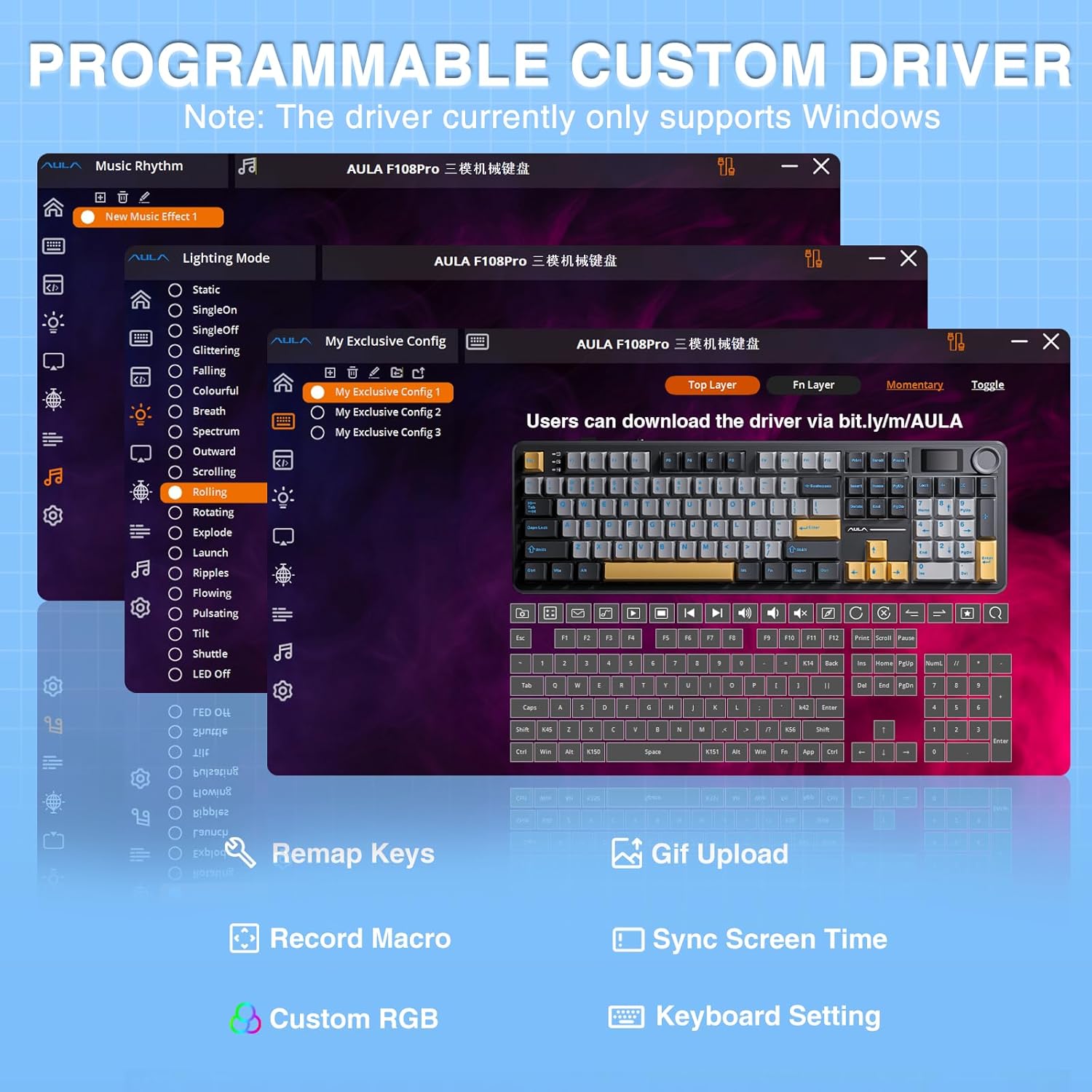
Figure 9: Programmable Custom Driver Software.
4. Setup and Installation
4.1 Connecting the Keyboard
The AULA F108 PRO supports three connection modes:
- USB-C Wired: Connect the provided USB-C cable from the keyboard to your computer. This mode also charges the keyboard and is required for driver software functionality.
- 2.4GHz Wireless: Insert the 2.4GHz USB receiver (found in the keyboard's storage slot) into your computer's USB port. Switch the keyboard to 2.4GHz mode using the multi-function knob or designated shortcut.
- BT5.0 (Bluetooth): Switch the keyboard to BT5.0 mode. On your device (PC, Mac, tablet, smartphone), search for Bluetooth devices and select "AULA F108 PRO" to pair. The keyboard can save up to five Bluetooth devices.
4.2 Calibrating Screen Date/Time and Customizing GIF
To calibrate the screen's date and time or upload custom GIF images, you must use the dedicated driver software. This software is only compatible with Windows operating systems and requires the keyboard to be connected via USB-C wired mode.
- Download the F108 Pro driver from the official AULA website (link provided in product feature bullets or packaging).
- Connect the keyboard to your Windows PC via the USB-C cable.
- Open the F108 Pro driver software.
- Navigate to the TFT screen settings within the software.
- For date/time calibration, find the "Time Sync" button and click to complete the setup.
- For GIF customization, click "Import" to select your desired GIF file, then click "Upload to keyboard" to transfer it to the screen.
Video 1: How to calibrate screen date/time and customize GIF image.
Video 2: AULA F108Pro Screen Protective Film Removal Guide.
5. Operation
5.1 Using the Multi-function Knob
The knob on the top right of the keyboard serves multiple purposes:
- Rotate: Navigate through menu options on the TFT screen (e.g., settings, effects, colors, volume, language).
- Press: Confirm selection or enter a sub-menu.
- Long Press (FN + Knob): Toggle default knob function (e.g., between volume control and other settings).
5.2 Adjusting RGB Backlight
The RGB backlight can be adjusted using the multi-function knob, software, or dedicated shortcut keys:
- FN + \ |: Switch between 19 lighting effects or turn off the backlight.
- FN + Tab: Switch lighting colors.
- FN + ↑ / ↓: Adjust lighting brightness.
- FN + ← / →: Adjust lighting speed.
- Side-light Adjustment:
- FN + Right Shift: Switch side-light effect.
- FN + /?: Switch side-light color.
- FN + Right Alt: Switch side-light brightness.
Video 3: AULA F108pro creamy keyboard with number pad showcasing sound and RGB.
Video 4: F108pro Sound Test, Creamy Sounding Keyboard.
6. Maintenance
6.1 Cleaning
Regularly clean your keyboard to ensure optimal performance and longevity. Use a soft, lint-free cloth dampened with a small amount of water or a mild cleaning solution. Avoid excessive moisture and harsh chemicals. For dust and debris between keycaps, use compressed air.
6.2 Replacing Switches and Keycaps
The hot-swappable design allows for easy replacement of switches and keycaps:
- Keycap Removal: Use the provided keycap puller to gently pull keycaps straight up.
- Switch Removal: Use the provided switch puller to grip the top and bottom clips of the switch and pull it straight out. Ensure the keyboard is powered off before removing switches.
- Installation: Align the new switch or keycap with the corresponding slot and press firmly until it clicks into place.
7. Troubleshooting
7.1 Screen Display in Chinese / Incorrect Date/Time
The keyboard's screen may default to Chinese or have an incorrect date/time. This can be resolved via the multi-function knob or driver software:
- Using the Knob: From the clock screen, rotate the knob 8 clicks to the right until the purple circle is selected. Press the knob to enter the sub-menu, then rotate one click to select "En" for English. Press the knob again to confirm.
- Using Software: Refer to Section 4.2 for instructions on calibrating date/time and customizing date/time and customizing the GIF using the F108 Pro driver software (Windows only, wired mode required).
7.2 Wireless Connection Issues
If the 2.4GHz wireless dongle goes to sleep or the keyboard loses connection:
- Try re-inserting the USB dongle into a different USB port on your computer.
- Ensure the keyboard is fully charged.
- Verify the keyboard is set to the correct connection mode (2.4GHz or BT5.0) using the switch on the back or the multi-function knob.
- For Bluetooth, ensure your device's Bluetooth is enabled and the keyboard is in pairing mode if necessary.
7.3 Driver Software Compatibility
The F108 Pro driver software only supports Windows systems in wired mode. In Linux systems, incompatible driver versions may cause abnormal F-zone functionality. This is a known phenomenon and does not indicate a defect.
8. Specifications
| Feature | Specification |
|---|---|
| Model Number | F108 Pro |
| Connectivity Technology | 2.4GHz Wireless, BT5.0, USB-C |
| Keyboard Description | Mechanical |
| Number of Keys | 104 |
| Battery Capacity | 8000mAh (2 Lithium Ion batteries included) |
| Backlight | RGB (16.8 Million Colors) |
| Special Features | Backlit, Programmable Keys, Rechargeable, Hot-Swappable, Smart Display Screen, Multi-function Knob |
| Item Weight | 2.65 pounds |
| Package Dimensions | 18.54 x 6.93 x 2.13 inches |
9. Warranty and Support
AULA products come with a standard manufacturer's warranty. For detailed warranty information, technical support, or service inquiries, please visit the official AULA website or contact their customer service department. Keep your purchase receipt for warranty claims.
Official AULA Store: AULA Store on Amazon


