
1. Introduction
The KONNWEI KW330 is an advanced OBD2 diagnostic scanner designed to help vehicle owners and technicians quickly and accurately diagnose engine-related issues. This tool provides comprehensive OBDII/EOBD diagnostic capabilities, including reading and clearing Diagnostic Trouble Codes (DTCs), performing battery voltage tests, monitoring live data streams, and checking I/M readiness status. It is compatible with most OBDII compliant vehicles manufactured since 1996.
2. What's in the Box
- KONNWEI KW330 OBD2 Scanner Unit
- User Manual
- USB Cable (for updates and data printing)
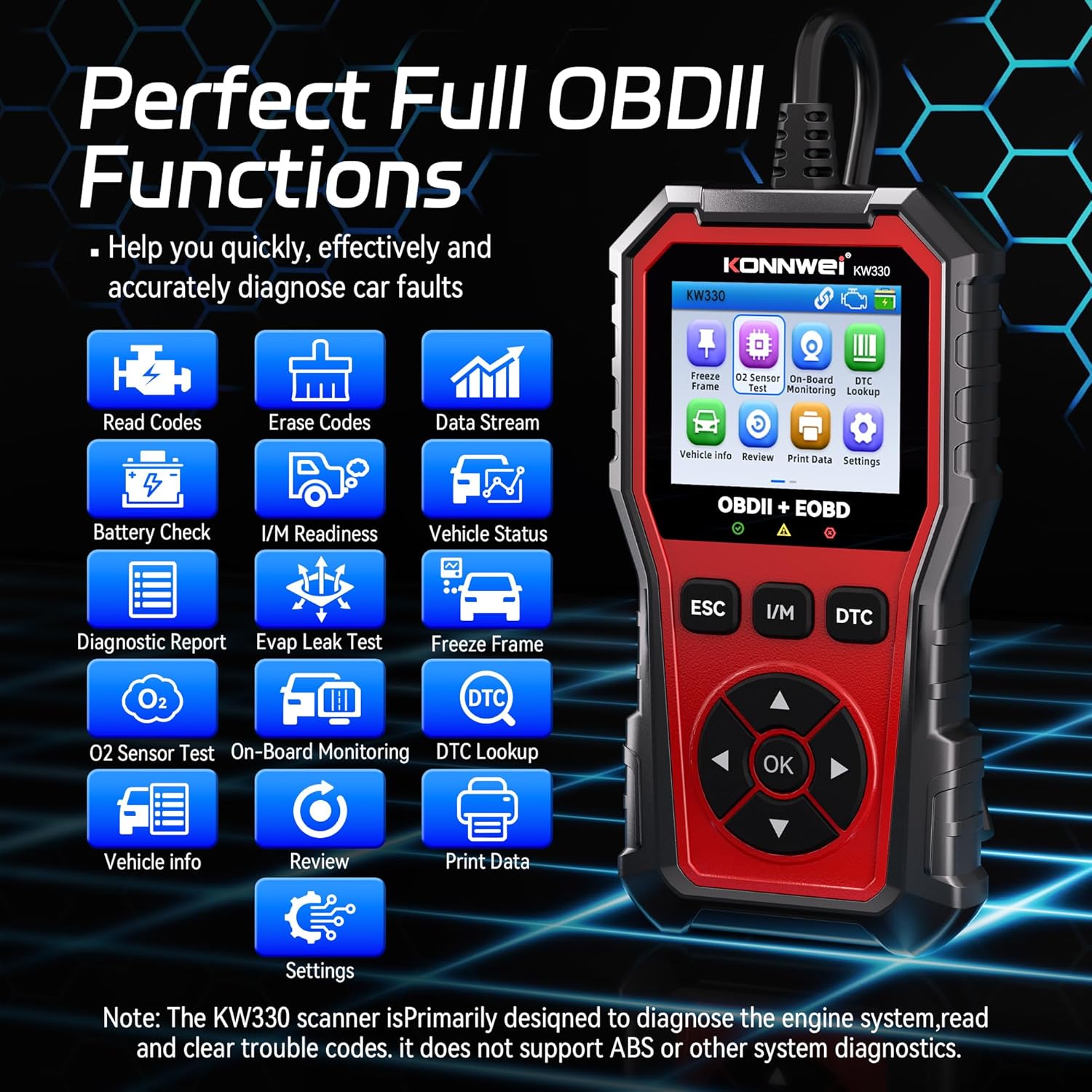
Image: The KONNWEI KW330 OBD2 Scanner unit with its diagnostic cable.
Video: An unboxing of the KONNWEI KW330 OBD2 Scanner, showing the device and included accessories.
3. Product Overview
The KW330 features a robust design with a 2.8-inch color LCD screen, making it easy to read diagnostic information. It includes dedicated buttons for navigation, ESC (Escape), I/M (I/M Readiness), and DTC (DTC Lookup) for quick access to key functions.

Image: The KONNWEI KW330 scanner's main menu interface showing various diagnostic functions.
4. Setup
The KONNWEI KW330 is designed for plug-and-play operation, requiring no complex setup or external power source beyond the vehicle's OBDII port.
4.1 Connecting the Scanner
- Locate the vehicle's 16-pin Data Link Connector (DLC). This is typically found under the dashboard on the driver's side.
- Ensure the vehicle's ignition is OFF.
- Firmly plug the KW330's OBDII connector into the vehicle's DLC.
- Turn the vehicle's ignition to the ON position (engine can be off or running, depending on the test). The scanner will automatically power on and establish communication with the vehicle's ECU.
Video: Demonstration of connecting the KW330 OBD2 scanner to a vehicle's diagnostic port and initiating a scan.
5. Operating Instructions
The KW330 offers various diagnostic functions accessible through its intuitive menu system.
5.1 Reading Trouble Codes (DTCs)
This function allows you to retrieve Diagnostic Trouble Codes (DTCs) from the vehicle's computer, which indicate specific issues detected by the system.
- From the main menu, select 'Read Codes' and press 'OK'.
- The scanner will display any stored, pending, or permanent DTCs.
- Use the up/down arrows to scroll through the codes and their descriptions.

Image: The KW330 displaying a P0123 trouble code with its description.
5.2 Clearing Trouble Codes
After performing necessary repairs, you can use this function to clear the DTCs and turn off the Check Engine Light (CEL).
- From the main menu, select 'Erase Codes' and press 'OK'.
- Confirm the action when prompted.
- The scanner will clear the codes, and the Check Engine Light should turn off.

Image: Visual representation of the Check Engine Light turning off after codes are cleared.
5.3 I/M Readiness Test
This function checks the readiness of the vehicle's emission-related monitoring systems, indicating if the vehicle is ready for an emissions test.
- From the main menu, select 'I/M Readiness' and press 'OK'.
- The scanner will display the status of various monitors (e.g., MIS, FUE, CCM, CAT, EVAP, O2S). A '✓' indicates completion, while an 'X' indicates an incomplete test.

Image: The KW330 displaying the I/M Readiness status for various vehicle systems.

Image: A visual guide to performing the one-click I/M Readiness test.
5.4 Live Data Stream
View real-time operational parameters of the vehicle's engine, such as RPM, coolant temperature, and fuel system status.
- From the main menu, select 'Data Stream' and press 'OK'.
- You can choose to view all items, select specific items, or view graphic frames.
- The scanner will display the selected data in numerical or graphical format.

Image: The KW330 showing real-time data stream in a graphical format, including RPM, FRP, IAT, and O2S values.
5.5 Battery Voltage Test
This feature allows you to check the voltage of your vehicle's battery and assess the charging system's performance.
- From the main menu, select 'Battery Check' and press 'OK'.
- Follow the on-screen prompts to turn the engine off, then start it.
- The scanner will display the battery voltage performance, including minimum and maximum values during cranking and running.

Image: The KW330 displaying battery voltage test results, indicating normal ranges for before starting, instant ignition, and after starting.

Image: A visual guide demonstrating the battery voltage test with the KW330 scanner.
5.6 DTC Lookup
The built-in DTC Lookup feature provides detailed definitions for over 40,000 trouble codes, helping you understand the meaning of a code without needing to search online.
- Press the 'DTC' hotkey from the main menu or during a diagnostic scan.
- Enter the DTC using the navigation buttons.
- The scanner will display the definition of the code.
Image: The KW330's DTC Lookup interface, illustrating how to input a code and view its definition.
6. Settings
Customize your KW330 scanner experience through the settings menu.
- From the main menu, select 'Settings' and press 'OK'.
- Options include:
- Unit of Measure: Switch between Metric and Imperial units.
- Language: Select from supported languages (e.g., English, German, French, Spanish).
- Theme: Switch between day and night display modes for optimal visibility.
- Beeper: Turn audible alerts on or off.
- Startup Scan: Enable or disable automatic scanning on startup.

Image: The KW330's settings menu, highlighting the option to switch between day and night display themes.
7. Vehicle Compatibility
The KONNWEI KW330 is designed to be universally compatible with most OBDII compliant vehicles. This includes:
- US-based cars after 1996
- EU-based cars after 2000
- Asian-based cars after 2008
For specific compatibility questions, it is recommended to contact customer service with your vehicle's VIN before purchase.

Image: A chart illustrating the broad vehicle compatibility of the KW330 scanner across different regions and manufacturing years.
8. Maintenance
To ensure the longevity and optimal performance of your KONNWEI KW330 scanner, follow these maintenance guidelines:
- Keep the device clean and free from dust and moisture. Use a soft, dry cloth for cleaning.
- Avoid dropping the device or exposing it to extreme temperatures.
- Store the scanner in a safe place when not in use, preferably in its original packaging or a protective case.
- Regularly check the diagnostic cable for any signs of damage.
8.1 Software Updates
The KW330 supports free lifetime software upgrades to ensure compatibility with new vehicle models and to add new features. Refer to the official KONNWEI website for the latest software and instructions on how to update your device using the provided USB cable.
9. Troubleshooting
If you encounter issues while using your KW330 scanner, refer to the following common troubleshooting tips:
- No Power: Ensure the OBDII connector is firmly plugged into the vehicle's DLC. Check the vehicle's ignition status.
- Link Error: Verify the ignition is ON. Check for a secure connection to the DLC. Ensure the vehicle is OBDII compliant. Try the scanner on another vehicle if possible to rule out a vehicle-specific issue.
- DTCs Not Clearing: Ensure the ignition is ON and the engine is OFF when attempting to clear codes. Some codes may require multiple drive cycles to clear after repairs.
- Screen Issues: If the screen is unreadable, adjust the display theme in the settings (Day/Night mode).
For persistent issues, consult the detailed user manual or contact KONNWEI customer support.
10. Specifications
| Feature | Description |
|---|---|
| Brand | KONNWEI |
| Model | KW330 |
| Power Source | Battery Powered (via OBDII port) |
| Operating System | Linux |
| Screen Size | 2.8 Inches |
| Automotive Fit Type | Universal Fit (OBDII compliant vehicles) |
| Included Components | KW330 OBD2 Scanner, Manual |
11. Warranty and Support
The KONNWEI KW330 OBD2 Diagnostic Scanner comes with a standard manufacturer's warranty. For detailed warranty information, product support, or technical assistance, please visit the official KONNWEI website or contact their customer service directly. Keep your purchase receipt as proof of purchase for warranty claims.


