
1. Introduction
This manual provides essential information for setting up, operating, maintaining, and troubleshooting your Dell 16 Plus Laptop DB16250. Please read this manual thoroughly to ensure proper use and to maximize the performance and longevity of your device.
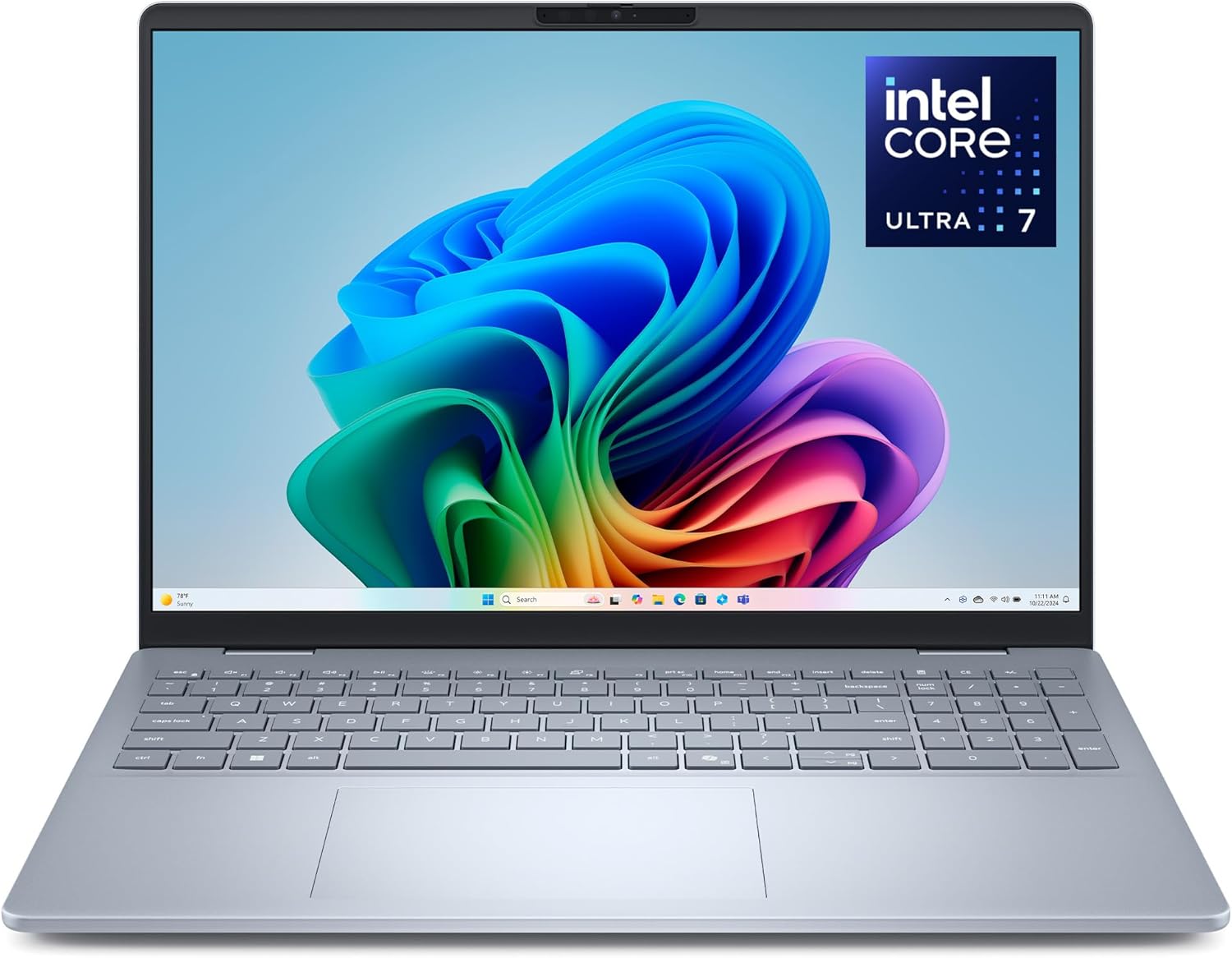
Image: The Dell 16 Plus Laptop DB16250, showcasing its display and keyboard.
2. Getting Started
2.1. Unpacking Your Laptop
Carefully remove all components from the packaging. Ensure all items listed below are present.
2.2. What's in the Box
- Dell 16 Plus DB16250 Laptop
- 65W Type-C Adapter
- Power Cord
- Documentation (including this manual)
2.3. Initial Setup
- Connect Power: Plug the 65W Type-C adapter into a power outlet and then into one of the USB-C ports on your laptop.
- Power On: Open the laptop lid and press the power button.
- Follow On-Screen Instructions: Windows 11 will guide you through the initial setup process, including language selection, network connection, and user account creation.
3. Hardware Overview
3.1. External Components

Image: Side view of the Dell 16 Plus Laptop illustrating port locations.
- Left Side:
- USB 3.2 Gen 1 Type-A (5 Gbps)
- Headset Jack
- Right Side:
- HDMI 2.1 Port
- USB 3.2 Gen 2 (10 Gbps) Type-C port with DisplayPort 1.4 and Power Delivery
- Thunderbolt 4 (40 Gbps) with DisplayPort 2.1 and Power Delivery

Image: The thin profile of the Dell 16 Plus Laptop, measuring 16.99 mm.
3.2. Keyboard and Touchpad

Image: A close-up view of the backlit keyboard and touchpad.
The laptop features a full-size backlit keyboard with a Copilot key and a precision touchpad for navigation.
4. Operating Your Dell 16 Plus Laptop
4.1. Display Features
The Dell 16 Plus Laptop features a 16-inch 16:10 2.5K (2560x1600) display, providing ample screen real estate for multitasking and creative work. The display includes an anti-glare coating for comfortable viewing.

Image: The laptop display showing multiple windows for enhanced productivity.
4.2. Performance and AI Capabilities
Equipped with an Intel Core Ultra 7 processor and Intel Arc Graphics, this laptop is designed for efficient performance and AI-driven tasks.

Image: A detailed view of the Intel Core Ultra processor, highlighting its advanced architecture.
4.3. Webcam and Communication
The integrated FHD+ webcam provides clear video for online meetings and calls. It supports faster face recognition for secure login via Windows Hello.

Image: A user engaged in a video conference call on the laptop, demonstrating clear communication.
4.4. Windows 11 Features
The Dell 16 Plus Laptop comes with Windows 11 Home, offering a modern interface and enhanced features:
- Recall: Instantly scan apps, files, emails, and websites to retrieve content using natural language prompts.
- Live Captions: Translate video calls or movies into English subtitles in real-time from 44 languages.
- Cocreator: Generate custom images based on text prompts to assist with creative projects.
- Windows Studio Effects: Enhance your appearance and audio during video calls with features like Portrait Light, Portrait Blur, and creative filters.

Image: The Windows 11 Recall feature displaying a timeline of past activities and open applications.

Image: A video playing on the laptop with the Live Captions feature active, displaying real-time subtitles.

Image: The Windows 11 Cocreator interface, demonstrating image generation from a descriptive text prompt.

Image: The Windows Studio Effects panel, offering various options to enhance webcam output during calls.
4.5. Security and Durability
The Dell 16 Plus Laptop is constructed with high-quality materials and undergoes military-grade testing to ensure reliability and durability for everyday use.
5. Maintenance and Care
5.1. Cleaning Your Laptop
- Use a soft, lint-free cloth dampened with water or a screen cleaner to clean the display.
- For the keyboard and chassis, use a soft cloth. Avoid harsh chemicals or abrasive materials.
- Ensure the laptop is powered off and unplugged before cleaning.
5.2. Battery Care
- Avoid fully discharging the battery frequently.
- Store the laptop in a cool, dry place if not used for extended periods.
- For optimal battery health, Dell recommends keeping the battery charge between 20% and 80%.
5.3. Software Updates
Regularly update your operating system and drivers to ensure optimal performance and security. Windows Update will typically handle this automatically.
6. Troubleshooting
This section addresses common issues you might encounter with your Dell 16 Plus Laptop.
6.1. Power and Boot Issues
- Laptop does not turn on: Ensure the power adapter is securely connected and the battery has sufficient charge. Try a different power outlet.
- Laptop freezes or becomes unresponsive: Press and hold the power button for 10-15 seconds to perform a hard reboot.
6.2. Display Problems
- Screen is dim or brightness cannot be adjusted: Check display settings in Windows. Ensure display drivers are up to date.
6.3. Keyboard and Touchpad Issues
- Keys are unresponsive or stuck: Clean around the keys. If the issue persists, contact support.
- Keyboard backlight turns off too quickly: Adjust power management settings in Windows or Dell's specific utility software.
6.4. Audio Problems
- No sound or distorted audio: Check volume levels, ensure speakers are not muted, and update audio drivers. If external speakers are connected, test with internal speakers.
6.5. Connectivity Issues
- Wi-Fi connection problems: Restart your router and laptop. Ensure Wi-Fi drivers are updated.
- USB devices not recognized: Try a different USB port. Ensure device drivers are installed.
7. Technical Specifications
Below are the key technical specifications for the Dell 16 Plus Laptop DB16250:
| Feature | Specification |
|---|---|
| Model Name | Dell 16 Plus DB16250 Laptop |
| Processor | Intel Core Ultra 7 (2.2 GHz) |
| RAM | 16 GB LPDDR5X (8533 MHz) |
| Storage | 1 TB SSD (M.2, PCIe NVMe) |
| Graphics | Intel Arc Graphics |
| Display | 16-inch, 2.5K (2560x1600) pixels, 16:10 aspect ratio |
| Operating System | Windows 11 Home |
| Wireless Connectivity | 802.11.be, Bluetooth |
| Ports | 1x USB 3.2 Gen 1 Type-A, 1x Headset Jack, 1x HDMI 2.1, 1x USB 3.2 Gen 2 Type-C (DP 1.4, Power Delivery), 1x Thunderbolt 4 (40 Gbps, DP 2.1, Power Delivery) |
| Dimensions (LxWxH) | 9.87 x 14.05 x 0.67 inches |
| Weight | 4.12 pounds |
| Color | Ice Blue |
8. Warranty and Support
8.1. Limited Hardware Warranty
Your Dell 16 Plus Laptop DB16250 comes with a 1-Year Onsite Service. This service provides support at your home, office, or chosen location if an issue covered by the Limited Hardware Warranty cannot be resolved remotely.
8.2. Dell Migrate
Included with your purchase is 6 Months of Dell Migrate, a tool designed to simplify the transfer of your data, personal records, and important files to your new Dell PC.
8.3. Optional Protection Plans
Additional protection plans are available for purchase to extend coverage:
- 2-Year Protection Plan
- 4-Year Protection Plan
- Complete Protect (monthly subscription covering eligible past and future purchases)
For detailed terms and conditions of your warranty and support options, please refer to the documentation included with your laptop or visit the official Dell support website.


