
1. Introduction
The Nextech Klutch One Gamepad is a versatile gaming controller designed for a wide range of devices, including mobile phones (iPhone 15 & above, Android), PCs, and consoles. It offers dual connectivity options: Type-C wired for zero-lag gaming and Bluetooth wireless for ultimate freedom. This manual provides detailed instructions for setup, operation, and maintenance to ensure an optimal gaming experience.

Image: Nextech Klutch One Gamepad with a smartphone, illustrating its universal compatibility and ergonomic design.
2. Product Overview
2.1 Key Features
- Multi-Platform Compatibility: Supports iPhone 15 & above, Android, XBOX, HID, and Keymap modes.
- Dual Connectivity: Type-C wired for low latency and Bluetooth wireless for flexibility.
- Responsive Controls: Ultra-responsive joysticks and dynamic lighting indicators.
- Ergonomic Design: Built for comfort during extended gaming sessions.
- Customizable: Remappable back buttons (L4/R4) and customizable action buttons.
- Integrated Audio: 3.5mm audio jack for immersive sound.
- Capture Button: Dedicated button for instant screen capture and recording.
2.2 Gamepad Components
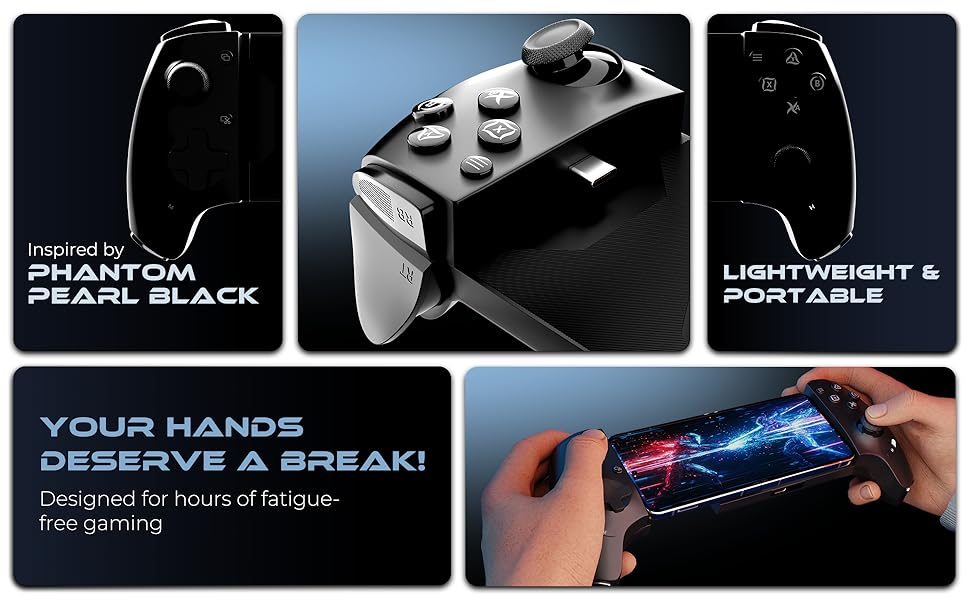
Image: Detailed diagram of the Klutch One Gamepad, labeling all buttons, joysticks, ports, and features.
- Left Joystick (LS): Vertically pressed down.
- D-Pad: Directional pad.
- Capture Button: For instant screen capture and recording.
- M Button: Mode button.
- RB/RT Buttons: Right bumper and right trigger.
- R4/L4 Buttons: Macro back buttons.
- USB-C Power In: For charging and wired connection.
- 3.5mm Audio Jack: For connecting headphones.
- Indicator Lights: Show connection status.
- H Button: Home button.
- A/B/X/Y Action Buttons: Standard gamepad action buttons.
- Right Joystick (RS): Vertically pressed down.
- LB/LT Buttons: Left bumper and left trigger.
- View Button: Accesses view functions.
- Menu Button: Accesses menu functions.
- Heat Dissipation Holes: For cooling the device.
3. Setup and Connection
3.1 Physical Installation
To install your smartphone, gently slide it into the gamepad's adjustable holder. Ensure the phone is securely seated and the Type-C connector aligns if using wired mode. The gamepad is designed to accommodate phones between 115-193mm (4.5-7.6 inches) in width. It is recommended to use the mobile gaming controller without a case or using a case within 1mm thickness for optimal fit.
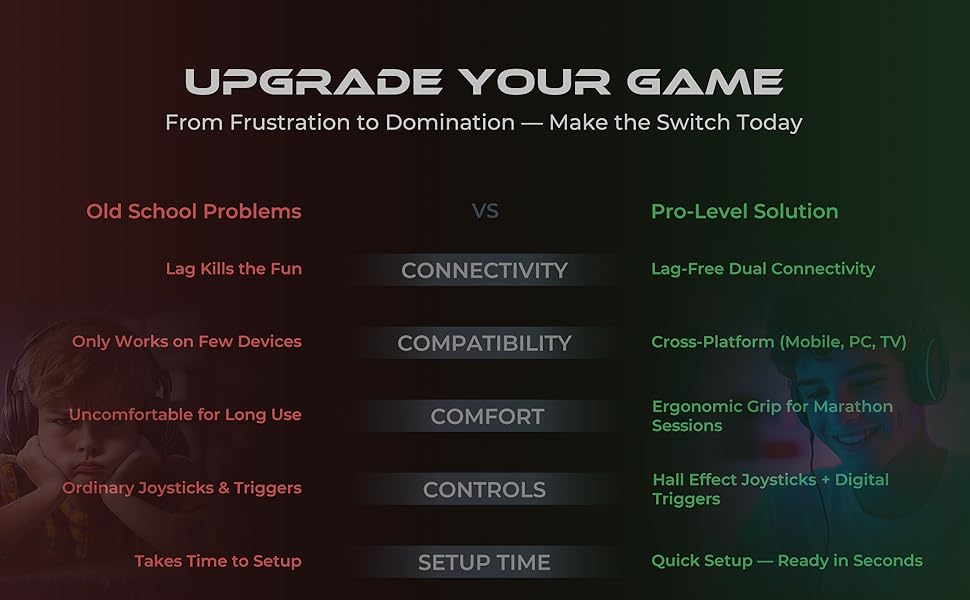
Image: The Nextech Klutch One Gamepad with a phone inserted, demonstrating its telescopic design.
3.2 Connection Modes
The Klutch One Gamepad supports multiple connection modes for various devices. Refer to the table below for specific instructions.

Image: Connection Modes table for various operating systems and devices.
- Android (Xbox Wireless Mode - Green LED): Tap H + B twice. Connect via Bluetooth settings. Device name will appear as 'Xbox Wireless Controller'.
- Android (Key Mapping Mode - Red LED): Tap H + Y once. Use the Moo-Wii Gaming App for unsupported games.
- iOS / PS (Orange LED): Tap H + B. Launch the game. Note: iOS does not support key mapping for games like BGMI & Free Fire.
- PS Remote Play (Orange LED): Tap H + B. Open the PS Remote Play App, log in with your PSN ID, and start playing.
- PC (Xbox Wireless Mode - Green LED): Tap H + B twice. Connect via Bluetooth settings. Device name will appear as 'Xbox Wireless Controller'. Tip: Connect via a power source for PC gaming.
3.3 LED Indicators
- Blinking LED Light: Connection in progress.
- Solid LED Light: Connection established (ready to play).
3.4 Compatibility Notes
The Klutch One Gamepad works with iPhone 15 & 16 series and most Android phones running USB-C. It does not work with iPhone 14 series and older Lightning iPhones. If the mobile is plugged in but the controller indicator does not light up, simply hold the sides of the controller and push it into the center to ensure a secure connection.

Image: Compatibility details for iPhone and Android devices.
3.5 Connection Tutorials
Video: A tutorial demonstrating how to connect the Nextech Klutch One Gamepad to iOS, Android, and PC devices.
Video: A tutorial on setting up PS Remote Play with the Klutch One Gamepad.
4. Operation
4.1 Basic Controls
- Analog Sticks: Pro-grade analog sticks provide precise movement and aiming.
- Digital D-Pad: For accurate directional input.
- Triggers (LT/RT): Hall magnetic triggers offer responsive input for actions like aiming and shooting.
- Action Buttons (A/B/X/Y): Customizable for various in-game actions.

Image: Pro-grade gaming controls including analog sticks, D-pad, and customizable action buttons.
4.2 Key Mapping (Android Only)
For Android devices, the Klutch One Gamepad supports key mapping for touch-based games that do not have native gamepad support. This feature allows you to customize button assignments using the Moo-Wii Gaming App.
Image: Keymap Mode for Android touch games, highlighting compatibility with popular titles.
Video: A tutorial demonstrating how to use the Moo-Wii Gaming Key Mapping App for Android.
4.3 Special Features
- Remappable Back Buttons (L4/R4): Customize these buttons for a pro-level gaming experience.
- Dedicated Capture Button: Instantly snap screenshots or record gameplay.
- 3.5mm Audio Jack: Connect your headphones for lag-free, immersive audio.
Image: Features like remappable back buttons, capture button, and audio jack.
4.4 Support and Resources
For additional support, including iOS games lists and a comprehensive controller guide, scan the QR code below:
5. Specifications
- Product Dimensions: 22 x 5 x 6 cm
- Item Weight: 300 g
- Item Model Number: Android & IOS (Klutch One)
- Country of Origin: China
- Manufacturer: Amson Interconnect Pvt Ltd
- Connectivity: Type-C (Wired), Bluetooth (Wireless)
- Compatibility: iPhone 15 & above, Android, XBOX, HID, Keymap Modes, PC, Console
6. Troubleshooting
- Controller not connecting: Ensure the correct mode (iOS, Android, PC) is selected by pressing H + B (twice for Xbox Wireless Mode) or H + Y (for Android Key Mapping). Check Bluetooth settings on your device.
- Indicator light not on when phone is plugged in: Gently push the sides of the controller further into the center to ensure a firm connection with the phone's Type-C port.
- Key mapping not working on iOS: Key mapping functionality is generally not supported for iOS games like BGMI & Free Fire. This feature is primarily for Android devices using the Moo-Wii Gaming App.
- Lag in wireless mode: Ensure your device's Bluetooth is stable and there are no significant interferences. For critical gaming, use the Type-C wired connection.
- PC connection issues: Ensure the gamepad is connected to a power source via a Type-C cable when using it with a PC, as recommended for optimal performance.
7. Care and Maintenance
- Keep the gamepad clean by wiping it with a soft, dry cloth.
- Avoid exposing the gamepad to extreme temperatures, direct sunlight, or moisture.
- Do not attempt to disassemble or repair the gamepad yourself, as this may void the warranty.
- Store the gamepad in a safe place when not in use to prevent damage.
8. Warranty and Support
For information regarding warranty coverage, returns, or technical support, please refer to the product packaging or contact Nextech customer service directly. Details may also be available on the official Nextech website or through the provided QR code link in Section 4.4.