
1. Introduction
This manual provides detailed instructions for the installation, operation, and maintenance of your Active Pixel 6MP IP 36X Zoom PTZ Security Camera. This professional-grade IP Pan/Tilt/Zoom speed dome camera is designed for outdoor surveillance, featuring 6MP high resolution, 36X optical zoom, and 450ft IR-Cut night vision. Please read this manual thoroughly before using the product to ensure proper setup and functionality.
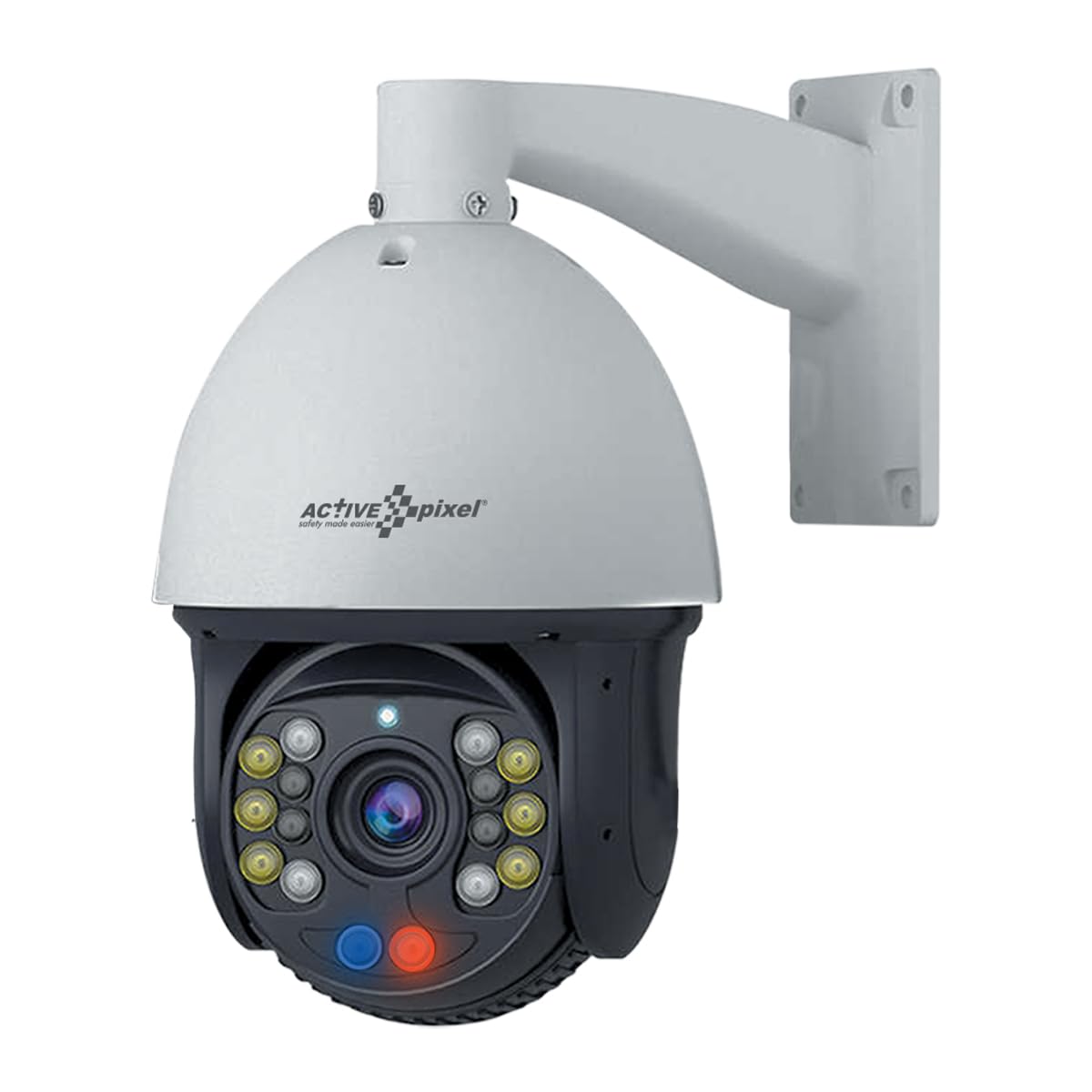
Image 1.1: Active Pixel 6MP IP 36X Zoom PTZ Security Camera. This image shows the dome-shaped camera mounted on a bracket, indicating its outdoor and wall-mount design.
2. Package Contents
Verify that all items listed below are present in your package. If any items are missing or damaged, contact customer support.
- Active Pixel 6MP IP 36X Zoom PTZ Security Camera
- Mounting Stand
- Power Adaptor
- Mounting Hardware (screws, wall plugs)
- Quick Start Guide (if applicable)
3. Product Features
The Active Pixel 6MP IP 36X Zoom PTZ Security Camera offers the following key features:
- Professional IP Pan/Tilt/Zoom Speed Dome: Provides flexible surveillance coverage with remote control.
- 6MP High Resolution: Delivers clear and detailed video footage.
- 36X Optical Zoom: Allows for detailed viewing of distant objects without loss of clarity.
- 450ft IR-Cut Night Vision: Ensures effective surveillance in low-light or no-light conditions.
- ONVIF Support: Ensures compatibility with various network video recorders (NVRs) and surveillance systems.
- 1/2.8" CMOS Sensor: High-quality image sensor for superior performance.
- Wide Angle 2.8mm-12mm Lens: Offers a versatile field of view.
- IP66 Outdoor Waterproof: Designed to withstand harsh outdoor weather conditions.
- PTZ Speed: 90 degrees vertical movement, 360 degrees endless horizontal rotation.
4. Setup
Follow these steps to set up your Active Pixel PTZ Security Camera:
- Mounting the Camera:
- Choose a suitable outdoor location for mounting, ensuring a clear line of sight and access to power and network cables.
- Use the provided mounting stand and hardware to securely attach the camera to a wall or pole. Ensure the mounting surface can support the camera's weight.
- Drill pilot holes, insert wall plugs if necessary, and fasten the stand using screws.
- Power Connection:
- Connect the provided power adaptor to the camera's power input port.
- Plug the adaptor into a suitable power outlet.
- Note: Ensure the power source is stable and meets the camera's power requirements.
- Network Connection:
- Connect an Ethernet cable from your network router or PoE switch to the camera's RJ45 network port.
- If using a PoE switch, a separate power adaptor may not be required.
- Software Installation and Configuration:
- Install the appropriate IP camera management software or NVR software on your computer or mobile device. Refer to the software's documentation for installation instructions.
- Use the software to discover the camera on your network. The camera's default IP address or a DHCP-assigned address should be detectable.
- Access the camera's web interface or software settings to configure network parameters (e.g., static IP address), set up user accounts, and adjust video settings.
- Change the default password immediately for security purposes.
5. Operating Instructions
Once the camera is set up and configured, you can begin operating it using your surveillance software or NVR.
- Live View:
- Open your surveillance software or NVR interface.
- Select the Active Pixel PTZ camera from the device list to view its live feed.
- Pan, Tilt, and Zoom (PTZ) Control:
- Use the on-screen controls within your software to pan (horizontal movement), tilt (vertical movement), and zoom (optical zoom) the camera.
- The camera supports 360-degree endless horizontal rotation and 90-degree vertical movement.
- Night Vision:
- The camera automatically switches to IR-Cut night vision mode in low-light conditions.
- The infrared illuminators provide visibility up to 450ft.
- Recording and Playback:
- Configure recording schedules and motion detection settings within your NVR or software.
- Access recorded footage through the playback function of your surveillance system.
- Remote Access:
- If configured, access your camera remotely via a mobile app or web browser.
- Ensure proper network settings (e.g., port forwarding, DDNS) are in place for remote access.
6. Maintenance
Regular maintenance helps ensure the longevity and optimal performance of your camera.
- Cleaning: Periodically clean the camera lens and dome cover with a soft, damp cloth to remove dust, dirt, or water spots. Do not use abrasive cleaners.
- Firmware Updates: Check the manufacturer's website for firmware updates. Keeping the firmware updated can improve performance, add features, and enhance security.
- Cable Inspection: Regularly inspect all cables (power, network) for any signs of wear, damage, or loose connections.
- Mounting Security: Ensure the camera remains securely mounted. Tighten any loose screws if necessary.
- Software Review: Periodically review your camera's software settings, including recording schedules and user permissions, to ensure they meet your current security needs.
7. Troubleshooting
Refer to the following table for common issues and their solutions.
| Problem | Possible Cause | Solution |
|---|---|---|
| No power to camera | Loose power connection, faulty adaptor, power outage. | Check power cable connections. Test the power adaptor. Verify power outlet functionality. |
| No video feed | Network connection issue, incorrect IP settings, software configuration error. | Verify Ethernet cable connection. Ensure camera and NVR/software are on the same network. Check camera's IP address and port settings. Restart camera and NVR. |
| PTZ controls not responding | Software issue, network latency, camera motor malfunction. | Restart the surveillance software. Check network stability. If the issue persists, contact technical support. |
| Poor night vision | Dirty lens/dome, IR illuminator obstruction, insufficient power. | Clean the camera lens and dome. Ensure no objects are blocking the IR LEDs. Verify stable power supply. |
| Cannot access camera remotely | Incorrect network configuration (port forwarding, DDNS), firewall blocking. | Review router settings for port forwarding. Check firewall rules. Ensure DDNS service is active and correctly configured. |
8. Specifications
Key technical specifications for the Active Pixel 6MP IP 36X Zoom PTZ Security Camera:
| Feature | Detail |
|---|---|
| Brand | Active Pixel |
| Model Number | 36x IP PTZ |
| Indoor/Outdoor Usage | Outdoor |
| Connectivity Protocol | ONVIF |
| Mounting Type | Wall Mount |
| Video Capture Resolution | 6MP (2048P) |
| Optical Zoom | 36X |
| Night Vision Range | 450ft (IR-Cut) |
| Sensor | 1/2.8" CMOS Sensor |
| Lens | Wide Angle 2.8mm-12mm |
| PTZ Horizontal Rotation | 360 degrees Endless |
| PTZ Vertical Movement | 90 degrees |
| Waterproof Rating | IP66 |
| Item Dimensions (L x W x H) | 35 x 20 x 25 Centimeters |
| Item Weight | 3 Kilograms |
| Video Capture Format | MPEG-4 |
9. Warranty and Support
Warranty: Active Pixel Wired Cameras come with a 2-year manufacturer warranty on parts.
Technical Support: Lifetime technical support is provided for this product.
For technical assistance, warranty claims, or any product-related inquiries, please contact:
- Manufacturer: Glorious Digital Solution Pvt Ltd.
- Customer Care: 9321367328
- Address: Glorious Digital Solution Pvt Ltd, Mumbai, India.

