
1. Introduction
The Insta360 Flow 2 Pro is an advanced AI-powered smartphone gimbal stabilizer designed to enhance mobile videography and content creation. It features 3-axis stabilization for smooth footage, intelligent subject tracking (Deep Track 4.0), and an all-in-one design that includes a built-in selfie stick, tripod, and power bank. This manual provides comprehensive instructions for setting up, operating, and maintaining your Insta360 Flow 2 Pro.

Figure 1.1: Insta360 Flow 2 Pro AI Smartphone Gimbal Stabilizer with a smartphone mounted.
2. What's in the Box
Carefully unpack your Insta360 Flow 2 Pro and ensure all items listed below are present. If any items are missing or damaged, please contact customer support.
- Insta360 Flow 2 Pro Gimbal Stabilizer
- Magnetic Phone Clamp
- USB-C to USB-A Charge Cable
- Protective Pouch
- 2x Deco Essentials 3.5mm Computer Clip-On Mini Lapel Microphone (Bundle Item)
- Deco Essentials Professional LED Cordless Smartphone Ring Light (Bundle Item)
- Deco Gear CPS Exclusive 26 Months Premium Extended Service Protection Plan Documentation (Bundle Item)
- Deco Essentials 6FT Braided Type-C Charge & Sync USB Cable (Bundle Item)

Figure 2.1: Insta360 Flow 2 Pro Gimbal and standard accessories.
3. Setup
3.1 Charging the Gimbal
Before first use, fully charge the Insta360 Flow 2 Pro. Connect the provided USB-C to USB-A cable to the gimbal's USB-C port and a power source (e.g., wall adapter, computer USB port). The indicator light will show charging status.
3.2 Attaching Your Smartphone
- Attach the magnetic phone clamp to your smartphone, ensuring it is centered and securely fastened.
- Align the magnetic clamp with the gimbal's magnetic mount and snap it into place. Ensure the phone is balanced.
- Unfold the gimbal. The Insta360 Flow 2 Pro is designed for 1-step rapid deployment; it will be ready to operate as soon as it's unfolded and your phone is mounted. No need to press additional buttons to power on.

Figure 3.1: Gimbal with smartphone mounted and tripod deployed.
3.3 Installing the Insta360 App
For full functionality and advanced features, download the official Insta360 app from your smartphone's app store (iOS App Store or Google Play Store). Follow the in-app instructions to connect your Flow 2 Pro via Bluetooth.
4. Operating Instructions
4.1 Basic Operation
- Power On/Off: The gimbal powers on automatically when unfolded with a phone mounted. To power off, fold the gimbal.
- Mode Switching: Use the SmartWheel or the Insta360 app to switch between different gimbal modes (e.g., Pan Follow, Lock Mode, FPV Mode).
- Joystick Control: Use the joystick to manually control the pan and tilt axes of the gimbal.
- Shutter Button: Press the shutter button on the gimbal to take photos or start/stop video recording in the Insta360 app or native camera app (if supported).
4.2 Key Features
4.2.1 3-Axis Stabilization
The Insta360 Flow 2 Pro utilizes advanced 3-axis stabilization to eliminate shakes and vibrations, ensuring smooth and professional-looking footage even during dynamic movements.
4.2.2 Deep Track 4.0 (AI Tracking)
Deep Track 4.0 is an advanced AI-powered tracking system that keeps your subject perfectly in frame. This feature includes:
- Active Zoom Tracking: Tracks fast-moving subjects accurately, even at long distances.
- Multi-Person Tracking: The gimbal can frame multiple individuals, ensuring everyone is included in the shot.
- Person Re-Identification: Maintains tracking of a selected person even if they are temporarily obscured from view.
- Smarter Animal Tracking: Optimized tracking for pets and other animals.
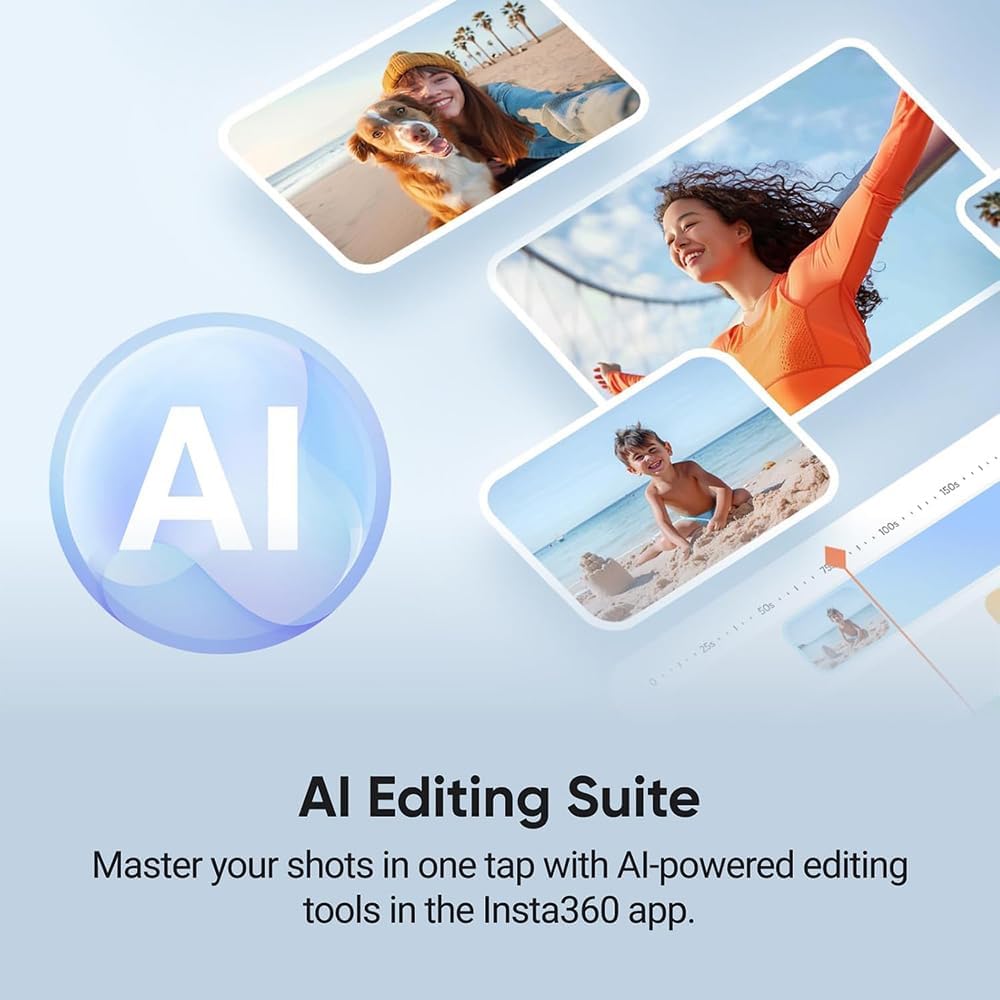
Figure 4.1: The AI Editing Suite in the Insta360 app, powered by AI for easy post-production.
4.2.3 360° Infinite Pan Tracking
The Flow 2 Pro offers unrestricted 360-degree pan tracking, allowing the gimbal to follow your movements without any physical stops or boundaries, providing complete freedom of motion.
4.2.4 All-in-One Design Features
The gimbal integrates several useful tools:
- Built-in Tripod: A stable, integrated tripod allows for hands-free shooting and time-lapses.
- Built-in Selfie Stick: Extend the gimbal arm to use it as a selfie stick for wider shots or higher angles.
- Power Bank Functionality: Connect your smartphone to the gimbal's USB-C port to charge it on the go.
- Selfie Mirror: A small mirror helps frame shots accurately when using the rear camera for selfies.
- Teleprompter: An integrated teleprompter allows you to read scripts while recording.
4.2.5 Smart Control Options
- Apple Watch Control: Remotely control the gimbal directly from your Apple Watch.
- Smartphone Remote Control: Use a second smartphone to preview and control the gimbal remotely, ideal for complex shots.
- Gesture Control: Initiate tracking and recording with simple hand gestures.
4.2.6 Cinematic Filming Features
- Free Tilt Mode: Provides a wider range of motion and maintains the same angle as your phone moves, enabling continuous shots without limitations.
- Advanced HDR & Video Codec: Supports Apple ProRes for professional-grade video quality and Dolby Vision for enhanced colors and contrast within the Insta360 app.
4.2.7 Creative Effects & Modes
The Insta360 app offers various creative modes:
- 360-degree Panorama: Capture immersive panoramic photos.
- Barrel Roll: Rotate your phone for a dynamic FPV-like effect.
- Dolby Zoom: Replicate the classic "Vertigo" or "Dolly Zoom" effect.
- Motion Timelapse: Create time-lapses with automatic gimbal movement.
- TimeShift: Speed up footage for hyperlapse effects.
- Hoop Mode: AI-powered tracking specifically for basketball, saving highlight reels.
- Auto Editing (FlashCut): AI-powered editing tools in the Insta360 app to automatically create highlight videos synced to music.
4.2.8 App Integration
- Apple DockKit Enabled: Utilizes Apple's subject-tracking technology for compatibility with over 200 iOS apps, including video calls, live streaming, and content creation tools.
- Native Camera Tracking: Allows direct tracking within your smartphone's native camera app.
- Third-Party iOS App Tracking: Extends tracking capabilities to a wide range of third-party applications.
5. Maintenance
5.1 Cleaning
Wipe the gimbal body with a soft, dry cloth. Do not use liquid cleaners or solvents. Ensure no dust or debris accumulates around the gimbal motors or joints.
5.2 Storage
When not in use, fold the Insta360 Flow 2 Pro and store it in its protective pouch to prevent scratches and damage. Store in a cool, dry place away from direct sunlight and extreme temperatures.
5.3 Battery Care
To prolong battery life, avoid fully discharging the battery frequently. If storing for extended periods, charge the battery to approximately 50-60% every three months.
6. Troubleshooting
| Problem | Possible Cause | Solution |
|---|---|---|
| Gimbal not powering on. | Low battery; improperly unfolded. | Charge the gimbal fully. Ensure the gimbal is fully unfolded and a phone is mounted. |
| Unstable footage / Gimbal shaking. | Phone not balanced; excessive weight; physical obstruction. | Ensure the phone is centered in the clamp. Remove any heavy phone cases or accessories. Check for obstructions around the gimbal motors. |
| Tracking not working. | Poor lighting; subject too far/close; app not connected. | Ensure adequate lighting. Keep subject within optimal range. Verify Bluetooth connection to the Insta360 app. |
| Cannot connect to Insta360 app. | Bluetooth off; app permissions; gimbal not in pairing mode. | Ensure Bluetooth is enabled on your phone. Grant necessary app permissions. Restart both the gimbal and the app. |
If you encounter issues not listed here, please refer to the official Insta360 support website or contact customer service.
7. Specifications
| Feature | Detail |
|---|---|
| Model Number | E90I360FLOW2PRO |
| Product Dimensions | 4.8 x 2.1 x 11.1 inches (Unfolded) |
| Folded Size | 7 x 3.9 x 1.4 inches |
| Item Weight | 12.6 ounces / 12.64 ounces |
| Brand | Insta360 |
| Color | Grey |
| Compatible Devices | Cellphone (iOS & Android) |
| Battery Life | Up to 10 hours |
| Stabilization | 3-Axis |
| Tracking Technology | Deep Track 4.0 (AI-powered) |
| UPC | 196641176829 |
8. Warranty & Support
8.1 Manufacturer Warranty
The Insta360 Flow 2 Pro comes with a full manufacturer protection. Please refer to the documentation included with your product for specific warranty terms and conditions provided by Insta360.
8.2 Extended Protection Plan
This bundle includes a Deco Gear CPS Exclusive 26 Months Premium Extended Service Protection Plan. This plan provides additional coverage beyond the manufacturer's warranty, including accidental damage and burn-in coverage. For details regarding this extended protection plan, please consult the specific documentation provided by Deco Gear CPS.
8.3 Customer Support
For technical assistance, product inquiries, or warranty claims, please visit the official Insta360 support website or contact their customer service department. For inquiries related to the Deco Gear CPS Extended Protection Plan, please contact Deco Gear CPS directly.
Note: Contact information for Insta360 and Deco Gear CPS can typically be found on their respective official websites.


