
1. Introduction
This manual provides essential instructions for the safe and effective use of your PopBloom RL180 LED Aquarium Light. Please read this manual thoroughly before installation and operation to ensure optimal performance and longevity of the product.

Image 1: PopBloom RL180 LED Aquarium Light with arm mount and smartphone showing app interface.
2. What's in the Box
Carefully unpack the contents and verify all items are present. If any items are missing or damaged, please contact customer support.
- 1x RL180 WiFi Light
- 1x Arm Kit (for arm mounting)
- 1x Power Supply
- 1x Power Plug
- 1x User Manual

Image 2: Package contents for the PopBloom RL180, including the light unit, arm kit, power adapter, power cable, and user manual.
3. Setup
3.1 Physical Installation (Arm Mounting)
The RL180 LED Aquarium Light is designed for arm mounting. Follow these steps for secure installation:
- Assemble the arm kit components according to the diagrams.
- Attach the arm mount securely to your aquarium tank. Ensure the mount is stable and can support the weight of the light fixture.
- Mount the RL180 light fixture onto the assembled arm. Adjust the height and angle as needed for optimal light coverage over your aquarium.
- Connect the power cable to the light fixture and then to the power supply. Plug the power supply into a suitable electrical outlet.

Image 3: Arm mounting options and installation guide for the RL180, illustrating horizontal and vertical directions for rimless and rimmed tanks.
3.2 App Connection
The PopBloom RL180 features smart app control via WiFi and Bluetooth. Follow these steps to connect your light to the app:
- Download and install the 'Smart Life' app from your device's app store (available on iOS and Android).
- Open the phone's Wi-Fi and Bluetooth settings.
- Open the Smart Life app and select "Add Device".
- Connect to your home Wi-Fi network within the app.
- The app will detect the PopBloom light. Follow the on-screen prompts to add and connect the light.
For app download and more information, visit: https://smartapp.tuya.com/smartlife

Image 4: Step-by-step guide for connecting the RL180 to the Smart Life app.
Video 1: Unboxing and initial app connection demonstration for the PopBloom RL180 LED Aquarium Light. This video shows the contents of the package, how to power on the light, and the process of adding the device to the PopBloom app, including setting up lunar cycle, acclimation, and manual light adjustments.
4. Operating the Light
4.1 Smart App Control Features
The PopBloom app offers comprehensive control over your RL180 light, allowing for customization and automation of lighting cycles.
- Lunar Cycle: Activate a 29-day lunar cycle to simulate natural moon phases, adjusting intensity automatically.
- Acclimation: Set an acclimation schedule to gradually introduce new corals, fish, and plants to the lighting environment by slowly increasing intensity over a set period.
- Lightning: Simulate lightning effects for at least 10 minutes to stimulate fish reproduction and plant growth.
- Sunrise/Sunset: Program gradual intensity changes to mimic natural sunrise and sunset.
- 4 Seasons: Choose from preset seasonal lighting programs.
- DIY Program: Create custom 24-hour lighting schedules by setting brightness levels for each of the four channels at specific time points.
- Preset Modes: Utilize 16 beginner-friendly preset modes for various tank types and conditions.
- Group Control: Control multiple PopBloom lights simultaneously.
- Sharing Setting: Share your customized lighting programs with other users.

Image 5: Overview of the PopBloom app's smart control features.
4.2 Manual Mode
In manual mode, you can adjust the intensity of each of the four channels independently. This allows for real-time customization of the light spectrum and intensity. Exiting manual mode will return the light to its currently programmed schedule.
5. Maintenance
Regular maintenance ensures the longevity and optimal performance of your PopBloom RL180 LED Aquarium Light.
- Cleaning: Gently wipe the light fixture and lenses with a soft, damp cloth to remove dust, salt creep, or water spots. Ensure the light is unplugged before cleaning. Avoid using abrasive cleaners or solvents.
- Cooling System: The RL180 features a multi-efficient heat dissipation system with dual fans and a fin-wavy aluminum alloy heatsink. Ensure the fan vents are clear of obstructions to maintain proper airflow and prevent overheating. The fan noise level is approximately 32 dB during operation.

Image 6: Illustration of the RL180's cooling system with dual fans and aluminum heatsink.
6. Troubleshooting
If you encounter issues with your PopBloom RL180, consider the following common solutions:
- Light Not Turning On: Check all power connections. Ensure the power plug is securely inserted into the outlet and the light fixture. Verify the power supply is functioning.
- App Connectivity Issues: Ensure your smartphone's Wi-Fi and Bluetooth are enabled. Confirm the light is within range of your Wi-Fi router. Try restarting the app or the light fixture.
- Incorrect Light Output: Verify the settings in the PopBloom app. Ensure no manual overrides are active and that the selected program is appropriate for your desired light spectrum and intensity.
- Overheating: Check that the fan vents on the light fixture are not obstructed. Ensure there is adequate air circulation around the unit.
For persistent issues, please refer to the manufacturer's support resources or contact customer service.
7. Specifications
Detailed technical specifications for the PopBloom RL180 LED Aquarium Light:
| Feature | Detail |
|---|---|
| Model Number | Hertz RL180-A |
| Product Dimensions | 10.2"L x 4.7"W x 2.2"H (26cm x 12cm x 5.5cm) |
| Wattage | 180 watts |
| Light Source Type | COB LED |
| Color | Black |
| Material | Aluminum |
| Mounting Type | Arm Mounting |
| Bulb Features | 4 Channels Dimmable and Programmable |
| PAR Output (Water Surface) | 550 PAR |
| PAR Output (80cm Depth) | 130 PAR |
| Cooling | Dual-fan, Aluminum Heatsink (32 dB fan noise) |
| Control | Smart APP (WiFi & Bluetooth) |

Image 7: Visual representation of RL180 specifications, including light dimensions, wattage, PAR values, and spectrum details.
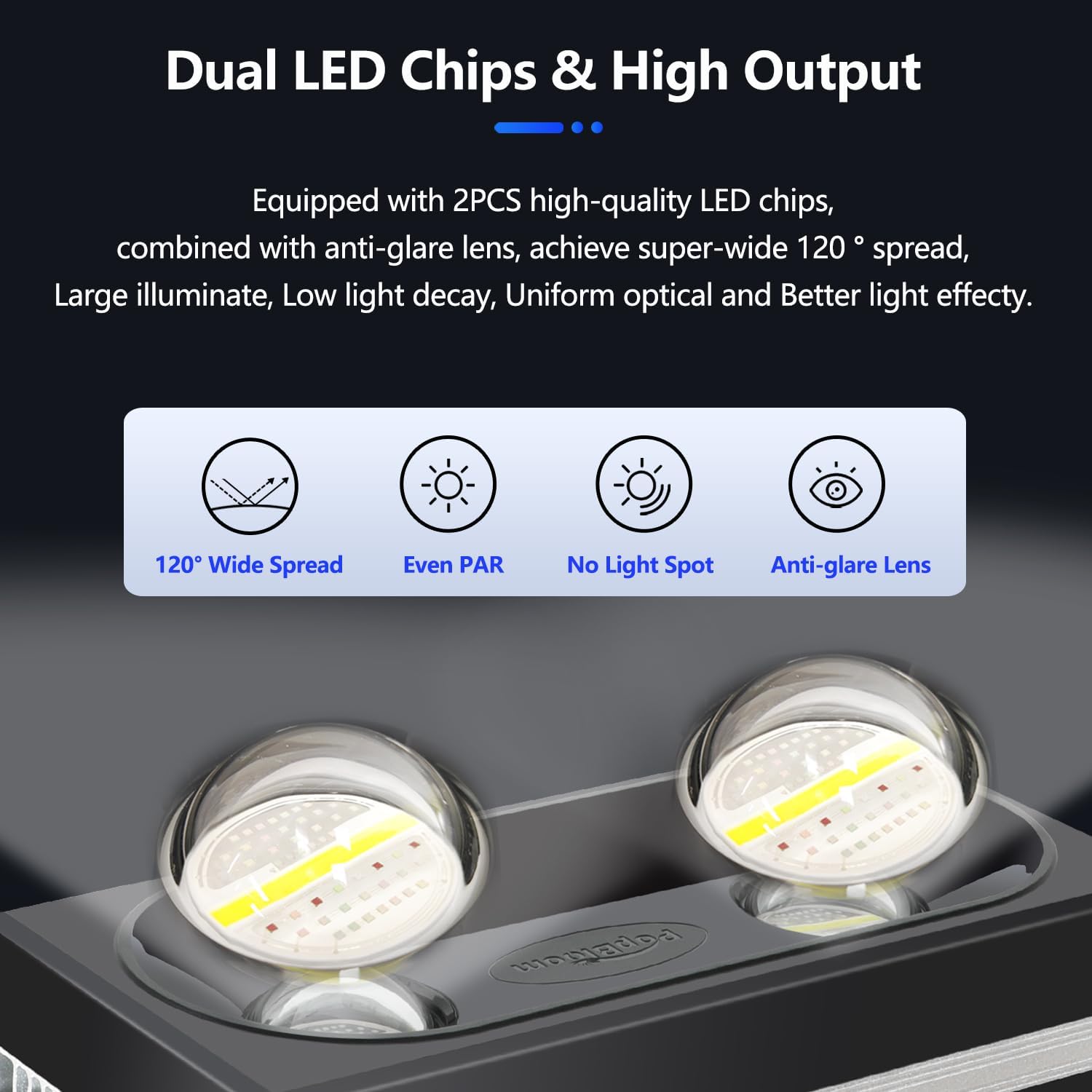
Image 8: Optimal PAR distribution provided by the RL180 light.

Image 9: Dual LED chips and high output design of the RL180.
8. Warranty and Support
For information regarding product warranty, returns, or technical support, please refer to the documentation included with your purchase or contact PopBloom customer service directly. Protection plans may be available for extended coverage.


