
Xmenha M112
Xmenha M112 Open Ear Wireless Bluetooth Headphones User Manual
Model: M112
Introduction
Thank you for choosing the Xmenha M112 Open Ear Wireless Bluetooth Headphones. These headphones are designed to provide a comfortable and safe audio experience by allowing you to remain aware of your surroundings while enjoying your audio. This manual provides detailed instructions on how to set up, operate, and maintain your device.
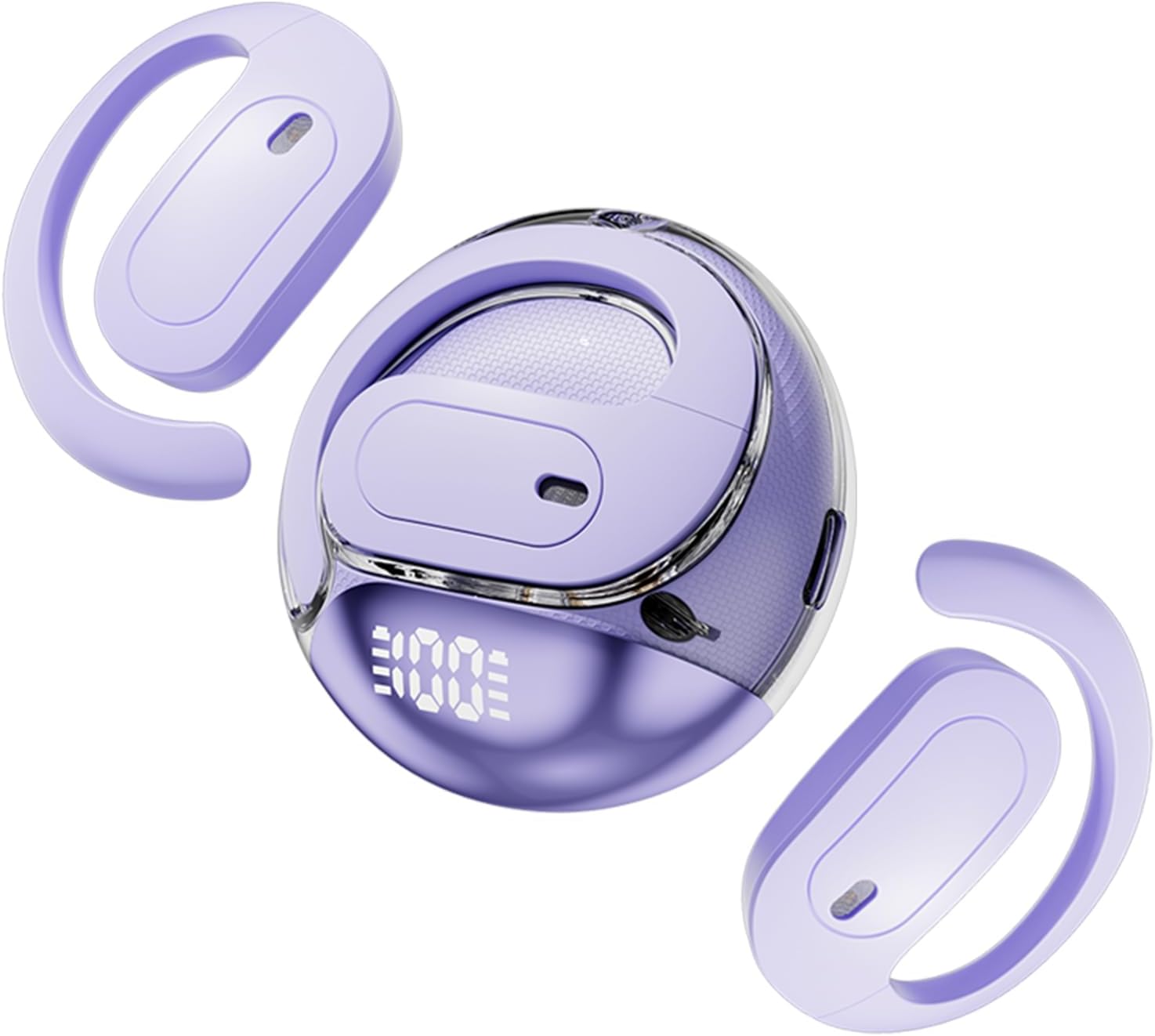
Image: The Xmenha M112 Open Ear Wireless Bluetooth Headphones in purple, shown with their compact charging case. The earbuds feature an open-ear design that hooks over the ear.
Package Contents
Please check the package for the following items:
- 1 Pair Xmenha M112 Open Ear Wireless Bluetooth Headphones
- 1 Charging Case
- 1 USB-C Charging Cable
- 1 User Manual (this document)
Product Features
- Open Ear Design: Allows awareness of surroundings for enhanced safety during activities.
- Comfortable & Stable Fit: Lightweight silicone material and ear clip design ensure secure wear without entering the ear canal.
- Extended Playtime: Up to 30 hours of total playtime with the charging case (5-6 hours per single charge).
- Waterproof & Sweatproof: Designed to resist daily sweat and rain, suitable for sports and outdoor use.
- Clear Sound Quality: Features patented speaker and acoustic cavity technology for high-quality audio with reduced sound leakage.
- Bluetooth 5.4: Provides stable and efficient wireless connectivity.

Image: A person wearing the Xmenha M112 headphones, demonstrating their lightweight and stable fit. Text overlays indicate "Soft Memory titanium wire" for comfort and "Steady Stable movement" for 99% stability.

Image: A person cycling outdoors while wearing the Xmenha M112 headphones, illustrating the benefit of open-ear safety by allowing awareness of surroundings.

Image: An exploded diagram showcasing the internal components of the Xmenha M112 headphone speaker, highlighting the 16mm large-size dynamic driver for powerful bass and clear treble.
Setup
1. Charging the Headphones and Case
Before first use, fully charge the headphones and the charging case.
- Place the headphones into the charging case. Ensure they are correctly seated.
- Connect the USB-C charging cable to the charging port on the case and the other end to a USB power adapter (not included) or a computer's USB port.
- The LED indicator on the charging case will show the charging status. A full charge typically takes approximately 1.5-2 hours.
- Once fully charged, disconnect the charging cable.
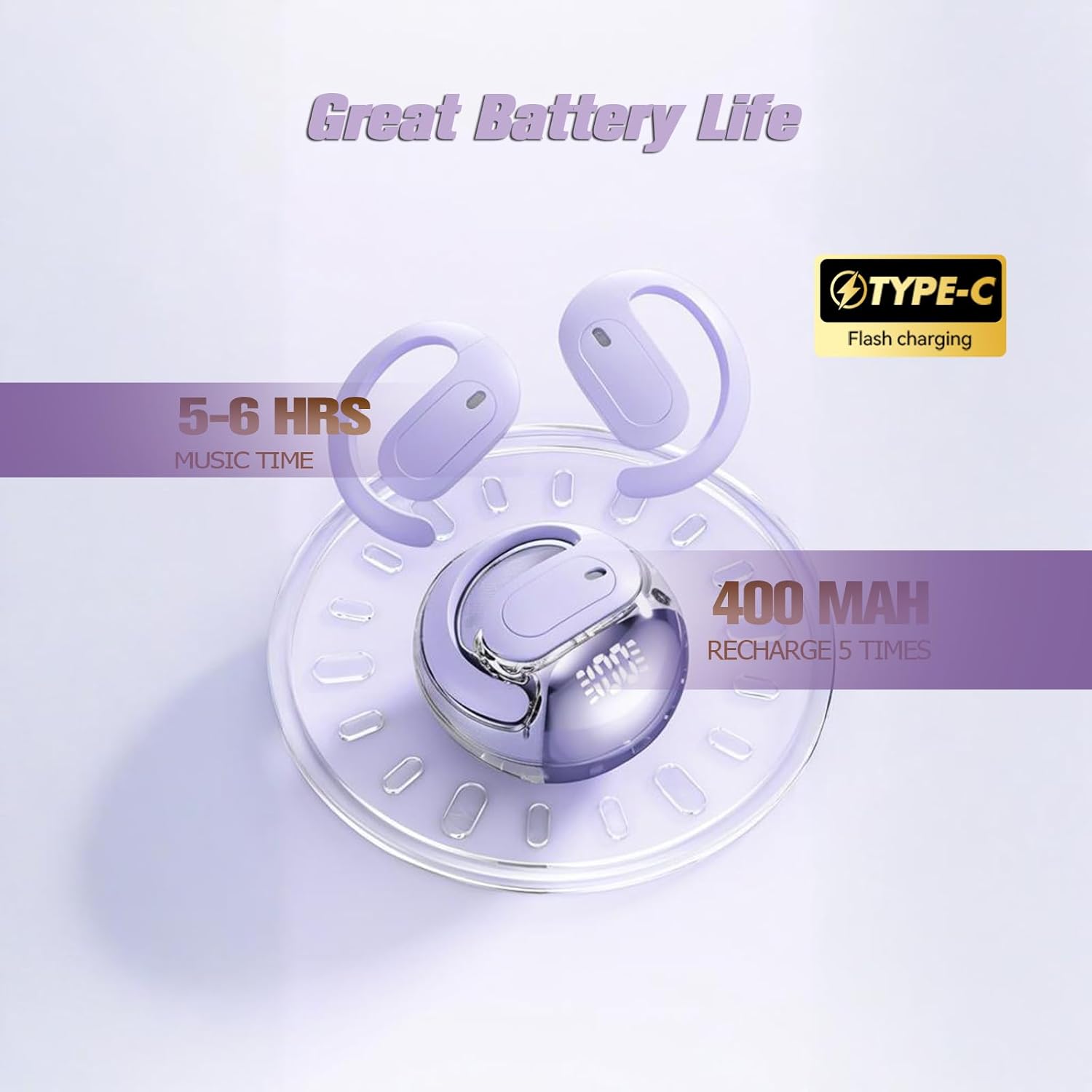
Image: The Xmenha M112 charging case with headphones inside, illustrating the "Great Battery Life" feature with 5-6 hours of music time per charge and the 400mAh case providing multiple recharges via Type-C.
2. Bluetooth Pairing
To connect your headphones to a device for the first time:
- Open the charging case. The headphones will automatically power on and enter pairing mode. The indicator lights on the headphones will flash, indicating they are ready to pair.
- On your device (smartphone, tablet, computer), go to the Bluetooth settings.
- Search for "M112" or "Xmenha M112" in the list of available devices.
- Select "M112" to connect. Once connected, a voice prompt will confirm the successful pairing, and the indicator lights on the headphones will stop flashing.
- The headphones will automatically reconnect to the last paired device when taken out of the case, if Bluetooth is enabled on the device.
Operating Instructions
Power On/Off
- Power On: Open the charging case, and the headphones will automatically power on. Alternatively, press and hold the touch control area on both earbuds for 3 seconds.
- Power Off: Place the headphones back into the charging case and close the lid. They will automatically power off. Alternatively, press and hold the touch control area on both earbuds for 5 seconds.
Music Playback
- Play/Pause: Tap the touch control area on either earbud once.
- Next Track: Double-tap the touch control area on the right earbud.
- Previous Track: Double-tap the touch control area on the left earbud.
- Volume Up: Triple-tap the touch control area on the right earbud.
- Volume Down: Triple-tap the touch control area on the left earbud.
Call Management
- Answer/End Call: Tap the touch control area on either earbud once.
- Reject Call: Press and hold the touch control area on either earbud for 2 seconds.
Voice Assistant
- Activate Voice Assistant: Press and hold the touch control area on either earbud for 2 seconds (when not on a call).
Maintenance
- Cleaning: Use a soft, dry, lint-free cloth to clean the headphones and charging case. Do not use abrasive cleaners or solvents.
- Storage: When not in use, store the headphones in their charging case to protect them from dust and damage. Store in a cool, dry place.
- Water Resistance: The headphones are waterproof and sweatproof. However, avoid prolonged exposure to water or submersion. Ensure the charging port is dry before charging.
- Battery Care: To prolong battery life, avoid fully discharging the headphones frequently. Charge them regularly, even if not used for extended periods.
Troubleshooting
| Problem | Solution |
|---|---|
| Headphones do not power on. | Ensure the headphones are charged. Place them in the charging case and connect the case to power. |
| Cannot pair with device. |
|
| No sound or low volume. |
|
| Intermittent connection. |
|
| Charging case not charging. |
|
Specifications
| Feature | Detail |
|---|---|
| Model Name | M112 |
| Brand | Xmenha |
| Connectivity Technology | Wireless (Bluetooth) |
| Wireless Communication Technology | Bluetooth 5.4 |
| Form Factor | Open Ear, Over Ear |
| Battery Capacity (Charging Case) | 400mAh |
| Play Time (Single Charge) | Approx. 5-6 hours |
| Total Play Time (with Charging Case) | Approx. 30 hours |
| Charging Port | USB-C |
| Transmission Distance | Up to 10 meters (approximately 33 feet) in typical environments, up to 380 feet in barrier-free conditions. |
| Water Resistance Level | Waterproof, Sweatproof |
| Material | Plastic, Silicone |
| Item Weight | 3.2 ounces (approx. 90g) |
| Product Dimensions | 0.3 x 0.2 x 0.5 inches (earbud dimensions) |
Warranty and Support
For warranty information and customer support, please refer to the official Xmenha website or contact the seller directly through your purchase platform. If you encounter any problems during use, the manufacturer aims to resolve issues within 24 hours.
Related Documents - M112
 |
M112 Bluetooth Headset User Manual - SKY WING Comprehensive user manual for the SKY WING M112 Bluetooth Headset, detailing product overview, basic operations, Bluetooth pairing and connection, LED indicators, charging instructions, technical specifications, and troubleshooting Q&A. |
 |
Ampere Altra Max Processor Datasheet: High-Performance 64-Bit Arm Server CPU Detailed datasheet for the Ampere Altra Max 64-bit multi-core Arm server-class processor, featuring up to 128 cores, PCIe Gen4, DDR4-3200, and advanced server-class RAS capabilities for cloud environments. |
 |
HP LaserJet M109-M112 Series Setup Guide Step-by-step setup guide for the HP LaserJet M109-M112 series printers. Learn how to unbox, install the toner cartridge, load paper, connect to Wi-Fi using the HP app, and find troubleshooting resources. |
 |
HP LaserJet M109-M112 Series Setup Guide Step-by-step instructions for setting up your HP LaserJet M109-M112 series printer, including cartridge installation, paper loading, and network connection. |
 |
Siel Expander 80: Vintage Analog Synthesizer Review and Guide A comprehensive overview and technical guide to the Siel Expander 80, an 8-voice analog synthesizer released in 1985, detailing its architecture, features, limitations, and maintenance. |
 |
HP LaserJet M109-M112 Series Setup Guide Step-by-step instructions for setting up your HP LaserJet M109-M112 series printer, including unboxing, cartridge installation, paper loading, and software setup via HP Smart. |
Ask a question about this manual
Ask about setup, troubleshooting, compatibility, parts, safety, or missing instructions. Manuals+ will review the question and use this page’s manual context to help answer it.