
MSI A1MG-007IN
MSI Venture 15 AI Laptop A1MG-007IN User Manual
Model: A1MG-007IN
1. Introduction
This manual provides essential information for the safe and efficient use of your MSI Venture 15 AI Laptop, model A1MG-007IN. It covers setup, operation, maintenance, and troubleshooting. Please read this manual thoroughly before using your device.
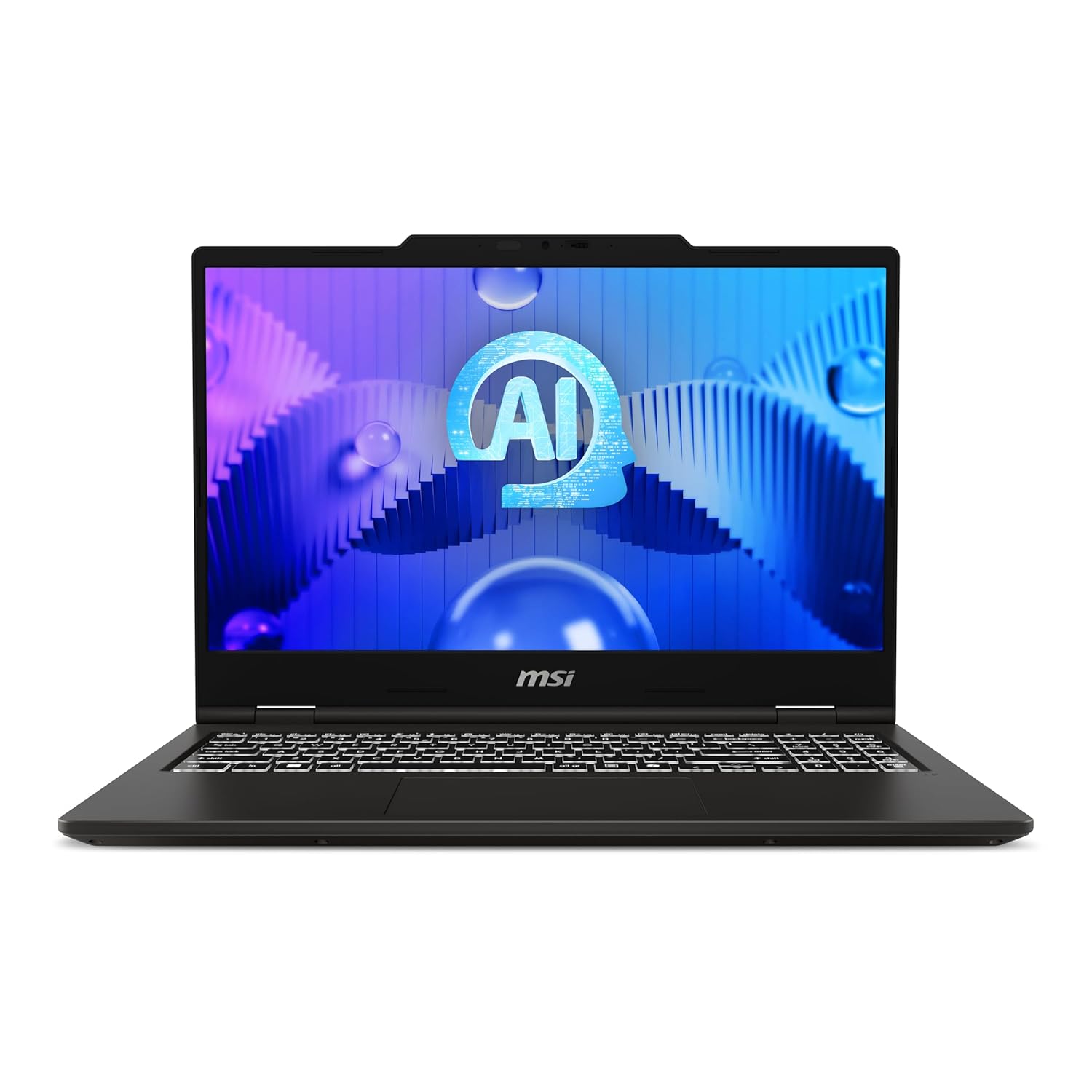
Figure 1.1: Front view of the MSI Venture 15 AI Laptop with its display active.
2. Package Contents
Verify that all items listed below are present in your product package. If any item is missing or damaged, contact your retailer.
- MSI Venture 15 AI Laptop (Model A1MG-007IN)
- Power Adapter
- User Guide (this document)
3. Initial Setup
3.1 Connecting the Power Adapter
Before initial use, ensure the laptop battery is fully charged.
- Connect the power adapter cable to the DC-in port on the laptop.
- Plug the power adapter into a grounded electrical outlet.
- The battery charging indicator will illuminate. Allow the battery to charge completely before disconnecting.

Figure 3.1: Side view illustrating the power adapter connection port and other peripheral ports.
3.2 First Power On and Operating System Setup
Upon connecting the power adapter and opening the laptop, press the power button to turn on the device.
- Follow the on-screen instructions to complete the Windows 11 Home setup process. This includes selecting your region, language, and setting up user accounts.
- The laptop comes with pre-installed software: MSI Center and Microsoft Office Home & Student 2021. Ensure these are activated and updated as prompted.
4. Operating Instructions
4.1 Power On/Off and Sleep Mode
- Power On: Press the power button located on the keyboard deck.
- Power Off: Click the Windows Start button, then select Power > Shut down.
- Sleep Mode: Close the laptop lid or select Power > Sleep from the Windows Start menu.

Figure 4.1: Detailed view of the keyboard and touchpad for user interaction.
4.2 Display and Graphics
Your laptop features a 40cm FHD (1920x1080) 144Hz IPS-Level display. Graphics are powered by Intel Arc.
- Adjust display brightness using the function keys (Fn + F4/F5).
- Connect an external monitor via the HDMI port for extended display options.
4.3 Connectivity
The MSI Venture 15 AI laptop offers various connectivity options:
- Wi-Fi 6: For high-speed wireless internet access.
- Bluetooth v5.4: For connecting wireless peripherals like headphones or mice.
- USB Ports: Two USB 3.0 ports for connecting external devices.
- HDMI Port: One HDMI port for connecting to external displays.
- Ethernet Port: One Ethernet port for wired network connections.
5. Maintenance
5.1 Battery Care
The laptop is equipped with a 4-cell, 55.2 Watt-hour Lithium-Ion battery.
- Avoid exposing the battery to extreme temperatures.
- For optimal battery life, avoid frequently discharging the battery completely.
- If storing the laptop for an extended period, charge the battery to approximately 50-60% before turning it off.
5.2 Cleaning Your Laptop
- Use a soft, lint-free cloth slightly dampened with water or a specialized screen cleaner for the display.
- For the keyboard and chassis, use a soft cloth. Avoid harsh chemicals.
- Regularly clean the ventilation grilles to prevent dust buildup, which can affect cooling performance.

Figure 5.1: Underside of the laptop, highlighting the ventilation areas critical for heat dissipation.
5.3 Software Updates
Regularly update your Windows operating system and MSI Center software to ensure optimal performance, security, and access to the latest features.
6. Troubleshooting
This section addresses common issues you might encounter.
| Problem | Possible Cause | Solution |
|---|---|---|
| Laptop does not power on. | Battery drained, power adapter not connected, or hardware issue. | Ensure power adapter is securely connected and plugged into a working outlet. Allow battery to charge for a few minutes before attempting to power on again. |
| No display on screen. | Display brightness too low, external monitor connected, or display driver issue. | Increase display brightness using function keys. Disconnect any external monitors. Restart the laptop. |
| Wi-Fi connection issues. | Wi-Fi disabled, incorrect password, or router problem. | Ensure Wi-Fi is enabled in Windows settings. Verify Wi-Fi password. Restart your router and laptop. |
| Laptop runs slowly. | Too many applications running, low storage space, or overheating. | Close unnecessary applications. Free up disk space. Ensure ventilation grilles are clear and laptop is on a hard, flat surface. |
For more advanced troubleshooting or issues not covered here, please refer to the MSI support website or contact customer service.
7. Specifications
Key technical specifications for the MSI Venture 15 AI Laptop (Model A1MG-007IN):
- Processor: Intel Core Ultra 7 155H (up to 4.8GHz)
- Operating System: Windows 11 Home (Pre-loaded)
- Display: 40cm (15.6-inch) FHD (1920x1080) 144Hz IPS-Level
- Graphics: Intel Arc Graphics (Dedicated)
- Memory: 16GB DDR5 RAM (up to 5600 MHz)
- Storage: 1TB NVMe PCIe Gen4 SSD
- Connectivity: Wi-Fi 6, Bluetooth v5.4, 2x USB 3.0, 1x HDMI, 1x Ethernet
- Battery: 4-cell, 55.2 Watt Hours
- Weight: 1.9 kg
- Color: Solid Gray
- Included Software: MSI Center, Microsoft Office Home & Student 2021
8. Warranty and Support
Your MSI Venture 15 AI Laptop comes with a manufacturer's warranty. Specific warranty terms and conditions may vary by region. Please refer to the warranty card included in your package or visit the official MSI website for detailed information.
For technical support, driver downloads, and further assistance, please visit the official MSI support portal:MSI Support Website
Manufacturer: MICRO-STAR INTERNATIONAL CO., LTD, No.88, East Qianjin Road Kunshan City Jiangsu China.
Related documentsA1MG-007IN


Ask a question about this manual
Ask about setup, troubleshooting, compatibility, parts, safety, or missing instructions. Manuals+ will review the question and use this page’s manual context to help answer it.