
Introduction
The MSI Venture 15 AI A1M laptop is designed for unmatched efficiency, equipped with an Intel® Core™ Ultra processor to accelerate your workflow. Featuring smart AI capabilities and a durable design, this laptop empowers users to excel in various tasks and environments. This manual provides essential information for setting up, operating, maintaining, and troubleshooting your device.
What's in the Box
Upon unboxing your MSI Venture 15 AI laptop, please ensure all the following components are present:
- MSI Venture 15 AI Laptop
- Power Adapter
- User Guide (this document)
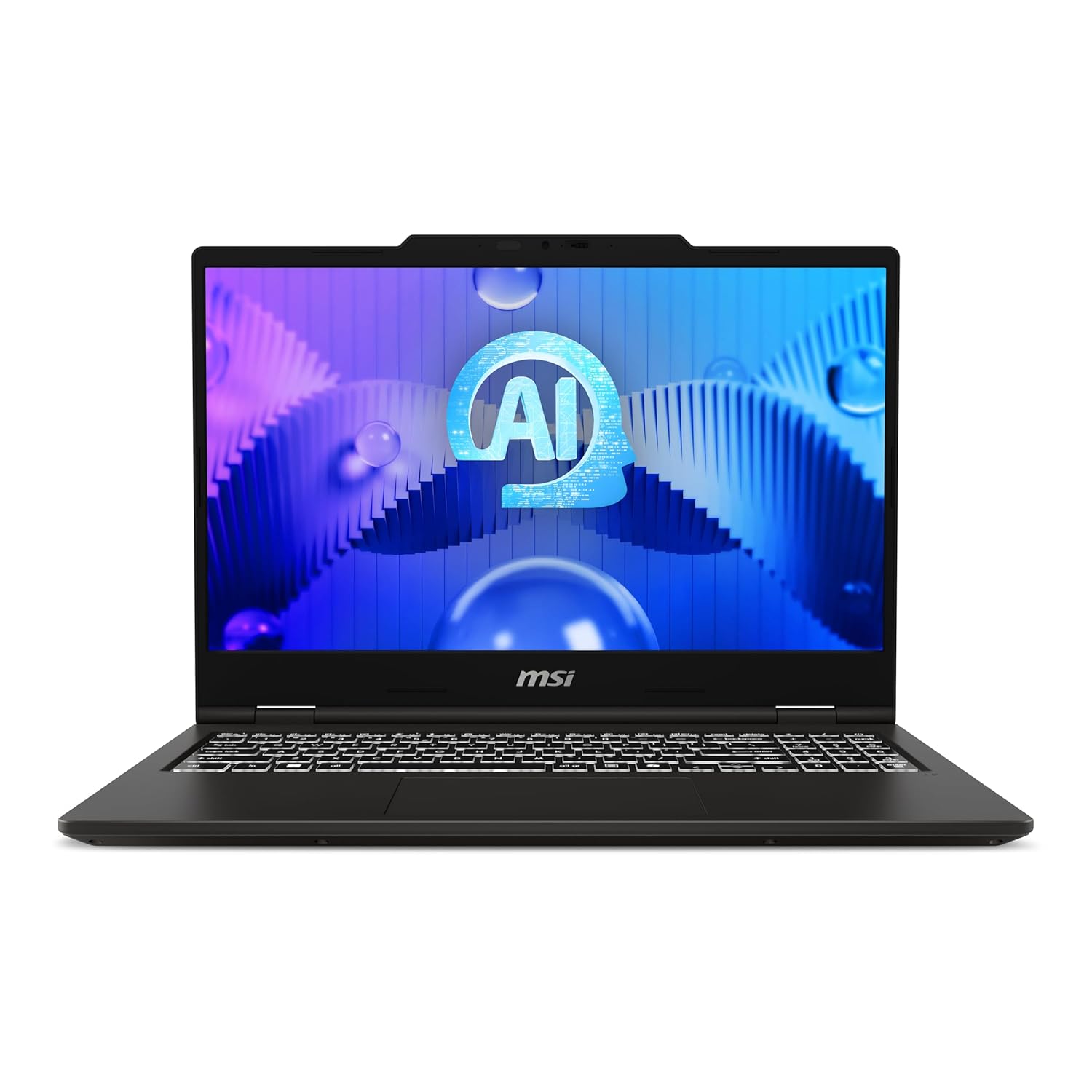
Figure 1: Front view of the MSI Venture 15 AI Laptop with the AI logo displayed on the screen.
Setup
- Connect Power Adapter: Plug the power adapter into the laptop's power input port and then into a wall outlet. It is recommended to fully charge the battery before first use.
- Power On: Open the laptop lid and press the power button, typically located on the keyboard deck.
- Initial Windows Setup: Follow the on-screen instructions to complete the Windows 11 Home setup. This includes selecting your region, language, connecting to a Wi-Fi network, and creating a user account.
- Software Activation: Your laptop comes with pre-installed Microsoft Office Home & Student 2021. Follow the prompts to activate it using your Microsoft account. The MSI Center software is also pre-installed for system management.
- Connect Peripherals: Connect any external devices such as a mouse, keyboard, or external monitor to the available USB or HDMI ports.

Figure 2: Front-left angled view of the MSI Venture 15 AI Laptop, showcasing the display and keyboard.
Operating Your Laptop
The MSI Venture 15 AI laptop is designed for intuitive use. Here are some key operational aspects:
- Display: The 40cm FHD (1920x1080) 144Hz IPS-Level display provides a smooth visual experience, especially beneficial for fast-paced content.
- Keyboard and Touchpad: Utilize the integrated keyboard for typing and the precision touchpad for navigation. Refer to the Windows settings for customizing touchpad gestures.
- AI Enabled Processor: The Intel Core Ultra 5 125H processor enhances performance and enables smart AI features for optimized workflow and efficiency.
- Connectivity:
- Wi-Fi 6: Connect to high-speed wireless networks for internet access.
- Bluetooth v5.4: Pair with wireless headphones, speakers, and other Bluetooth-enabled devices.
- Ports: The laptop includes 2 USB 3.0 ports, 1 HDMI port, and 1 Ethernet port for various connectivity needs.
- Audio: The laptop features integrated speakers and a headphone jack for audio output.
- MSI Center: This pre-installed software allows you to monitor system performance, customize settings, and manage various features of your MSI laptop.

Figure 3: Close-up view of the keyboard and touchpad area of the MSI Venture 15 AI Laptop.
Maintenance
Proper maintenance ensures the longevity and optimal performance of your laptop:
- Cleaning:
- Use a soft, lint-free cloth to clean the screen and exterior. Avoid harsh chemicals.
- Use compressed air to clear dust from keyboard keys and ventilation grilles.
- Battery Care:
- Avoid extreme temperatures.
- For long-term storage, charge the battery to about 50-60%.
- Periodically discharge and recharge the battery to maintain its health.
- Software Updates: Regularly check for and install Windows updates, driver updates (especially for graphics and chipset), and MSI Center updates to ensure system stability and security.
- Storage Management: Periodically clean up unnecessary files and applications to maintain optimal performance of the 512GB NVMe PCIe Gen4 SSD.

Figure 4: Bottom view of the MSI Venture 15 AI Laptop, highlighting the ventilation grilles.
Troubleshooting
If you encounter issues with your laptop, consider the following common solutions:
| Problem | Possible Solution |
|---|---|
| Laptop does not power on. | Ensure the power adapter is securely connected to both the laptop and a working power outlet. Check if the power outlet is functional. Try a different outlet. |
| Display is blank or black. | Press Fn + F2 (or the key with a display icon) to toggle display output. Ensure the laptop is not connected to an external monitor that is turned off. Restart the laptop. |
| Wi-Fi connection issues. | Check if Wi-Fi is enabled (Fn + F4 or check Windows settings). Restart your router/modem. Update Wi-Fi drivers via Device Manager. |
| Slow performance. | Close unnecessary applications. Check Task Manager for high CPU/memory usage. Ensure sufficient free space on the SSD. Run a virus scan. |
| Audio not working. | Check volume levels and mute settings. Ensure correct audio output device is selected. Update audio drivers. |
For more complex issues, refer to the MSI support website or contact customer service.
Specifications
| Feature | Detail |
|---|---|
| Brand | MSI |
| Model Name | Venture 15 AI A1MG |
| Item Model Number | 9S7-15Q221-005 |
| Processor | Intel Core Ultra 5 125H (Up To 4.5GHz) |
| Memory (RAM) | 16GB DDR5 RAM (up to 5600 MHz) |
| Storage | 512GB NVMe PCIe Gen4 SSD |
| Display | 40cm (15.6-inch) FHD 1920x1080, 144Hz 45%NTSC IPS-Level |
| Graphics | Intel Arc Graphics (Dedicated) |
| Operating System | Windows 11 Home (Pre-loaded) |
| Wireless Connectivity | Wi-Fi 6, Bluetooth v5.4 |
| Ports | 2x USB 3.0, 1x HDMI, 1x Ethernet |
| Battery | 4-cell, 55.2 Watt Hours (Included) |
| Dimensions (Package) | 46.4 x 32 x 8.9 cm |
| Item Weight | 1.9 kg |
| Color | Solid Gray |
Warranty and Support
Your MSI Venture 15 AI laptop comes with a manufacturer's warranty. Please refer to the warranty card included in the packaging or visit the official MSI website for detailed warranty terms and conditions specific to your region.
For technical support, driver downloads, and frequently asked questions, please visit the official MSI support website. You can also find contact information for customer service there.
MSI Support Website: www.msi.com/support
Keep your purchase receipt and the product's serial number handy when contacting support.


