
Introduction
This manual provides detailed instructions for the 8Bitdo Ultimate 2 Bluetooth Controller. It covers setup, operation, maintenance, and troubleshooting to ensure optimal performance and longevity of your device. Please read this manual thoroughly before using the controller.

Front view of the 8Bitdo Ultimate 2 Bluetooth Controller in white, resting on its integrated charging dock. The controller features illuminated joysticks and standard button layout.
Package Contents
- 8Bitdo Ultimate 2 Bluetooth Controller
- Integrated Charging Dock
- 2.4G USB Adapter (stored in dock)
- USB-C Charging Cable
- User Manual (this document)
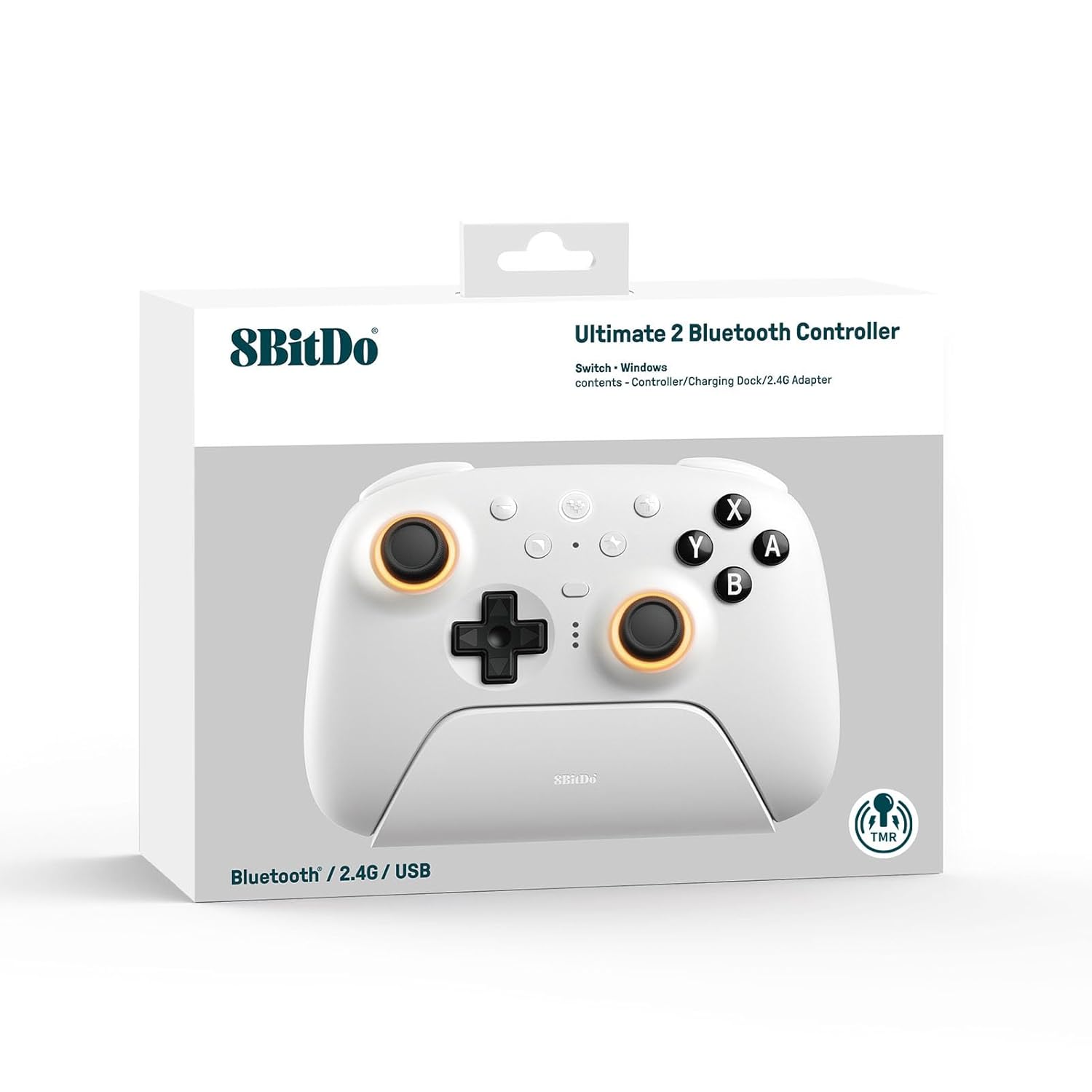
The retail packaging for the 8Bitdo Ultimate 2 Bluetooth Controller, showing the controller and its charging dock. The box highlights compatibility with Switch and Windows.
Setup
1. Initial Charging
Before first use, fully charge the controller using the integrated charging dock or a USB-C cable. The LED indicators on the controller will show charging status.

An angled view of the 8Bitdo Ultimate 2 Bluetooth Controller securely placed on its charging dock, ready for charging or display.
2. Firmware Update (Recommended)
For optimal performance and compatibility, especially with Switch 2, it is highly recommended to update the controller's firmware using the 8Bitdo Ultimate Software V2. This software is available for download from the official 8Bitdo website.
- Download and install 8Bitdo Ultimate Software V2 on your PC.
- Connect the controller to your PC via USB-C cable or the 2.4G USB adapter.
- Follow the on-screen instructions in the software to update the firmware.

A visual representation of the 8Bitdo Ultimate Software V2 interface, showing customization options for the controller's buttons, triggers, and RGB lighting.
3. Connecting to Devices
The 8Bitdo Ultimate 2 Bluetooth Controller supports multiple connection modes:
A. Nintendo Switch / Switch 2 (Bluetooth)
- On your Switch, go to System Settings > Controllers and Sensors > Disconnect Controllers (if any are connected).
- Select "Change Grip/Order".
- On the 8Bitdo controller, press and hold the Pair button (located on the top edge) until the LEDs start flashing rapidly.
- The Switch will detect the controller. Once connected, the player indicator LEDs on the bottom of the controller will light up solid.
Note: Ensure your Switch firmware is up to date. For Switch 2 compatibility, the controller firmware must also be updated.

A user holding the 8Bitdo Ultimate 2 Bluetooth Controller while playing on a Nintendo Switch console, demonstrating its compatibility.
B. Windows PC (2.4G Wireless via USB Adapter)
- Locate the 2.4G USB adapter stored in the bottom of the charging dock.
- Plug the 2.4G USB adapter into an available USB port on your Windows PC.
- On the 8Bitdo controller, slide the mode switch on the back to the "2.4G" position.
- The controller will automatically connect to the adapter. The player indicator LEDs will light up solid.

A user playing on a laptop with the 8Bitdo Ultimate 2 Bluetooth Controller, with the 2.4G USB adapter visible next to the charging dock, illustrating the wireless PC connection.
For direct USB-C wired connection to PC, simply connect the controller to your PC using a USB-C cable. The controller will be recognized as a standard gamepad.
Operating the Controller
Key Features and Functions
- TMR Joysticks: High sensitivity, precision, and durability with RGB Fire Ring and wear-resistant joystick rings.
- Trigger Mode Switch: Easily switch between linear Hall Effect triggers and non-linear tactile triggers.
- Pro-level Back Buttons: Two customizable back buttons (P1, P2) for advanced gameplay.
- Extra R4/L4 Bumpers: Additional shoulder buttons for more control options.
- Tactile Bumpers and D-pad: Responsive and satisfying button presses.
- Vibration and Motion Control: Supported on Switch (motion control not supported on Switch 2).
- Turbo Function: Assign rapid fire to any button.
- Wake-on-shake: Not supported on Switch 2.
- Custom Profiles: Store up to 3 custom profiles using 8Bitdo Ultimate Software V2.

A close-up view of the controller's TMR joysticks, highlighting the vibrant RGB lighting around the base of the sticks.

Detail shot of the controller's back buttons (P1, P2) and the tactile D-pad, showcasing their ergonomic placement.
Using the 8Bitdo Ultimate Software V2
The Ultimate Software V2 allows for extensive customization of your controller:
- Button Mapping: Remap any button to your preference.
- Trigger Adjustment: Fine-tune trigger sensitivity and dead zones.
- Vibration Control: Adjust vibration intensity.
- Macro Creation: Program complex button sequences.
- RGB Lighting: Customize joystick RGB effects (Fire Ring, Light-tracing, Rainbow Ring).

A composite image displaying various customization screens within the 8Bitdo Ultimate Software V2, including button remapping, trigger sensitivity, and RGB effects.
Maintenance
Cleaning the Controller
- Use a soft, dry cloth to wipe down the controller regularly.
- For stubborn dirt, slightly dampen the cloth with water or a mild, non-abrasive cleaner. Avoid excessive moisture.
- Do not use harsh chemicals, solvents, or abrasive materials, as these can damage the controller's finish.
- Pay special attention to the textured grips and button crevices.
Storage
- Store the controller in a cool, dry place away from direct sunlight and extreme temperatures.
- When not in use, placing the controller on its charging dock helps keep it charged and protected.
Troubleshooting
| Problem | Possible Cause | Solution |
|---|---|---|
| Controller not connecting to Switch/PC. | Incorrect mode selected, low battery, interference, outdated firmware. | Ensure correct mode (Bluetooth for Switch, 2.4G for PC) is selected on the back switch. Charge the controller. Move closer to the console/PC. Update controller firmware via Ultimate Software V2. |
| Controller not charging. | Charging dock not powered, faulty cable, dirty charging contacts. | Ensure the charging dock is properly connected to power. Try a different USB-C cable. Clean the charging contacts on both the controller and the dock. |
| Input lag or dropped connections. | Wireless interference, distance from receiver, low battery. | Reduce distance between controller and console/PC. Minimize other wireless devices. Ensure controller is fully charged. |
| Joysticks drifting or unresponsive. | Calibration issue, physical debris, software glitch. | Recalibrate joysticks using 8Bitdo Ultimate Software V2. Check for debris around the joystick base. Perform a factory reset (refer to 8Bitdo support for specific steps). |
Specifications
- Model Number: 6922621507079
- Compatibility: Nintendo Switch, Switch 2, Windows PC
- Connectivity: Bluetooth, 2.4G Wireless (via USB adapter), USB-C Wired
- Joysticks: TMR Joysticks with RGB lighting
- Triggers: Switchable Hall Effect / Tactile Triggers
- Buttons: Standard face buttons (A, B, X, Y), D-pad, L1/R1, L2/R2, L3/R3, P1/P2 (back buttons), R4/L4 (extra bumpers), Home, Capture, Plus, Minus, Star.
- Special Features: Vibration, Motion Control (Switch only), Turbo Function, 3 Custom Profiles via Ultimate Software V2.
- Battery: 1 Lithium Polymer battery (included)
- Dimensions: 3.94 x 3.94 x 0.79 inches
- Weight: 1.76 ounces
- Manufacturer: 8BitDo
- Country of Origin: China
Warranty and Support
For warranty information and technical support, please visit the official 8Bitdo website or contact their customer service. Keep your purchase receipt as proof of purchase for warranty claims.
Official 8Bitdo Website: www.8bitdo.com
Support Page: support.8bitdo.com


