
1. Introduction
This manual provides detailed instructions for the setup, operation, and maintenance of your TSQQST Wireless Keyboard Case. Please read this manual thoroughly before use to ensure optimal performance and longevity of your device.
2. Compatibility
This keyboard case is designed for specific iPad models:
- iPad (A16) 11th Generation 11-inch 2025 (Models: A3354, A3355, A3356)
- iPad 10th Generation 10.9-inch 2022 (Models: A2757, A2777, A2696)
Please verify your iPad model number before installation to ensure compatibility.

Figure 2.1: Visual guide on how to locate your iPad's model number through the device settings.
3. Package Contents
Ensure all items are present in the package:
- TSQQST Wireless Keyboard Case
- USB-C Charging Cable
- User Manual
4. Setup
4.1. iPad Installation and Removal
Follow these steps to correctly install or remove your iPad from the keyboard case:
- Align the iPad's bottom edge with the keyboard case's bottom slot.
- Gently press the iPad down into the case, ensuring it is securely seated.
- Press and hold the middle of the upper edge of the iPad to fully secure it.
- Press the top corners to ensure the iPad is fully enclosed and protected by the case.
To remove the iPad, reverse the steps: gently push the top corners to detach, then lift the iPad from the case.
Video 4.1: Demonstrates the process of installing and removing the iPad from the TSQQST Keyboard Case.
4.2. Bluetooth Pairing
To connect the keyboard to your iPad via Bluetooth:
- Ensure the keyboard is charged (see 4.3).
- Turn on the keyboard by pressing the power button (usually located on the side or top edge of the keyboard). The indicator light will flash.
- On your iPad, go to Settings > Bluetooth and turn Bluetooth ON.
- Look for 'iPad keyboard' or a similar name in the 'Other Devices' list and tap to connect.
- If prompted, enter the pairing code displayed on your iPad screen using the keyboard, then press Enter.
- Once connected, the indicator light on the keyboard will stop flashing.
Video 4.2: Demonstrates the Bluetooth pairing process and shows the keyboard's backlight feature.
4.3. Charging the Keyboard
Connect the provided USB-C charging cable to the keyboard's charging port and to a USB power adapter. The charging indicator light will illuminate during charging and turn off when fully charged. A full charge typically takes approximately 2 hours and provides up to 90 days of power.

Figure 4.3: The keyboard's USB-C charging port and digital LED display for battery status.
5. Operating Instructions
5.1. Keyboard and Multi-Touch Trackpad
The integrated keyboard and multi-touch trackpad allow for laptop-like functionality. The trackpad supports various multi-touch gestures for navigation and control, similar to a MacBook trackpad.
- Backlit Keys: The keyboard features 7-color backlighting with 3 adjustable brightness levels. Use the dedicated backlight key (often marked with a lightbulb icon or combined with 'Fn' key) to cycle through colors and brightness settings.
- Shortcut Keys: The top row of keys includes iOS-specific shortcut functions for quick access to common commands (e.g., volume, media control, search).
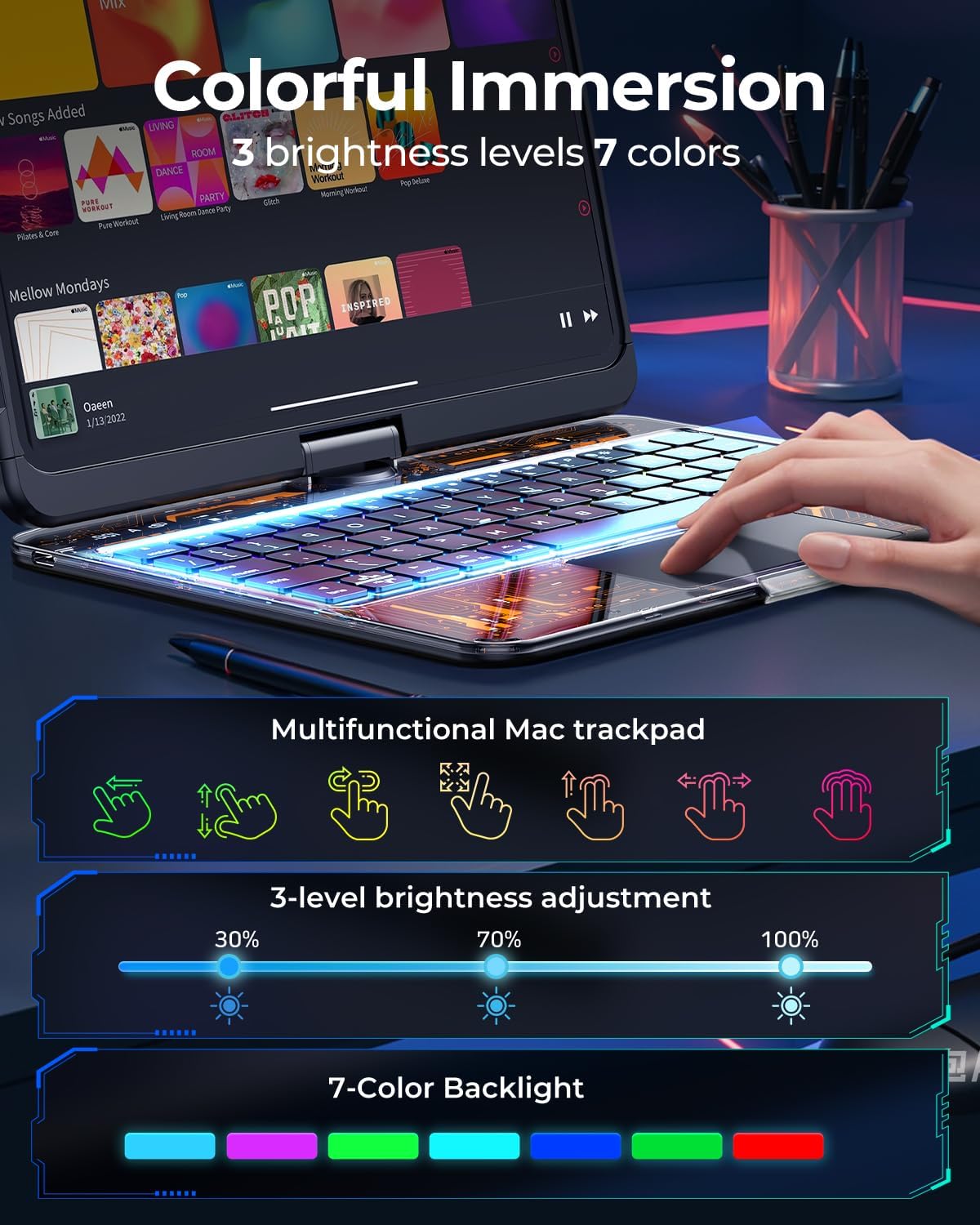
Figure 5.1: The multi-touch trackpad and customizable 7-color backlit keys with 3 brightness levels.
Video 5.2: Demonstrates the functional use of the keyboard and trackpad for various tasks.
5.2. 360° Rotating Stand & Viewing Angles
The case features a 360° rotatable hinge, allowing you to adjust your iPad to multiple viewing angles for typing, drawing, watching videos, or video calls. The robust hinge ensures stability in any position.
Video 5.3: Illustrates the 360° rotation capability of the keyboard case for flexible viewing.
5.3. Retractable Pencil Holder
A convenient retractable pencil holder is integrated into the case, providing secure storage for your Apple Pencil or other stylus. Simply slide it out when needed and retract it for a sleek profile.

Figure 5.4: The retractable design of the pencil holder for secure storage.
6. Maintenance
To maintain your keyboard case in optimal condition:
- Clean the case and keyboard with a soft, damp cloth. Avoid harsh chemicals or abrasive materials.
- Keep the charging port free from dust and debris.
- Avoid exposing the case to extreme temperatures or direct sunlight for prolonged periods.
7. Troubleshooting
7.1. Keyboard Not Connecting via Bluetooth
- Ensure the keyboard is powered on and fully charged.
- Turn off and then turn on Bluetooth on your iPad.
- Forget the device in your iPad's Bluetooth settings and attempt to re-pair.
- Restart your iPad and the keyboard.
7.2. Backlight Not Working
- Ensure the keyboard is powered on.
- Press the backlight key (or Fn + backlight key) to activate or adjust brightness/color.
- Check battery level; low battery may disable backlight.
7.3. Trackpad Unresponsive
- Ensure the keyboard is connected via Bluetooth.
- Check iPad settings for trackpad functionality.
- Restart the iPad and keyboard.
8. Specifications
| Product Dimensions | 10.07 x 8.3 x 0.9 inches |
| Item Weight | 1.74 pounds |
| Manufacturer | TSQQST |
| ASIN | B0F2H32DN3 |
| Batteries | 1 Nonstandard Battery (included) |
| Compatible Devices | Tablets, iPad 10th Gen 10.9-in 2022, iPad A16 11th Gen 11-in 2025 |
| Form Factor | Case |
| Shell Type | Hard |
9. Warranty and Support
This product comes with a standard manufacturer's warranty. For specific warranty details, technical support, or customer service inquiries, please refer to the contact information provided on the product packaging or the official TSQQST website.