
Introduction
This manual provides essential information for the proper use and maintenance of your Kruger&Matz EDGE 1089 2-in-1 Tablet. Please read this manual thoroughly before operating the device to ensure optimal performance and longevity. This device combines the functionality of a laptop with the portability of a tablet, running on Windows 11 Pro.
Safety Information
- Do not expose the device to extreme temperatures, direct sunlight, or high humidity.
- Avoid dropping or subjecting the device to strong impacts.
- Use only the original charger and accessories provided with the device.
- Keep the device away from water and other liquids.
- Do not attempt to disassemble or repair the device yourself. Contact qualified service personnel for assistance.
- Ensure proper ventilation when using the device to prevent overheating.
Product Overview
The Kruger&Matz EDGE 1089 is a versatile 2-in-1 device designed for both productivity and entertainment. It features a detachable keyboard, allowing seamless transition between tablet and laptop modes.
Device Components
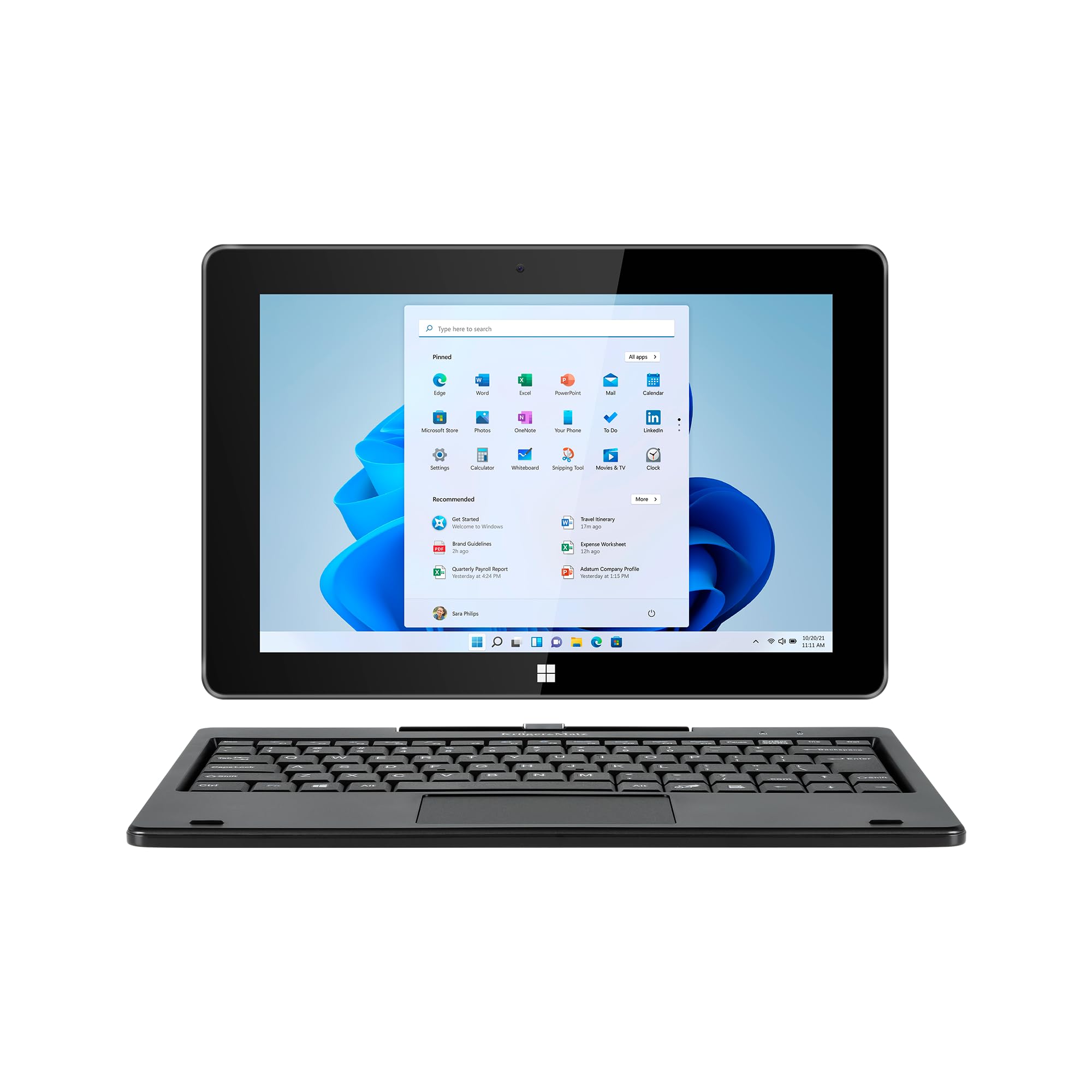
The Kruger&Matz EDGE 1089 2-in-1 Tablet in laptop mode, showcasing the Windows 11 operating system interface.

Front and back views of the tablet, emphasizing its design and the Windows 11 operating system.
Ports and Connectors
The tablet and keyboard are equipped with various ports for connectivity and expansion:

Detailed view of the tablet's ports, including the 3.5mm audio jack, USB-C port, mini HDMI output, USB 3.0 port, charging port, and microSD card slot.
- USB Type-C: For data transfer.
- Mini HDMI: For connecting to external displays.
- USB 3.0: High-speed data transfer.
- USB 2.0 (on keyboard): For connecting peripherals.
- 3.5mm Headphone Jack: For audio output.
- MicroSD Card Reader: Supports up to 128 GB for expanded storage.
- Charging Port: For power input.
Keyboard
The full-size QWERTY keyboard attaches magnetically to the tablet, providing a traditional typing experience and a touchpad for navigation.

The detachable QWERTY keyboard, featuring a standard layout and integrated touchpad.

Side view of the keyboard, illustrating the additional USB 2.0 port for connecting accessories.
Setup
Unpacking
Carefully remove all components from the packaging. Ensure the following items are present:
- Kruger&Matz EDGE 1089 Tablet
- Detachable Keyboard (Model KM1089.1 only)
- Power Adapter (Charger)
- USB Cable
- User Manual (this document)
Attaching the Keyboard
Align the magnetic connector on the tablet with the corresponding connector on the keyboard. The keyboard will snap into place securely. To detach, gently pull the tablet away from the keyboard.
Initial Power On and Windows 11 Pro Setup
- Press and hold the power button located on the side of the tablet until the screen turns on.
- Follow the on-screen instructions to complete the initial setup of Windows 11 Pro. This includes selecting your language, region, connecting to a Wi-Fi network, and creating a user account.
- It is recommended to connect to the internet during setup to ensure the latest updates are installed.
Charging the Device
Connect the provided power adapter to the charging port on the tablet and then plug it into a power outlet. The battery indicator on the screen will show the charging status. For first use, it is recommended to fully charge the device.
Operating Instructions
Basic Tablet Functions
- Touchscreen Navigation: Use your fingers to tap, swipe, pinch-to-zoom, and scroll on the IPS multi-touch display.
- Power Button: Press briefly to put the tablet to sleep or wake it up. Press and hold to access power options (Shut down, Restart).
- Volume Buttons: Adjust the audio output level.
Using the Keyboard and Touchpad
When the keyboard is attached, the tablet functions like a traditional laptop. Use the QWERTY keys for typing and the touchpad for cursor control.

A hand interacting with the integrated touchpad on the detachable keyboard.
- Typing: Use the physical keys for faster and more accurate text input.
- Touchpad: Functions like a mouse. Tap to click, two-finger scroll, and other Windows gestures may be supported.
Connecting Peripherals
- Wi-Fi: Go to Windows Settings > Network & Internet > Wi-Fi to connect to available wireless networks. Supports 802.11 b/g/n/ac (2.4 GHz / 5 GHz).
- Bluetooth: Go to Windows Settings > Bluetooth & devices to pair with Bluetooth accessories like headphones or mice. Supports Bluetooth 4.2.
- External Display (HDMI): Connect a mini HDMI cable from the tablet to an external monitor or TV. Adjust display settings in Windows.
- USB Devices: Plug USB drives, mice, or other peripherals into the USB 3.0 port on the tablet or the USB 2.0 port on the keyboard.
Power Management
- Sleep Mode: Briefly press the power button.
- Shut Down: Click the Start button, then Power > Shut down.
- Restart: Click the Start button, then Power > Restart.
Maintenance
Cleaning the Device
- Use a soft, lint-free cloth to clean the screen and exterior surfaces.
- For stubborn marks, slightly dampen the cloth with water or a screen cleaner designed for electronics.
- Avoid using harsh chemicals, abrasive cleaners, or aerosol sprays.
- Ensure the device is powered off and unplugged before cleaning.
Battery Care
- To prolong battery life, avoid fully discharging the battery frequently.
- Store the device in a cool, dry place if not used for extended periods.
- Do not expose the battery to high temperatures.
Software Updates
Regularly check for and install Windows updates to ensure your system has the latest security patches and performance improvements. Go to Windows Settings > Windows Update.
Troubleshooting
| Problem | Possible Solution |
|---|---|
| Device does not power on. | Ensure the device is charged. Connect the charger and wait a few minutes before attempting to power on again. |
| Wi-Fi connection issues. | Check if Wi-Fi is enabled in Windows settings. Restart your router and the tablet. Ensure you are within range of the Wi-Fi signal. |
| Keyboard or touchpad not responding. | Ensure the keyboard is securely attached to the tablet. Detach and reattach the keyboard. Restart the tablet. |
| Screen is unresponsive. | Restart the tablet. If the issue persists, ensure the screen is clean and free of debris. |
| Slow performance. | Close unnecessary applications. Check for and install Windows updates. Consider running a disk cleanup. |
Factory Reset
If you encounter persistent software issues, a factory reset may resolve them. This will erase all data on the device. To perform a factory reset, go to Windows Settings > System > Recovery > Reset this PC. Follow the on-screen prompts carefully.
Specifications
| Feature | Detail |
|---|---|
| Model Name | KM1089.1 |
| Operating System | Windows 11 Pro |
| Processor | Intel® Celeron® N4020, Dual Core (1.1 GHz, max. 2.8 GHz) |
| Graphics | Intel® UHD Graphics 600 (Integrated) |
| RAM | 8 GB DDR3 |
| Internal Storage | 256 GB SSD |
| Display | 10.1-inch IPS Capacitive Multi-touch Panel |
| Resolution | 1280 x 800 pixels (16:9 aspect ratio) |
| Cameras | Rear: 2 Mpx, Front: 2 Mpx |
| Audio | 2x 1W Speakers, Microphone |
| Connectivity | Wi-Fi: 802.11 b/g/n/ac (2.4 GHz / 5 GHz), Bluetooth: 4.2 |
| Ports | USB Type-C (data), Mini HDMI, USB 3.0, USB 2.0 (on keyboard), 3.5mm Headphone Jack, MicroSD Card Reader (max 128 GB), Charging Port |
| Battery | 3000 mAh (7.4 V) |
| Charger | 12 V, 2 A |
| Tablet Dimensions | 258 x 173 x 10 mm (L x W x H) |
| Tablet with Keyboard Dimensions | 258 x 182 x 22 mm (L x W x H) |
| Tablet Weight | 635 g |
| Tablet with Keyboard Weight | 1100 g |
| Color | Black |
Warranty and Support
For warranty information and technical support, please refer to the warranty card included with your product or visit the official Krüger&Matz website. Keep your proof of purchase for warranty claims.