
1. Introduction
This manual provides essential information for setting up, operating, maintaining, and troubleshooting your Dell 27 All-in-One Desktop, model EC27250. This system integrates all computer components into a single unit with a 27-inch Full HD display, designed for efficiency and a clutter-free workspace.
2. What's in the Box
Verify that all items are present in the packaging:
- Dell 27 All-in-One EC27250 Desktop
- Dell Pro Keyboard and Mouse-KM5221W White (Copilot)-US English
- Power Cord
- Documentation (including this manual)
3. Product Features
The Dell 27 All-in-One Desktop EC27250 offers a range of features designed for an enhanced user experience:
- Immersive Visuals: A 27-inch FHD IPS display with 99% sRGB and high contrast for vivid, true-to-life colors.
- Eye Comfort: Dell ComfortView Plus technology reduces harmful blue light emissions for comfortable long screen sessions.
- Innovative Design: A space-saving stand allows for keyboard storage underneath the display, keeping your area clutter-free.
- High-Quality Video Conferencing: HDR technology on the 5MP+IR pop-up camera ensures clear visuals in various lighting conditions. The camera can be tilted from 0 to 20 degrees and pushed down for privacy.
- Wireless Audio: Dual Bluetooth speakers with Dolby Atmos spatial sound provide clear audio for media and communication.


4. Setup Instructions
Follow these steps to set up your Dell 27 All-in-One Desktop:
- Unpack the System: Carefully remove the All-in-One desktop, keyboard, mouse, and power cord from the packaging.
- Connect Power: Plug the power cord into the DC-in port on the back of the desktop, then into a power outlet.
- Connect Keyboard and Mouse: The Dell Pro Keyboard and Mouse-KM5221W are wireless. Locate the USB dongle, typically found in the mouse's battery compartment, and plug it into an available USB port on the back of the desktop. Ensure batteries are installed in both the keyboard and mouse.
- Initial Boot-up: Press the power button to turn on the system. Follow the on-screen instructions to complete the Windows 11 Home setup.
- Connect Peripherals: Connect any additional peripherals such as external drives, printers, or other devices to the available ports.

Setup Video Guide
This video provides a comprehensive guide to unboxing, connecting peripherals, and initial setup of your Dell All-in-One Desktop.
Learn essential tips and considerations for setting up your Dell All-in-One Desktop for optimal performance.
5. Operating Instructions
Your Dell 27 All-in-One Desktop runs on Windows 11 Home, offering a user-friendly interface. Here are some key operating aspects:
- Power On/Off: Press the power button located on the back of the display to turn the system on or off. Use the Windows Start menu for proper shutdown.
- Display Settings: Utilize Dell CinemaColor to adjust display settings for optimal viewing of movies, sports, or general use. Dell ComfortView Plus can be activated to reduce blue light for eye comfort.
- Webcam Usage: To use the integrated 5MP+IR pop-up webcam, gently press the top of the camera module to extend it. Push it back down to retract it for privacy.
- Audio: Adjust volume using the system tray controls or external keyboard media keys. The dual Bluetooth speakers provide clear sound.
- Touchscreen (if applicable): If your model includes a touchscreen, interact with the display directly using your fingers for navigation and input.
Display and Setup Overview
This video highlights the clean setup and great display features of the Dell 27-inch All-in-One Desktop.
6. Maintenance
Regular maintenance helps ensure the longevity and optimal performance of your Dell All-in-One Desktop:
- Cleaning: Use a soft, lint-free cloth to clean the screen and exterior surfaces. For stubborn smudges, lightly dampen the cloth with water or a screen-safe cleaner. Avoid harsh chemicals.
- Software Updates: Regularly update Windows 11 and Dell drivers to ensure security and performance.
- Ventilation: Ensure the ventilation slots on the back and bottom of the unit are clear of obstructions to prevent overheating.
- Cable Management: Keep cables tidy to prevent damage and maintain airflow.
7. Troubleshooting
If you encounter issues with your Dell All-in-One Desktop, consider these common troubleshooting steps:
- No Power: Check if the power cord is securely connected to both the desktop and the power outlet. Ensure the outlet is functional.
- No Display: Verify the system is powered on. If using an external monitor, check its connections.
- Keyboard/Mouse Not Responding: Ensure the USB dongle is properly inserted and that the keyboard and mouse have fresh batteries.
- Slow Performance: Close unnecessary applications, check for background updates, or restart the system.
- Webcam Issues: Ensure the pop-up camera is fully extended. Check privacy settings in Windows.
For more complex issues, refer to Dell's online support resources or contact customer service.
8. Specifications
| Component | Specification |
|---|---|
| Model Number | DEC27250-7215WHT-PUS |
| Display Size | 27 Inches |
| Screen Resolution | 1920 x 1080 (FHD) |
| Processor | Intel Core 7 150U (1.8 GHz, 10 Cores) |
| RAM | 16 GB DDR5 (5200 MHz) |
| Storage | 1 TB SSD (M.2 PCIe NVMe) |
| Graphics | Intel Graphics (Integrated) |
| Operating System | Windows 11 Home |
| Wireless Connectivity | 802.11ax, Bluetooth |
| USB 3.0 Ports | 5 |
| Item Weight | 13.56 pounds |
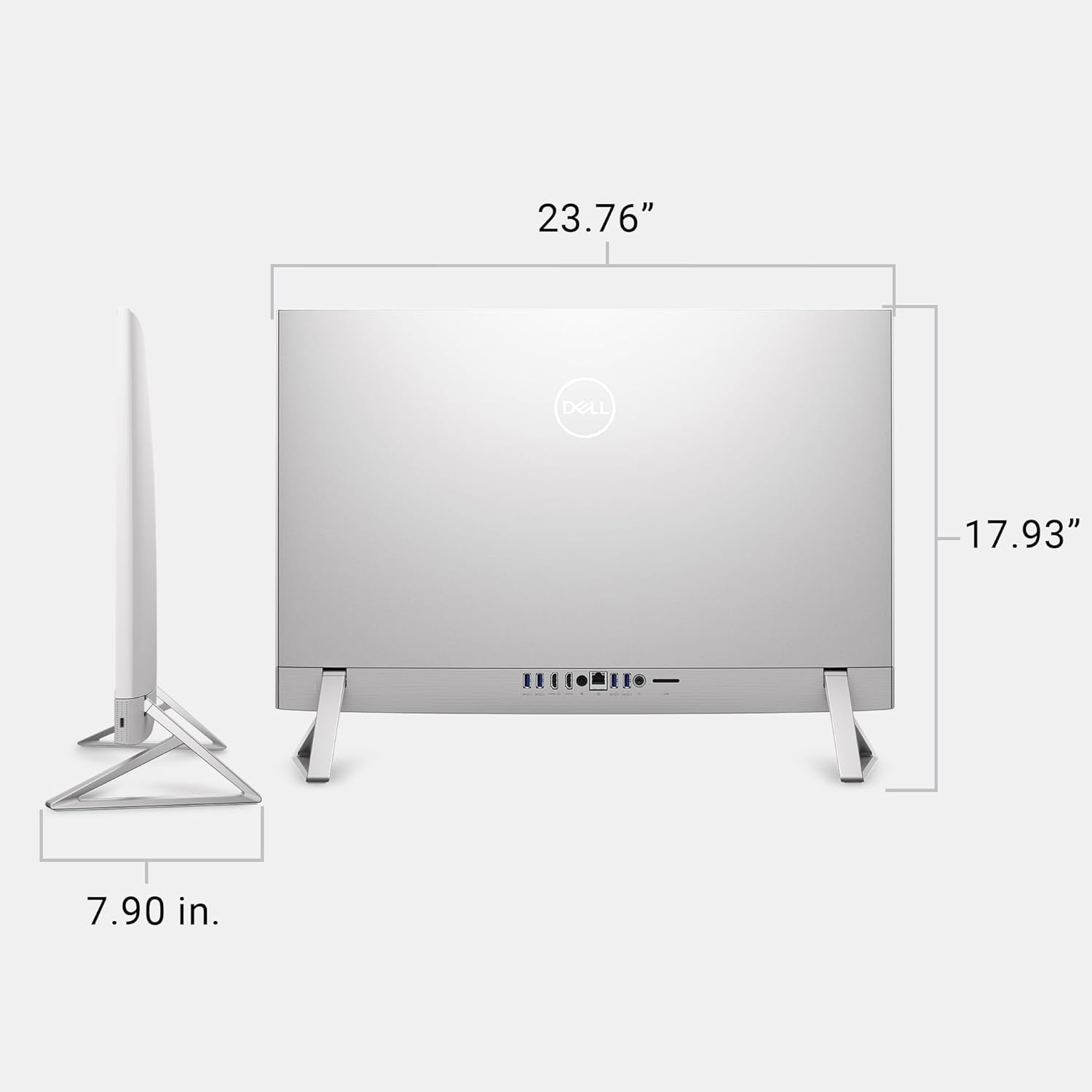
| Product Dimensions | 1.64 x 24.2 x 15.73 inches |

9. Warranty and Support
Your Dell 27 All-in-One Desktop includes the following support:
- 1 Year Onsite Service: Dell provides support at your home, office, or chosen location if an issue covered by the Limited Hardware Warranty cannot be resolved remotely.
- 6 Months Dell Migrate: A simple do-it-yourself tool to transfer your data, personal records, and important files to your new Dell PC.
For detailed warranty terms and support options, please visit the official Dell support website or refer to the documentation included with your product.


