1. Introduction
Thank you for choosing the Hyundai 65-Inch Frameless WebOS 4K UHD Smart LED TV, Model L65HYNDA650. This manual provides essential information for the safe and efficient operation of your new television. Please read it thoroughly before use and retain it for future reference.
2. Safety Information
Always observe the following safety precautions to prevent electric shock, fire, or injury:
- Do not expose the TV to rain or moisture.
- Do not open the TV casing; refer all servicing to qualified personnel.
- Ensure proper ventilation around the TV.
- Unplug the TV during lightning storms or when unused for long periods.
- Keep the TV away from direct sunlight, heat sources, and strong magnetic fields.
3. Package Contents
Verify that all items are present in the package:
- Hyundai 65-Inch Smart LED TV
- Magic Remote Control
- TV Stand components
- User Manual (this document)
- Power Cable
4. Product Overview
The Hyundai L65HYNDA650 is a 65-inch Frameless WebOS 4K UHD Smart LED TV designed for an immersive viewing experience. It features a high-resolution display, smart functionality powered by webOS 2.0, and versatile connectivity options.
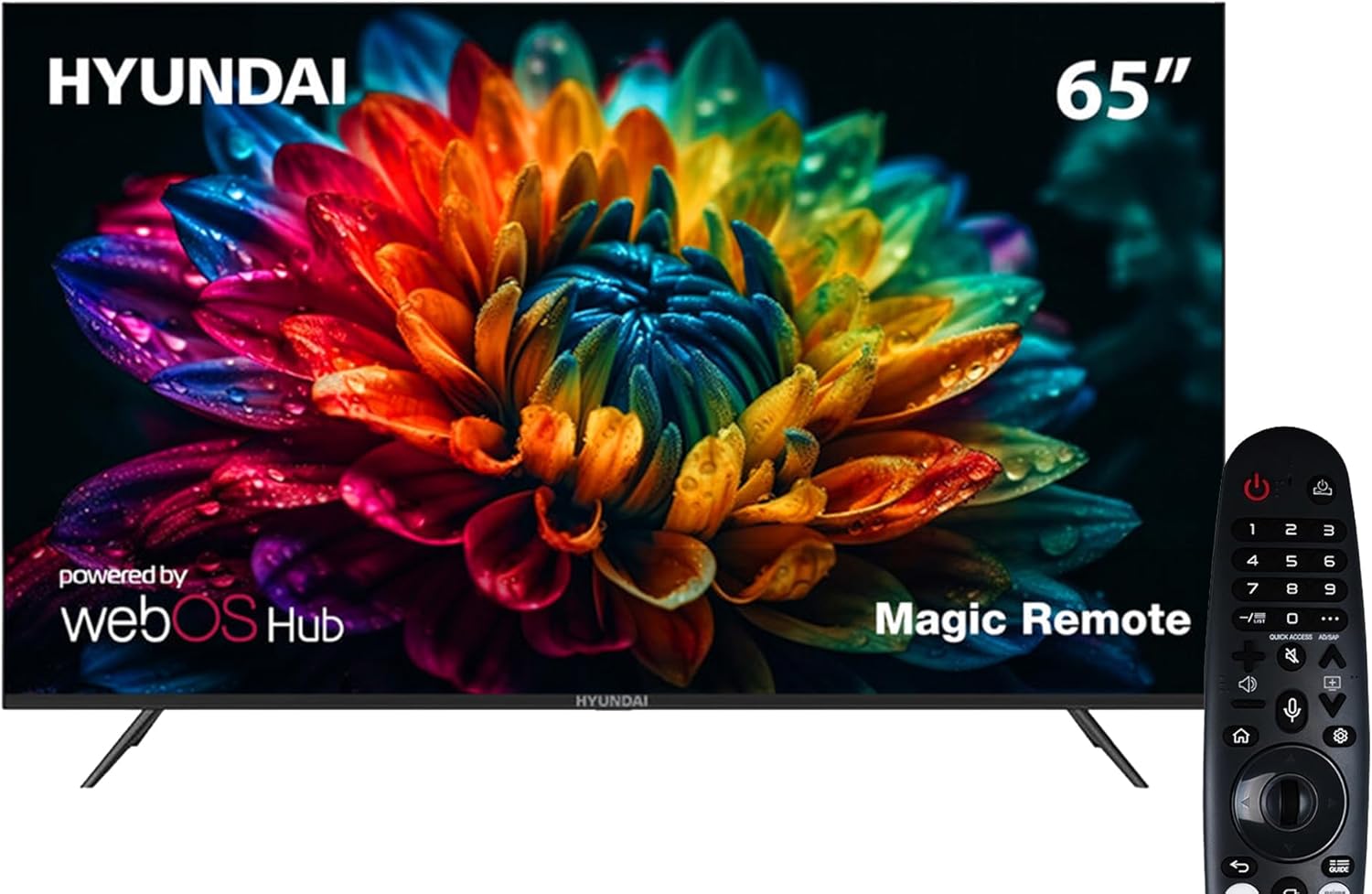
Image 1: Front view of the Hyundai 65-Inch Smart LED TV with the included Magic Remote.
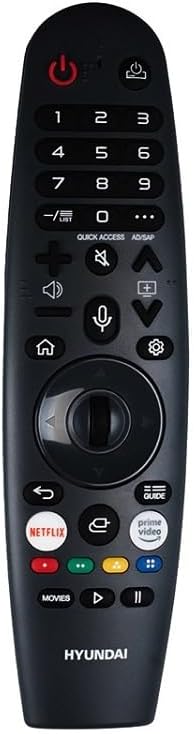
Image 2: The Hyundai Magic Remote Control, featuring dedicated buttons for smart functions and navigation.
5. Setup
5.1 Unpacking
Carefully remove the TV from its packaging. It is recommended to have two people for this process due to the size and weight of the television.
5.2 Stand Installation
To install the TV stand:
- Place the TV screen-down on a soft, flat surface to prevent scratches.
- Align the stand components with the designated slots on the bottom of the TV.
- Secure the stand using the provided screws. Ensure the stand is firmly attached before placing the TV upright.
5.3 Connecting Peripherals
Your TV offers various connectivity options:
- HDMI Ports (x3): Connect external devices such as Blu-ray players, gaming consoles, or set-top boxes.
- USB Ports (x2): Connect USB storage devices for media playback or software updates.
- Antenna/Cable Input: Connect your antenna or cable for the built-in T2/S2 receiver.
- Network (LAN/Wi-Fi): Connect to your home network for internet access and smart features.
- Bluetooth: Pair with compatible audio devices or accessories.
5.4 Initial Power On
After connecting the power cable, press the power button on the TV or the Magic Remote. Follow the on-screen instructions for initial setup, including language selection (English, Arabic, French, German, Italian, Spanish, Dutch), network configuration, and channel scanning.
6. Operating
6.1 Magic Remote Control
The Magic Remote allows intuitive control of your TV. Point and click, use the scroll wheel, or utilize voice commands for navigation. Specific buttons are available for quick access to popular streaming services and settings.
6.2 Basic TV Functions
- Power On/Off: Press the power button on the remote.
- Volume Control: Use the Volume Up/Down buttons.
- Channel Selection: Use the Channel Up/Down buttons or the number pad.
- Input Source: Press the 'Input' button to select between HDMI, USB, or TV tuner.
6.3 Smart Features (webOS 2.0)
Your TV runs on webOS 2.0, providing a user-friendly smart TV experience:
- Home Dashboard: Access apps, connected devices, and settings from the customizable home screen.
- App Store: Download and install additional applications.
- E-share / Screen Mirroring: Wirelessly share content from compatible mobile devices to your TV.
- Bluetooth Connectivity: Connect Bluetooth headphones, soundbars, or other accessories.
7. Maintenance
7.1 Cleaning the TV
- Screen: Gently wipe the screen with a soft, lint-free cloth. For stubborn marks, slightly dampen the cloth with water or a specialized screen cleaner. Do not spray liquid directly onto the screen.
- Casing: Wipe the TV casing with a soft, dry cloth. Avoid using abrasive cleaners or solvents.
7.2 Software Updates
Periodically check for software updates through the TV's settings menu to ensure optimal performance and access to the latest features.
8. Troubleshooting
If you encounter issues, refer to the following common solutions:
| Problem | Possible Solution |
|---|---|
| No power | Check if the power cable is securely connected and the power outlet is working. |
| No picture, but sound is present | Verify the correct input source is selected. Check external device connections. |
| No sound, but picture is present | Check volume level and mute settings. Ensure external audio devices are properly connected. |
| Remote control not working | Replace batteries. Ensure no obstructions between the remote and the TV. Re-pair the Magic Remote if necessary. |
| Cannot connect to Wi-Fi | Check your router and internet connection. Re-enter Wi-Fi password. Try restarting the TV and router. |
| Smart apps not loading | Ensure a stable internet connection. Try restarting the app or the TV. Check for software updates. |
9. Specifications
| Feature | Detail |
|---|---|
| Model Number | L65HYNDA650 |
| Screen Size | 65 Inches |
| Display Technology | LED |
| Resolution | 4K UHD (3840x2160) |
| Refresh Rate | 60Hz |
| Smart Platform | webOS 2.0 |
| RAM | 1.5GB |
| Storage | 8GB |
| Connectivity | 3 HDMI, 2 USB, Bluetooth, Wi-Fi, E-share |
| Built-in Receiver | T2/S2 |
| Audio Output | Dual 8W Speakers |
| Product Dimensions (D x W x H) | 8.4 x 147 x 84 cm |
| Item Weight | 21 kg |
| Special Features | Frameless Design, Magic Remote, UHD 4K |
| Language Support | English, Arabic, French, German, Italian, Spanish, Dutch |
10. Warranty and Support
Your Hyundai TV is covered by a manufacturer's warranty. Please refer to the warranty card included with your product for specific terms and conditions. For technical support or service inquiries, please contact your retailer or the authorized Hyundai service center in your region.


