
1. Introduction
This manual provides essential information for setting up, operating, maintaining, and troubleshooting your HP G9 Laptop. This device is equipped with an Intel Core i3-1315U processor, a 15.6-inch Full HD (FHD) LED display, and runs on Windows 11 Pro. It features comprehensive connectivity options including Wi-Fi 6, Bluetooth 5.3, USB Type-C, USB 3.2 Type-A, HDMI, RJ-45 Ethernet, and an SD card reader.
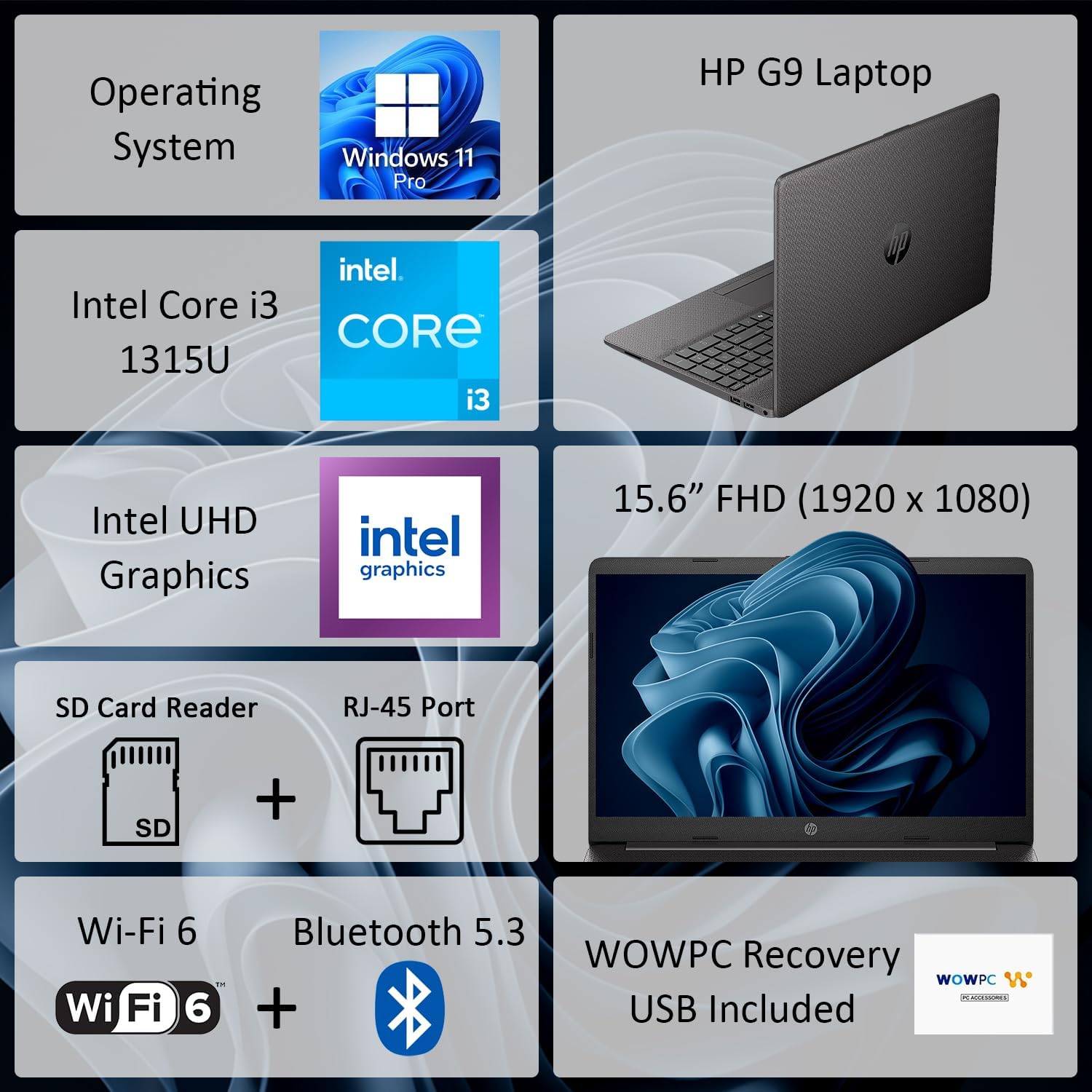
Figure 1: Overview of HP G9 Laptop key features. This image highlights the operating system, processor, graphics, display size, and various connectivity options including Wi-Fi 6 and Bluetooth 5.3.
2. Setup
2.1 Unboxing
Carefully remove the laptop and all accessories from the packaging. Ensure the following items are present:
- HP G9 Laptop
- AC Power Adapter and Power Cord
- WOWPC Recovery USB
- Documentation (Quick Start Guide, Warranty Information)
2.2 Connecting Power
Connect the AC power adapter to the laptop's power port and then plug the power cord into a wall outlet. The laptop can be used while charging, and it is recommended to fully charge the battery before first use.
2.3 Initial Boot and Windows Setup
Press the power button located on the keyboard deck to turn on the laptop. Follow the on-screen instructions to complete the Windows 11 Pro initial setup, which includes selecting your region, language, connecting to a network, and creating a user account.
2.4 Connecting Peripherals
Utilize the available ports to connect external devices such as a mouse, keyboard, or external monitor. Refer to the image below for port locations.

Figure 2: Side view illustrating the various connectivity ports on the HP G9 Laptop. This includes Ethernet, USB Type-C, HDMI, headset jack, SD card reader, USB Type-A ports, and the AC power input.
3. Operating Instructions
3.1 Power Management
- Power On: Press the power button.
- Sleep Mode: Close the lid or select 'Sleep' from the Start Menu.
- Shut Down: Select 'Shut down' from the Start Menu.
3.2 Using the Touchpad and Keyboard
The laptop features a responsive touchpad for navigation and a full-size, island-style keyboard for typing. Familiarize yourself with common Windows gestures for the touchpad and function keys on the keyboard.
3.3 Network Connectivity
Your HP G9 Laptop supports Wi-Fi 6 and Bluetooth 5.3 for wireless connectivity.
- Wi-Fi: Access network settings via the Windows taskbar icon to connect to available wireless networks.
- Bluetooth: Enable Bluetooth in Windows settings to pair with compatible devices such as headphones or mice.
- Ethernet: For a wired connection, plug an Ethernet cable into the RJ-45 port.

Figure 3: The HP G9 Laptop supports Wi-Fi 6 and Bluetooth 5.3 for robust wireless connections.
3.4 Using External Devices
The laptop includes various ports for connecting external devices:
- USB Ports (Type-C, Type-A): For connecting USB drives, external hard drives, and other USB peripherals.
- HDMI: Connect to external displays or projectors.
- SD Card Reader: Insert SD cards for data transfer.
- Headset Jack: Connect headphones or a headset with a microphone.
4. Maintenance
4.1 Cleaning the Laptop
To maintain optimal performance and appearance:
- Use a soft, lint-free cloth dampened with water or a screen cleaner for the display.
- Use compressed air to clear dust from keyboard keys and vents.
- Avoid harsh chemicals or abrasive materials.
4.2 Battery Care
To prolong battery life:
- Avoid extreme temperatures.
- Do not leave the laptop plugged in at 100% charge for extended periods if not in use.
- Perform occasional full discharge and recharge cycles.
4.3 Software Updates
Regularly update your Windows operating system and device drivers to ensure security, stability, and optimal performance. Access Windows Update through the Settings menu.
4.4 Using the WOWPC Recovery USB
The included WOWPC Recovery USB can be used to restore your system to its factory default state in case of severe software issues. Refer to the instructions provided with the USB for detailed steps.
5. Troubleshooting
This section addresses common issues you might encounter with your HP G9 Laptop.
5.1 No Power or Laptop Not Turning On
- Ensure the AC adapter is securely connected to both the laptop and a working power outlet.
- Verify the power outlet is functional by plugging in another device.
- Try holding the power button for 15-20 seconds to perform a hard reset.
5.2 Display Issues
- If the screen is blank, try connecting an external monitor to the HDMI port to check if the issue is with the laptop's display.
- Adjust display brightness using the function keys (F2/F3 or similar, check keyboard icons).
- Ensure display drivers are up to date via Windows Update or HP's support website.
5.3 Network Connectivity Problems
- Wi-Fi: Restart your router and modem. Ensure Wi-Fi is enabled in Windows settings. Run the Windows Network Troubleshooter.
- Bluetooth: Ensure Bluetooth is enabled and the device is in pairing mode. Remove and re-pair the device.
- Ethernet: Check the cable connection. Verify network adapter settings in Windows Device Manager.
5.4 Slow Performance
- Close unnecessary applications running in the background.
- Check Task Manager for processes consuming high CPU, memory, or disk resources.
- Ensure Windows and drivers are updated.
- Run a disk cleanup and defragmentation (for HDDs, not necessary for SSDs).
- Consider running a malware scan.
6. Specifications
Detailed technical specifications for the HP G9 Laptop.

Figure 4: The 15.6-inch Full HD (1920 x 1080) display provides clear visuals.
| Feature | Specification |
|---|---|
| Brand | HP |
| Model Name | HP G9 |
| Processor | Intel Core i3-1315U (up to 4.5 GHz, 6 cores, 8 threads) |
| Graphics | Integrated Intel UHD Graphics |
| Operating System | Windows 11 Pro |
| Display | 15.6" FHD (1920 x 1080) LED |
| RAM Memory | 16 GB DDR4-3200 MHz (expandable up to 64GB) |
| Storage | 1 TB SSD M.2 PCIe NVMe (expandable up to 2TB) |
| Wireless Connectivity | Realtek Wi-Fi 6 RTL8852BE (1x1) and Bluetooth 5.3 |
| Ports | 1x RJ-45 Ethernet, 1x SD Card Reader, 1x USB Type-C, 2x USB 3.2 Type-A, 1x HDMI, 1x AC Power, 1x Stereo Headphone/Microphone Combo Jack |
| Camera | 720p HD camera |
| Audio | Dual stereo speakers, dual array microphones |
| Battery | 3-cell, 41 Wh Li-ion |
| Dimensions (L x W x H) | 14.09 x 9.52 x 0.78 inches |
| Weight | Starting at 3.84 lbs |
7. Warranty and Support
7.1 Limited Warranty
Your HP G9 Laptop comes with a Limited Warranty. Please refer to the warranty documentation included in your product packaging for specific terms, conditions, and duration of coverage. This warranty typically covers manufacturing defects and hardware failures under normal use.
7.2 Technical Support
For technical assistance, driver downloads, or further support, please visit the official HP support website. You will typically need your product's serial number or model number to access specific support resources.


