
1. Introduction
This manual provides essential information for setting up, operating, and maintaining your ArcticPro 34-inch 200Hz Curved Gaming Monitor. Please read this manual thoroughly before using the product to ensure proper function and longevity.
Key Features:
- WQHD Resolution: Experience crystal-clear visuals with a 3440x1440p resolution, offering vivid colors and sharp details.
- 200Hz Refresh Rate: Enjoy smooth, tear-free motion for an immersive viewing experience.
- 1ms Response Time: Achieve rapid pixel response for reduced motion blur and ghosting.
- Adaptive Sync: Synchronizes the monitor's refresh rate with your graphics card to eliminate screen tearing and stuttering.
- VA Panel & Wide Color Gamut: Provides wide viewing angles and accurate color reproduction with 120% sRGB and 85% NTSC coverage.
- Eye Care Features: Includes Low Blue Light and Flicker-Free technology to reduce eye strain during extended use.
2. Setup
2.1 Unpacking
Carefully remove the monitor and all components from the packaging. Ensure all parts listed in the packing list are present and undamaged. Retain the original packaging for future transport or service needs.
2.2 Stand Assembly
The monitor stand is typically detached for shipping. Attach the stand base to the stand neck, then secure the assembled stand to the back of the monitor using the provided screws. Ensure all connections are firm and stable before placing the monitor on a flat surface.
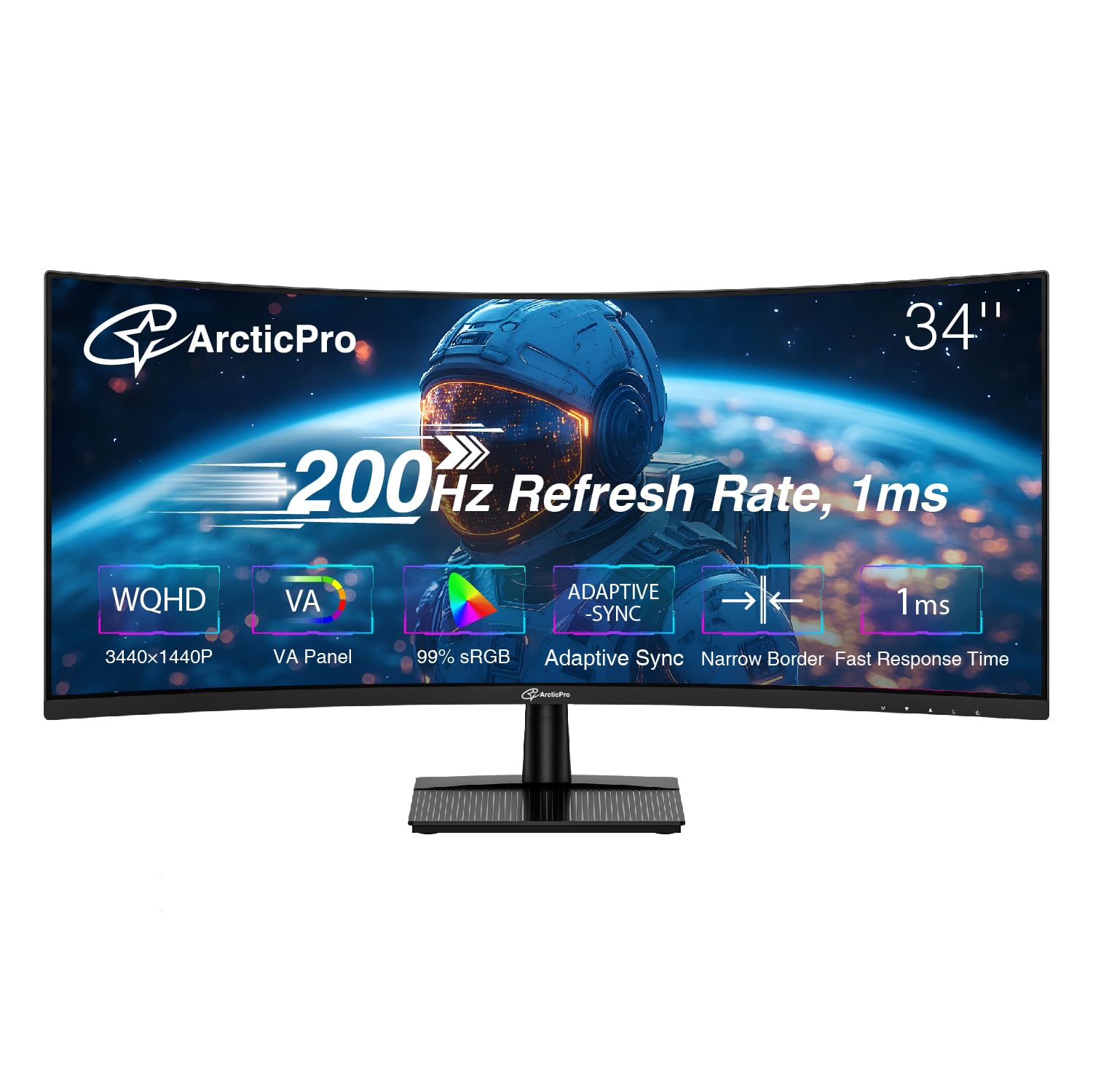
Image: The ArcticPro 34-inch Curved Gaming Monitor securely mounted on its stand.
2.3 Connecting Cables
Connect the necessary cables to the corresponding ports on the back of the monitor and your computer or other devices. The monitor supports HDMI (TMDS) and DisplayPort connections for video input, and an audio output for external speakers or headphones.

Image: Close-up of the monitor's rear ports, including DisplayPort, HDMI, and audio out.
- Power Cable: Connect the power cable to the monitor's power input and then to a power outlet.
- DisplayPort Cable: For optimal performance (200Hz refresh rate, WQHD resolution), connect the DisplayPort cable from your computer's graphics card to the monitor's DisplayPort input.
- HDMI Cable: Alternatively, connect an HDMI cable from your device to one of the monitor's HDMI inputs.
- Audio Cable (Optional): If using external speakers or headphones, connect them to the 3.5mm audio output jack on the monitor.
3. Operating the Monitor
3.1 Power On/Off
Press the power button, usually located on the back or bottom of the monitor, to turn the monitor on or off. The power indicator light will illuminate when the monitor is active.
3.2 On-Screen Display (OSD) Menu Navigation
The monitor features a joystick-style control button, typically located on the back, for navigating the OSD menu. Press the joystick to open the menu, then move it up/down/left/right to select and adjust settings. Push the joystick to the right to confirm selections or exit sub-menus.
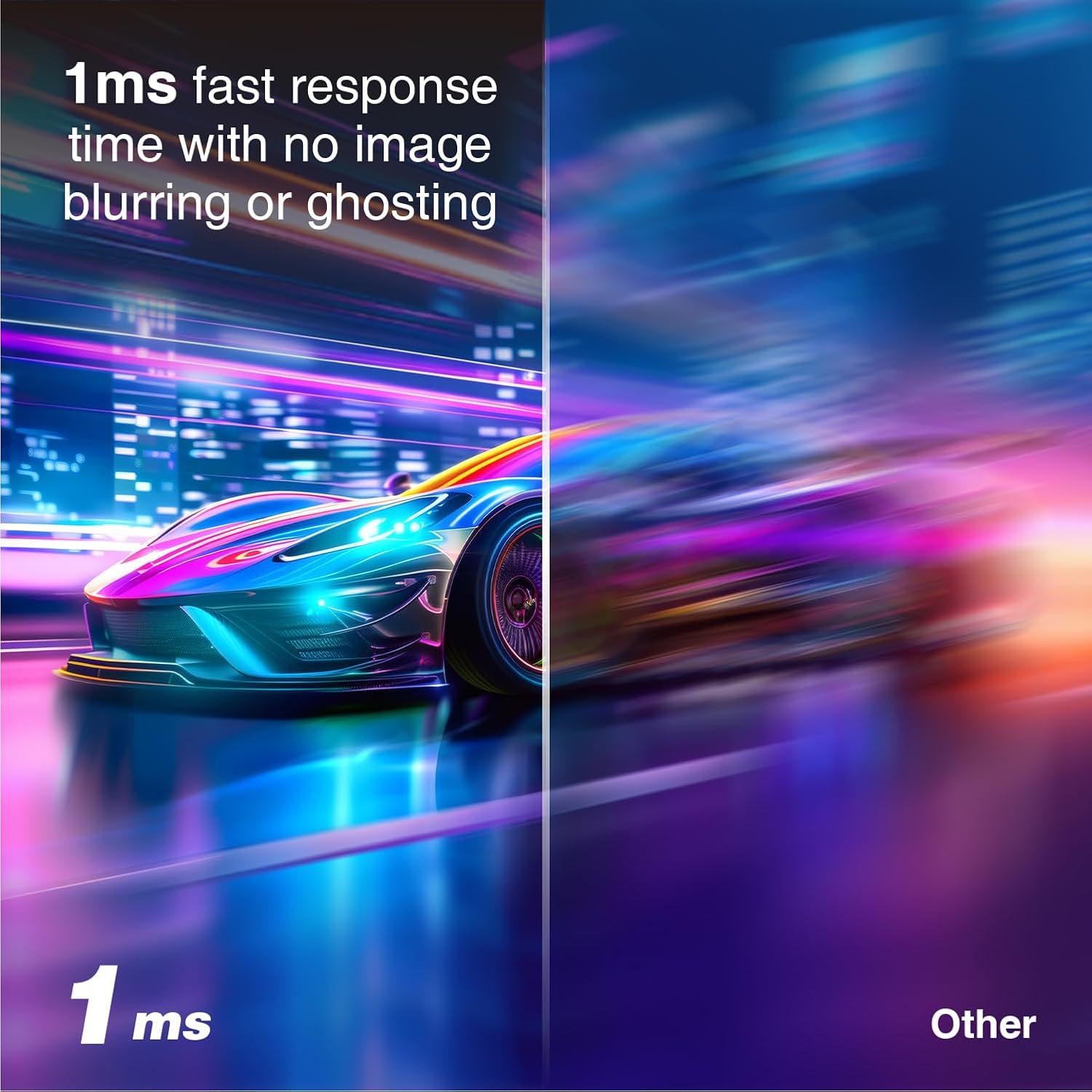
Image: The monitor's OSD menu, showing options like Brightness, Enter Menu, Input Signal, Exit Guide, and Power.
3.3 Input Signal Selection
To switch between connected devices (e.g., PC via DisplayPort, console via HDMI), access the OSD menu and navigate to the 'Input Signal' option. Select the desired input source.
3.4 Display Settings
Within the OSD menu, you can adjust various display settings:
- Brightness/Contrast: Adjust these to your preference for optimal viewing.
- Color Settings: Fine-tune color temperature, gamma, and saturation.
- Adaptive Sync: Ensure this feature is enabled in the OSD menu and your graphics card settings to prevent screen tearing.
- Low Blue Light: Activate this mode to reduce blue light emissions, which can help reduce eye strain.

Image: A visual representation of Adaptive Sync technology, showing a smooth image with Adaptive Sync ON versus a torn image with Adaptive Sync OFF.

Image: A side-by-side comparison demonstrating the clarity of 200Hz refresh rate versus the blur of 75Hz, using a racing car as an example.

Image: A visual explanation of VA panel technology and 100% sRGB wide color gamut, illustrating consistent color and wide viewing angles.

Image: A comparison showing the benefits of Flicker-Free Technology and Low Blue Light, reducing visual artifacts and eye strain.
4. Maintenance
4.1 Cleaning the Monitor
To clean the screen, gently wipe it with a soft, lint-free cloth. For stubborn marks, dampen the cloth with a small amount of water or a non-abrasive screen cleaner. Avoid using harsh chemicals or abrasive materials, as these can damage the screen surface. For the monitor casing, use a soft, dry cloth.
4.2 General Care
Keep the monitor in a well-ventilated area. Avoid exposing it to direct sunlight, high temperatures, or excessive humidity. Do not block the ventilation openings on the monitor. Disconnect the power cable during lightning storms or when the monitor will be unused for extended periods.
5. Troubleshooting
If you encounter issues with your monitor, refer to the following common troubleshooting steps:
- No Power: Ensure the power cable is securely connected to both the monitor and the power outlet. Check if the power outlet is functioning.
- No Signal: Verify that the video input cable (DisplayPort or HDMI) is correctly connected to both the monitor and your computer/device. Select the correct input source via the OSD menu.
- Screen Tearing/Stuttering: Confirm that Adaptive Sync is enabled in both the monitor's OSD settings and your graphics card control panel.
- No Sound from Monitor: This monitor does not feature built-in speakers. Ensure external speakers or headphones are connected to the monitor's 3.5mm audio output jack or directly to your computer. Check audio settings on your computer to ensure output is directed to the correct device.
- Image Quality Issues: Adjust brightness, contrast, and color settings through the OSD menu. Ensure your computer's display resolution and refresh rate are set correctly for the monitor (3440x1440p at 200Hz).
6. Specifications
| Feature | Specification |
|---|---|
| Model Number | AD34EQ3C |
| Screen Size | 34 Inches |
| Resolution | 3440 x 1440 Pixels (WQHD) |
| Aspect Ratio | 21:9 |
| Refresh Rate | 200Hz |
| Response Time | 1ms |
| Panel Type | VA |
| Color Gamut | 120% sRGB, 85% NTSC |
| Contrast Ratio | 3000:1 |
| Viewing Angles (H/V) | 178° / 178° |
| Connectivity | HDMI (TMDS) & DP Ports |
| Mounting | 100x100mm VESA Wall Mount Pattern |
| Product Dimensions | 21.2 x 1.6 x 13.4 inches |
| Item Weight | 17.16 pounds |
7. Warranty and Support
For warranty information, technical support, or service inquiries, please refer to the warranty card included with your product or visit the official ArcticPro website. Keep your purchase receipt as proof of purchase for warranty claims.
For additional assistance, you may contact ArcticPro customer service through their official channels.


