
1. Introduction
Thank you for choosing the ArcticPro 27-inch FHD 1080p 144Hz IPS Computer Monitor. This manual provides essential information for the safe and efficient use of your new monitor. Please read it thoroughly before installation and operation, and retain it for future reference.

Figure 1.1: ArcticPro 27-inch FHD 144Hz IPS Computer Monitor
2. Safety Information
- Power Source: Use only the power adapter supplied with the monitor. Ensure the power outlet is properly grounded.
- Ventilation: Do not block ventilation openings. Allow adequate space around the monitor for proper airflow.
- Liquid Exposure: Keep the monitor away from water or other liquids. Do not operate in high humidity environments.
- Cleaning: Disconnect the power cable before cleaning. Use a soft, dry cloth. Avoid liquid or aerosol cleaners.
- Placement: Place the monitor on a stable, flat surface. Avoid direct sunlight or heat sources.
- Eye Comfort: This monitor features an Anti-Blue Light design to reduce eye strain. For prolonged use, take regular breaks and adjust screen brightness to a comfortable level.
3. Package Contents
Verify that all items are present and in good condition upon unpacking. If any items are missing or damaged, contact your retailer.
- ArcticPro 27-inch Monitor
- Monitor Stand (Base and Neck)
- Power Adapter
- HDMI Cable
- DisplayPort (DP) Cable
- User Manual
4. Setup Instructions
4.1 Assembling the Monitor Stand
- Carefully remove the monitor from its packaging, placing it face down on a soft, clean surface to prevent scratches.
- Attach the stand neck to the monitor panel by aligning the tabs and pushing until it clicks into place.
- Attach the stand base to the stand neck, securing it with the provided screw (if applicable).
- Carefully lift the assembled monitor and place it on a stable desk.

Figure 4.1: Monitor Stand Assembly
4.2 Connecting to a Device
The ArcticPro monitor supports multiple input options. Choose the appropriate cable for your device (PC, gaming console, laptop, etc.).
- HDMI Connection: Connect one end of the HDMI cable to the HDMI port on your monitor and the other end to the HDMI output port on your device.
- DisplayPort (DP) Connection: Connect one end of the DP cable to the DP port on your monitor and the other end to the DP output port on your device.
- Power Connection: Connect the power adapter to the monitor's power input, then plug the power cable into a grounded electrical outlet.
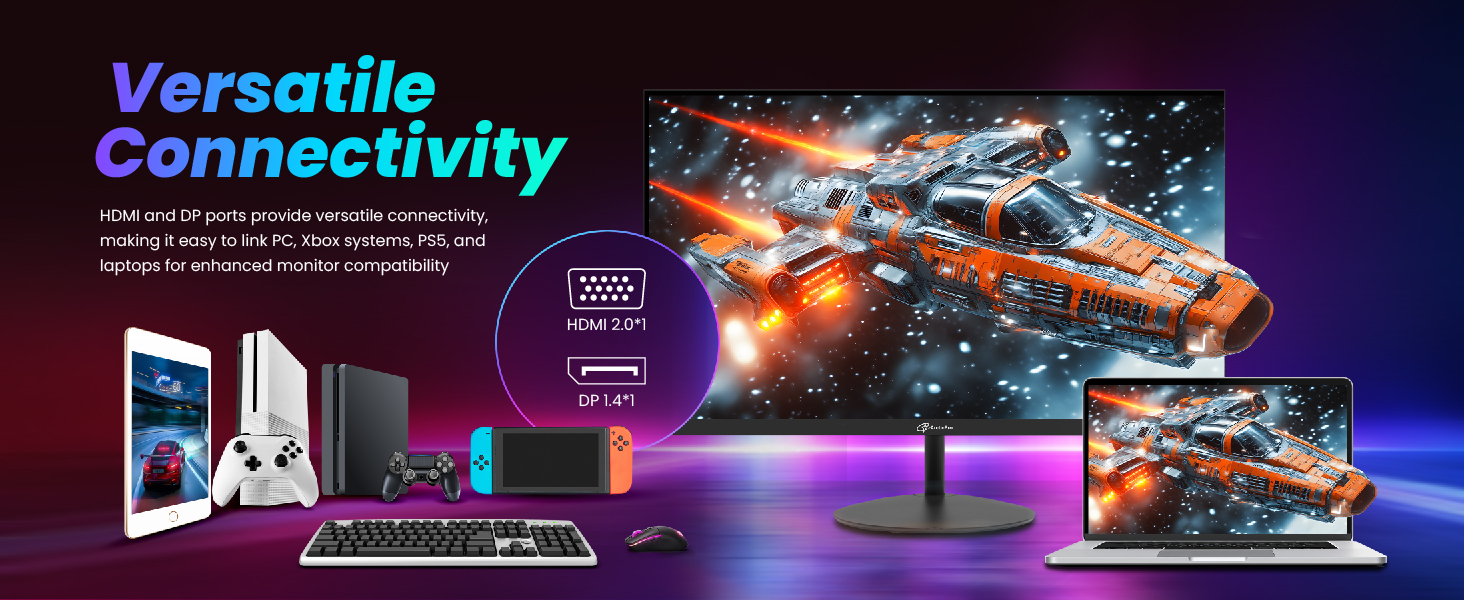
Figure 4.2: Versatile Connectivity Options
4.3 VESA Wall Mounting
The monitor is VESA mountable (75x75mm). To mount the monitor, remove the stand and attach a compatible VESA mount (not included) to the back of the monitor. Follow the instructions provided with your VESA mount.
5. Operating Instructions
5.1 Powering On/Off
Press the power button located on the monitor to turn it on or off. The power indicator light will illuminate when the monitor is on.
5.2 On-Screen Display (OSD) Menu
Use the buttons on the monitor to navigate and adjust settings within the OSD menu. Common settings include:
- Brightness/Contrast: Adjust the overall luminance and contrast of the display.
- Color Settings: Modify color temperature, hue, and saturation.
- Input Selection: Manually select the input source (HDMI, DP).
- Picture Mode: Choose from preset display modes (e.g., Standard, Game, Movie, Text).
- Adaptive Sync: Enable or disable Adaptive Sync for smoother visuals, especially during gaming.
- Low Blue Light: Adjust the blue light filter to reduce eye strain.
5.3 Key Features
- Full HD Resolution (1920x1080p): Provides clear and detailed images.

Figure 5.1: Full HD Resolution Clarity
- 144Hz Refresh Rate & 1ms Response Time: Delivers smooth motion and reduced ghosting, ideal for fast-paced content and gaming.
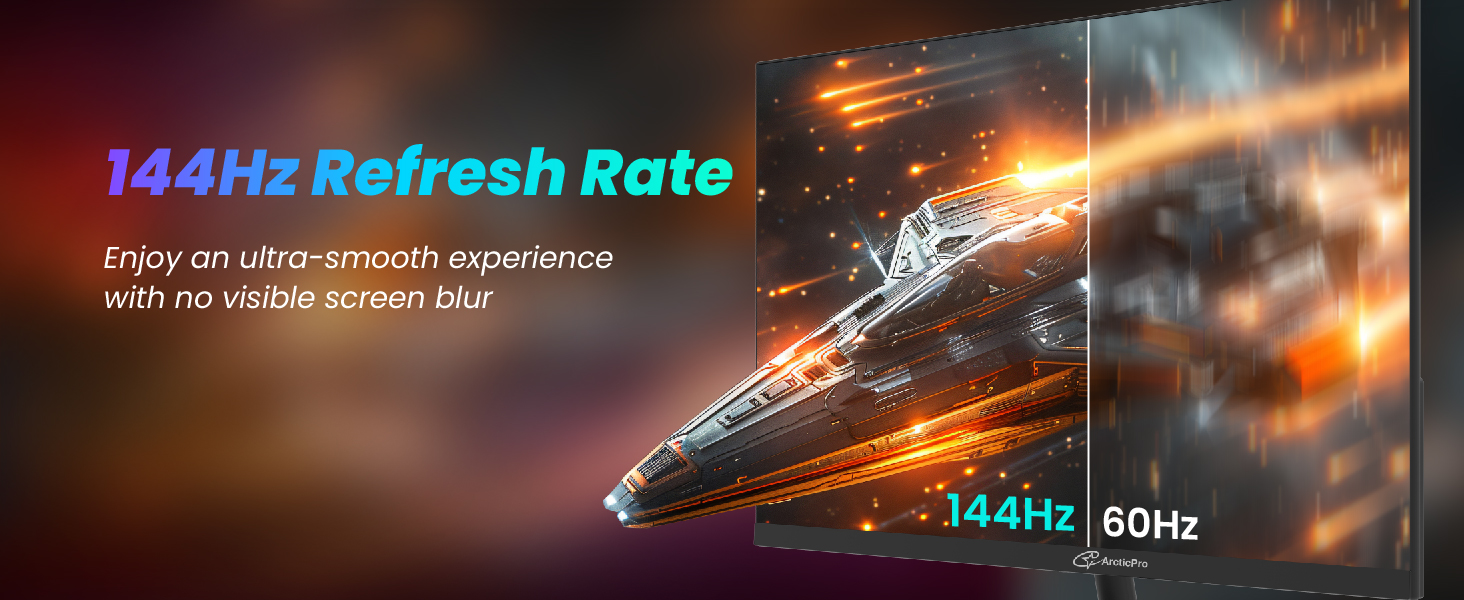
Figure 5.2: 144Hz Refresh Rate for Smooth Visuals
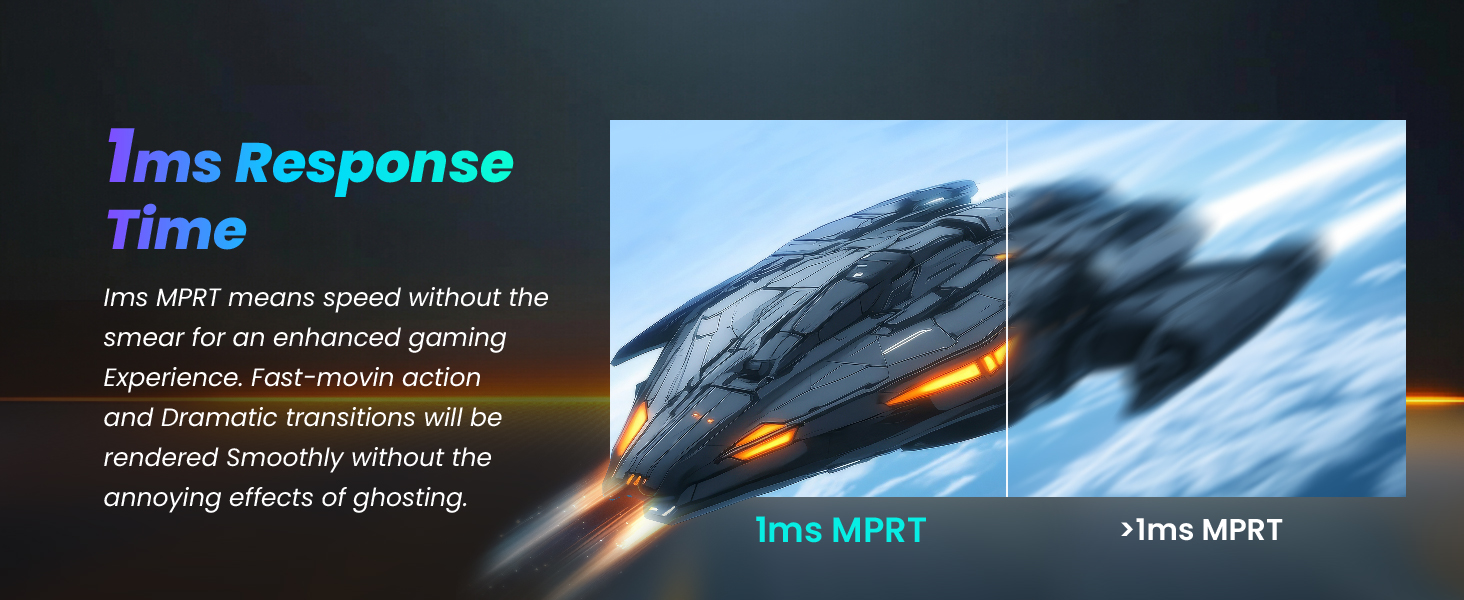
Figure 5.3: 1ms Response Time for Enhanced Clarity
- IPS Panel with Wide Color Gamut (110% sRGB, 72% NTSC): Offers wide viewing angles and accurate color reproduction.

Figure 5.4: IPS Panel Technology
- Adaptive Sync: Synchronizes the monitor's refresh rate with your graphics card's frame rate to eliminate screen tearing and stuttering.
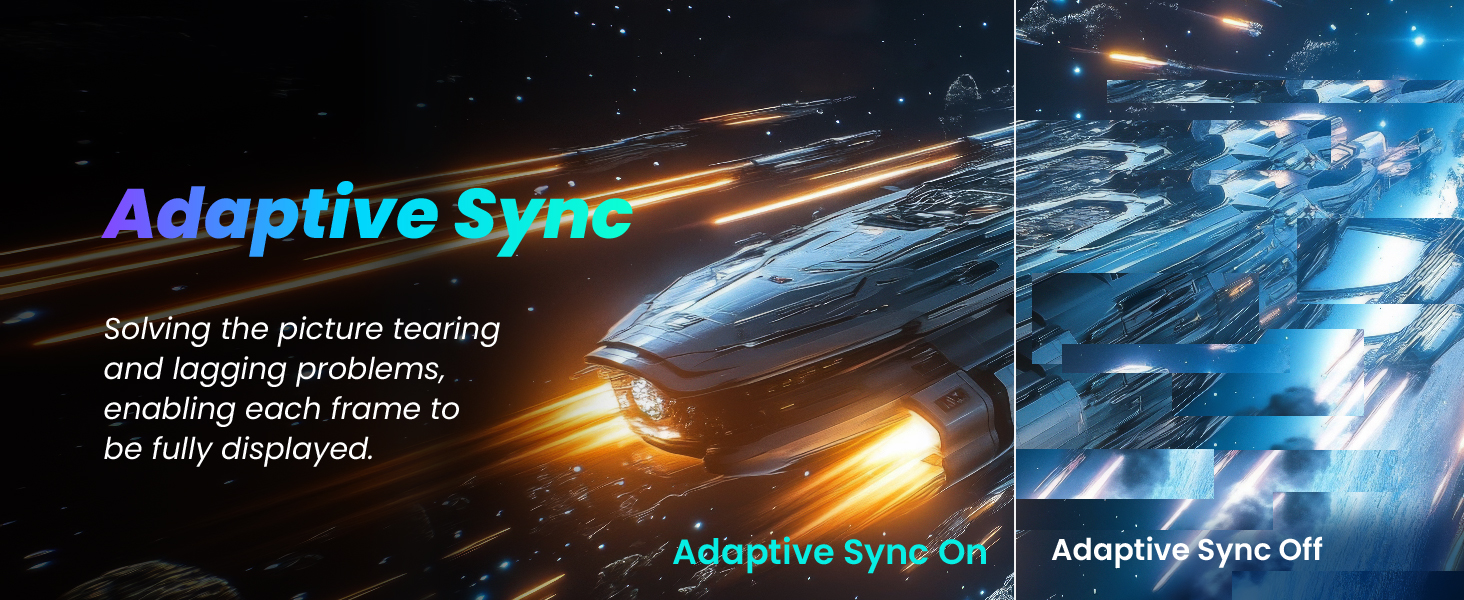
Figure 5.5: Adaptive Sync in Action
- Anti-Blue Light & Flicker-Free Technology: Reduces eye strain during extended viewing periods.
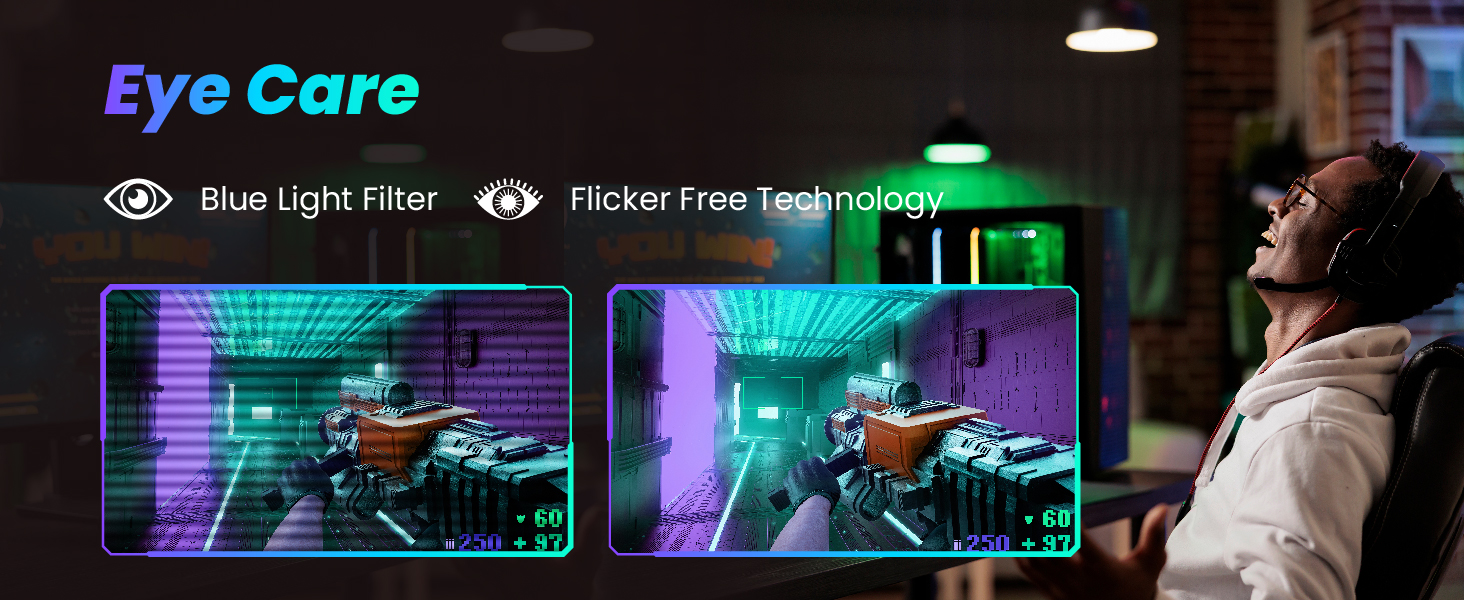
Figure 5.6: Eye Care Features
- 3-Sided Frameless Design: Maximizes screen space and provides an immersive viewing experience.
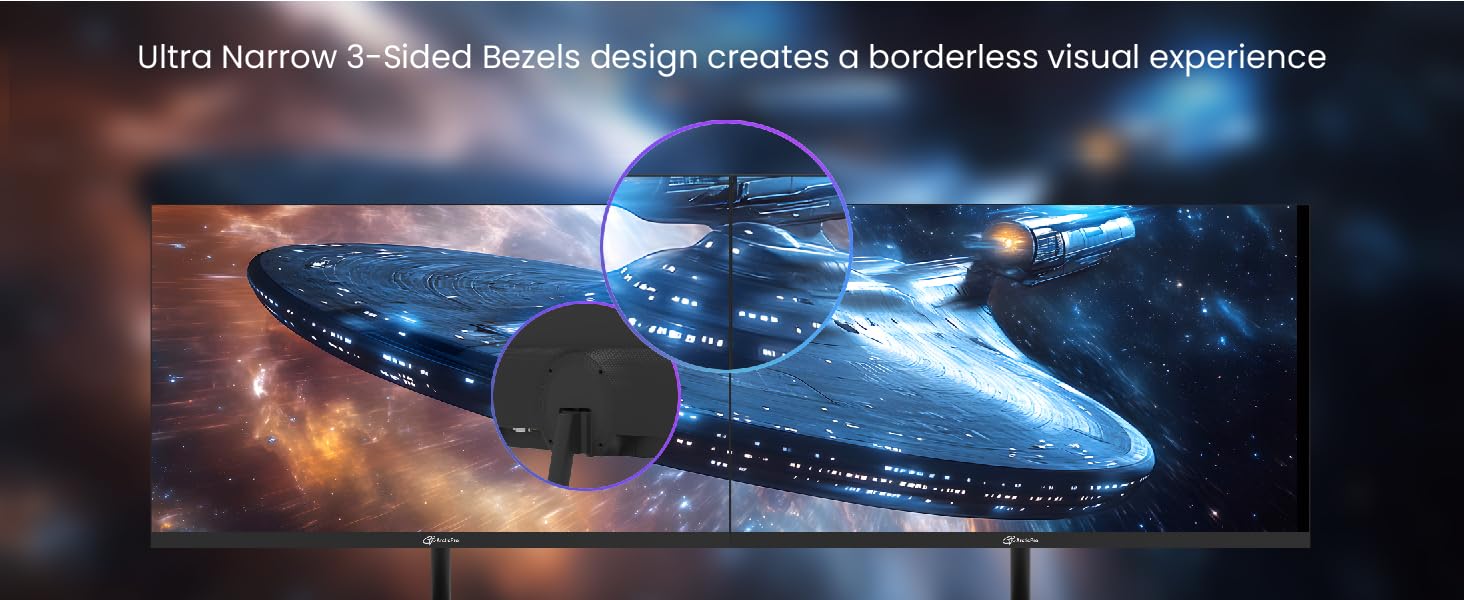
Figure 5.7: 3-Sided Frameless Design
6. Maintenance
- Cleaning the Screen: Gently wipe the screen with a soft, lint-free cloth. For stubborn marks, lightly dampen the cloth with water or a specialized screen cleaner. Do not spray liquid directly onto the screen.
- Cleaning the Casing: Use a soft, dry cloth to clean the monitor casing. Avoid abrasive cleaners or solvents.
- Storage: If storing the monitor for an extended period, disconnect it from power and store it in a cool, dry place, preferably in its original packaging.
7. Troubleshooting
If you encounter issues with your monitor, refer to the following common problems and solutions:
| Problem | Possible Solution |
|---|---|
| No image on screen |
|
| Image is blurry or distorted |
|
| Screen tearing or stuttering during gaming |
|
| No sound (if external speakers are connected) |
|
8. Specifications
| Feature | Detail |
|---|---|
| Brand | ArcticPro |
| Model Number | AD27EF2 |
| Screen Size | 27 Inches |
| Resolution | 1920 x 1080 Pixels (FHD 1080p) |
| Refresh Rate | 144Hz |
| Response Time | 1ms |
| Panel Type | IPS |
| Aspect Ratio | 16:9 |
| Color Gamut | 110% sRGB, 72% NTSC |
| Viewing Angle | 178° (H) / 178° (V) |
| Features | Adaptive Sync, Anti-Blue Light Design, 3-Sided Frameless, Ultra Slim |
| Connectivity | HDMI, DisplayPort (DP) |
| VESA Mount | 75x75mm |
| Product Dimensions | 24.18 x 2.01 x 14.29 inches |
| Item Weight | 11.18 pounds |
| Manufacturer | Hangzhou Yulian Technology Co., Ltd |
9. Warranty and Support
For warranty information and technical support, please refer to the warranty card included with your product or visit the official ArcticPro website. Keep your purchase receipt as proof of purchase for warranty claims.
Manufacturer: Hangzhou Yulian Technology Co., Ltd