
1. Introduction
This manual provides essential information for the proper setup, operation, and maintenance of your ArcticPro 27-inch Gaming Monitor, model AD27EF4. Please read this manual thoroughly before using the monitor to ensure optimal performance and safety.
2. Setup Instructions
2.1 Unpacking and Component Check
Carefully remove all components from the packaging. Verify that all items listed in the product packaging are present and undamaged. If any items are missing or damaged, please contact customer support.
2.2 Stand Assembly
The monitor stand is designed for easy assembly. Attach the base to the stand arm using the provided screws. Then, secure the assembled stand to the back of the monitor. Ensure all screws are tightened for stability.
2.3 Connecting the Monitor
Your ArcticPro monitor supports multiple input options. Connect the appropriate cable from your computer or device to the monitor's input ports.
- DisplayPort (DP 1.4): For high-resolution and high-refresh-rate connections.
- HDMI (HDMI 2.0): For standard high-definition connections.
- Audio Out: Connect external speakers or headphones to this port.
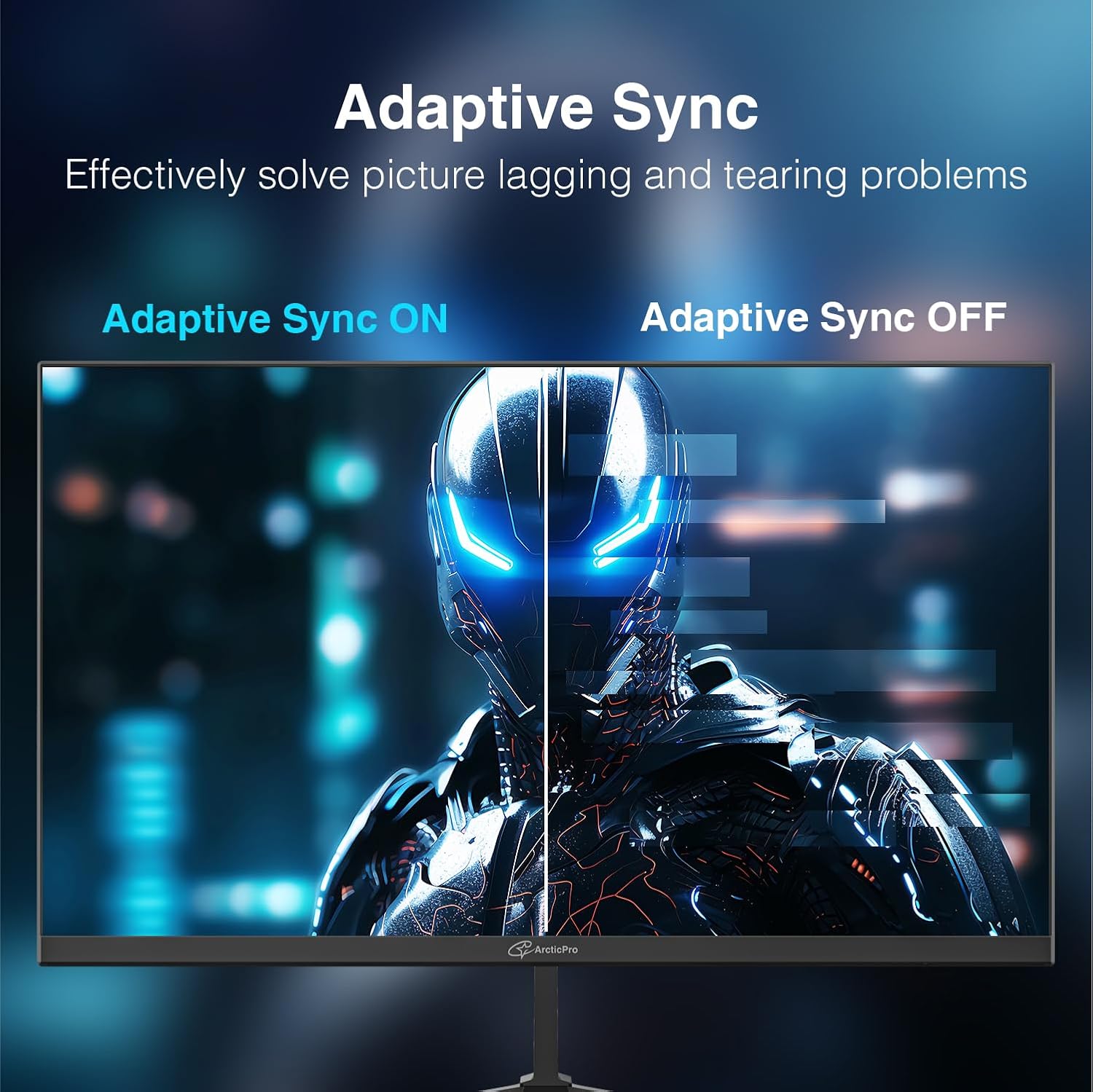
Image: Rear view of the ArcticPro monitor, highlighting the DisplayPort, HDMI, and audio output connections. A finger points to the HDMI port, indicating its location.
2.4 Powering On
Connect the power adapter to the monitor's power input and then to a power outlet. Press the power button, typically located on the back or bottom of the monitor, to turn it on. The power indicator light will illuminate.
3. Operating Instructions
3.1 On-Screen Display (OSD) Menu Navigation
The monitor features an intuitive On-Screen Display (OSD) menu for adjusting settings. A control button, usually located on the back of the monitor, allows you to navigate through the menu options. Press the button to access the main menu, then use it to select and confirm options.
3.2 Adjusting Brightness
From the OSD menu, navigate to the 'Brightness' setting to adjust the display's luminance to your preference.
3.3 Selecting Input Signal
If you have multiple devices connected, use the 'Input Signal' option in the OSD menu to switch between HDMI and DisplayPort inputs.
3.4 Key Features
- Full HD Resolution (1920x1080p): Experience sharp and clear visuals with a 1920x1080p Full HD resolution, providing vivid colors and detailed images for an immersive viewing experience.

Image: A split screen comparison demonstrating the clarity of Full HD 1080p resolution on the left versus 720p on the right, showing a robot's face with enhanced detail at 1080p.
- 240Hz Refresh Rate: Enjoy ultra-smooth motion and reduced input lag with a high 240Hz refresh rate, ideal for fast-paced gaming and fluid visual experiences.
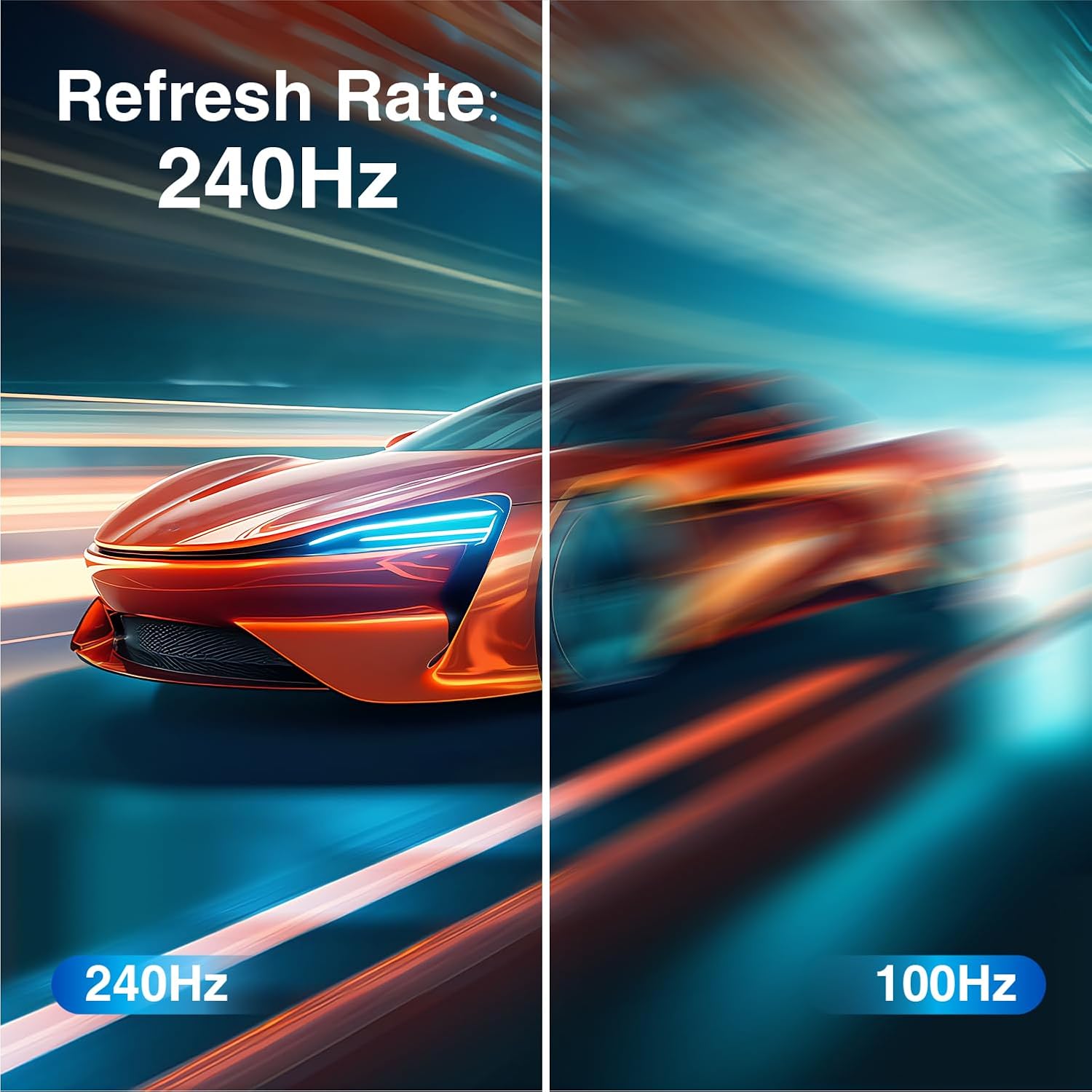
Image: A split screen showing a car in motion, with the left side illustrating the smooth rendering at 240Hz and the right side showing motion blur at 100Hz.
- 1ms Response Time (MPRT): Achieve crisp images without blurring or ghosting during rapid movements, thanks to the 1ms Moving Picture Response Time (MPRT).

Image: A split screen demonstrating the difference between 1ms response time (left) and a slower response time (right), with a spaceship appearing sharp at 1ms and blurred at a slower speed.
- Adaptive Sync Technology: Eliminate screen tearing and stuttering for a seamless visual experience, especially during gaming, by enabling Adaptive Sync.

Image: A monitor displaying a robot character. The left side shows 'Adaptive Sync ON' with a smooth image, while the right side shows 'Adaptive Sync OFF' with visible screen tearing.
- IPS Panel & Wide Color Gamut (99% sRGB): Enjoy consistent, vibrant colors and wide viewing angles (178°) with the In-Plane Switching (IPS) panel and 99% sRGB color gamut, meeting the demands for accurate image texture.

Image: The ArcticPro monitor displaying a colorful, abstract image, with text indicating "IPS In-Plane Switching" and a color spectrum logo, emphasizing wide viewing angles and color accuracy.
- Eye Care Features (Low Blue Light & Flicker-Free): Reduce eye strain during extended use with built-in Low Blue Light and Flicker-Free technologies, promoting a more comfortable viewing experience.

Image: A split screen showing a gaming scene. The left side depicts visible flickering lines, while the right side shows a smooth, flicker-free image, illustrating the benefit of eye care technology.
- 178° Wide Viewing Angles and Tilt: The monitor offers 178° horizontal and vertical viewing angles, ensuring consistent image quality from various perspectives. It also features tilt angles of -5°±2° to 15°±2° for ergonomic adjustment.

Image: A graphic illustrating the monitor's 178° wide viewing angles and its tilt adjustment range from -5° to 15°, with multiple monitors shown from different perspectives.
- 3-Sided Frameless Design: The ultra-narrow 3-sided bezels create a near-borderless visual experience, ideal for multi-monitor setups and immersive viewing.
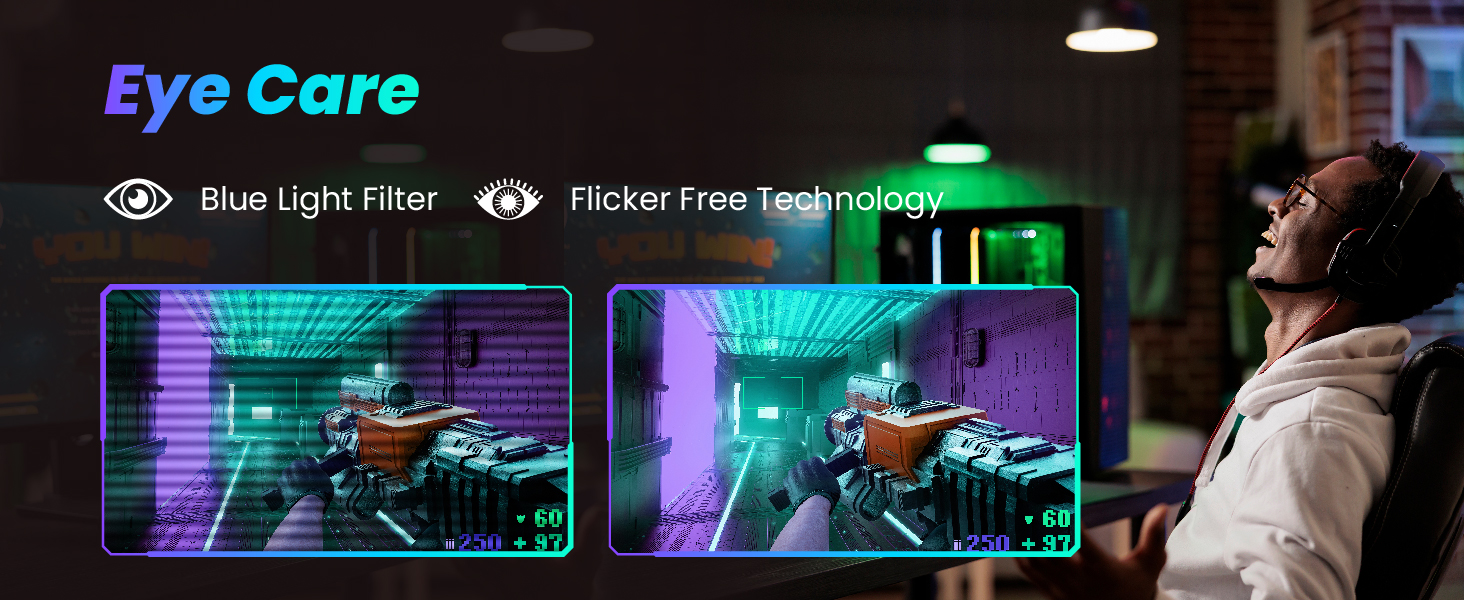
Image: A close-up view of two ArcticPro monitors side-by-side, highlighting their ultra-narrow 3-sided bezels for a seamless multi-display setup.
4. Maintenance
4.1 Cleaning the Monitor
To clean the screen, gently wipe it with a soft, lint-free cloth. For stubborn marks, dampen the cloth with a mild, non-abrasive screen cleaner. Avoid using alcohol-based cleaners or spraying liquid directly onto the screen.
4.2 General Care
Keep the monitor in a well-ventilated area. Avoid exposing it to direct sunlight, high humidity, or extreme temperatures. Do not place heavy objects on the monitor or its cables.
5. Troubleshooting
5.1 No Power
- Ensure the power cable is securely connected to both the monitor and the power outlet.
- Verify the power outlet is functioning correctly by plugging in another device.
- Check if the power indicator light on the monitor is on.
5.2 No Signal
- Confirm that the video cable (HDMI or DisplayPort) is properly connected to both the monitor and your computer/device.
- Use the OSD menu to manually select the correct input source.
- Ensure your computer/device is powered on and outputting a video signal.
5.3 Image Flickering or Distortion
- Check the video cable for any damage or loose connections. Try a different cable if available.
- Adjust the refresh rate settings on your computer.
- Disable or enable Adaptive Sync in the OSD menu to see if it resolves the issue.
6. Specifications
| Feature | Specification |
|---|---|
| Model Number | AD27EF4 |
| Screen Size | 27 Inches |
| Resolution | FHD 1080p (1920 x 1080 Pixels) |
| Refresh Rate | 240Hz |
| Response Time | 1ms (MPRT) |
| Panel Type | IPS |
| Aspect Ratio | 16:9 |
| Image Brightness | 300 cd/m² |
| Color Gamut | 99% sRGB, 85% NTSC |
| Viewing Angles | 178° (Horizontal) / 178° (Vertical) |
| Tilt Angles | -5°±2° / 15°±2° |
| Connectivity | HDMI 2.0, DisplayPort 1.4, Audio Out |
| VESA Mount Pattern | 100x100mm |
| Product Dimensions | 24.18 x 1.84 x 14.29 inches |
| Item Weight | 9.98 pounds |
7. Warranty and Support
ArcticPro monitors come with a standard manufacturer's warranty. For detailed warranty information, please refer to the warranty card included with your product or visit the official ArcticPro website. For technical support, troubleshooting assistance, or service inquiries, please contact ArcticPro customer support through their official channels.