
Introduction
Welcome to the TECKNET Wireless Mouse Jiggler manual. This document provides detailed instructions for setting up, operating, and maintaining your new mouse. Designed for comfort and efficiency, this mouse features a built-in jiggler mode, silent clicks, and adjustable DPI settings to enhance your productivity.
Package Contents
Upon receiving your package, please verify all contents are complete:
- Wireless Mouse
- Type-C Charging Cable
- USB-C to USB-A adapter (in the box)
- USB-A Receiver (with mouse)

Image: The TECKNET Wireless Mouse, showing the mouse itself, the USB-C charging cable, and the USB-A receiver with a USB-C to USB-A adapter.
Product Overview
The TECKNET Wireless Mouse is designed for versatile use across various devices and scenarios. Key features include:
- 2-in-1 Built-in Mouse Jiggler: Keeps your computer active to prevent screen lock.
- 3X Faster Charge, Long-lasting Performance: Built-in 800mAh rechargeable battery provides up to 90 days of use on a 2-hour charge.
- USB-A & Type-C Dual Mode: Includes both USB-A and USB-C adapters for universal compatibility.
- Silent Click: Operates 90% quieter than standard mice, ideal for quiet environments.
- 6-Level Adjustable DPI: Customizable DPI settings (1000/1600/2400/3200/4800/6400) for various tasks.
- Full-size Ergonomic Design: Soft rubber grip and natural curvature for lasting comfort, reducing wrist strain.

Image: This diagram highlights the key components of your TECKNET Wireless Mouse, including the left button, right button, scroll wheel, DPI switch, Type-C charging port, ON/OFF switch, and the USB receiver storage location.
Setup
To connect your TECKNET Wireless Mouse to your device:
- Turn on the power switch located on the bottom of the mouse.
- Remove the USB receiver from its slot on the bottom of the mouse.
- Insert the USB receiver into an available USB-A port on your device. If your device only has USB-C ports, use the provided USB-C to USB-A adapter.
- The mouse should automatically pair with your device.
If the connection fails, press and hold both the scroll wheel and right button for 3 seconds until the indicator light flashes rapidly. Then, reinsert the USB receiver within 20 seconds to establish a successful connection.
Video: This official TECKNET video provides a visual guide to unboxing, connecting, and demonstrating key features like DPI adjustment and the mouse jiggler mode.
Operating Instructions
Once connected, your TECKNET Wireless Mouse is ready for use. Move the mouse to control the cursor on your screen, and use the left and right buttons for clicking and context menus. The scroll wheel allows for easy navigation through documents and web pages.
DPI Adjustment
The mouse offers 6 customizable DPI settings to adjust cursor sensitivity:
- 1000 DPI
- 1600 DPI
- 2400 DPI
- 3200 DPI
- 4800 DPI
- 6400 DPI
To change the DPI, simply press the DPI button located behind the scroll wheel. Each press cycles through the available sensitivities, indicated by the red light flashing a corresponding number of times (e.g., one blink for 1000 DPI, two blinks for 1600 DPI, and so on).

Image: The TECKNET Wireless Mouse offers 6 adjustable DPI levels (1000/1600/2400/3200/4800/6400) to suit various tasks, from precise drawing to fast-paced gaming. Each press of the DPI button cycles through these sensitivities, indicated by the red light.
Mouse Jiggler Mode
The TECKNET Wireless Mouse features a built-in jiggler mode to keep your computer active and prevent it from going to sleep or locking the screen. This is particularly useful for presentations or when you need to maintain an active status.
To activate the jiggler mode, press and hold the DPI button for 3-5 seconds until the indicator light turns solid red. The mouse cursor will then move slightly at regular intervals.
To deactivate the jiggler mode, repeat the action: press and hold the DPI button for 3-5 seconds until the light extinguishes.

Image: The built-in mouse jiggler feature prevents your computer from going to sleep or locking the screen. Simply long-press the DPI button for 3-5 seconds to activate this mode, and repeat the action to deactivate it.
Charging
The TECKNET Wireless Mouse is equipped with an 800mAh rechargeable battery, offering extended use and eliminating the need for disposable batteries.
To charge the mouse, connect the provided Type-C charging cable to the charging port on the front of the mouse and the other end to a USB power source (e.g., computer USB port, wall adapter).
A steady red LED light on the mouse indicates that it is actively charging. The LED light will turn off when the battery is fully charged, typically within 2 hours for up to 90 days of uninterrupted use.
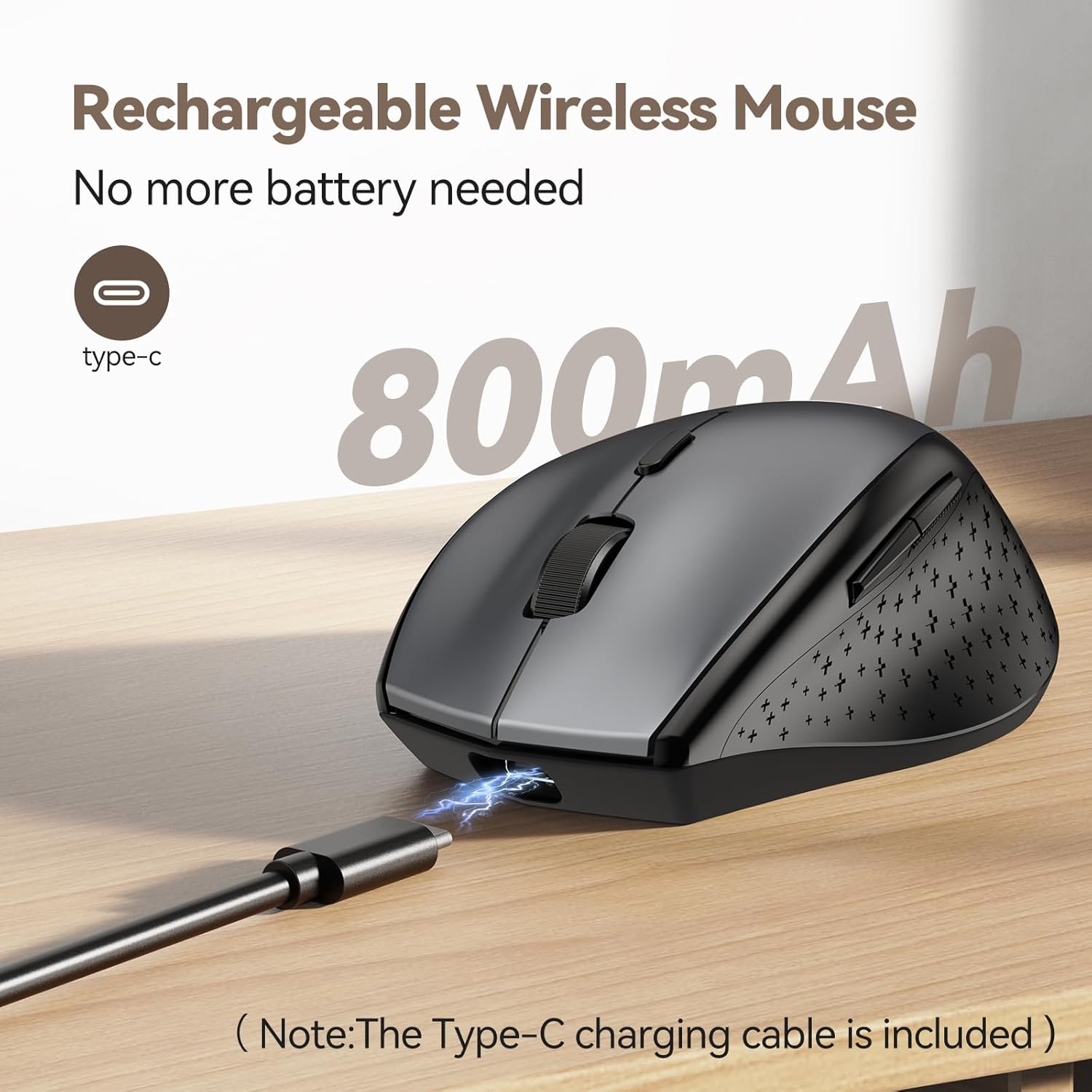
Image: The mouse features an 800mAh rechargeable battery. Connect the provided USB-C charging cable to the mouse's Type-C port. A steady red LED indicates active charging, and the light turns off when fully charged.
Connectivity Options
The TECKNET Wireless Mouse offers flexible connectivity with both USB-A and USB-C compatibility, ensuring it works with a wide range of devices.
The mouse comes with a standard USB-A receiver. For devices with only USB-C ports, a USB-C to USB-A adapter is included. Simply plug the USB-A receiver into the adapter, and then plug the adapter into your device's USB-C port. No additional drivers are needed for plug-and-play simplicity.

Image: This mouse comes with both USB-A and USB-C adapters, ensuring broad compatibility with various devices. The USB-C to USB-A adapter allows the mouse to connect to modern USB-C ports.
Maintenance
To ensure the longevity and optimal performance of your TECKNET Wireless Mouse, follow these simple maintenance guidelines:
- Cleaning: Use a soft, dry cloth to wipe the surface of the mouse. For stubborn dirt, slightly dampen the cloth with water or a mild cleaning solution. Avoid harsh chemicals or abrasive materials.
- Storage: When not in use, especially during travel, store the USB receiver inside its dedicated slot on the bottom of the mouse to prevent loss.
- Battery Care: Recharge the mouse when the indicator light suggests low battery. Avoid completely draining the battery frequently to prolong its lifespan.
- Avoid Extreme Conditions: Do not expose the mouse to extreme temperatures, direct sunlight, or high humidity.
Troubleshooting
If you encounter any issues with your TECKNET Wireless Mouse, please refer to the following common solutions:
- Mouse Not Responding:
- Ensure the mouse is powered on using the ON/OFF switch on the bottom.
- Check if the USB receiver is securely plugged into your computer's USB port.
- Try plugging the USB receiver into a different USB port.
- Recharge the mouse if the battery is low.
- Attempt to re-pair the mouse by following the connection steps in the Setup section.
- Cursor Movement is Erratic or Slow:
- Adjust the DPI setting using the DPI button to find a suitable sensitivity.
- Ensure the mouse is used on a clean, non-reflective surface.
- Check for any obstructions on the optical sensor on the bottom of the mouse.
- Jiggler Mode Not Activating/Deactivating:
- Ensure you are pressing and holding the DPI button for the full 3-5 seconds.
- Observe the indicator light for confirmation of activation (solid red) or deactivation (light off).
- Charging Issues:
- Verify the charging cable is properly connected to both the mouse and the power source.
- Try using a different USB port or power adapter.
- Ensure the charging cable is not damaged.
Specifications
| Feature | Detail |
|---|---|
| Brand | TECKNET |
| Model | B0F29GRQR9 |
| Color | Grey |
| Connectivity Technology | USB, USB-C to USB-A adapter |
| Special Feature | Built-in Mouse Jiggler, Quiet Click, Rechargeable, USB-C Connection |
| Movement Detection Technology | Optical |
| Item Weight | 5.3 ounces |
| Package Dimensions | 4.92 x 4.02 x 1.93 inches |
Warranty and Support
TECKNET is committed to providing high-quality products and excellent customer service. Each TECKNET product comes with lifetime support (registration required).
If you have any questions, require technical assistance, or need to claim warranty support, please contact our dedicated support team through the official TECKNET website or the contact information provided with your product packaging. Please have your model number (B0F29GRQR9) and purchase details ready when contacting support.


