
1. Introduction
This manual provides essential information for setting up, operating, and maintaining your MOREFINE Mini PC M9. Please read these instructions carefully before using the device to ensure optimal performance and safety.
The MOREFINE Mini PC M9 is a compact desktop computer designed for various applications, including office work, business tasks, and home entertainment. It features a 13th Generation Twin Lake N150 processor, 8GB DDR4 RAM, and a 256GB PCIe M.2 SSD, offering efficient performance in a small form factor.
2. Safety Information
- Ensure the power adapter is compatible with your local power supply.
- Do not expose the device to water, moisture, or extreme temperatures.
- Avoid placing the device in direct sunlight or near heat sources.
- Do not open the casing or attempt to repair the device yourself. Refer to qualified service personnel.
- Keep ventilation openings clear to prevent overheating.
- Use only approved accessories and peripherals.
3. Package Contents
Verify that all items are present in the package:
- MOREFINE Mini PC M9 Unit
- Power Adapter
- HDMI Cable
- User Manual
- VESA Mount (optional, may vary by package)
4. Product Overview
The MOREFINE Mini PC M9 is designed for efficiency and connectivity. Below are the key features and port layouts.
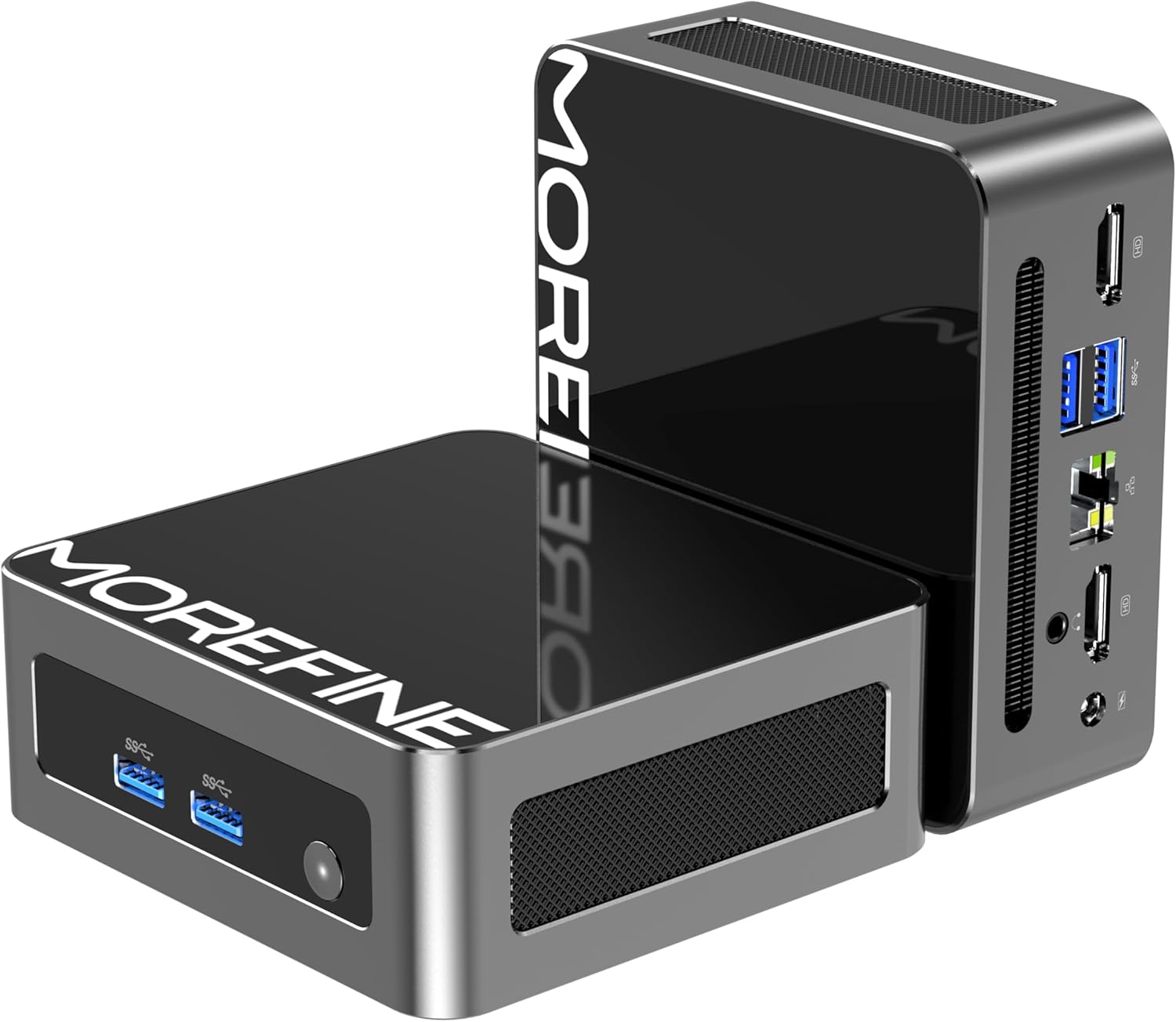
Image: Front and side view of the MOREFINE Mini PC M9, showcasing its compact design and accessible ports.

Image: Overview of the Mini PC's features including Twin Lake N150 processor, dual 4K output, space-saving design, quiet fan, DDR4 RAM, WiFi+Bluetooth, and 2.5G LAN.
Port Layout
- Front Ports: Power Button, USB 3.2 x 2
- Rear Ports: USB 3.2 x 2, 2.5GbE RJ45 x 1, HDMI 2.0 x 2, 3.5mm Audio Jack x 1, DC Power Input x 1

Image: Close-up of the side ports on the MOREFINE Mini PC M9, showing USB 3.2 ports and the power button.

Image: Rear view of the MOREFINE Mini PC M9, detailing the HDMI, USB, RJ45, and power input ports.
5. Setup
Follow these steps to set up your MOREFINE Mini PC M9:
- Connect Peripherals: Connect your monitor(s) to the HDMI ports using HDMI cables. Connect your keyboard and mouse to the USB ports.
- Network Connection: For a wired connection, connect an Ethernet cable to the 2.5GbE RJ45 port. For wireless, the device supports WiFi 6 and Bluetooth 5.2, which can be configured after initial boot.
- Power Connection: Connect the power adapter to the DC power input port on the Mini PC, then plug the adapter into a power outlet.
- Power On: Press the power button located on the front of the device. The system will boot up.
- Initial Setup: Follow the on-screen instructions to complete the operating system setup (e.g., Windows 11). This typically involves selecting language, region, and creating a user account.

Image: Demonstrates the compact size and multiple placement options for the Mini PC, including laying flat or mounting on the back of a monitor.
6. Operating
Dual Display Setup
The Mini PC supports dual 4K display output via its two HDMI 2.0 ports. To set up dual monitors:
- Connect both monitors to the HDMI ports on the Mini PC.
- Power on the Mini PC and both monitors.
- Once the operating system loads, right-click on the desktop and select 'Display settings' (Windows) or similar.
- Configure the display mode (e.g., Extend, Duplicate) and resolution for each monitor as desired.

Image: Illustration of the Mini PC connected to two monitors, demonstrating its dual 4K display capability for enhanced multitasking.
Network and Bluetooth Connectivity
- WiFi 6: Access network settings in your operating system to connect to available wireless networks.
- Bluetooth 5.2: Enable Bluetooth in your operating system settings to pair with compatible devices like keyboards, mice, or headphones.
Auto Power On and Wake On LAN
The Mini PC supports Auto Power On and Wake On LAN features. These settings can typically be configured within the BIOS/UEFI setup. To access BIOS/UEFI, press the 'Del' key repeatedly during startup. You may need to adjust the boot delay in Windows advanced startup options if the default 1-second delay is too short.
7. Maintenance
Cleaning
- Use a soft, dry cloth to clean the exterior of the device.
- For stubborn dirt, slightly dampen the cloth with water. Avoid harsh chemicals.
- Periodically clean the ventilation openings with a soft brush or compressed air to prevent dust buildup.
Storage and RAM Expansion
The MOREFINE Mini PC M9 supports storage and RAM upgrades:
- RAM: The device has one DDR4 SODIMM slot, supporting up to 32GB DDR4 3200MHz RAM.
- Storage: It features one M.2 2280 NVMe PCIe 3.0 slot and one M.2 2242 SATA3 slot, supporting up to 4TB of storage expansion.
To perform upgrades, it is recommended to consult a qualified technician or refer to detailed online guides specific to the M9 model to avoid damaging internal components.

Image: Internal view of the Mini PC, highlighting the DDR4 SODIMM slot, M.2 2280 NVMe PCIe, and M.2 2242 SATA slots for memory and storage expansion.
8. Troubleshooting
If you encounter issues with your Mini PC, refer to the following common problems and solutions:
- No Power:
- Ensure the power adapter is securely connected to both the Mini PC and a working power outlet.
- Test the power outlet with another device.
- If the power button LED does not illuminate, there might be an issue with the power button or internal power delivery. Contact support if basic checks fail.
- No Display:
- Verify that the HDMI cable(s) are securely connected to both the Mini PC and the monitor(s).
- Ensure the monitor is powered on and set to the correct input source (HDMI 1, HDMI 2, etc.).
- Try connecting to a different monitor or using a different HDMI cable.
- No Network Connection (WiFi/Ethernet):
- For Ethernet, check the cable connection and router status.
- For WiFi, ensure WiFi is enabled in the operating system and you are connecting to the correct network with the correct password.
- Restart your router/modem and the Mini PC.
- Operating System Issues (e.g., updates failing):
- Ensure you have a stable internet connection for updates.
- Check for available disk space.
- Run the operating system's built-in troubleshooters.
- Consider performing a clean installation of the operating system if issues persist and are not resolved by standard troubleshooting.
9. Specifications
Detailed technical specifications for the MOREFINE Mini PC M9:
| Feature | Specification |
|---|---|
| Model | M9 |
| Processor | Intel 13th Gen Twin Lake N150 (4 Cores, 4 Threads, up to 3.6 GHz) |
| Graphics | Intel UHD Graphics (Integrated) |
| RAM | 8GB DDR4 3200MHz (Expandable up to 32GB) |
| Storage | 256GB PCIe M.2 SSD (Expandable up to 4TB via M.2 2280 NVMe PCIe 3.0 and M.2 2242 SATA3 slots) |
| Operating System | OS (Pre-installed, typically Windows) |
| Video Output | 2 x HDMI 2.0 (Supports Dual 4K@60Hz) |
| USB Ports | 4 x USB 3.2 |
| Network | 1 x 2.5GbE RJ45, WiFi 6 (802.11ax Dual-band), Bluetooth 5.2 |
| Audio | 1 x 3.5mm Audio Jack |
| Power Input | DC 12V/3A |
| Dimensions | Approximately 4.49 x 4.17 x 1.73 inches |
| Weight | Approximately 1.43 pounds |
10. Warranty and Support
Warranty Information
Your MOREFINE Mini PC M9 comes with a standard manufacturer's warranty. Please refer to the warranty card included in your package or the product listing for specific terms and duration. Keep your proof of purchase for warranty claims.
Technical Support
For technical assistance, troubleshooting beyond this manual, or warranty inquiries, please contact MOREFINE customer support through the retailer where you purchased the product or visit the official MOREFINE website for contact information.


